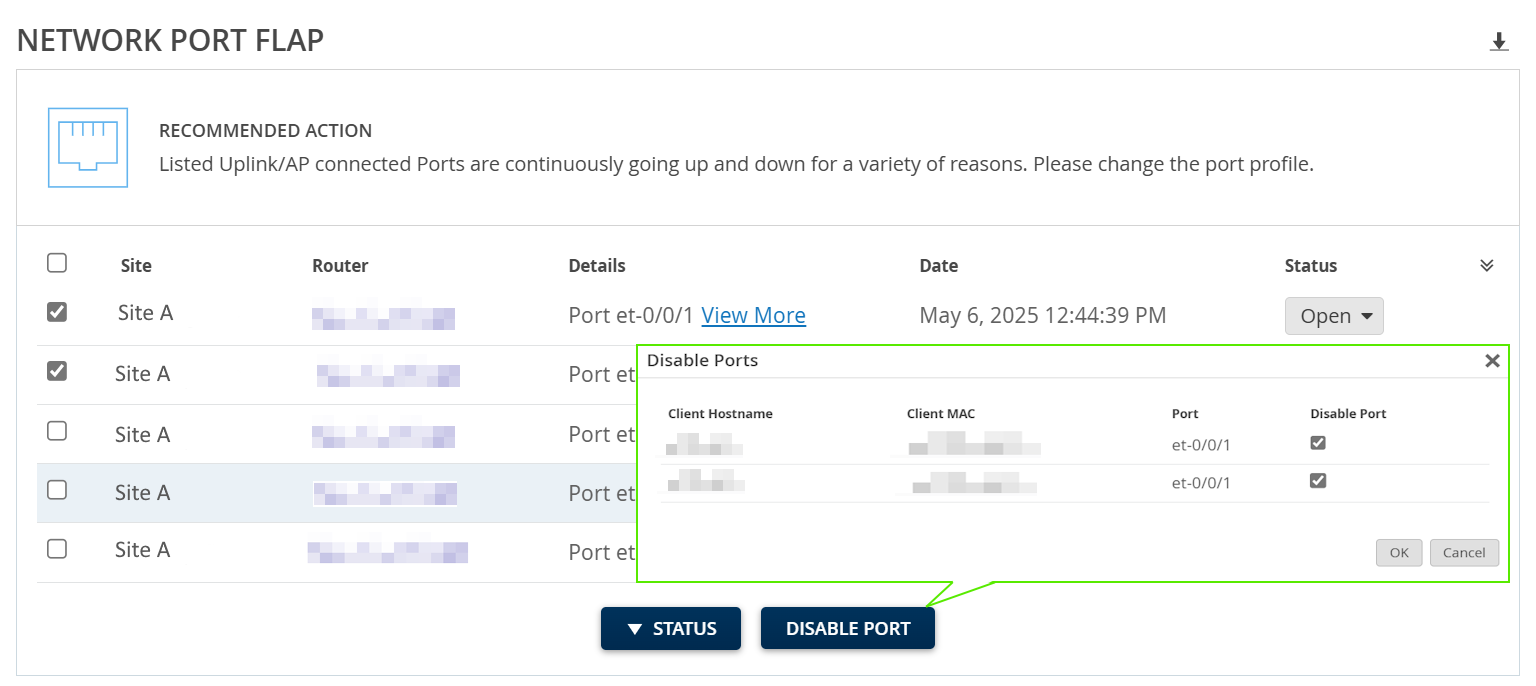
Disable Flapping Ports
Use the Marvis Actions dashboard to disable router ports that flap continuously.
To disable the router's flapping port/ports:
Navigate to Routers:Router
Name > Port List to verify the
status of the port. The status of the port should be down.
Disabling the ports stops the immediate flapping and can
stabilize the network temporarily. However, turning interfaces off causes service
downtime. You can disable the ports as an initial step in troubleshooting the
issue.
Note: Once the ports are disabled, they are not
automatically enabled. You must explicitly re-enable the disabled ports. You can
re-enable the port using the Bounce Port tool in the
Front Panel tab on the Routers:Router
Name page or underusing router
Utilities. For more information, see Bounce Ports.
Figure 1: Network Port Flap: Disable Ports