
ON THIS PAGE
Understanding the Site-Level Energy Dashboard
Use the Site-Level Energy Dashboard to monitor energy insights, identify inefficiencies, and gain visibility into site-level energy consumption. The site-level energy insights are organized into the two tabs: Overview and Topology.
About the Overview Tab
The Overview tab provides aggregated site-level energy metrics, trend visualizations, and device insights to help you analyze the energy profile of your site.
For an overview of the Site-Level Energy Dashboard, see View Sustainability Insights for a Site.
A page-level scope selector allows you to select a site. Based on the selected site, data is displayed on the energy dashboard.
- View a Site's Energy Metrics
- View Historical Trend Graphs for a Site
- Monitor Power and Throughput of Devices in a Site
- Monitor a Site's Power and Throughput Trends Over Time
- View Carbon Intensity Configured for a Site
- View the Average Power Cost Configured for a Site
- View the Top Devices in the Site by Selected Energy Metrics
View a Site's Energy Metrics
The site-level metric cards display key aggregated energy metrics for a site. These values are derived from device-level telemetry and aggregated at the site level.
Use the cards to get a high-level overview of the site's current energy profile.

For metrics description, see Table 1.
| Metric | Description | Unit | Notes |
|---|---|---|---|
| Power Usage | Real-time power consumption of the site, aggregated from device-level telemetry |
Kilowatts (kW) |
The timestamp indicates when the data was last updated. |
| Energy Consumption | Energy consumed by the site in the past hour |
Kilowatt-hour (kWh) |
The system aggregates power usage for a rolling one hour interval to calculate energy consumption |
| GHG Emission | Total greenhouse gas emissions generated by the site in the past hour |
gCO₂e |
GHG emission is calculated based on the carbon intensity you configure at the site or organization level. If not configured, a default value is displayed. See, Configure Sustainability Settings for a Site. |
| Total Cost | Estimated cost of energy consumed by the site in the past hour | USD ($) | If the Total Cost appears blank, verify that the Average Power Cost is configured at the site or organization level. See, Configure Sustainability Settings for a Site. |
-
The values displayed for Energy Consumption, GHG Emissions, and Total Cost represent aggregated values for a rolling one hour interval. The data is updated every 15 minutes.
-
The units displayed for Power Usage, Energy Consumption, and GHG Emissions are dynamically scaled based on the magnitude of the value.
-
Each metric card includes an indicator showing whether the value has increased, decreased, or remained stable compared to the previous hour.
View Historical Trend Graphs for a Site
You can view historical trend graphs for Energy Consumption, GHG Emission, and Total Cost for the selected site.
Click any of the three metric cards to view their trend charts for the selected time range (1 hour, 1 day, or 1 week) in the right pane. When you select a time range, the trend graph displays data for the rolling interval ending at the most recent available data point.
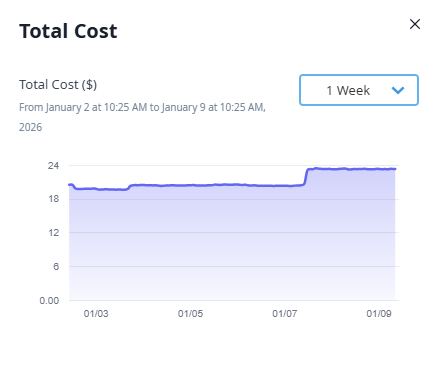
Figure 2 shows the site's power cost trend for the past week. You can view similar trend charts for the other two metrics as well.
The x-axis represents the selected time range and y-axis represents the aggregated site-level values of the selected metric for the selected time range. Hover over any point on the graph to see the exact metric value for that timestamp.
These trends help you identify recurring usage patterns, correlate energy usage with cost and emissions, validate the impact of optimization actions, and detect power consumption anomalies that may require further investigation or planning.
Monitor Power and Throughput of Devices in a Site
The Network: Power vs Throughput scatter graph shows the relationship between throughput and power consumption for individual devices in the site over the past hour.
Use this graph to visually compare how devices in the site differ in terms of the traffic they handle and the power they consume.
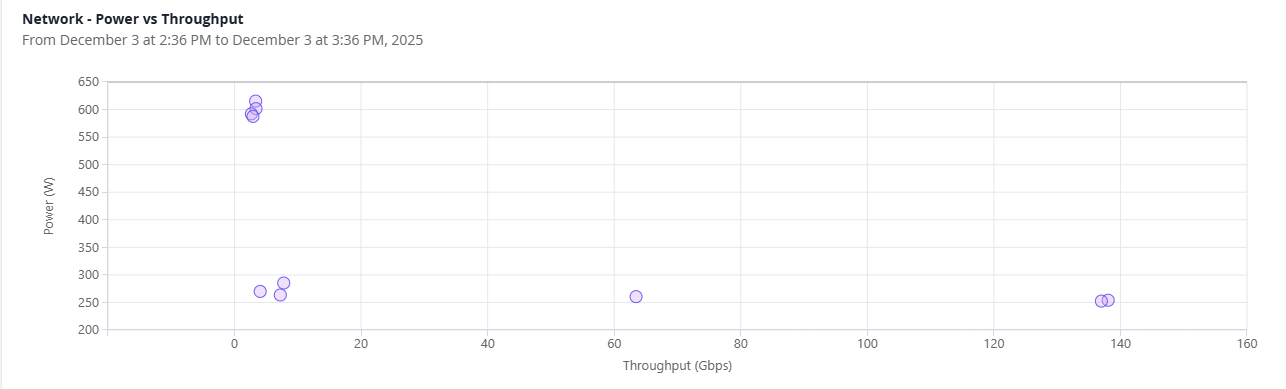
Each circle represents a device within the site.
| Axis | Metric | Description | Unit |
|---|---|---|---|
| x-axis | Throughput |
Traffic handled by the device. Throughput value in the graph is derived from the device's revenue ports (server-facing ports). |
bps |
| y-axis | Power | Power consumed by the device. | Watts (W) |
Understanding the position of each device on the graph helps you easily identify energy efficiency patterns.
-
Bottom-right (high throughput, low power)
These devices are delivering more traffic while consuming relatively less power. These are typically the most efficient devices in the site.
-
Top-left (low throughput, high power)
These devices are consuming more power than the traffic they handle. These devices may be inefficient or underutilized.
-
Upward diagonal trend
These devices are consuming power proportional with throughput, which is typically the expected behavior for devices under traffic load.
-
Clusters
Devices with similar power and throughput patterns.
Use the scatter graph to identify devices with high power usage but low throughput, detect underutilized or overloaded devices compared to their peers, and find opportunities for optimization.
Monitor a Site's Power and Throughput Trends Over Time
The Power vs Throughput line graph shows the aggregated power usage and throughput of all devices in the site.
Use the line graph to locate the site's inefficient time windows, when power consumption is high but throughput is low. You can view site-level trends across the selected time range.

| Axis | Metric | Description | Color | Unit |
|---|---|---|---|---|
| Left y-axis | Power | Shows the aggregated power usage of the site over the selected time range. | Brown | Watts (W) |
| Right y-axis | Throughput | Shows the aggregated traffic handled by the devices in the site
over the selected time range. Traffic may vary significantly based on network activity. |
Blue | bps |
| x-axis | Time Range (1 hour, 1 day, 1 week) |
Represents the selected time range. By default, it is set to 1 day. |
— | Hours or Days |
Use the Network: Power vs Throughput scatter graph for device-level comparison and the Power vs Throughput line graph for site-level trend analysis.
Under normal operating conditions, power draw should increase when throughput increases and reduce during low-traffic periods. However, most network devices have a relatively flat power curve due to always-on components such as control planes, PSUs, transceivers, and cooling systems.
Use the chart to:
-
Compare power to traffic proportionality in a site across time windows
-
Identify idle power draw during off-peak hours and plan optimization efforts
For example, in a stock exchange network, throughput spikes during trading hours and drops afterward. However, power usage remains almost constant. You can use the historical trend graphs to identify off-peak hours and schedule port shutdown to avoid unnecessary power consumption.
-
Compare site-level patterns across multiple sites
View Carbon Intensity Configured for a Site
Carbon intensity determines the site's GHG emissions. It represents the grams of CO₂e (carbon dioxide equivalent) emitted per kWh of energy consumed.
CO₂e is a standard unit used to express the global warming impact of all greenhouse gases in terms of their carbon dioxide equivalence.
The system uses carbon intensity as the input for calculating GHG emissions.
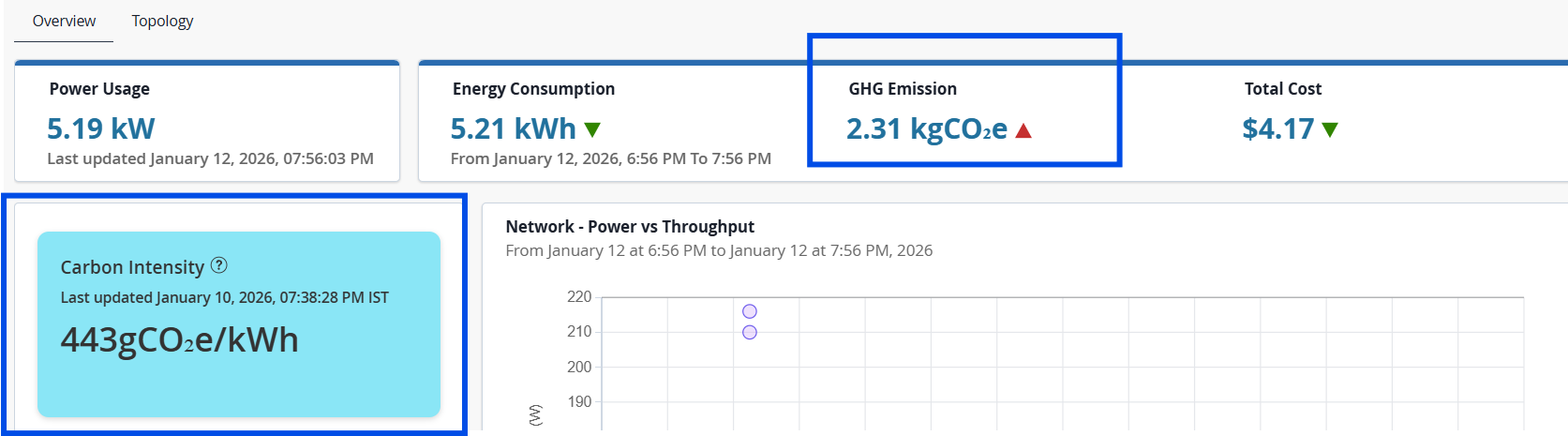
GHG Emission (CO₂e) = Energy Consumption (kWh) × Carbon Intensity (gCO₂e/kWh)
Configure accurate carbon intensity value to ensure that the GHG emission shown on the dashboard reflects your site's actual environmental impact.
To configure carbon intensity for the site, see Configure Sustainability Settings for a Site.
If carbon intensity is not configured, a banner appears prompting you to configure this value. If left unconfigured, the system displays a default value sourced from recognized carbon data providers, which you can override as needed.
The timestamp on the Carbon Intensity card indicates when the data was last updated. The GHG Emissions metric calculated using this value reflects emissions for the past hour.
View the Average Power Cost Configured for a Site
The Average Power Cost card displays the cost per kWh of electricity used at the site.
This value is used to calculate the total power cost for the site. The average power cost is displayed in USD.
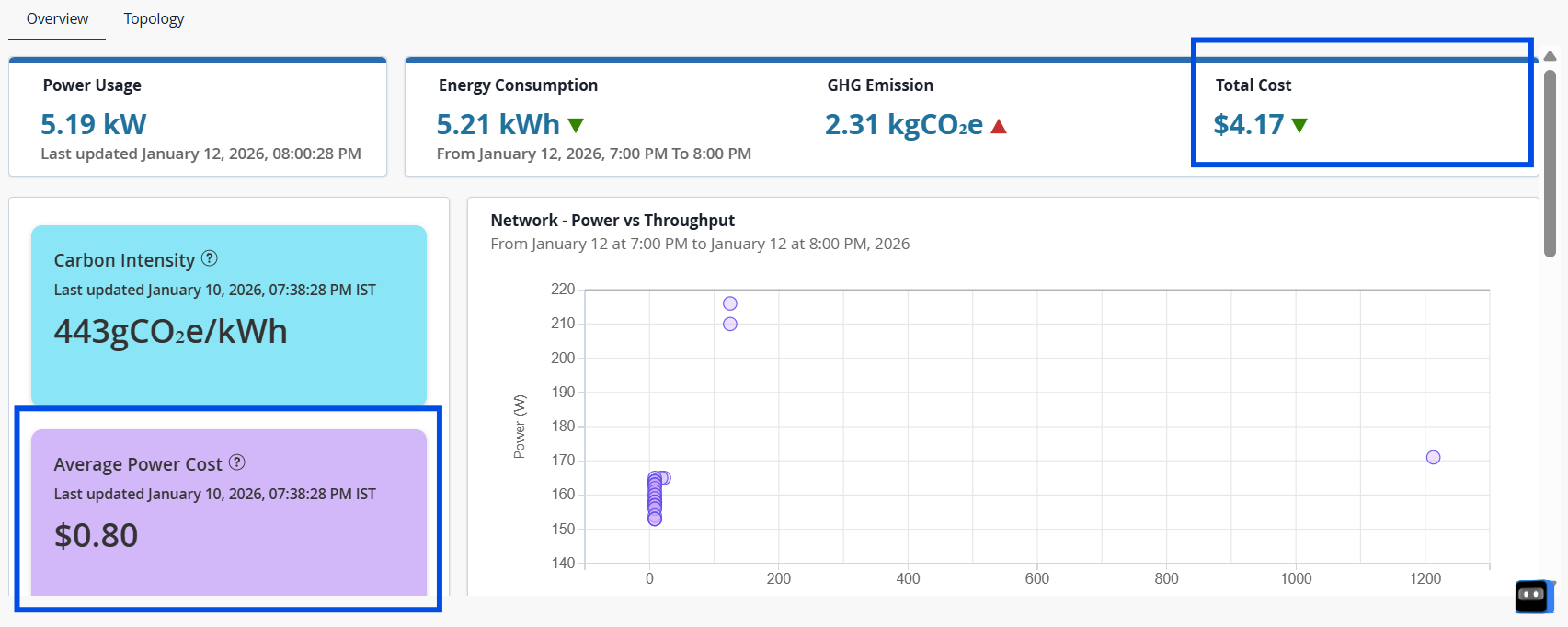
To configure average power cost for the site, see, Configure Sustainability Settings for a Site.
If average power cost is not configured, a banner appears prompting you to configure this value. If left unconfigured, the Power Cost metric on the dashboard appears blank.
The timestamp on the Average Power Cost card indicates when the data was last updated. The Total Cost metric calculated using this value reflects power cost for the past hour.
View the Top Devices in the Site by Selected Energy Metrics
The Top Devices table lists all devices in the site and ranks them based on a selected energy metric, such as energy consumption, traffic, fan speed, or temperature deviation. The table aggregates device-level telemetry for the past hour.
By default, the table is sorted in descending order of energy consumption, allowing you to quickly identify the highest energy consuming devices in the site.
You can also sort the table based on other metrics available in the table. Click the arrow next to any column header to sort the table based on that metric.
For example, when you sort by Temperature Deviation, the table is reordered to display devices with the highest temperature deviation first. The widget header updates accordingly to Top Devices by Temperature Deviation, indicating the active sorting metric.

For field description, see Table 4.
| Field | Description |
|---|---|
| Device Name | Name of the device. Click the device name to navigate to the Device-Level Energy Dashboard for detailed insights. |
| Energy Consumption | The total amount of energy consumed by the device in the past hour, measured in kilowatt-hours (kWh). |
| Max Traffic | The maximum throughput recorded for the device in the past hour, measured in bps. |
| Min Traffic | The minimum throughput recorded for the device in the past hour, measured in bps. |
| Average Fan Speed | The average rotational speed of the device’s fans during the past hour, measured in Revolutions Per Minute (RPM). |
| Temperature Deviation | The variation between the device’s measured temperature and the
optimal temperature range. The icons help you quickly identify whether the device is running normal, warmer, or hotter than expected baseline.
Higher deviations may indicate thermal concerns such as airflow issues or fan failures. |
Use the device table to:
-
Identify devices that contribute the most to the site’s overall energy consumption
-
Detect unusually high energy consuming devices
-
Compare devices across multiple energy and thermal metrics
-
Prioritize devices for optimization, reconfiguration, or replacement
About the Topology Tab
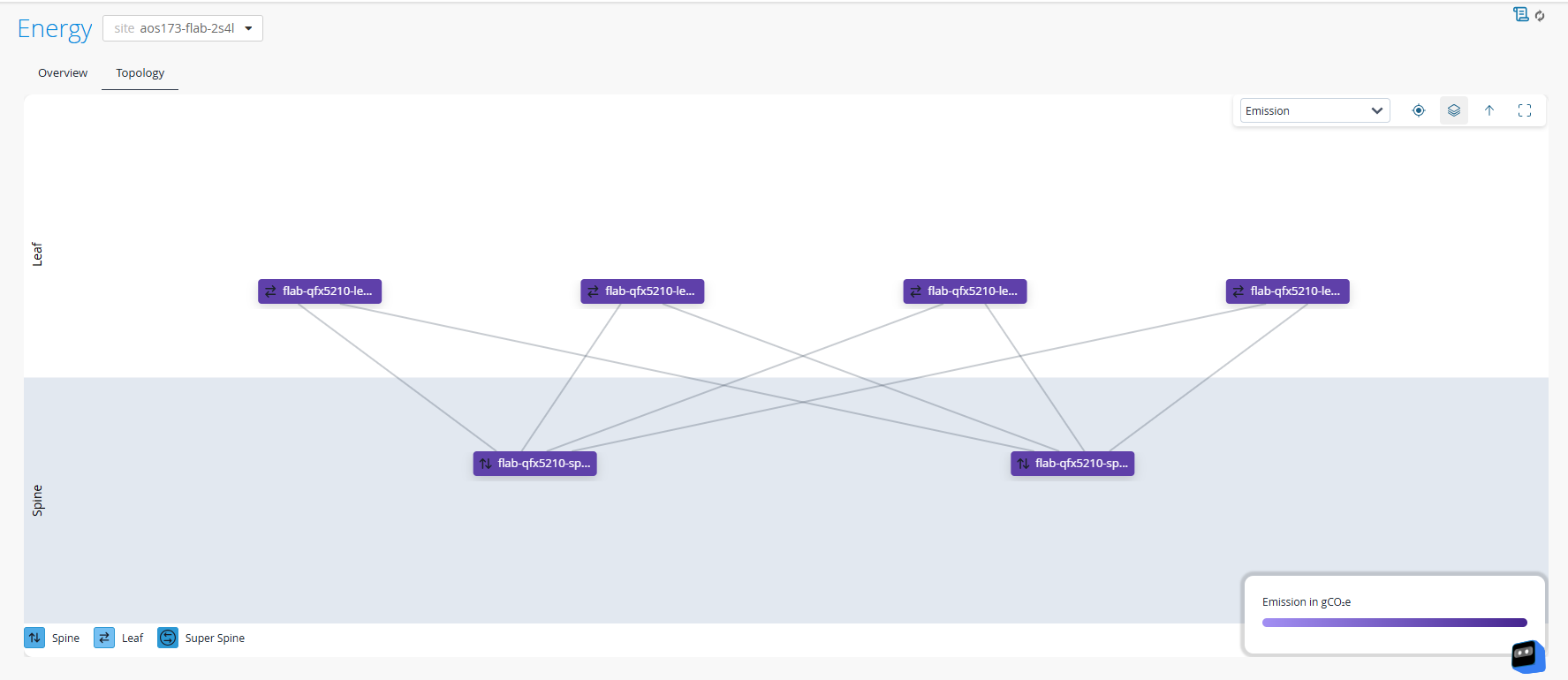
The Topology tab provides an interactive visualization of the site’s network fabric and uses color-coding to highlight device-level energy insights.
The topology is derived from the Data Center Director blueprint and reflects the layout of super spine, spine, and leaf devices in the site.
You must adopt Apstra Edge to the organization to view topology and telemetry data of devices in the dashboard. See, Adopt Juniper Apstra Edge.
The topology view shows how devices in the network fabric are interconnected and how they compare in terms of power usage, energy consumption, and thermal behavior.
Key Elements in the View
-
Each node represents a network device in the site.
-
Device roles are color-coded (leaf, spine, super spine).
The legend in the bottom left corner indicates the role and corresponding color.
-
Links represent physical or logical connectivity between devices.
-
A color scale in the bottom right corner indicates the intensity range for the selected metric.
Use the metric selector on the top-right corner to overlay different metrics on the topology.
The available metrics are:
Table 5: Metric Overlay Options Metric Description Color Gradient Power The device's power consumption. 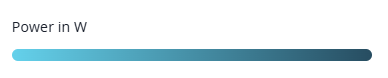
Emissions The device’s estimated greenhouse gas emissions. 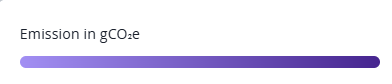
Temperature The operating temperature of the device. 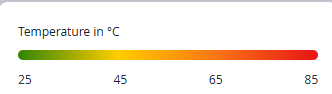
-
Green—Operating within normal temperature range.
-
Yellow—Approaching defined temperature threshold.
-
Red—Exceeded defined temperature threshold.
Note:When a metric overlay is applied, devices are color-coded according to their value for that metric.
Darker or more intense shades indicate higher values, while lighter shades indicate lower values.
Use the color scale to quickly identify devices with higher energy or environmental impact and plan optimization or replacements.
You can use the Juniper's Power Calculator to compare power characteristics across device models.
-
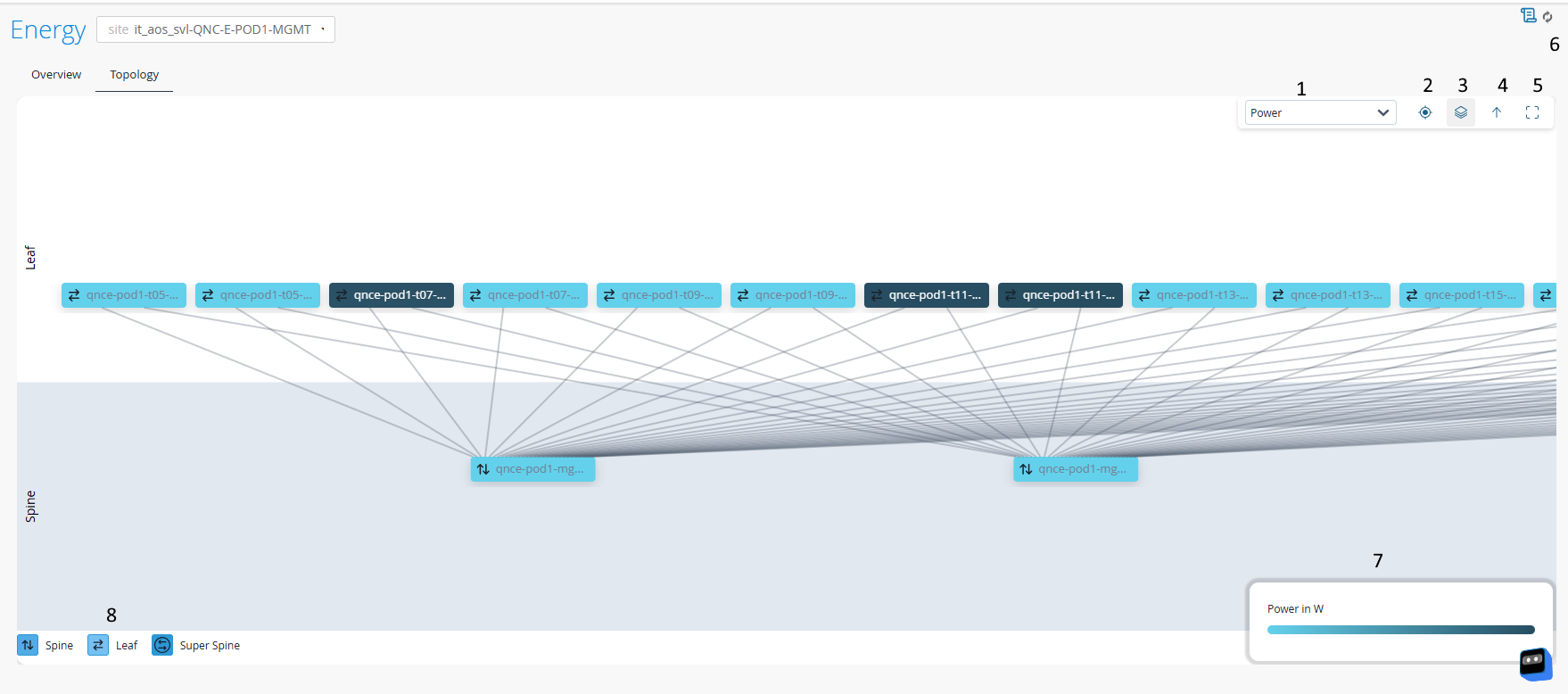
Topology View Task Pane
| Options | Description |
|---|---|
| 1 | Metric Selector—Use the drop-down to
choose a metric to overlay on the topology. The options are:
|
| 2 | Reset—Reset the topology view to its default zoom position. |
| 3 | Layer Control—Switch between different data overlays. |
| 4 | Up a Level—Navigate up a topology hierarchy level. |
| 5 | Enter Fullscreen—Expand the topology view to fullscreen mode. |
| 6 | Refresh—Click to load the latest topology and telemetry data of the site. |
| 7 | Color Scale—Shows the color range for
selected metric. Darker or more intense shades indicate higher values, while lighter shades indicate lower values. |
| 8 | Device Legend—Maps device roles with their associated colors. |
Interactive Actions
-
Hover over a node to view device name, type, and the selected metric's value.
-
Expand the leaf group in the topology view
By default, leaf nodes are grouped to simplify the topology view.
To view individual leaf nodes:
Click the leaf group node to open the search and selection panel.
Figure 10: Search and Selection Panel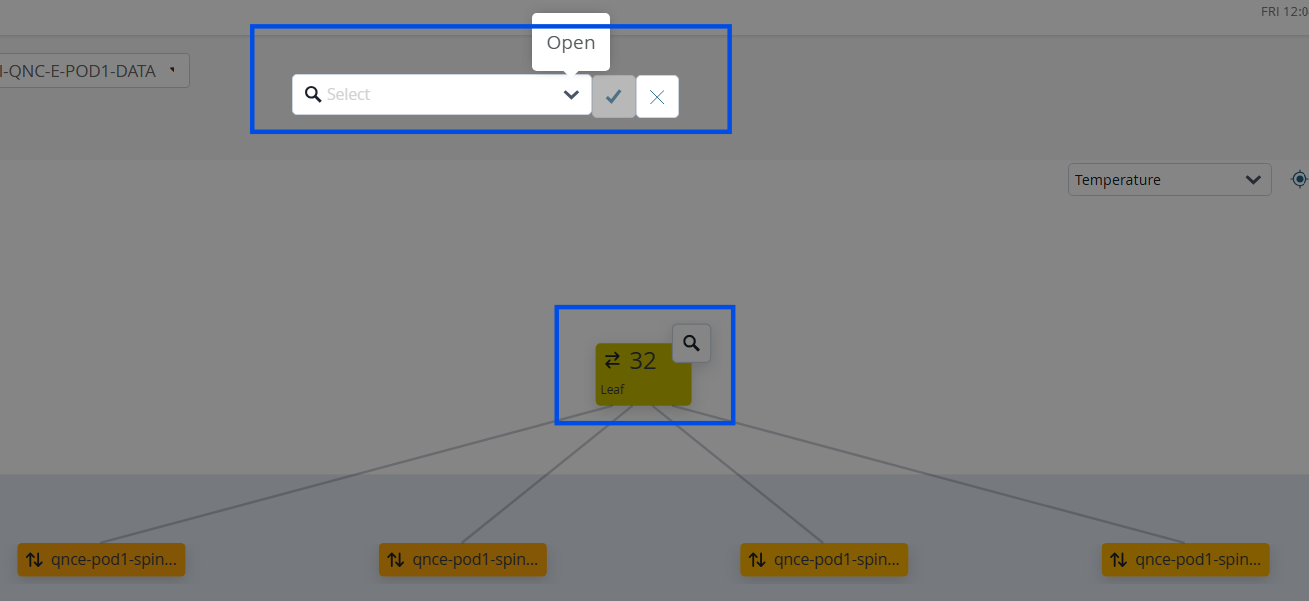
Use the dropdown list to select the IP address of the leaf nodes you want to display in the topology view.
Click Select All to display all leaf nodes.
Click the checkmark to apply your selection.
Figure 11: Topology View Navigation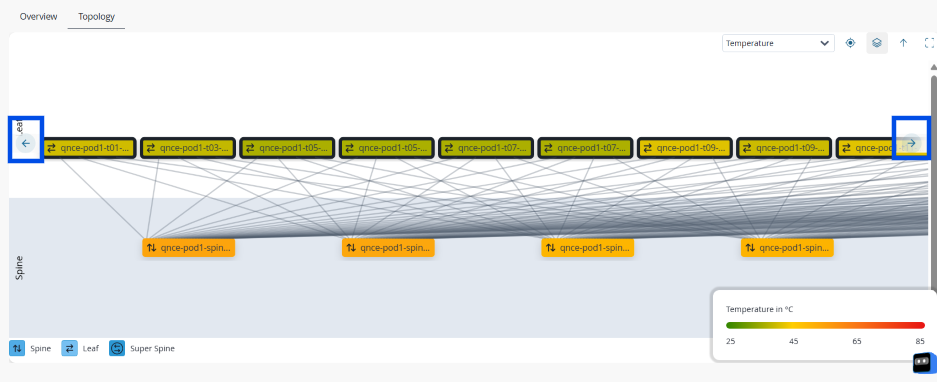
Use the navigation arrows in the topology view to pan across the fabric and explore different sections of the layout.
-
Click a node to open the knowledge card.
The card provides more details on the device, such as traffic details and detected anomalies.
-
Double click a device to highlight only its connections.
Click Reset to reset the view.
Benefits of the Topology View
Use the topology view to:
-
Visualize the layout of the site's network fabric
-
Identify high power consuming or inefficient devices in the context of their fabric role
-
Identify hotspots such as high power consuming or overheated devices.
-
Detect tier-level patterns in energy usage. For example, a single spine device consuming significantly more power than its peers
-
Correlate energy behavior with device roles (leaf, spine, super spine) to identify anomalies such as a single device consuming far more power than other devices in the site