
Step 1 Create Data Center Assurance Account
You must create an account in Data Center Assurance and activate it before you can access the platform. You can either create a new account and organisation from scratch, or join an existing organisation using an administrator’s invite. This section covers creating a new account and organisation.
-
Click Create Account.

-
On the My Account page, enter your first name, last name, email address, and a
password.
Password is case-sensitive and can contain up to 32 characters, including special characters.

-
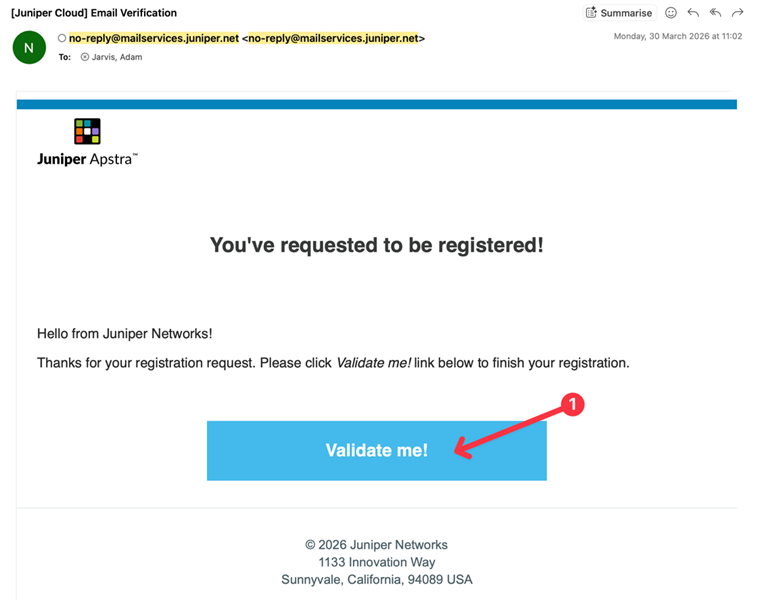
Check your email and click Validate Me in the
verification email you receive.
The My Account page appears and your account is now active.
-
On the My Account page, click Create Organization.

-
On the Create Organization page, enter a unique name for your organisation and
click Create.
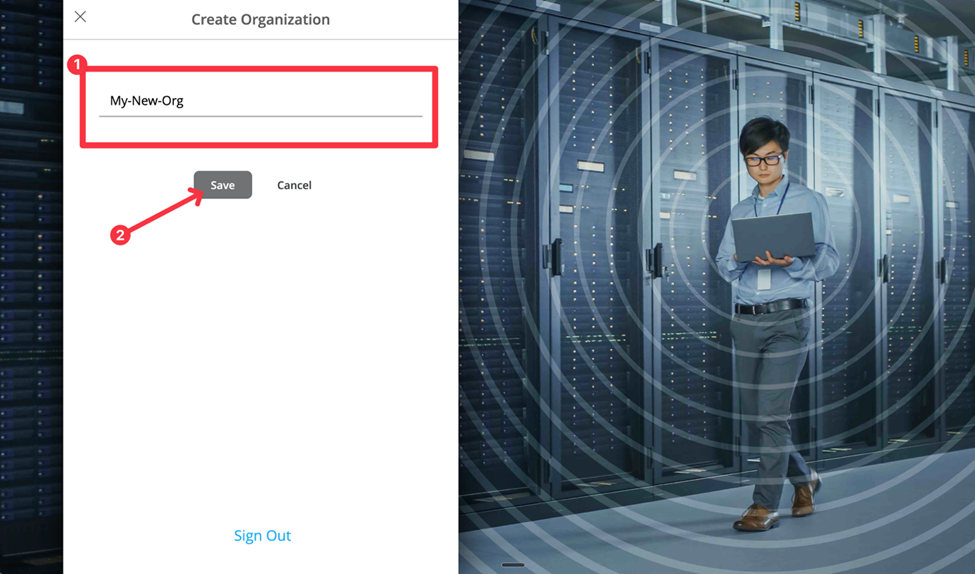
You have successfully created your Data Center Assurance account and organisation. You are now logged into your organisation in Data Center Assurance. By default, the user that created the account and organisation has Super User privileges. Super User can add users, configure organisation settings, and manage the Apstra Edge integration.
Note:If you were invited to join an existing organisation by an administrator, follow the link in the invite email instead of these steps. You will still need to create your account using your email address. See User Activation and Login for more information.