
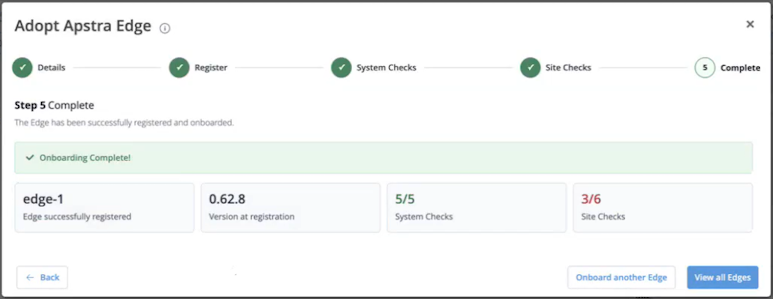
Step 5 Complete Edge Adoption
Verify that the Edge configuration is completed correctly.
-
The wizard displays the registration status of the Edge, the Edge version, and the
pass/fail results of the system and site checks. Click the cards to go back to any of the
steps as required.
Figure 1: Edge Adoption Complete
-
For onboarded Apstra Edge devices running 0.63.0 or above, temporary files are automatically created and deleted when the Edge processes are running on a VM.
-
To modify an adopted Edge, select the Edge from the DC Edges page, click Actions>Modify Edge.
The Modify Apstra Edge dialog box opens with the Edge connection details. Modify the fields as necessary and click Modify. The onboarded Apstra Edge will be updated with the modified connection details.
-
To perform a remote Edge upgrade on an adopted Edge, select the Edge device or blueprint from the DC Edges page and click Upgrade Edge. For more information, see Upgrade Apstra Edge from Data Center Assurance.
-
To delete an adopted Edge, select the Edge from the DC Edges page, click Actions>Release.
Deleting the adopted Edge from Data Center Assurance also removes the connectivity with edge. Once the Edge is deleted, Data Center Assurance will not be able to receive event information from Apstra. To continue receiving events, you need to perform the onboarding process again.