Help us improve your experience.

Let us know what you think.

Do you have time for a two-minute survey?


Upgrade Apstra Edge from Data Center Assurance

This document describes how to upgrade Apstra Edge remotely from Data Center Assurance.

To access the advanced features in Data Center Assurance and to obtain accurate event and anomaly information, you must upgrade Apstra Edge to a version that supports those features. You can upgrade Apstra Edge manually or from the HPE Mist Networking Data Center Assurance UI. This topic describes how to upgrade Apstra Edge remotely from Data Center Assurance. You can view the Apstra Edges that require upgrade and the available software images in the DC Edges page.

Note: You must be a superuser to upgrade Apstra Edge.

Before you begin the remote upgrade process, please ensure that:

  • the Apstra Edge container is deployed.

  • the Apstra Edge is connected to the cloud and with the Apstra Controller.

To upgrade Apstra Edge:

  1. Log in to HPE Mist Networking Data Center Assurance.
  2. Navigate to the DC Edges page.

    The Edges are listed along with their connectivity status, the current version of software running on the Edge, available versions for upgrade, and upgrade status.

    Note:

    Ensure that Apstra Edge is connected to the cloud to enable remote upgrades when a new version is available.

  3. Select the check box for the Edge(s) that you want to upgrade.
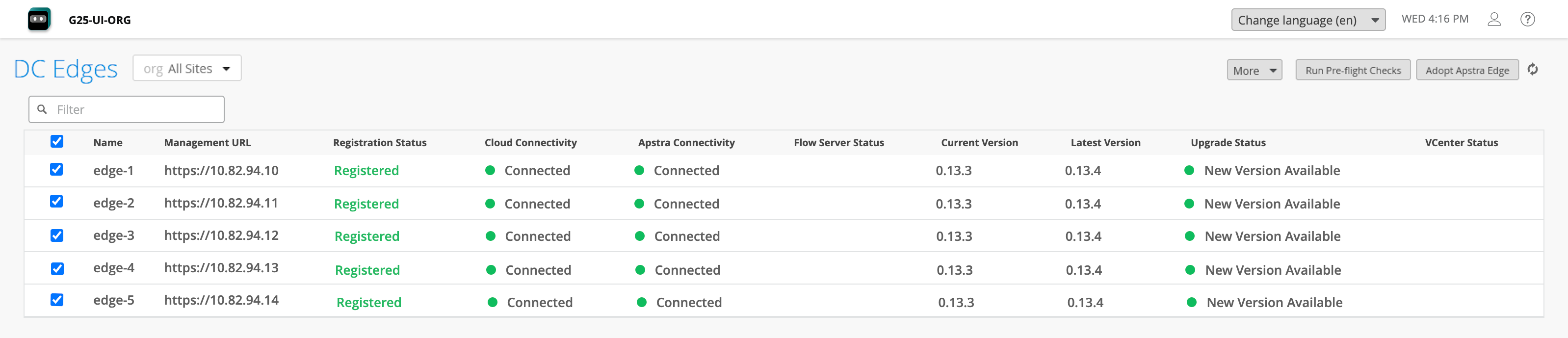
    Dashboard interface for managing DC Edges in a network system. Displays a table listing edges with names, management URLs, registration status as Registered, cloud and Apstra connectivity as Connected, flow server status as green, current version 0.13.3, latest version 0.13.4, upgrade status as New Version Available, and empty vCenter status column. Header shows organization G25-UI-ORG with options for language, time, and user settings. Buttons include More, Run Pre-flight Checks, and Adopt Apstra Edge.
    Note:

    When you select multiple Edges, if the Upgrade Edge option is disabled, the tooltip provides information about why one or more of the selected Edges might not be eligible for an upgrade.

  4. Click More > Upgrade Edge on the top right of the table.
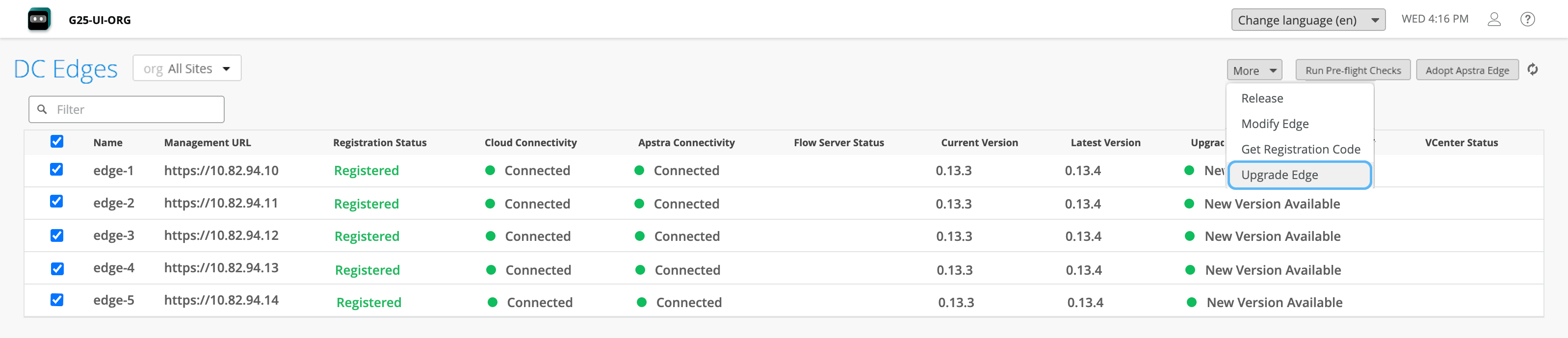
    User interface for managing DC Edges, displaying edge names with details like management URL, registration status, cloud connectivity, Apstra connectivity, flow server status, software versions, and upgrade status, with options to release, modify, upgrade, or adopt edges.

    The Upgrade Apstra Edge dialog box opens with the list of selected Edges and the latest available versions for each Edge.

  5. Click Upgrade.

    A confirmation window appears.

  6. Click Yes to begin the upgrade process.

    You can track the upgrade progress in the Upgrade Status column. Hover over the progress bar to view the current state of the upgrade process. The status of the upgrade is automatically updated every 30 seconds. You can also click the refresh icon on the top right of the table to view the latest status.

    Once the upgrade process is complete, the Upgrade Status column shows the status as Complete and the Current Version column displays the version of software newly installed on the Edge.

    After an upgrade, the Edge is monitored for the first 20 minutes. If the newly installed version fails during this period, the software version is reverted to the version that was previously running on the Edge. Beyond this time period, if the Edge crashes, the docker container restarts with the newly installed software version.

    If the upgrade process fails for an Edge, the Upgrade Status column shows the status as Failed.

    In both failure scenarios, you can retry upgrading the Edge by selecting the Edge and performing the upgrade process again.