Help us improve your experience.

Let us know what you think.

Do you have time for a two-minute survey?


To Install and Configure the AWS vCore AMI

Juniper ATP Appliance vCore for AWS requires both Juniper ATP Appliance and AWS licensed accounts. The installations and configuration process uses both the Amazon AWS Management Console (Part 1) as well as the Juniper ATP Appliance vCore Central Manager Web UI and CLI (Part 2).

Note:

Note: After purchasing the vCore AMI license, share the vCore AMI with your AWS customer account by using the AWS Management Console to configure and launch the vCore AMI.

A general AWS AMI configuration workflow is provided below; be sure to refer to the AWS Management Console operations guide for more detailed console usage information.

Part 1- Amazon AWS Management Console vCore AMI Configuration

  1. Log into your AWS database account at the Amazon AWS Management Console. console.aws.amazon.com
  2. From the AWS Management Console Dashboard, select EC2 services.
  3. In EC2 Services, click the IMAGES>AMIs option from the left menu of the AWS Console. Also click on the drop-down menu to change the image ownership type from "Owned by Me" to "Private Images".:
  4. Select the Juniper ATP Appliance AMI image to be installed by clicking its radio button in the table.
  5. From the Zone DropDown menu, select the Zone for which the AMI is to be configured. In our example, the Juniper ATP Appliance “rsa-demo-cm” AMI is selected. (The Juniper ATP Appliance AMI will have been shared with you before you launch the AWS Core.)
  6. Click Launch to begin configuration of this Juniper ATP Appliance vCore AMI instance, in EC2, for your enterprise.
  7. From the “Choose an Instance Type” page, select an instance type for the AMI. In our example, we selected “c4 large”. Click Next: Configure Instance.
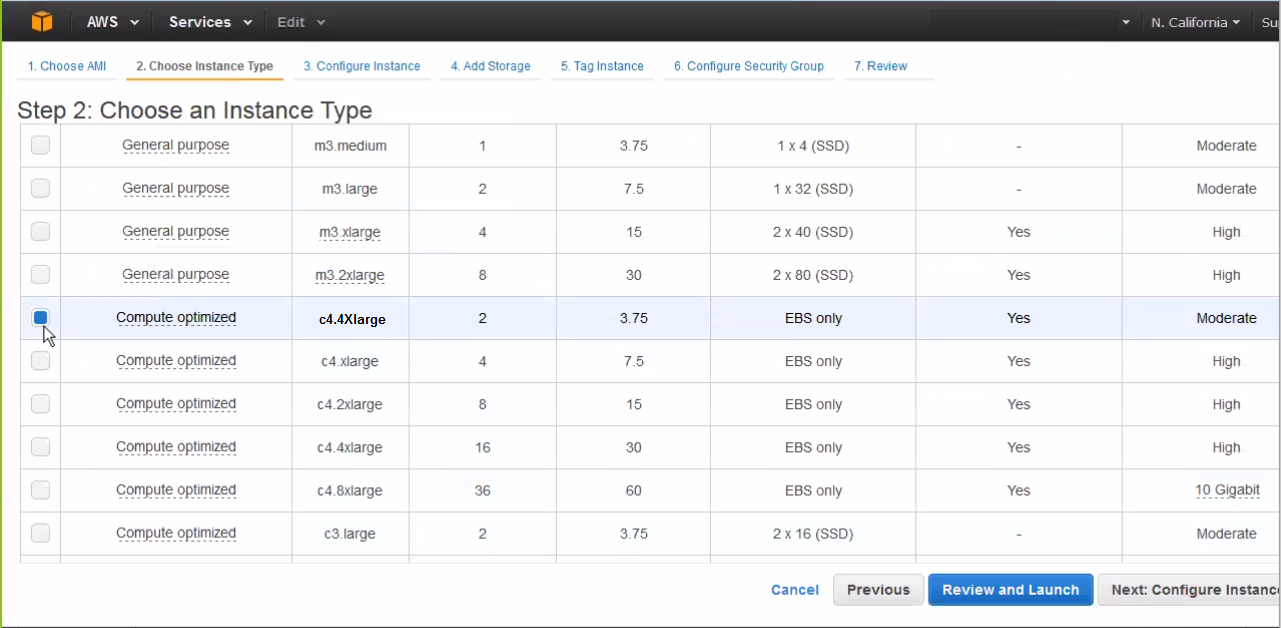
    AWS EC2 instance type selection page showing 'Step 2: Choose an Instance Type' with 'c4.4xlarge' selected.
  8. From the “Configure Instance Details” page, select an existing customer-defined Virtual Private Cloud (VPC) from the Network dropdown menu; in our example, we’ve selected rsa-demo-1.
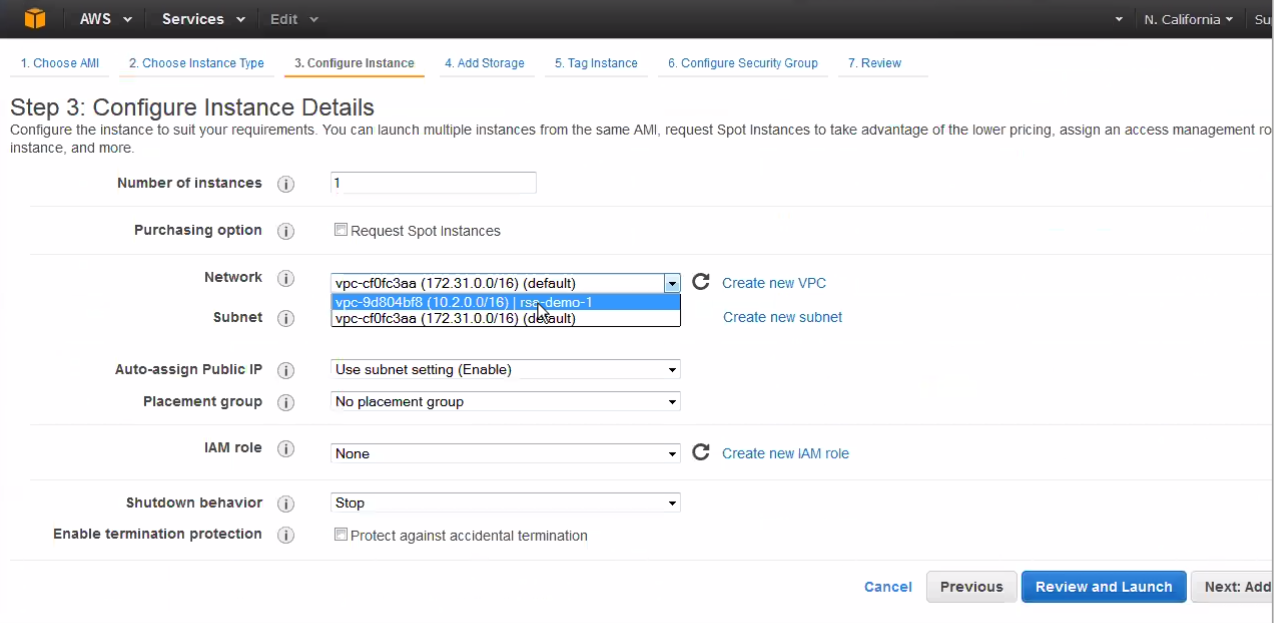
    AWS EC2 instance configuration screen showing options for number of instances, purchasing option, network, subnet, public IP, placement group, IAM role, shutdown behavior, and termination protection. Navigation buttons for instance setup are visible.

    To create a new VPC, click the Create New VPC link and follow the stepped procedure.

  9. Define the VPC subnet in the Subnet field; in our example, we used AWS 10.2.0.0/16.

    To create a new subnet, click the Create New Subnet link and follow the stepped procedure.

  10. Confirm that the subnet us using an Auto-Assigned Public IP, as in the example shown above. This allows the Juniper ATP Appliance vCore to be accessed from the Internet.
  11. Click to Enable termination protection to protect against accidental termination.
    Note:

    Each AMI instance uses a private IP and a public IP. If you are planning on installing one vCore + Central Manager with several Secondary Core, you must have a public IP address assignment. Note that the Secondary Core does not need a public IP because it doers not contain a Web UI.

    ALSO: Some enterprises connect their AWS VPC to a private network using VPN. In this case, there is no need to assign a public IP to the subnet because internet access can be configured via the VPN.

  12. Click Next: Add Storage.
    Note:

    Click "Encrypted" to encrypt the data volume.
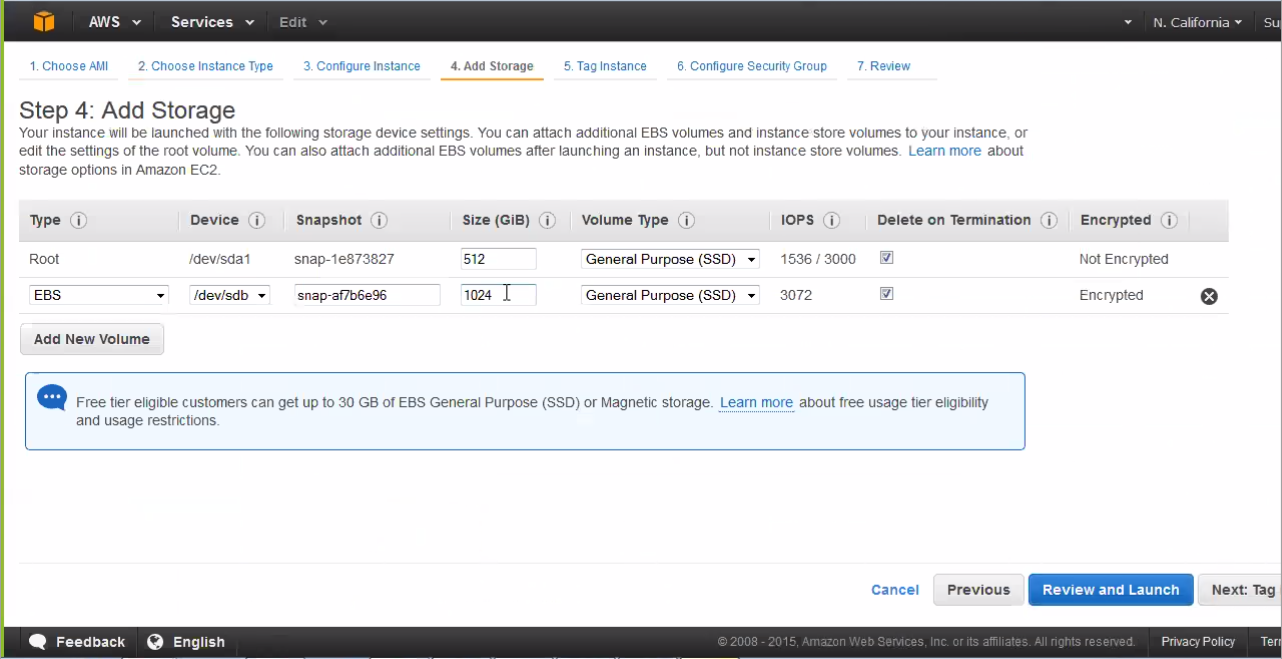
    Add Storage step for Amazon EC2 instance with two volumes: Root 512 GiB, not encrypted; EBS 1024 GiB, encrypted.
  13. Juniper ATP Appliance already provides 1 TeraByte of storage in the Core. Due to the limitations of the AWS storage volume max size, there is no need for further configuration on this page; do not add extra storage to the vCore. Click Next.
  14. From the “Tag Instance” page, click Create Tag and enter a tag name and description.
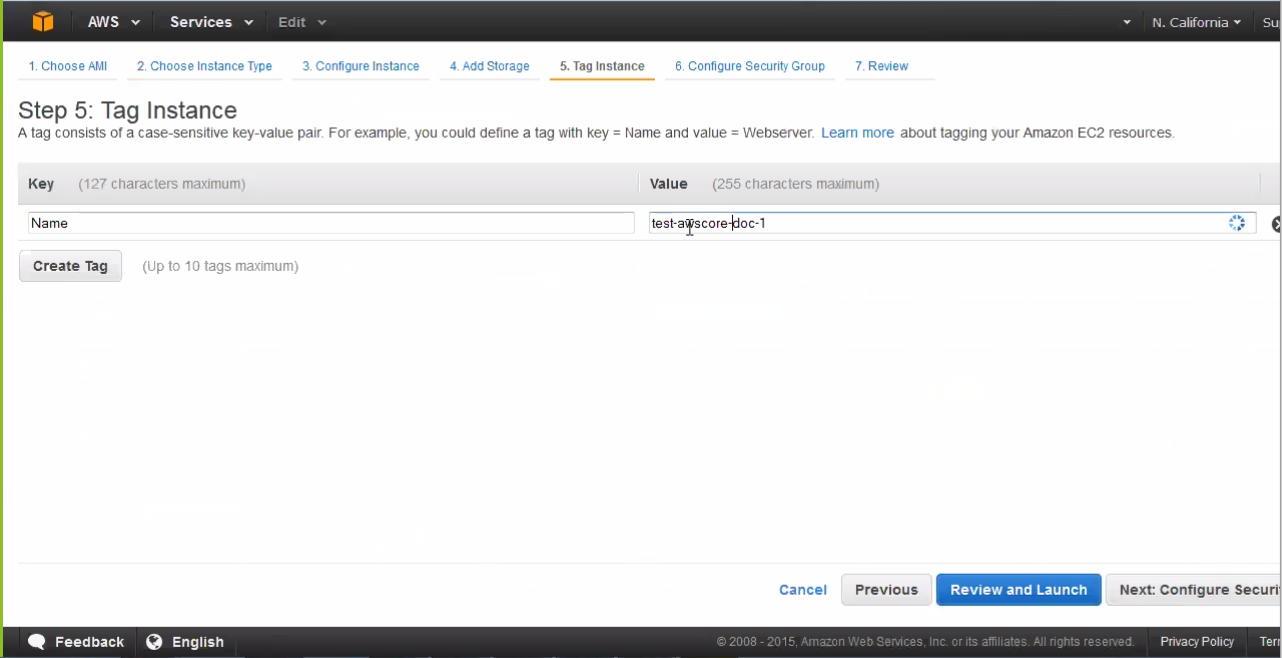
    AWS EC2 setup Step 5: Adding a tag with key Name and value test-awscore-doc-1. Navigation options for setup steps and buttons to review, launch, or proceed.
  15. Click Next: Configure Security to proceed.
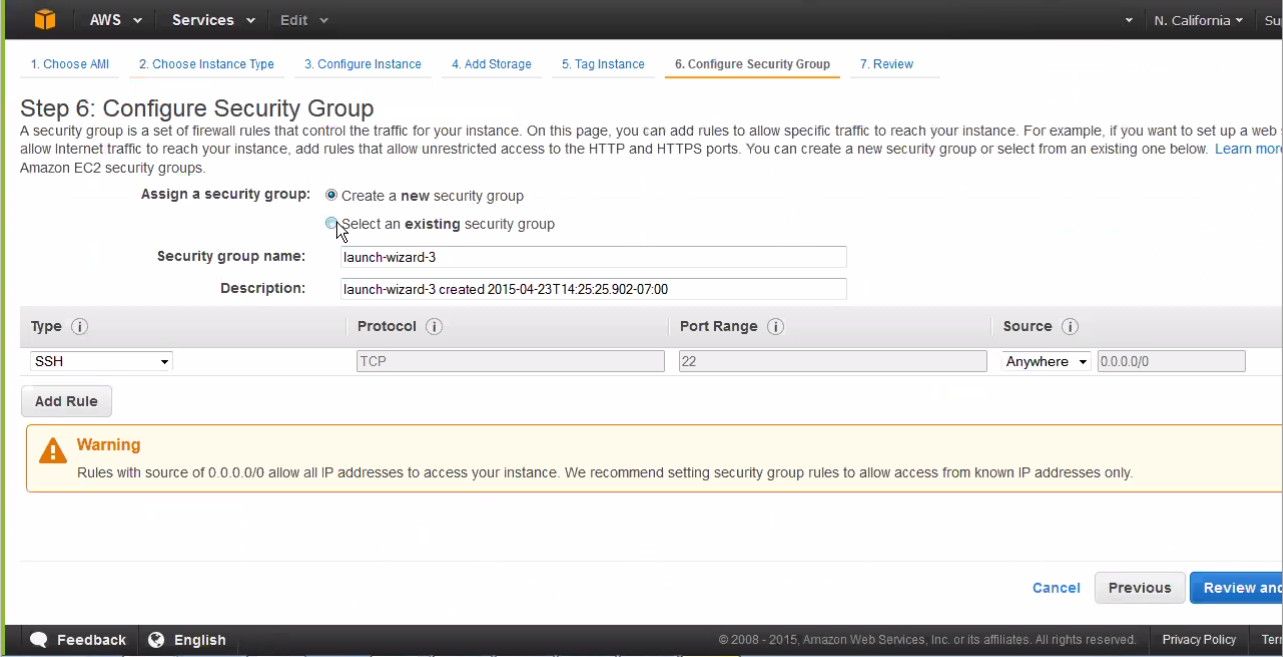
    Configure Security Group step in AWS EC2 setup shows security group launch-wizard-3 with SSH access from all IPs. Warning suggests restricting access.
  16. A security group is essentially a firewall in AWS. Most customers already have a preexisting firewall, so choose Select an existing security group, or Create a new security group. Do ensure there are rules in the Security Group that allow communication between AWS Core and AWS Secondary Cores.
  17. If creating a new security group, enter a name and description in the Security Group Name field and the Description field, respectively.
  18. Enter port designation; Juniper ATP Appliance vCore only allows for port 22, 80 and 443. Click Next.
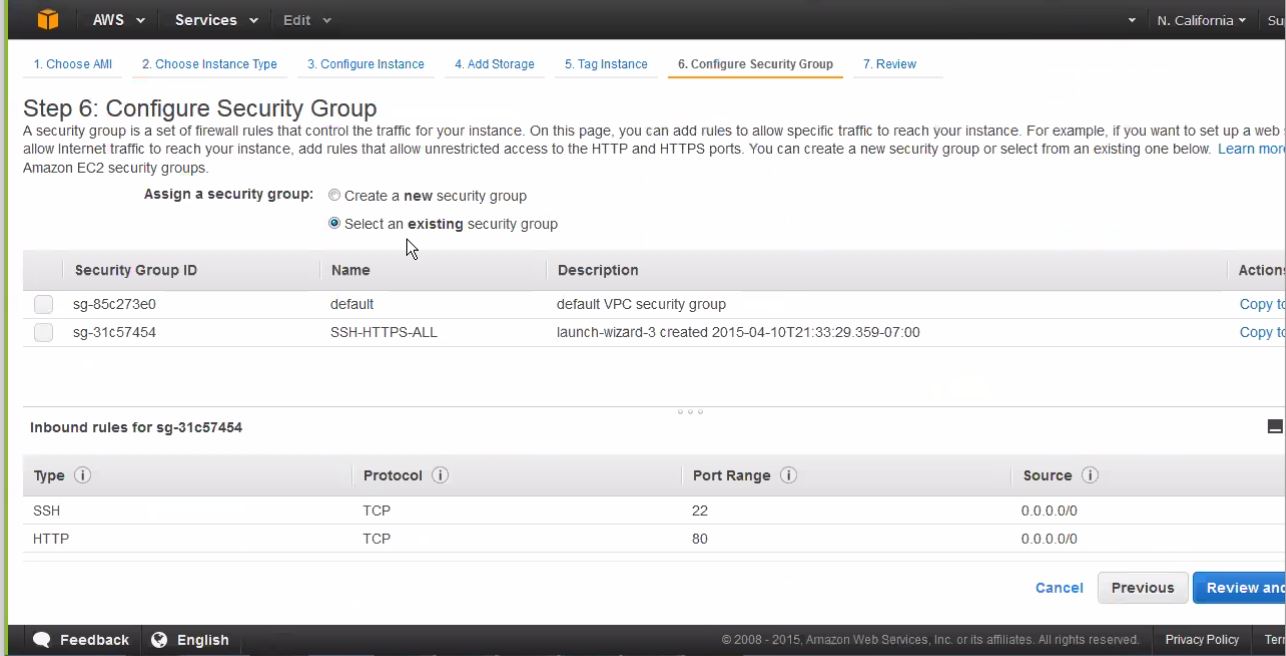
    AWS Management Console showing Configure Security Group step for EC2 setup. Two groups listed: default and SSH-HTTPS-ALL with inbound rules for SSH port 22 and HTTP port 80, allowing traffic from any IP address. Options to review and launch instance or go back to the previous step.AWS Management Console showing Review Instance Launch step with AMI rsa-demo-cm ami-2f43a16b, instance type c4.large, and a security warning about open SSH-HTTPS-ALL group.
    Note:

    You can configure an SSH key although the Juniper ATP Appliance vCore already includes password protection. To add extra protection, add a key pair first, then use Juniper ATP Appliance password for CLI-only login. AWS requires you to set a key pair. You will not be able to use a pem-only login.

  19. To configure an SSH Key, select an existing key pair or create a new key pair:
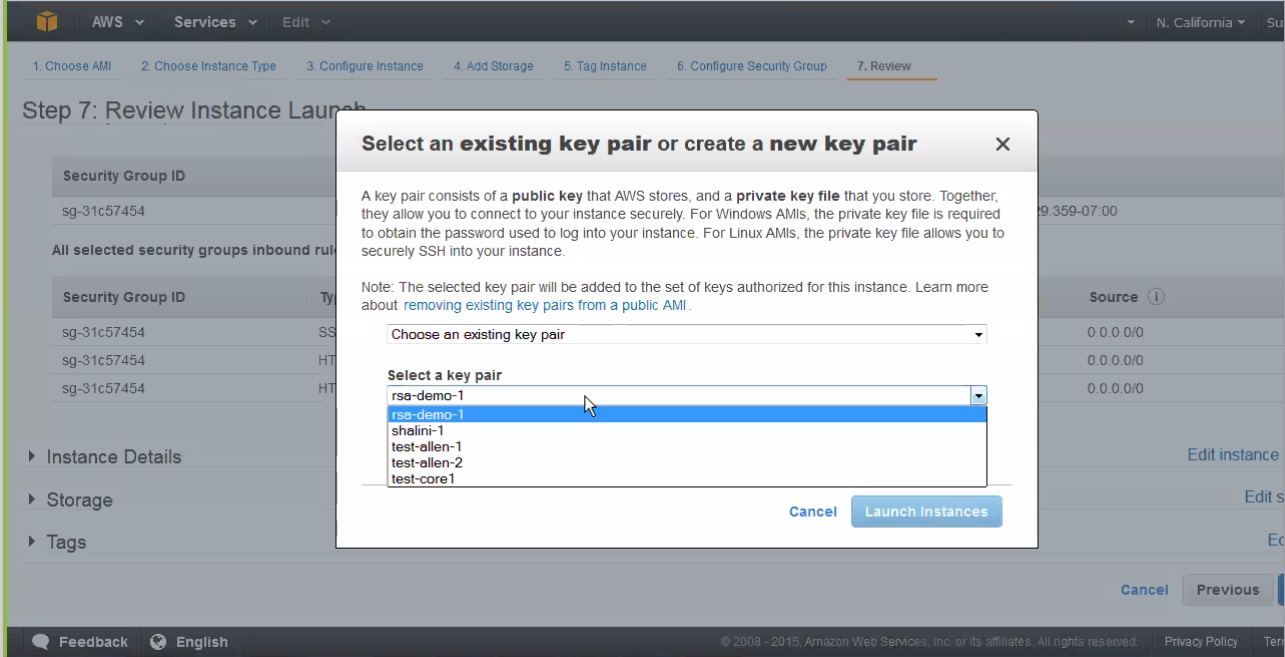
    AWS Management Console showing Review Instance Launch step with Select key pair pop-up. rsa-demo-1 key pair highlighted. Options to select or create a key pair.
  20. If selecting an existing security group, select then choose from the list and click Next.

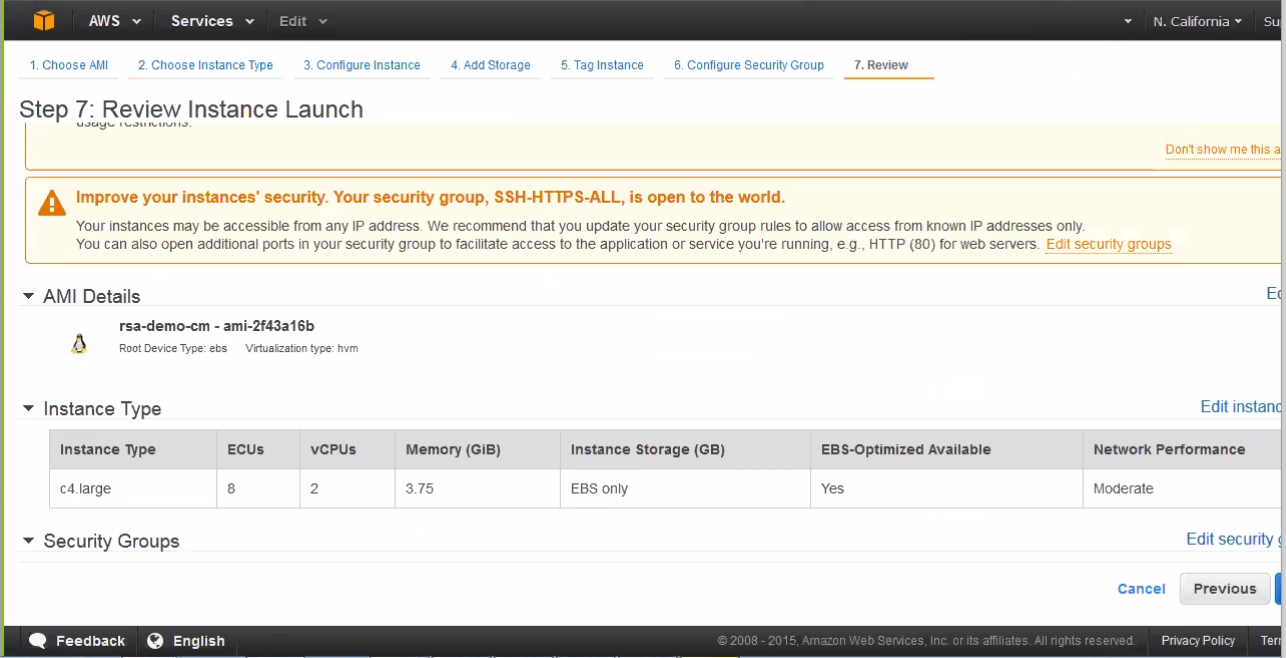
    The “Review Instance Launch” page displays:

  21. From the “Review Instance Launch” page, review the Instance Launch details, then either click Edit Instance to make changes, or click Launch to instantiate.

    The Launch Status window displays; Part
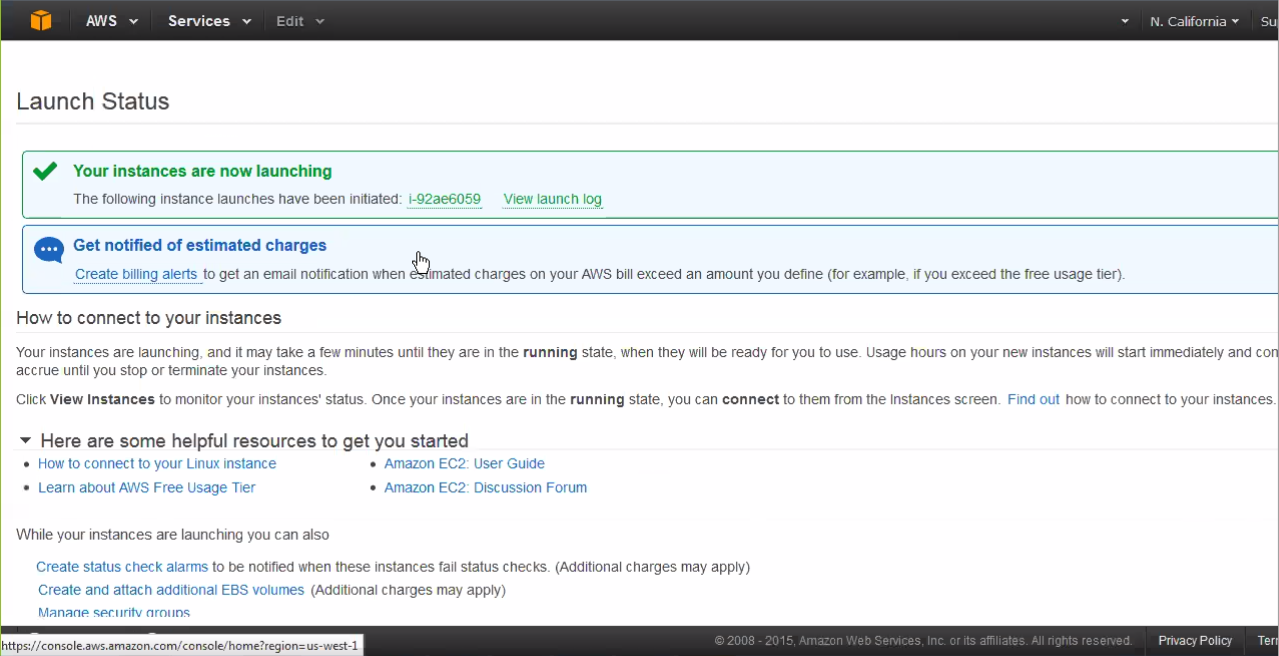
    Launch Status page in AWS Management Console showing EC2 instance i-92ae6059 launching, billing alerts suggestion, and links to connection instructions and resources.

Part 2 - Running the Juniper ATP Appliance vCore AMI Instance

Next, you will initialize the Juniper ATP Appliance vCore AMI Instance from the AWS Management Console, then verify the AMI at the Juniper ATP Appliance Central Manager CLI using the show ip command.

  1. Open the AWS Management Console Instances page to view the launched AMI Instance status. When a launched Instance finishes initializing, it will display a green icon to indicate “running” status.
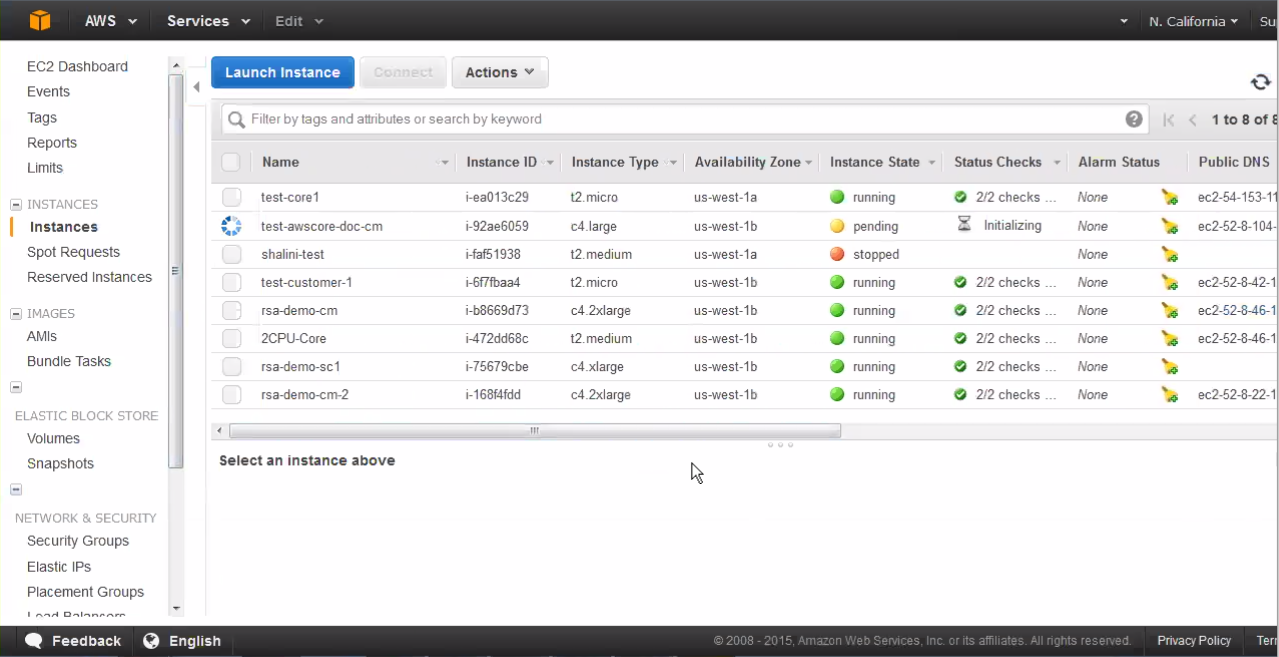
    AWS Management Console screenshot displaying EC2 dashboard with instance details: Name, Instance ID, Type, Availability Zone, State, Status Checks, Alarm Status, and Public DNS. Options to launch, connect, and manage instances are visible.
  2. Select the launched Instance then open the panel at the bottom of the Instances table to review Instance details.
  3. Copy the Instance ID and the Instance Type “c4-large2.” for the vCore CLI configuration.
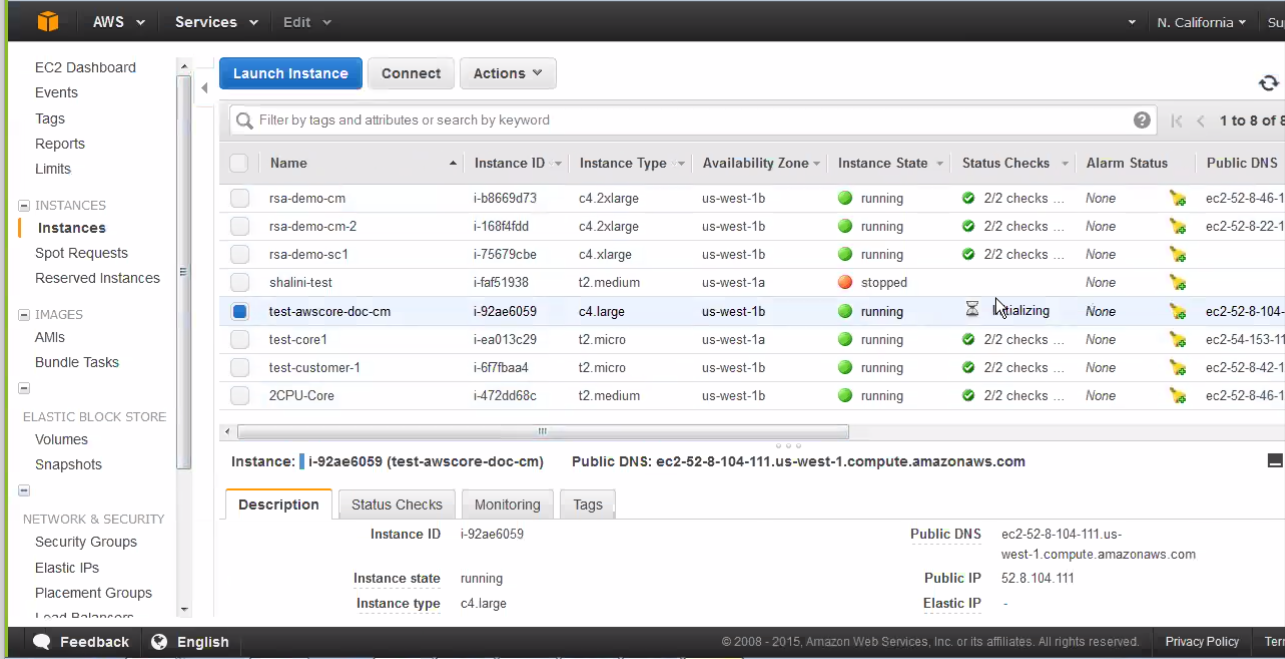
    AWS Management Console EC2 dashboard showing a list of instances with details like name, ID, type, zone, state, and status. Selected instance test-awscore-doc-cm highlighted.
    Note:

    It is very important to be aware that the private IP address is the DHCP setting, and it will stay static in AWS and should never change during proper operations.

    Note also that you cannot change the AMI hostname, although you can change the DNS if necessary.

    About DNS: Because the AWS vCore is not located in the enterprise, the reverse DNS on threat targets do not resolve to the expected target hostname. This is rarely confusing when connected via VPN from the corporate network to the VPC. Generally, internal DNS servers are not exposed outside the enterprise, so the Juniper ATP Appliance cannot configure the AWS vCore to reach an internal DNS server. If the internal DNS server uses an outward facing IP address and you, as admin, are willing to allow connections to it, this is a reasonable solution. Note that the DNS server that the vCore uses will not have the DNS information of the networks where the Juniper ATP Appliance Traffic Collector is located. This is typical of distributed deployments where the Traffic Collector and the Core/CM are not located in the same enterprise networks.

  4. Copy the Public IP address to access the vCore AWS Instance CLI via SSH/Putty:
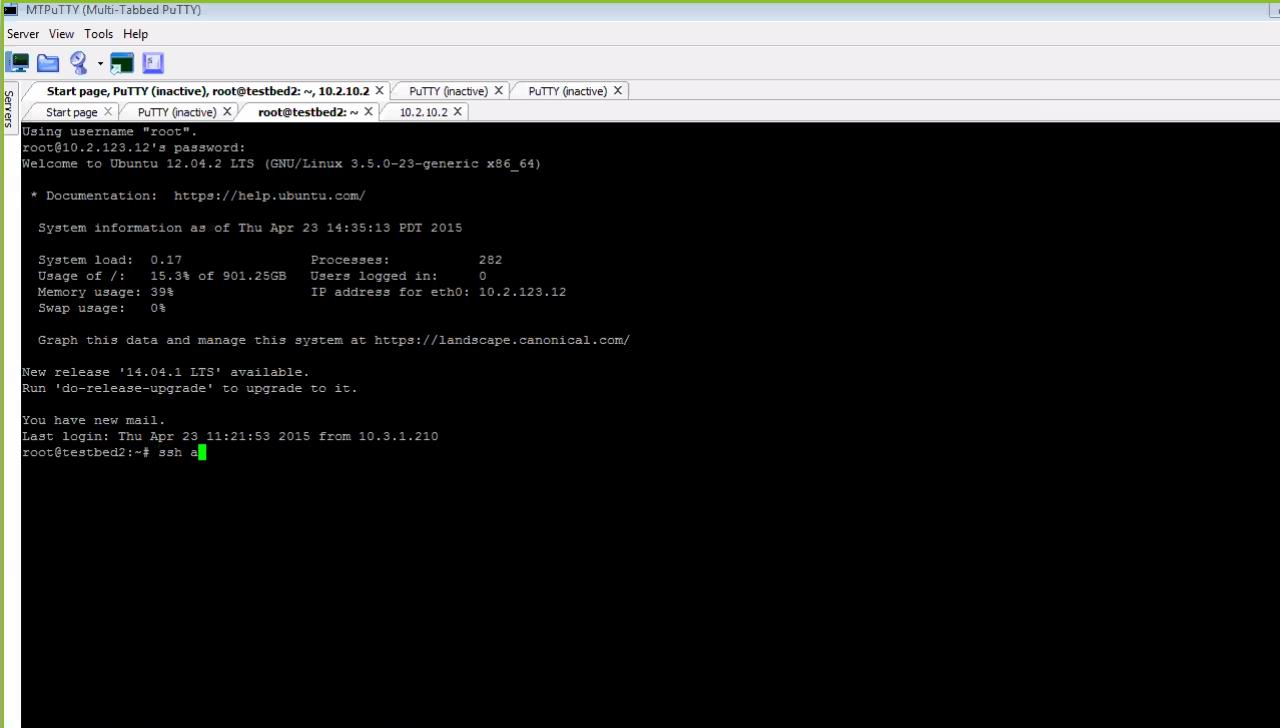
    Screenshot of MTPuTTY terminal session showing SSH connection to Ubuntu 12.04.2 LTS server as root on testbed2. System load 0.17, disk usage 15.3 percent of 901.25GB, memory usage 39 percent, swap usage 0 percent, IP 10.2.123.12. Upgrade notice for 14.04.1 LTS available. Last login details shown. User typing SSH command.
  5. At the Juniper ATP Appliance CLI prompt, type server to enter CLI Server mode, then from Server mode, run the CLI command show ip to display private and public IPs, as shown below. These should match the AWS configuration.
    Note:

    For more information about AWS-specific CLI commands, and usage of CLI modes and commands, refer to the CLI Command Reference Guide.
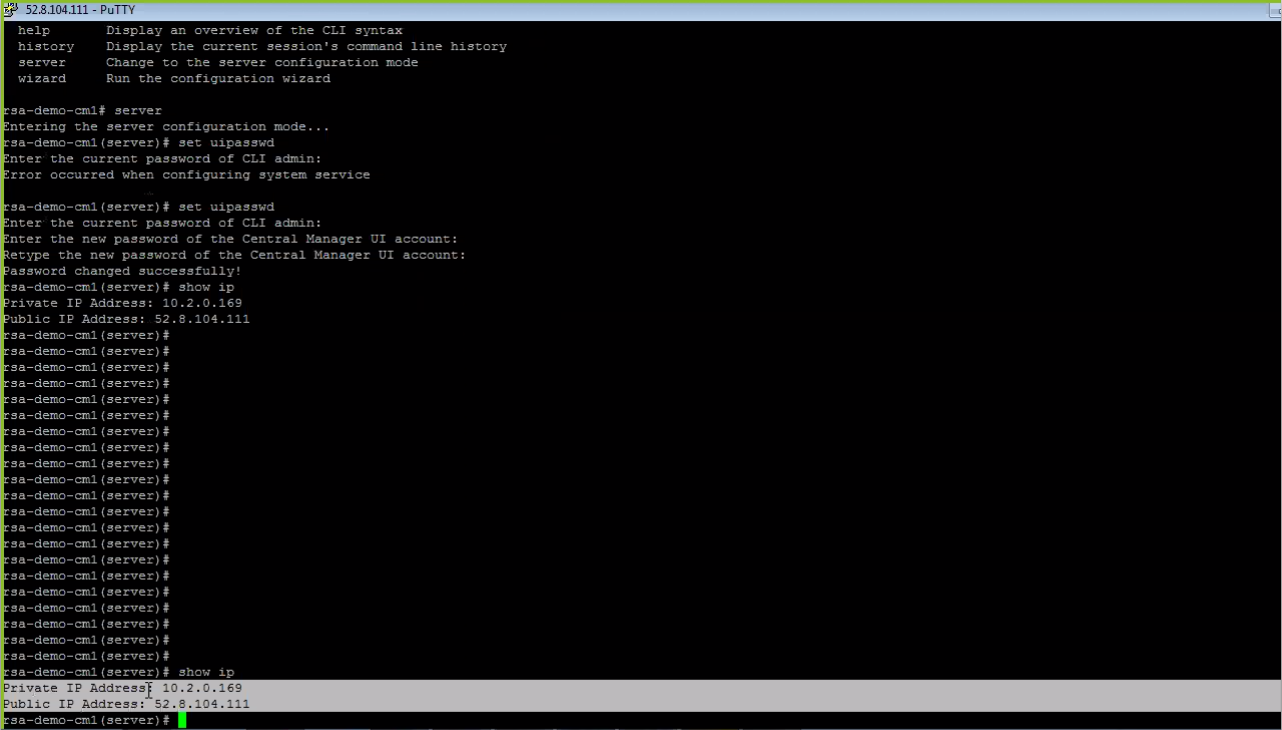
    Terminal session using PuTTY connected to server sa-demo-cm1. User sets and verifies IP addresses: private 10.2.0.169, public 52.8.104.111.
    Note:

    Hybrid Cloud/Private Network deployments are not yet supported. All Juniper ATP Appliance Core components must be co-located on the AWS at this time. This means you cannot install the vCore on AWS and a Secondary Core on a private enterprise network (unless the private enterprise network is connected the to VPC where the AWS Core is located using VPN).

  6. After launching the AWS Core, the AMI vCore instance will boot up just like a regular appliance, and after the vCore comes up, the next step is to run CLI setup wizard at the vCore CLI just like a regular virtual Core. Refer to the Core/Central Manager Quick Start Guide for instructions on running the wizard to configure a Virtual Core. Also in the Quick Start Guide is information about installing additional Cores, Clustered Cores, Secondary Cores or OVA Cores.
    Note:

    On the first boot of a virtual core (either AMI or OVA) with two disks configured, the appliance takes time to set up the second disk to be used. During this process, the system is not ready for use; the full process may take up to 10 minutes. Wait 10 minutes after first boot before logging into the system to begin configuring it.

  7. To create Secondary Cores for this AWS vCore, return to the AWS Management Console and launch a few more AMI Instances, then login to their CLIs via SSH and point those vCore Central Manager IP Addresses to the primary vCore CM. This process is described in the Core/Central Manager Quick Start Guide in the section on Clustered Deployments.
  8. For information about installing and configuring Juniper ATP Appliance Traffic Collectors for AWS vCore deployments, refer to Traffic Collectors Quick Start Guide.
    Note:

    Verify that there are no firewall rules blocking the outbound connections to the AWS Core. Be aware, however, that Outbound CnC detection traffic is blocked from leaving the AWS detection VMs.

  9. View the AWS configuration from the Juniper ATP Appliance Central Manager Web UI; refer to the section in this guide Accessing the Juniper ATP Appliance Central Manager Web UI for information about accessing and navigating the CM Web UI.

    On the Central Manager Config>Golden Image VMs page, note that 32-bit images are available for AWS; see figure below for reference.
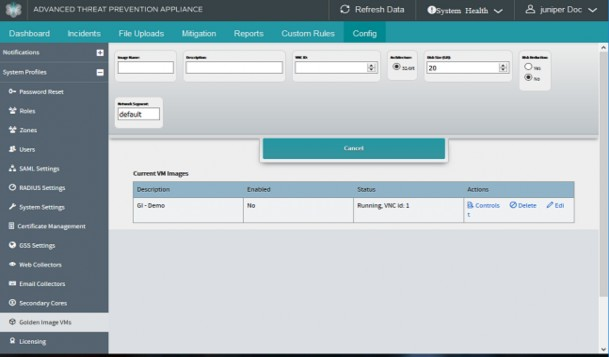
    Advanced Threat Prevention Appliance UI showing VM image configuration with fields for name, description, memory, disk size, and actions.