Help us improve your experience.

Let us know what you think.

Do you have time for a two-minute survey?


Upgrade Apstra on New VM (VM-VM)

Upgrading Apstra on a new VM provides Ubuntu Linux OS fixes, including security updates. You need Apstra OS admin privileges and Apstra admin group permissions to perform the upgrade.

Step 1: Pre-Upgrade Validation

  1. See Upgrade Paths to ensure you're upgrading to a supported version. In the Apstra GUI, find your current version under the Juniper Apstra logo in the upper left corner of the navigation menu.
  2. Log in to the Apstra server as admin (For example, if your Apstra server IP address were 10.28.105.3, the command would be ssh admin@10.28.105.3).
  3. Run the command service aos status to check that the server is active and has no issues.
  4. See the Juniper Apstra release notes for any configuration-rendering changes that could impact the data plane.
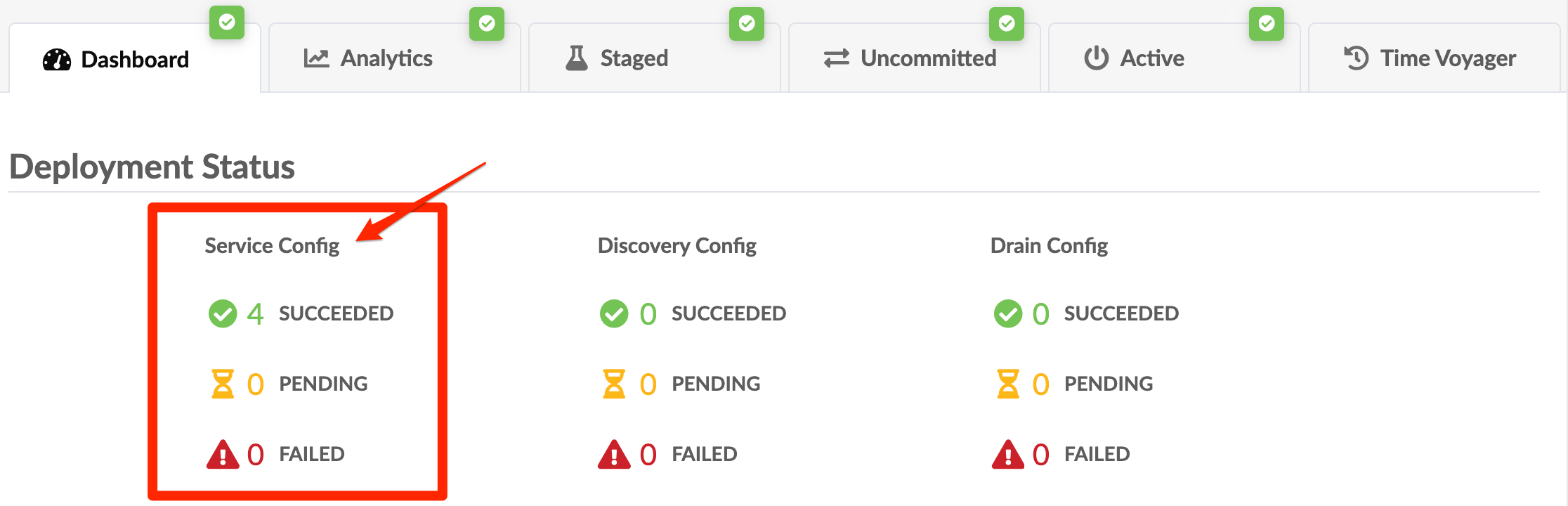
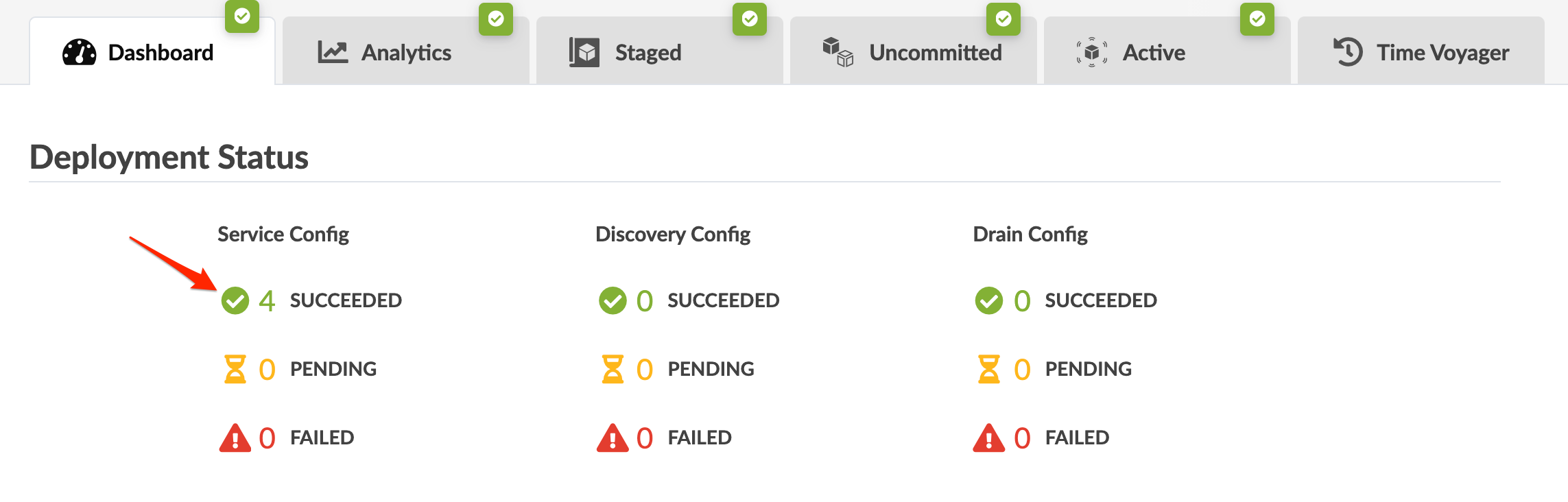
  5. Review each blueprint to confirm that all Service Config is in the SUCCEEDED state. If necessary, undeploy and remove devices from the blueprint to resolve any pending or failed service config.
  6. Review each blueprint for probe anomalies, and resolve them as much as possible. Take notes of any remaining anomalies.
  7. See the Juniper Apstra User Guide (References > Devices > Qualified Devices and NOS Versions) to verify that the device models and NOS versions are qualified on the new Apstra version. Upgrade or downgrade as needed to one of the supported versions.
  8. If you're using Junos devices, the pristine configuration must include the essential mgmt_junos VRF. .
    CAUTION:

    If the pristine configuration doesn't include the mgmt_junos VRF, then deployment will fail.

  9. Remove any Device AAA configuration. During device upgrade, configured device agent credentials are required for SSH access.
  10. Remove any configlets used to configure firewalls. If you use FW's Routing Engine filters on devices, you'll need to update them to include the IP address of the new controller and worker VMs.
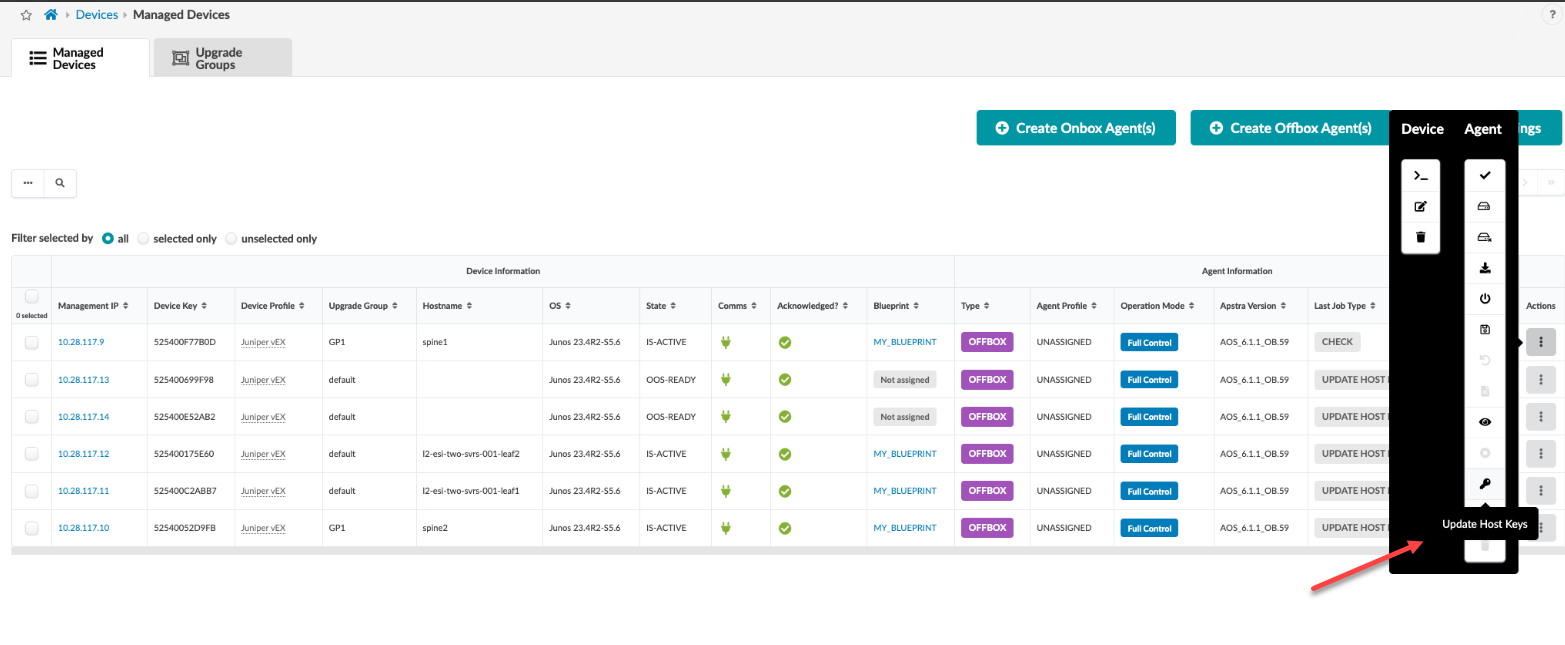
  11. To upgrade device system agents, Apstra needs SSH access to all devices using the configured credentials. From the Apstra GUI, go to Devices > Managed Devices, select the device(s) to check, and click Check in the Agent menu. Ensure all job states show SUCCESS. Fix any failed check jobs before upgrading Apstra.
  12. As root user, run the command sudo aos_backup to back up the Apstra server.
    CAUTION:

    The upgraded Apstra server excludes time voyager revisions. To revert to a past state, you need this backup. Previous states are unavailable due to changes in reference designs between Apstra versions

  13. Copy the backup files from /var/lib/aos/snapshot/<shapshot_name> to an external location.
  14. Make sure that the new VM has the Required Server Resources for the Apstra server.

Step 2: Deploy New Apstra Server

Note:

If you customized the /etc/aos/aos.conf file on the old Apstra server (for example, if you updated the metadb field to use a different network interface), re-apply those changes to the new Apstra server VM. Automatic migration doesn't occur.

  1. As a registered support user, Download the Apstra VM image and transfer it to the new Apstra server.
  2. Install and configure the new Apstra VM image with the new IP address (same or new FQDN may be used).
  3. If you're using an Apstra cluster with offbox agents and IBA probes, reuse the worker VMs and install the new software using sudo bash aos_<aos_version>.run. For new worker VMs, skip this step.
    Note:

    To replace all VMs, create 3 new VMs with the updated Apstra version. Designate one as the controller and the others as worker nodes.

  4. Verify the following for the new Apstra server:
    • SSH access to the old Apstra server.

    • Connectivity to system agents (see Required Communication Ports).

    • Access to external systems like NTP, DNS, vSphere server, and LDAP/TACACS+ server.

Step 3: Import State

Note:

Avoid performing API/GUI write operations on the old Apstra server after starting the new VM import. Changes made won't transfer to the new Apstra server.

  1. Log in to the new Apstra server as user admin.
  2. Run the sudo aos_import_state command to import SysDB from the old server, apply necessary translations, and import configuration. Include the following arguments, as applicable:
    • --ip-address <old-apstra-server-ip>
  3. Enter the admin username:
    • Use --username <admin-username>
    • For Apstra clusters with new worker node IPs, include --cluster-node-address-mapping <old-node-ip> <new-node-ip>
    • To retain the old Apstra server, use --disable-original-apstra-server {prompt,disable,keep}. For example: --disable-original-apstra-server keep.

    • Run upgrade preconditions checks without upgrading using --dry-run-connectivity-validation.

    • Skip connectivity validation iwith --skip-connectivity-validation.

    • If SSH credentials on the older Apstra version are less strict than the new version, add --override-cluster-node-credentials to the aos_import_state command during database import to avoid upgrade failure.

    • For Junos devices without configured management VRFs, use ---skip-junos-mgmt-vrf-check for a no-fail upgrade process.

    Example command: Single VM or Apstra Cluster with Same Worker Nodes

    Example Command: Apstra Cluster with New Worker Nodes

    In the example above, 10.28.105.4 and 10.28.105.7 are old worker node IP addresses; 10.28.105.6 and 10.28.105.8 are new worker node IP addresses.

    Root is required for importing the database, so you'll be asked for the SSH password and root password for the remote Apstra VM.

    Note:

    When upgrading an Apstra cluster, ensure the SSH password for old controller, old worker, and new worker is identical. Otherwise, the upgrade fails authentication. The password entered for 'SSH password for remote AOS VM' applies to remote controller, old worker, and new worker VMs. After upgrading, update the worker VMs' SSH password in the Apstra GUI (Platform > Apstra Cluster > Nodes) if you change it.

    Note:

    The size of the blueprint and the Apstra server VM resources determine how long it takes to complete the import. If the database import exceeds the default value (40 min or 2400 seconds), the operation may 'time out'. If this happens, you can increase the timeout value with the AOS_UPGRADE_DOCKER_EXEC_TIMEOUT command.

    For example, the following command increases the time before timeout to 2 hours (7200 seconds).

    admin@aos-server:~$ sudo AOS_UPGRADE_DOCKER_EXEC_TIMEOUT=7200 aos_import_state --ip-address 10.10.10.10 --username admin

    The upgrade script presents a summary view of the devices within the fabric that will receive configuration changes during the upgrade. A warning appears on the screen recommending that you read the Release Notes and Upgrade Paths documentation before proceeding. The release notes include a category for Configuration Rendering Changes. Configuration rendering changes are clearly documented at the top explaining the impact of each change on the network.

    The upgrade script summarizes devices in the fabric set for configuration changes during the upgrade. A warning appears on the screen recommending that you read the Release Notes and Upgrade Paths first. The release notes detail the Configuration Rendering Changes and their effect on the network.

    The Apstra Upgrade Summary displays information by device roles, such as superspine, spine, leaf, leaf pair, and access switch. If an incremental config was applied instead of a full config, more details are displayed about the changes.

  4. The AOS Upgrade: Interactive Menu lets you review configuration changes on each device. Verify that the upgrade's new configuration does not conflict with existing configlets.
    CAUTION:

    The new Apstra release may alter the Apstra Reference Design, invalidating configlets. Verify your configlets to prevent conflicts with the updated config. If updates are needed, quit the upgrade, revise your configlets, and restart the upgrade.

  5. If you want to continue with the upgrade after reviewing pending changes, enter c.
  6. If you want to stop the upgrade, enter q to abort the process. If you quit at this point and later decide to upgrade, you must start the process from the beginning.
    Note:

    If the Apstra upgrade fails (or in the case of some other malfunction) you can gracefully shut down the new Apstra server and re-start the old Apstra server to continue operations.

Step 4: Import State for Intent-Based Analytics

Note:

As of Apstra 5.0.0, we no longer assign tags to probes and stages or support the evpn-host-flap-count telemetry service.

To remove or disable any widgets or probes for intent-based analytics, add the following arguments to the sudo aos_import_state command:

  • --iba-remove-unused widgets: Remove unused widgets from the dashboard.

  • --iba-remove-probe-and-stage-tags: Remove tags from probes and stages.

  • --iba-number-non-unique-probe-labels: Add serial numbers to non-unique probe labels.

  • --iba-number-non-unique-dashboard-labels: Add serial numbers to non-unique dashboard labels.

  • --iba-disable-probe-with-evpn-host-flap-count-service: Disable non-predefined probes using the evpn-host-flap-count service.

  • --iba-strip-dashboard-labels-widget-labels: Remove leading/trailing spaces from dashboard and widget labels.

  • --iba-strip-probe-labels-processor-names: Remove leading/trailing spaces from probe labels and processor names.

Step 5: Keep Old VM's IP Address (Optional)

Perform the following steps before changing the Operation Mode and upgrading the devices' agent.

To keep the old VM's IP address:

  1. Shutdown the old VM or change its IP address to a different address to release the IP address. This is required to avoid any duplicated IP address issue.
  2. Go to the new VM's Apstra interactive menu from the CLI.
  3. Click Network to update the IP address and confirm the other parameters.
  4. For the new IP address to take effect, restart the network service, either from the same menu before exiting or from the CLI after leaving the menu.

Step 6: Modify Apstra IP in Flow Config After Apstra Upgrade (if not resusing original IP)

During the Apstra upgrade with VM-to-VM, the Apstra IP address changes unless you reuse the old IP in Step 5.

If the IP address changes, update the Apstra Flow component to capture the new IP as follows:

  1. SSH to the Apstra Flow CLI (default credentials are apstra/apstra).
  2. Open /etc/juniper/flowcoll.yml.
  3. Modify the EF_JUNIPER_APSTRA_API_ADDRESS field with the new IP address.
  4. Run sudo systemctl restart flowcoll.service.

Step 7: Change Operation Mode to Normal

When you start an Apstra server upgrade, the mode switches from Normal to Maintenance automatically. Maintenance mode blocks offbox agents from going online, halts configuration pushes, and stops telemetry pulls. To revert to the previous version, shut down the new server. To complete the upgrade, switch the mode back to Normal.

  1. Log in to the Apstra GUI.
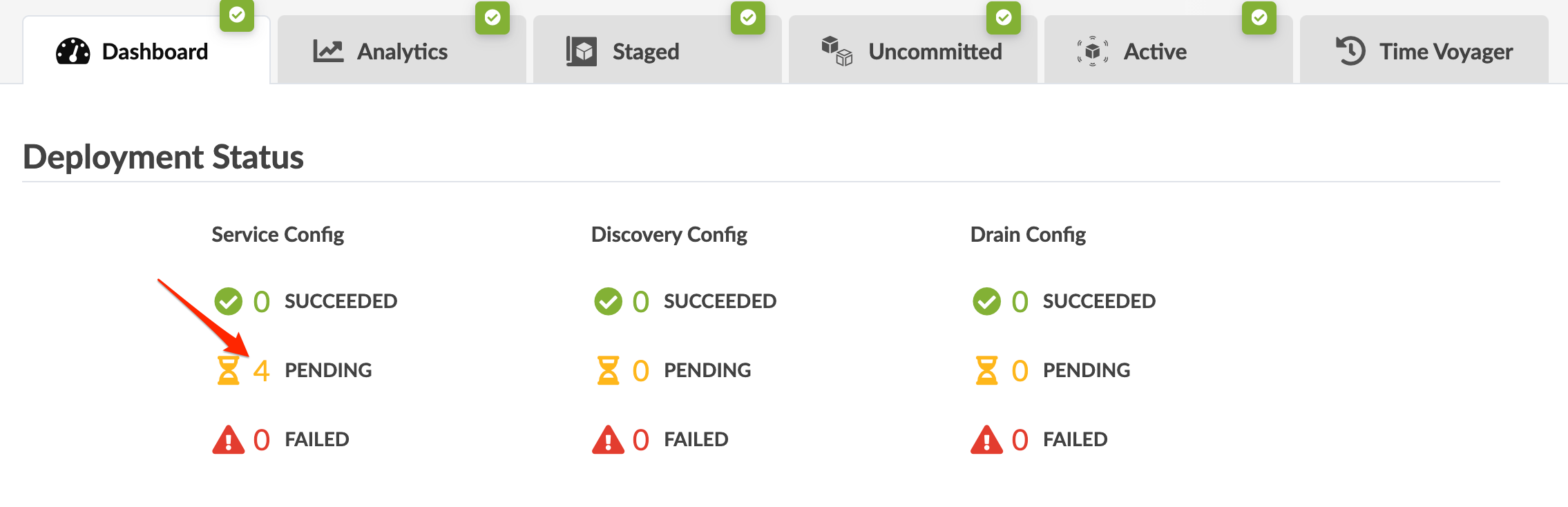
  2. To view pending service configuration changes, navigate to the dashboard of the blueprint and click PENDING to see the affected devices.
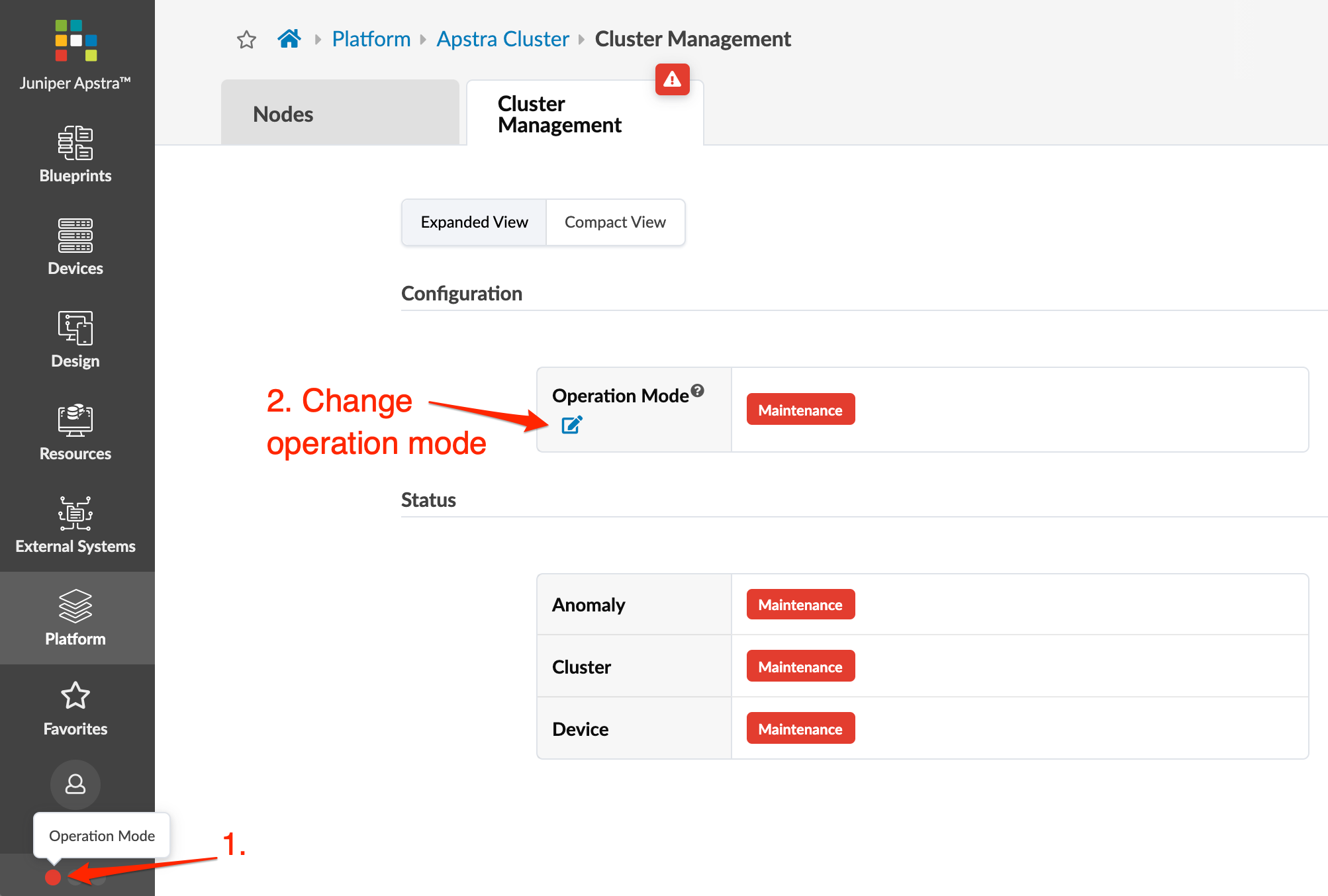
  3. From the left navigation menu, navigate to Platform > Apstra Cluster > Cluster Management.
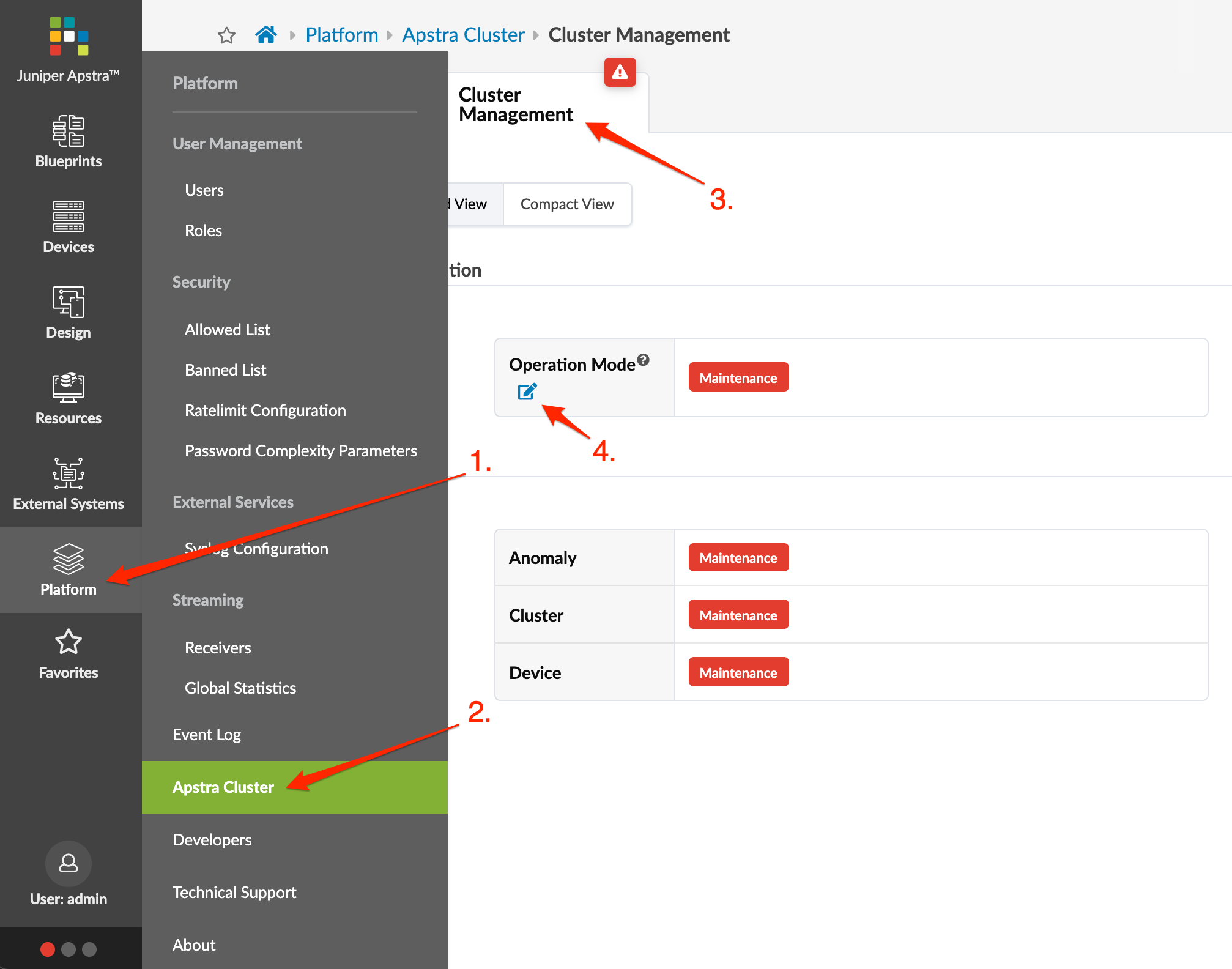
  4. Click the Change Operation Mode button, select Normal, then click Update. Any offbox agents, whether they're on the controller or worker VMs automatically go online and reconnect devices and push any pending configuration changes. After a few moments the temporary anomalies on the dashboard resolve and the service configuration section shows that the operation has SUCCEEDED.
    You can also access the Cluster Management page from the lower left section of any page. You have continuous platform health visibility from here as well, based on colors.

    From the bottom of the left navigation menu, click one of the dots, then click Operation Mode to go to Cluster Management. Click the Change Operation Mode button, select Normal, then click Update.
Step 8: Upgrade Onbox Agents

The Apstra server and onbox agents must be running the same Apstra version. If versions are different the agents won't connect to the Apstra server.

If you're running a multi-state blueprint, especially 5-stage, upgrade agents in stages:

  • First, upgrade superspines.

  • Next, upgrade spines.

  • Finally, upgrade leafs.

This order minimizes path hunting issues. Routing may temporarily go from leaf to spine, back to another leaf, and then to another spine. Staged upgrades reduce this risk.

  1. Log in to the Apstra GUI as user admin.
  2. From the left navigation menu, navigate to Devices > Managed Devices and select the check boxes for the device(s) to upgrade (up to 100 devices at a time). You can upgrade multiple onbox agents at the same time, but the order of device upgrade is important.
    • Upgrade agents for superspines first.
    • Upgrade agents for spines second.
    • Upgrade agents for leafs third.
    When you select one or more devices the Device and Agent menus appear above the table.
  3. Click the Install button to initiate the install process.
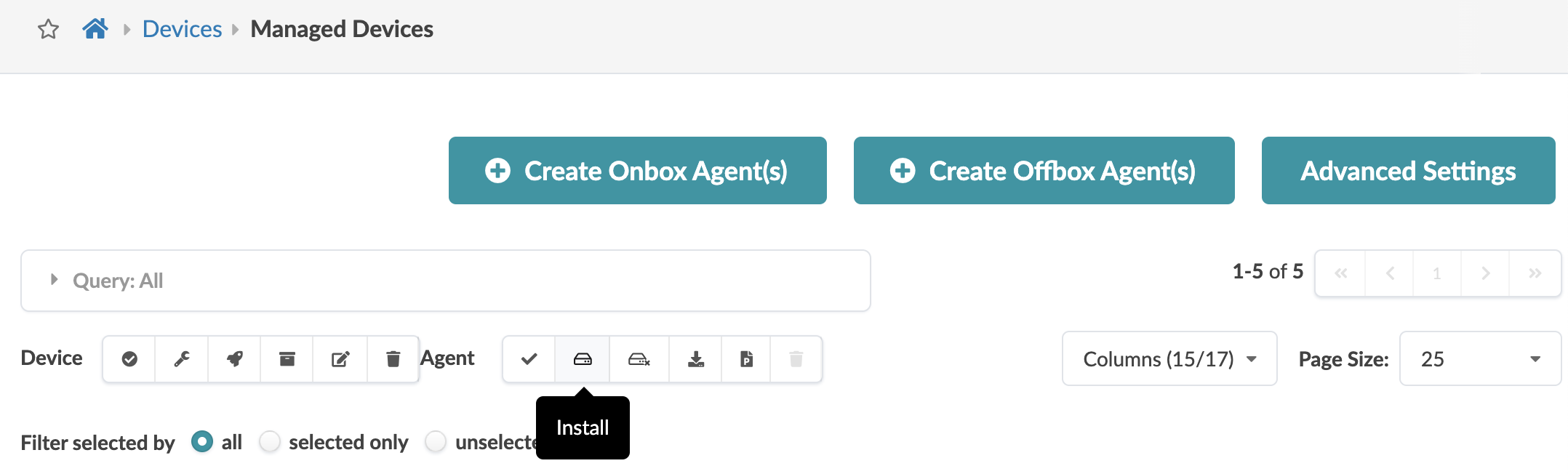
    The job state changes to IN PROGRESS. If agents are using a previous version of the Apstra software, they are automatically upgraded to the new version. Then they connect to the server and push any pending configuration changes to the devices. Telemetry also resumes, and the job states change to SUCCESS.
  4. In the Liveness section of the blueprint dashboard confirm there are no device anomalies.
    Note:

    To roll back to the previous Apstra version after and agent upgrade, build a new VM with the previous Apstra version and restore the configuration to the new VM. Contact Juniper Technical Support for assistance.

Step 9: Shut Down Old Apstra Server

Following these steps to shut down the old Apstra server:
  1. Update any DNS entries to use the new Apstra server IP/FQDN based on your configuration.
  2. If you're using a proxy for the Apstra server, ensure it points to the new server.
  3. Gracefully shut down the old Apstra server. If you confirmed shutting it down, the service aos stop command runs automatically.
  4. If you're upgrading an Apstra cluster and you replaced your worker nodes with new VMs, shut down the old worker VMs.
Next Steps:

Upgrade your device NOS versions to a qualified version if they are not compatible with the new Apstra version, See the Juniper Apstra User Guide for details.