Upgrade Apstra Flow on the Same VM (in-Place)
This topic provides instructions on how to upgrade your Apstra Flow configuration on the same VM. This process is referred to as an "in-place" upgrade.
Upgrade Apstra Flow
Make sure to upgrade to the latest Apstra version before running the upgrade file. Navigate to Platform > About in the Apstra GUI to find the current version. The version also appears in the left navigation menu under the Juniper Apstra logo. For step-by-step upgrade instructions, see the Juniper Apstra Installation and Upgrade Guide.
Starting in release 6.1.0, Apstra Flow reduces storage needs by up to 60 percent compared to previous storage requirements. This means that your VM will require less storage without losing data. Full storage savings take one index rollover cycle (default 7 days) to take effect.
To automatically upgrade Apstra Flow:
-
Check that your services are active and running.
Run the following commands to see the status of the flowcollector, opensearch, and opensearch-dashboard services:
sudo systemctl status flowcoll.service
sudo systemctl status opensearch.service
sudo systemctl status opensearch-dashboards.service
Flow collector service status:sudo systemctl status flowcoll.service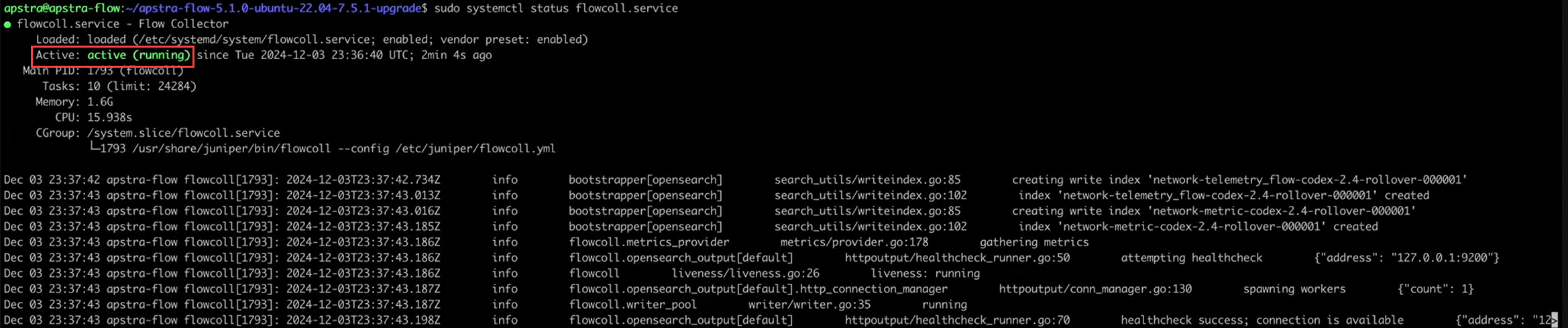 OpenSearch service status:
sudo systemctl status opensearch.service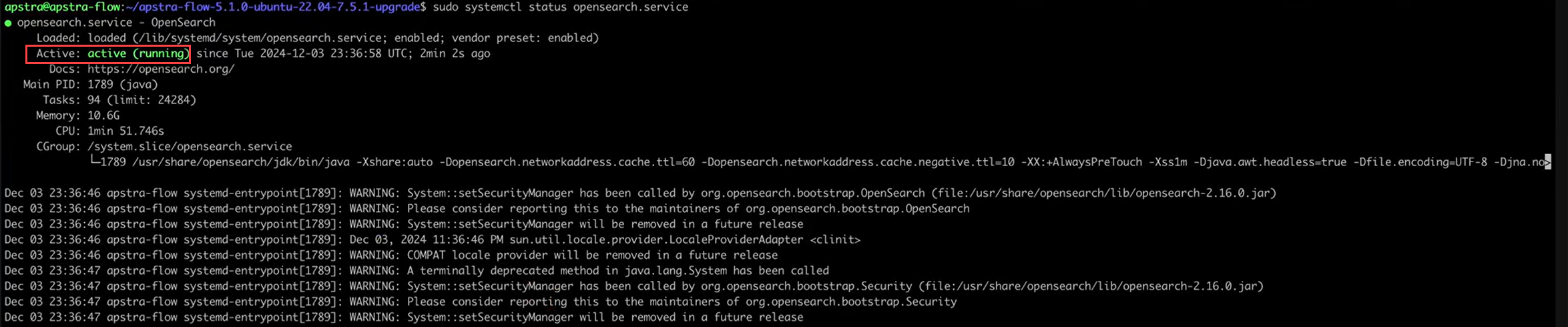 OpenSearch dashboards service:
sudo systemctl status opensearch-dashboards.service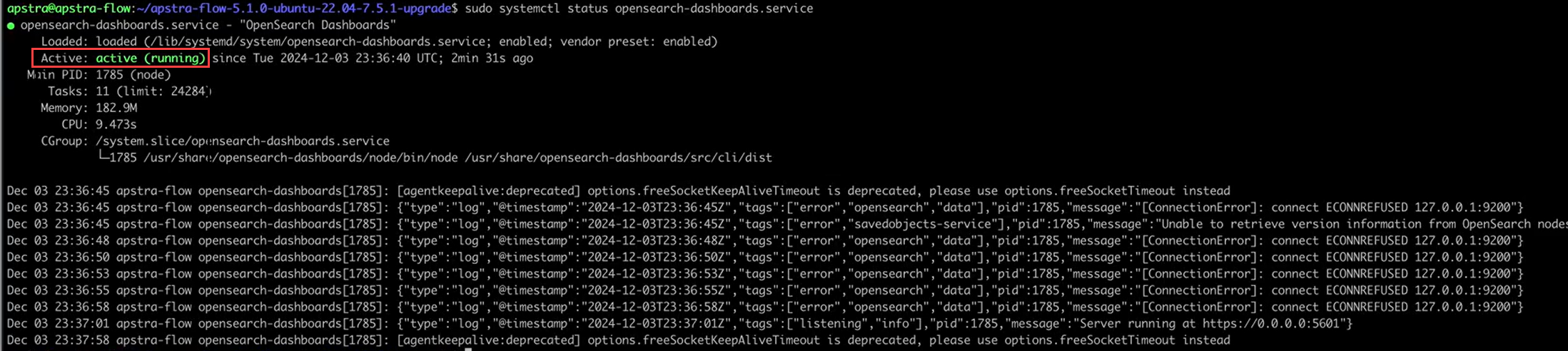
-
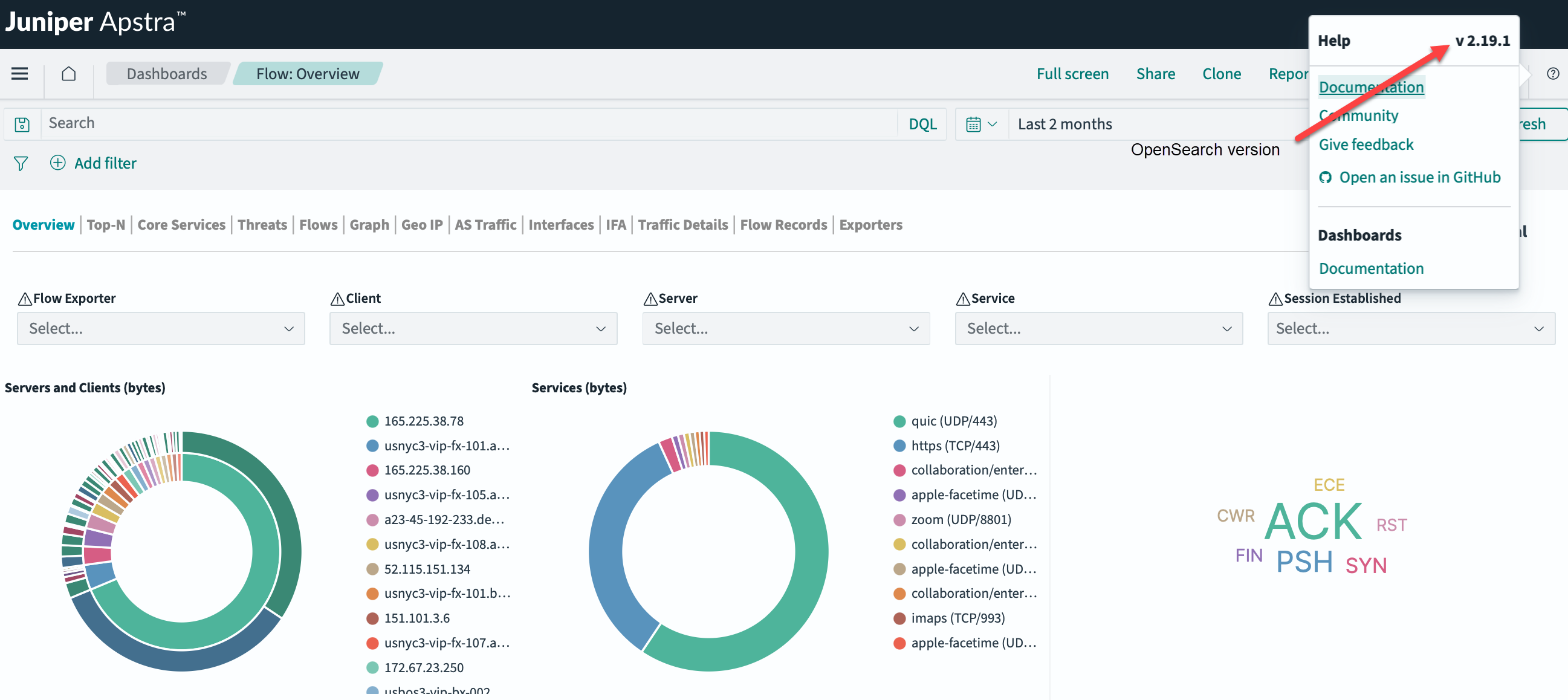
Reopen the Flow: Overview dashboard from the Apstra GUI. Use the
Help "?" icon to confirm that the OpenSearch version is v2.19.1.