
Configure Your Network and Flow Collector
Important Installation Notes
-
This guide assumes that you have Apstra installed. For information about how to install Apstra, see the Juniper Apstra Installation and Upgrade Guide.
-
We recommend that you run Apstra and Apstra Flow on the same version. Doing so ensures compatibility and prevents potential issues that can arise between the different versions.
-
Before you begin the configuration, make sure that you download the image file for your virtualization platform. See your platform documentation for details.
-
If you are using KVM, you can install it with VM Manager or with the CLI.
Let's get started!
Log in to the Apstra Flow Console (CLI)
-
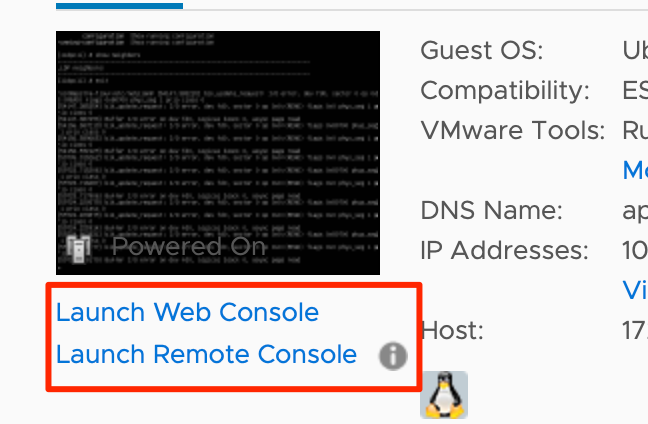
Log in to the Apstra Flow console with the default credentials (user=apstra
and password=apstra) from the web console. If the console is already
started, click the green play button at the top of the VM
summary.
Configure Your Network Settings
-
In the Apstra Server configuration tool, select
7
                                Network
and click Ok.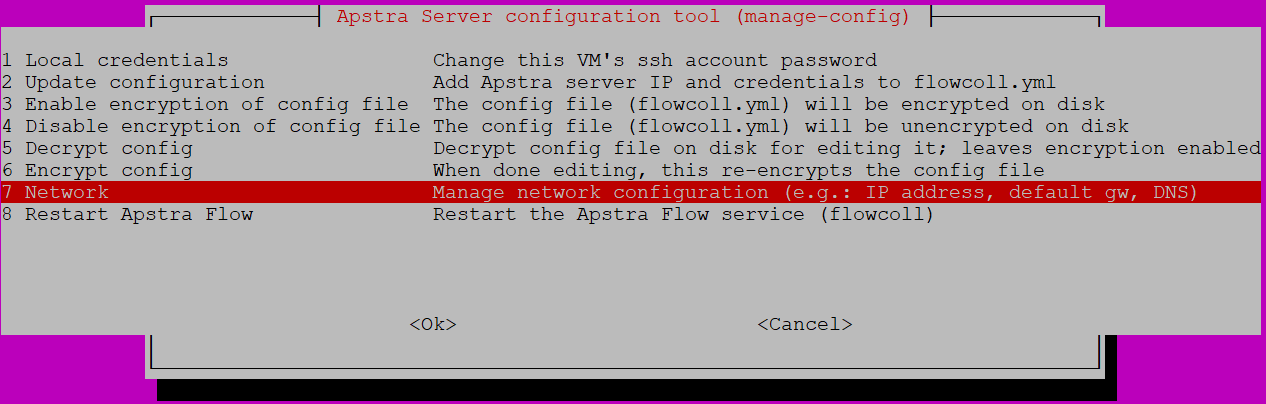
-
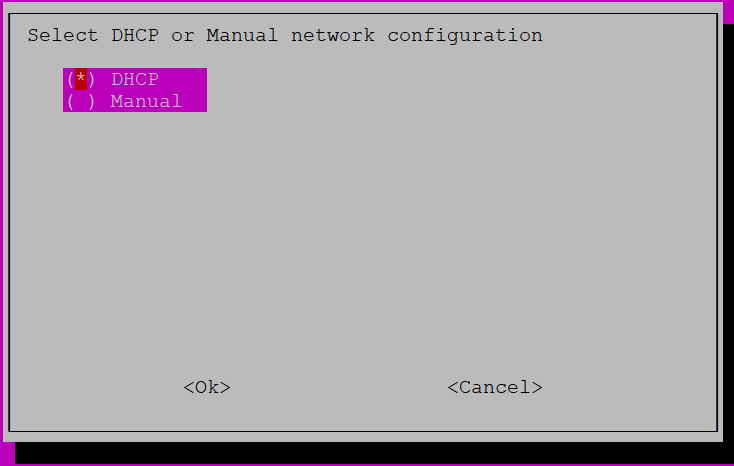
Select either
DHCP(default) orManual.-
For
DHCP, click OK and restart the network. -
To assign a static IP address, select
Manual. Follow the prompts to enter the network settings and click Yes to confirm.
-
Configure the Flow Collector
flowcoll.yaml file. If you prefer to edit the file
manually, refer to the instructions under Flow Analytics in the Juniper Apstra User Guide. To configure the flow collector:
-
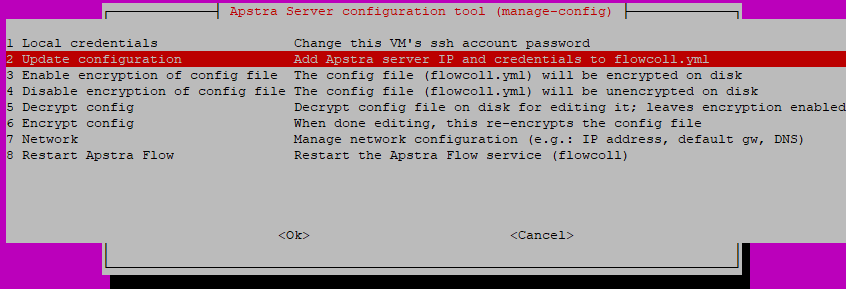
From the Apstra Server configuration tool, select
2 Update
                            configuration
.
-
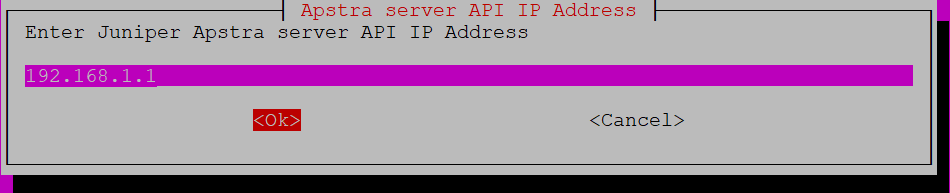
Enter the Apstra Server IP address (such as 192.168.1.1) and click
Ok.
Note. This address is NOT the IP of the flow server, but refers to your Apstra management VM.
-
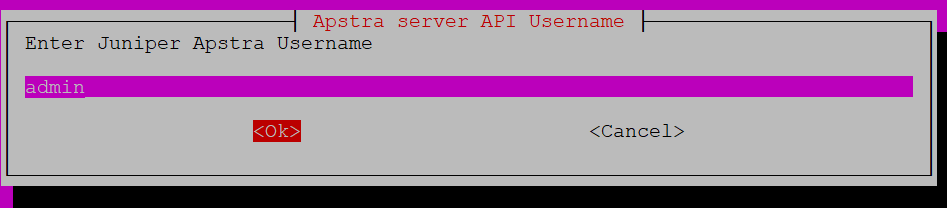
Enter your Apstra username and click Ok.
-
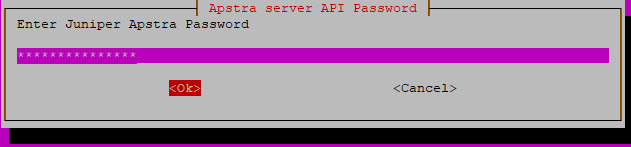
Enter your Apstra server GUI password and click Ok.
 The CLI automatically populates the values you entered and default port number (443) as shown in the following example: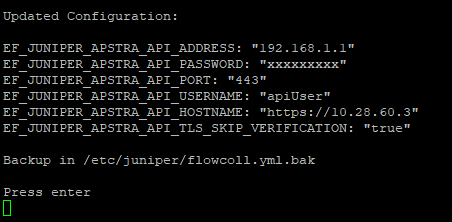
-
Restart Apstra Flow.
Select
8 Restart the Apstra Flow Service (flowcoll)and click Ok.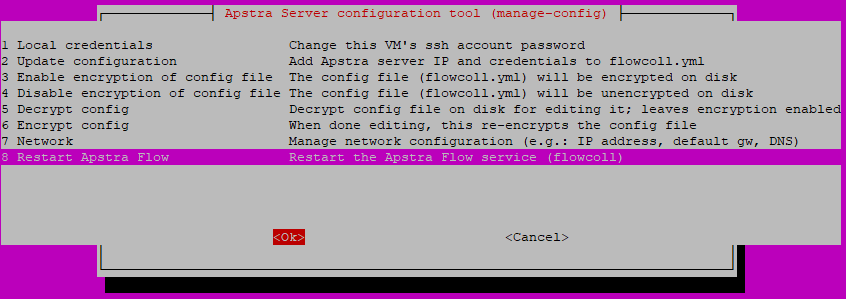 You completed configuring your network and flow collector. Next, continue to (Optional) Enable File Encryption.