
(Optional) Enable File Encryption
Optionally, you can enable file encryption in your configuration file (flowcoll.yml). Encrypting this file safeguards sensitive data such as your passwords and network settings.
To enable file encryption:
-
From the configuration tool select
3 Enable encryption of config fileand click OK.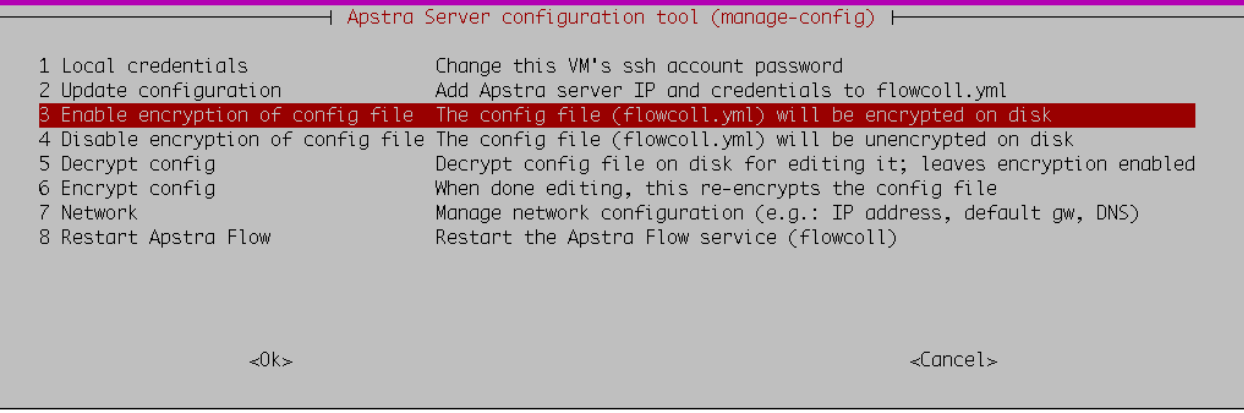
-
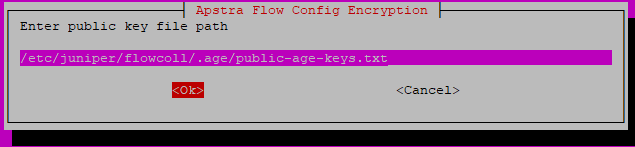
Accept the defaults settings for your private and public keys and click
Ok.

-
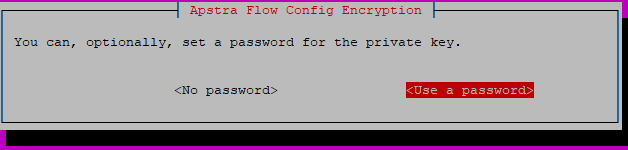
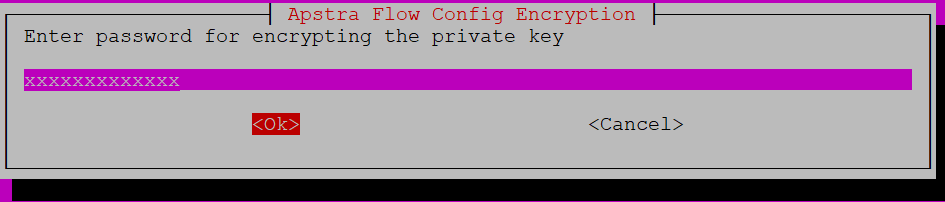
(Optional) If needed, set a password for the private key. Then, enter a password for
encrypting the private key and click Ok.
-
Select the encryption type and click Ok. Standard (age) is the default.

-
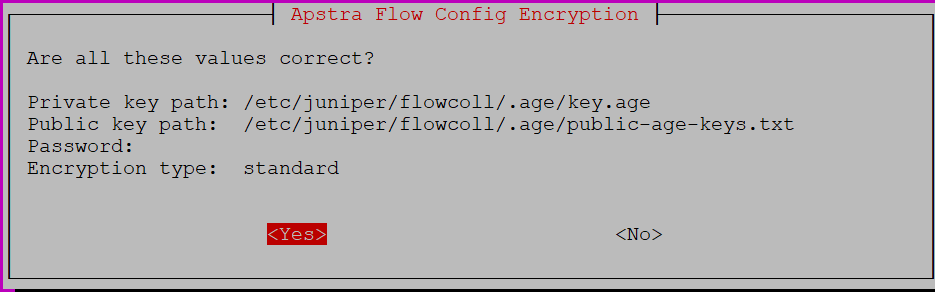
Verify that all values are correct and click Yes.
-
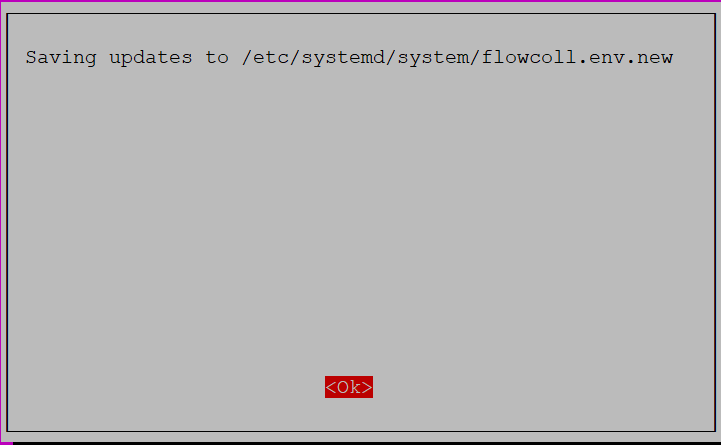
Click Ok to save the encryption settings to your configuration file.
The system automatically starts generating the keys.

-
To encrypt your private key, type the passphrase you created in Step 4.

-
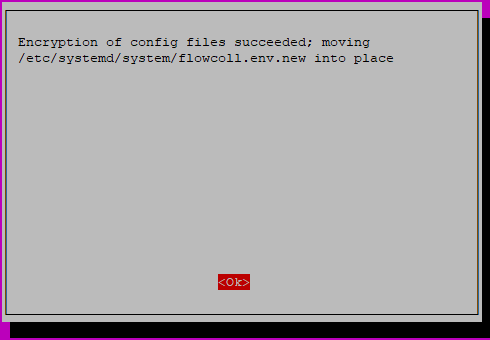
Success! Your configuration file was successfully encrypted.
 Note: If you need to modify the configuration file later, you must first decrypt the file and then re-encrypt the file with the Apstra configuration tool. See Update the Configuration File with File Encryption Enabled.
 -
Restart Apstra Flow.
Select
8 Restart the Apstra Flow Service (flowcoll)and click Ok.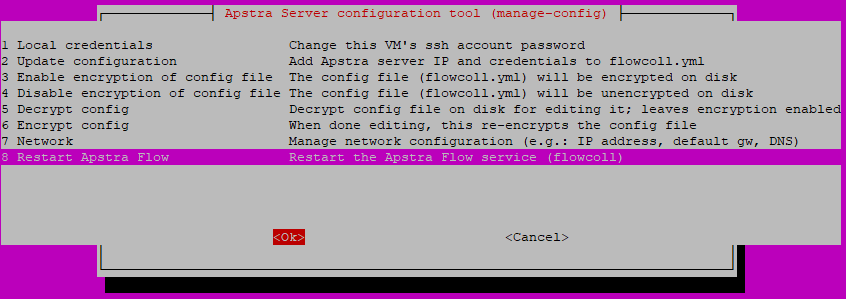 You successfully encrypted your configuration file. Next, continue to Apply Your License.