Create a Custom Telemetry Collector
This topic explains how to create a custom telemetry collector using BFD-related metrics as an example.
Create a Collector
To create a collector:
-
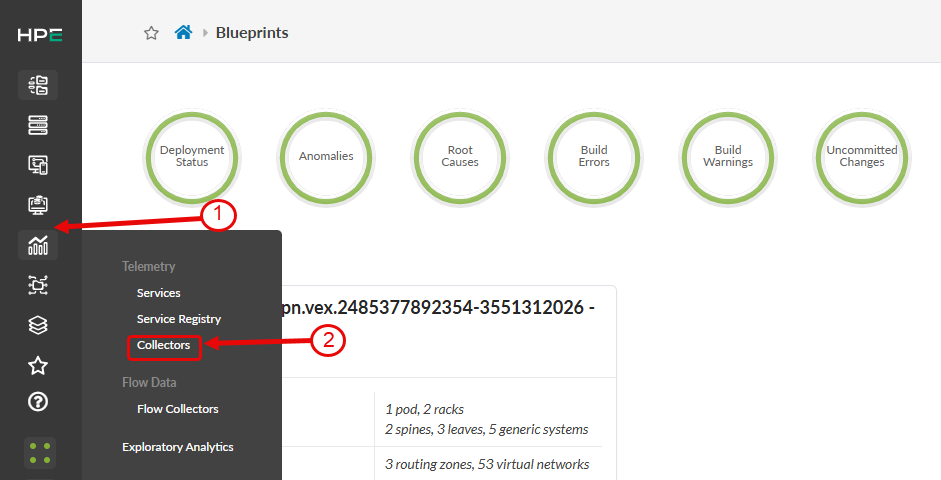
In the Apstra GUI, select Analytics > Collectors.
-
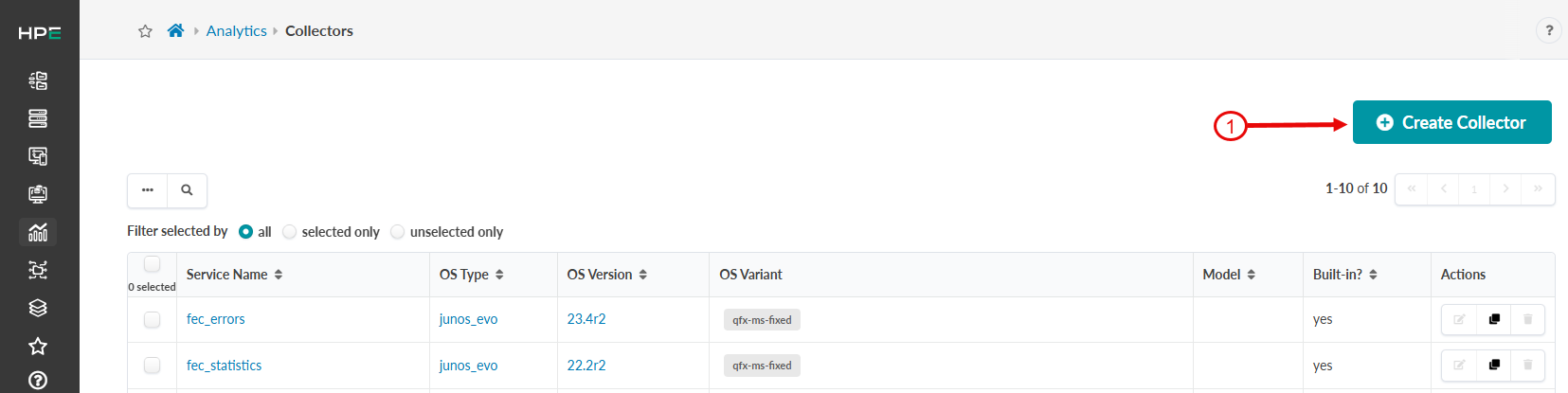
Click Create Collector.
-
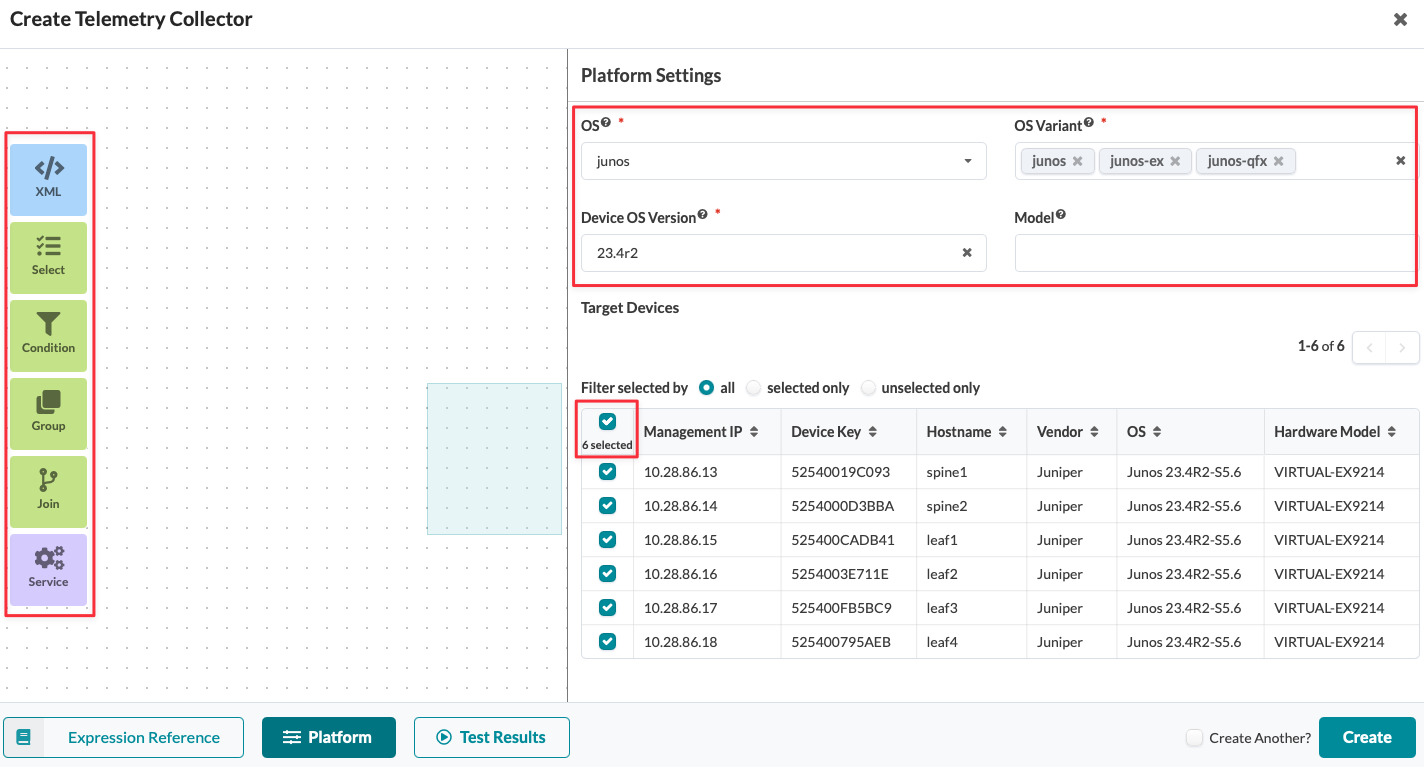
Specify the Platform Settings.
Defining the platform setting ensures that the collector operates exclusively on compatible devices.
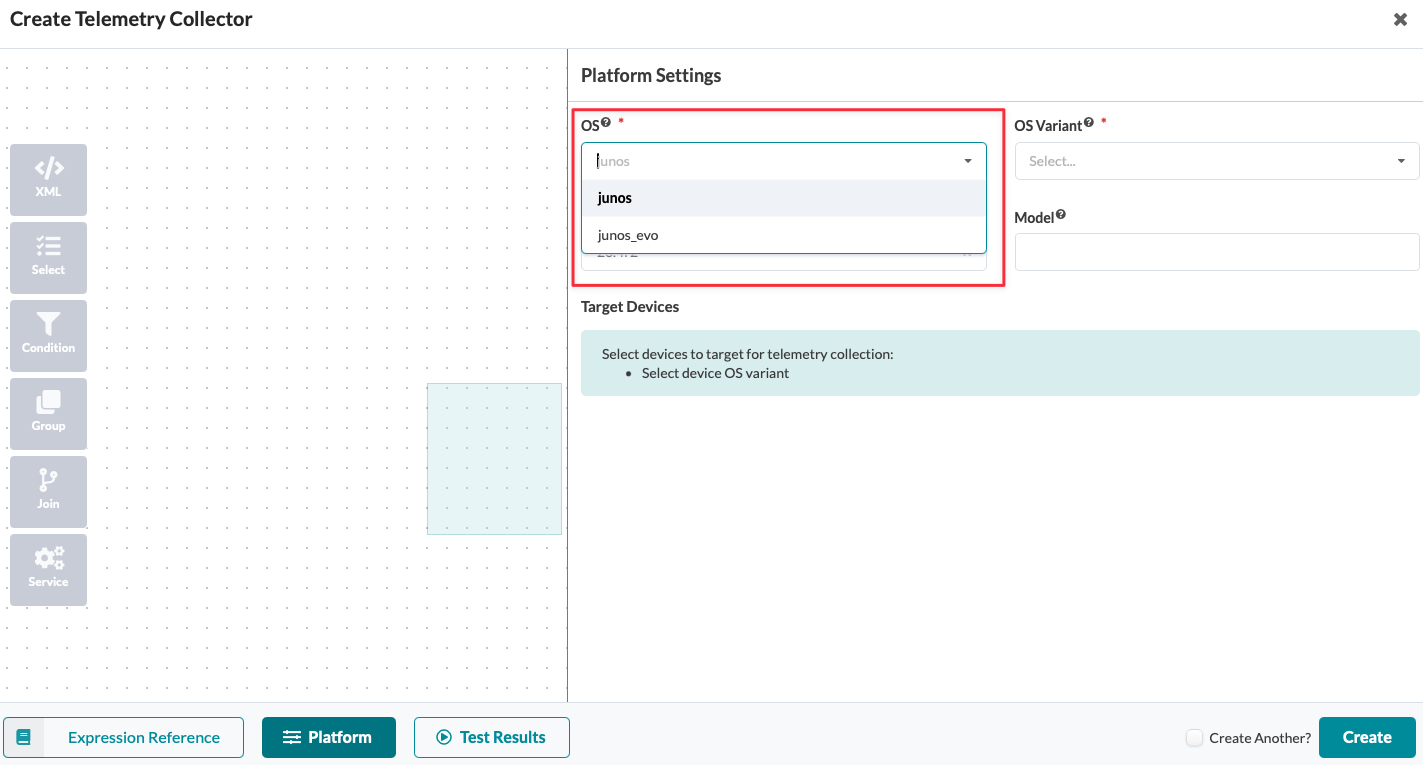
Select the OS:
junosorjunos-evo. This field is mandatory.Note: If you do not specify thejunos_evocollector for Junos OS Evolved devices, the collector uses the corresponding Junos definition.Select the OS Variant. This field is mandatory.
This field accepts multiple entries.If you select multiple variants, Apstra keeps only fields common to all schemas. This approach prevents mismatches across different devices.
Select the minimum DeviceOS Version the device must run for the collector to execute. This field is mandatory.
If multiple collector definitions with different exist the same service, the collector chooses the one closest to the version the device is running.
(Optional) Specify a Model or regular expression to filter based on model or series. The table lists managed target devices in Apstra that match the filters. For example, the 5120-48Y matches both the 5120-48Y and 5120-48YM but does not include the 5120-48T.
After you select all the required fields (OS, OS Variants, and Device OS Versions), the GUI displays the node types on the left panel. You can then use these nodes to build your collector pipeline. -
Select the target devices from the table to execute commands for testing
nodes in the pipeline.
Note: Ensure you select only the required devices from the device list on which you need to test your configured node result. If you don't select a device, the system displays an information message that states, "Select one or more devices on the platform table to use your test queries."