
Create Template (Pod-based)
You can create blueprint templates based on pods (for 5-stage Clos) using the GUI.
Check the Design (global) catalog for logical devices that meet your requirements, If they're not in the catalog, then create them before proceeding.
A pod-based template consists of multiple rack-based templates; it's essentially a "template of templates" used to build 5-stage Clos networks.
To create a pod-based template using the GUI:
-
From the left navigation menu, navigate to Design > Templates
and click Create Template (or to copy an existing pod-based
template and customize it, click the Clone button for the template to copy).
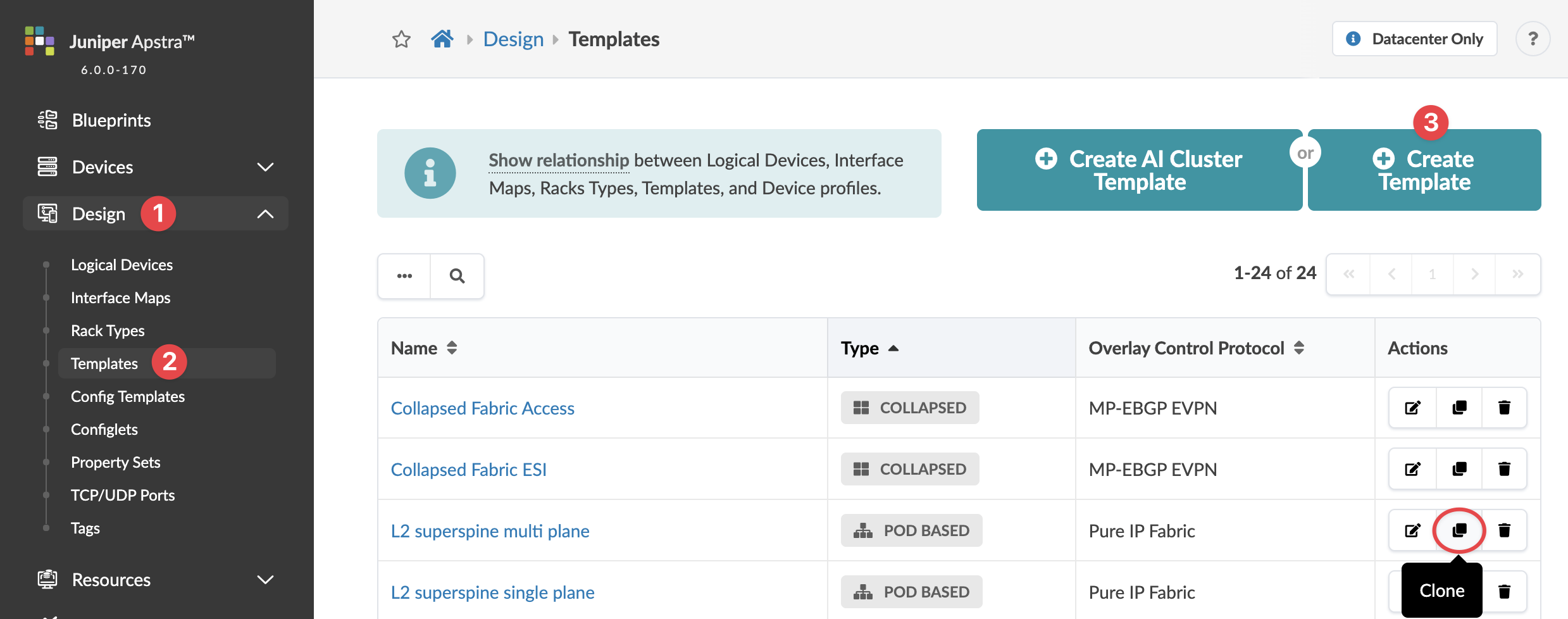 The Create Template dialog opens (or the Clone Template dialog opens, as applicable).
 -
Configure the template as described below. For parameter details, see Templates.
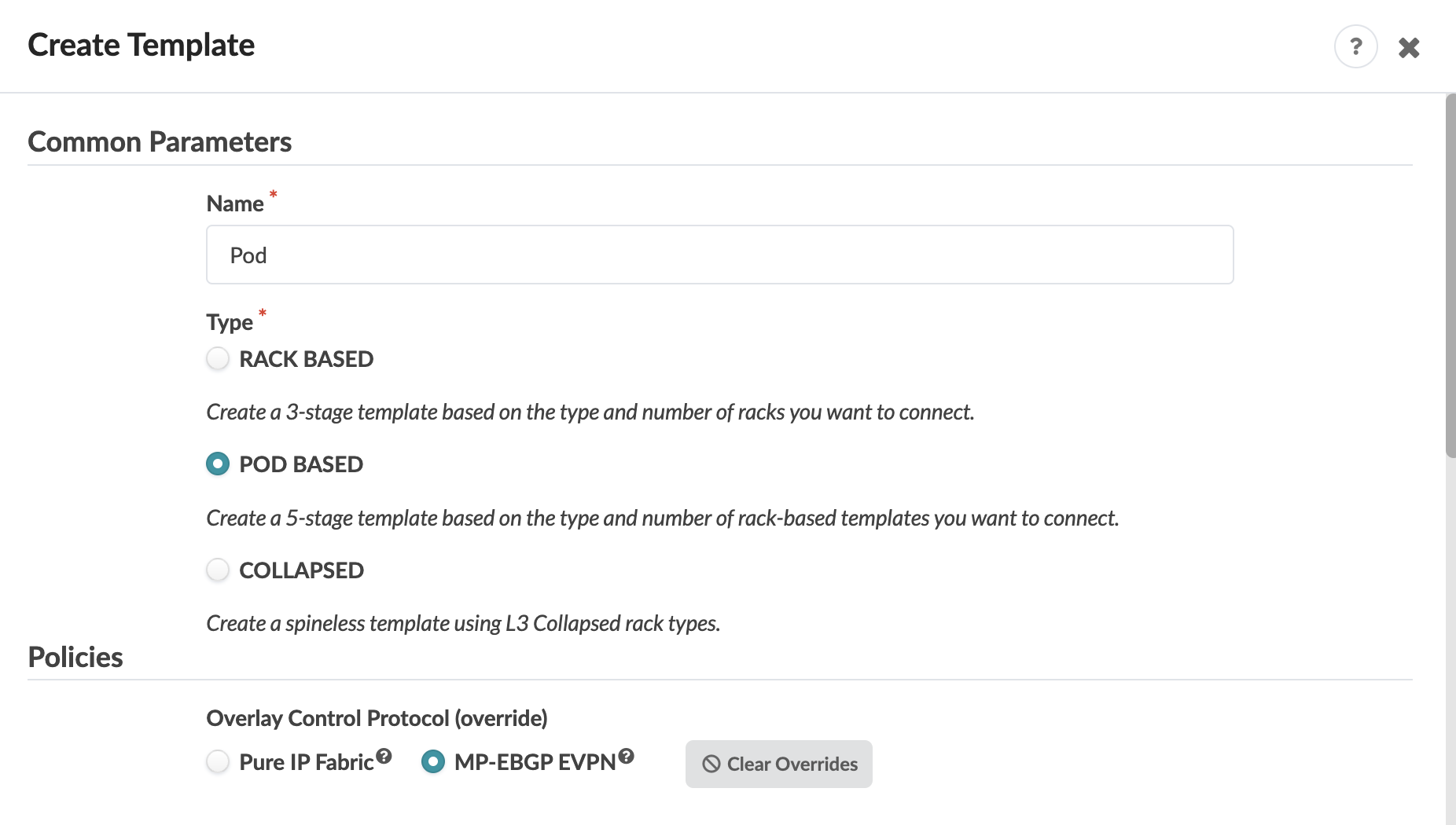
-
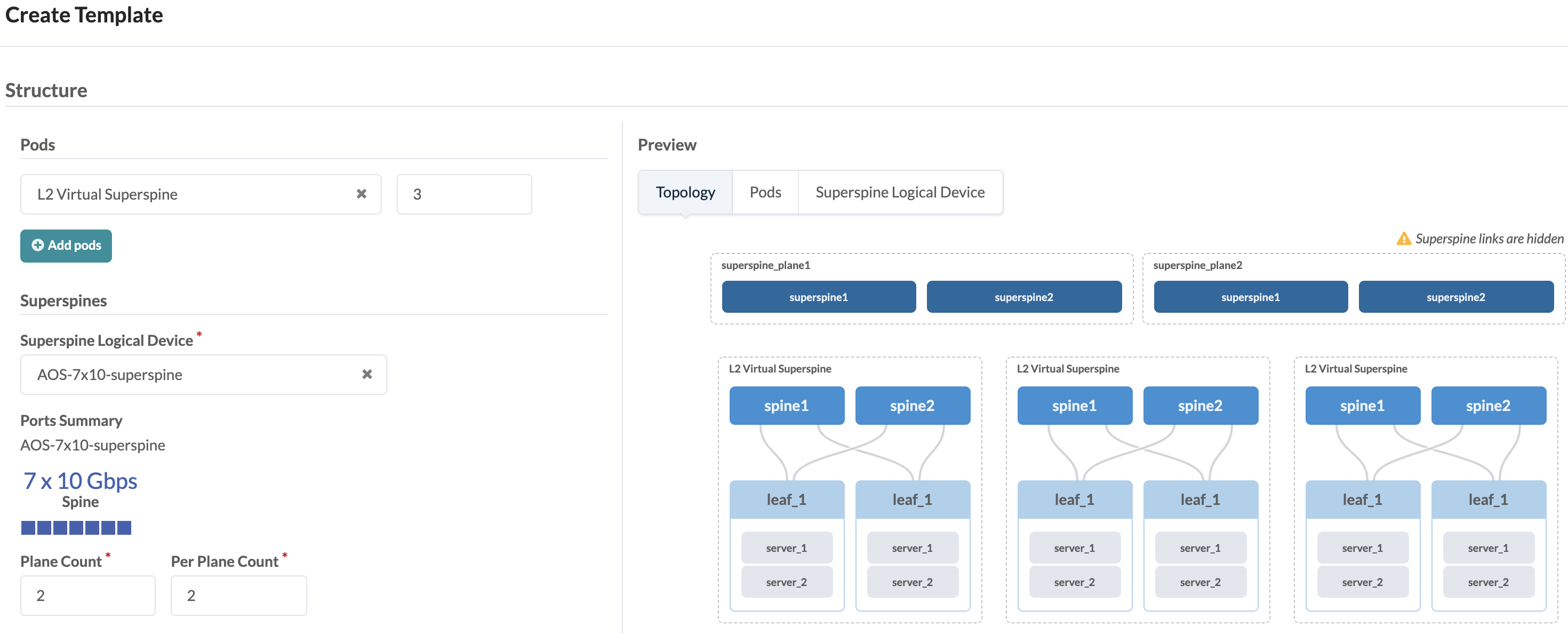
In the Structure section, select a pod from the drop-down list and select the
number of that type of pod. Notice that as you enter information, the topology preview on
the right changes accordingly.
To add another type of pod, click Add pods and select another pod from the drop-down list.
The template is created and you're returned to the
Templates table.
Next Steps: Create a blueprint from the template.