ON THIS PAGE
Managed Devices
Apstra software uses device system agents to manage devices. These agents manage configuration, device-to-device communication and telemetry collection. You can use Apstra Zero Touch Provisioning (ZTP) to install agents and bring devices under Apstra management or you can use the device installer.
A good understanding of the Apstra device configuration lifecycle is essential. Before working with devices in the Apstra environment, we strongly recommend that you fully understand how devices are configured from the moment they are on-boarded to the moment they are decommissioned.
From the left navigation menu in the Apstra GUI, navigate to Devices > Managed Devices to go to the table of those devices with installed agents.
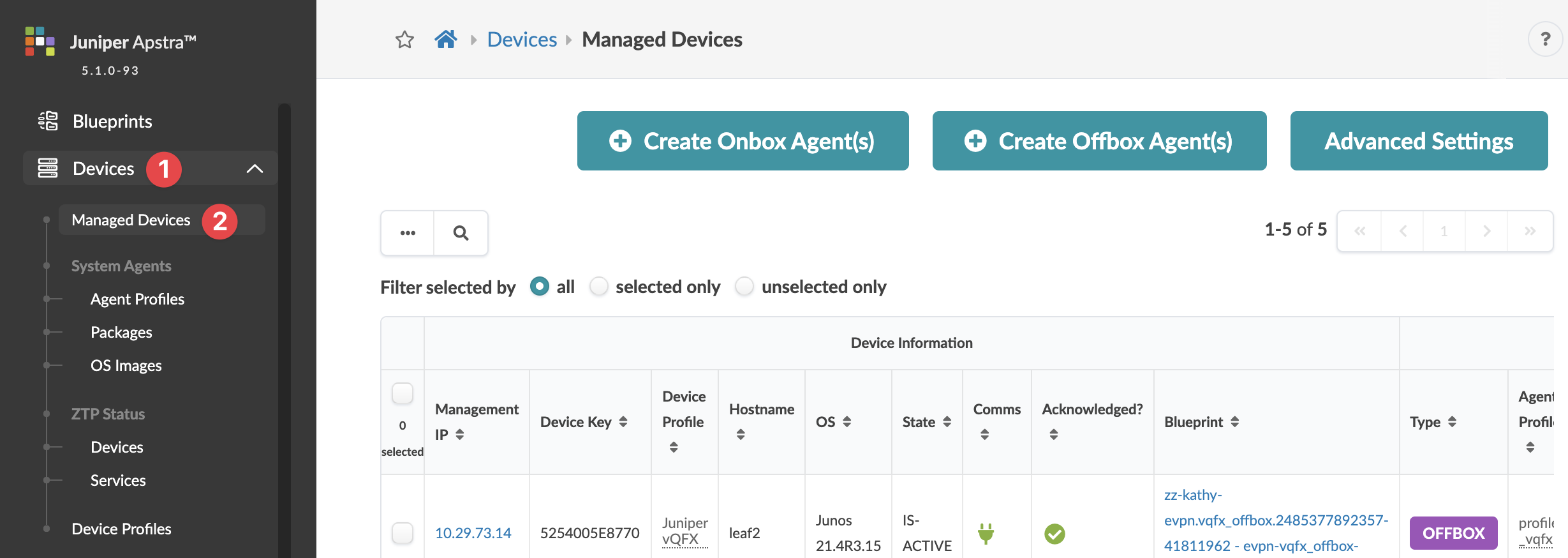
The Managed Devices page is the hub for many device-related tasks, described in later
sections. 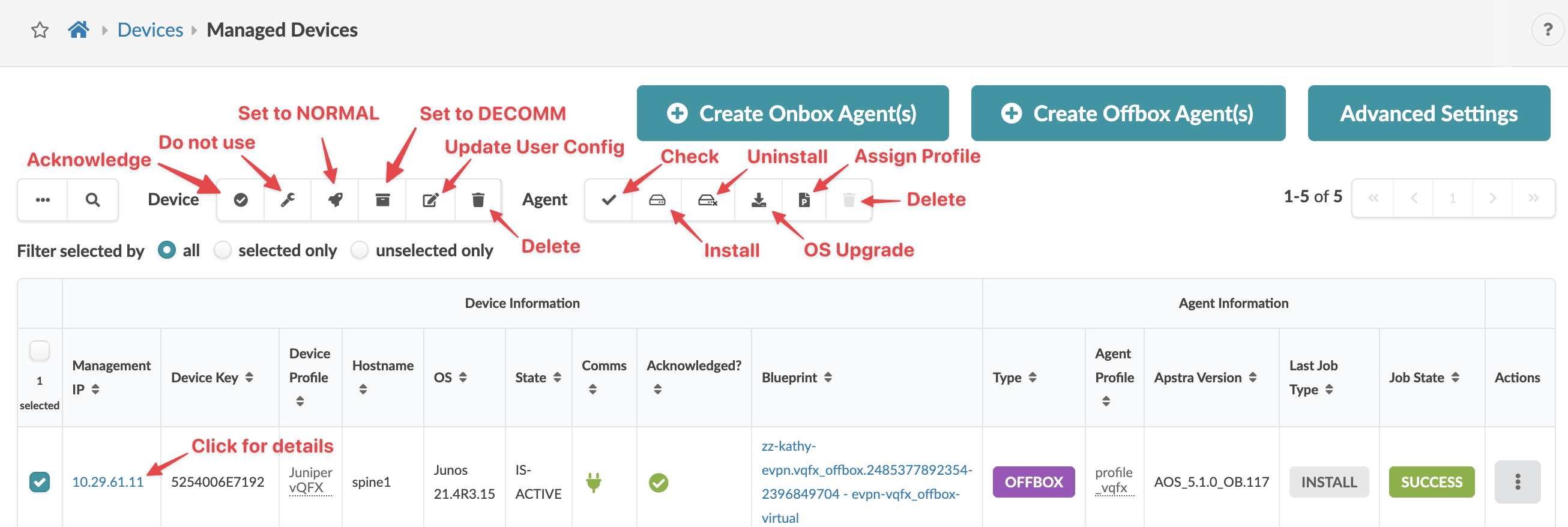
Click a management IP to go to details for its device, agent, pristine config and telemetry as shown below.
Device
The device detail view shows the user config, the device status and other facts about the
device. From the device detail page you can edit and delete the device. You can also edit or
delete a device from the table view or any of the other detail views (Agent, Pristine
Config, Telemetry). 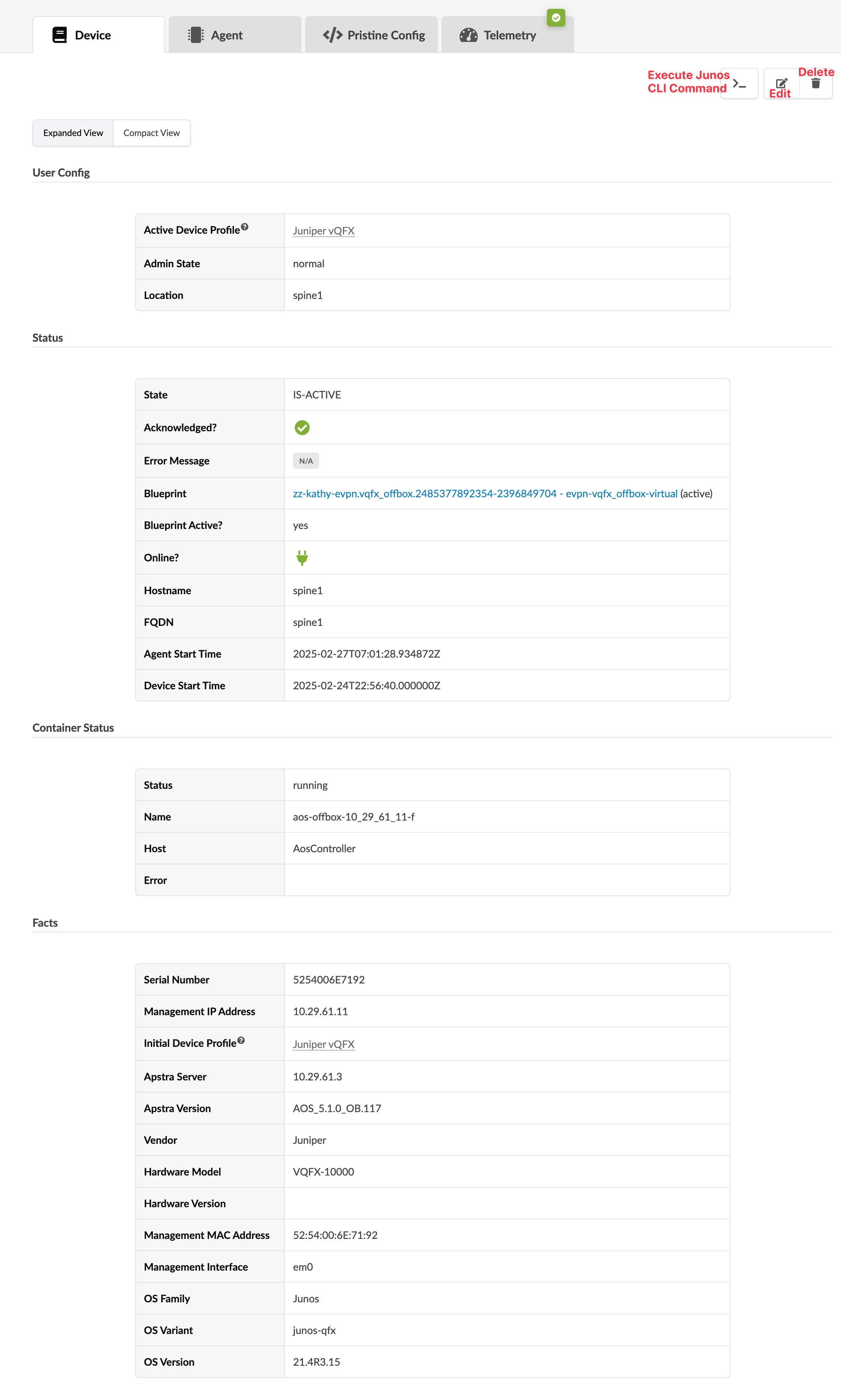
Here's an example of a managed NVIDIA GPU Server. 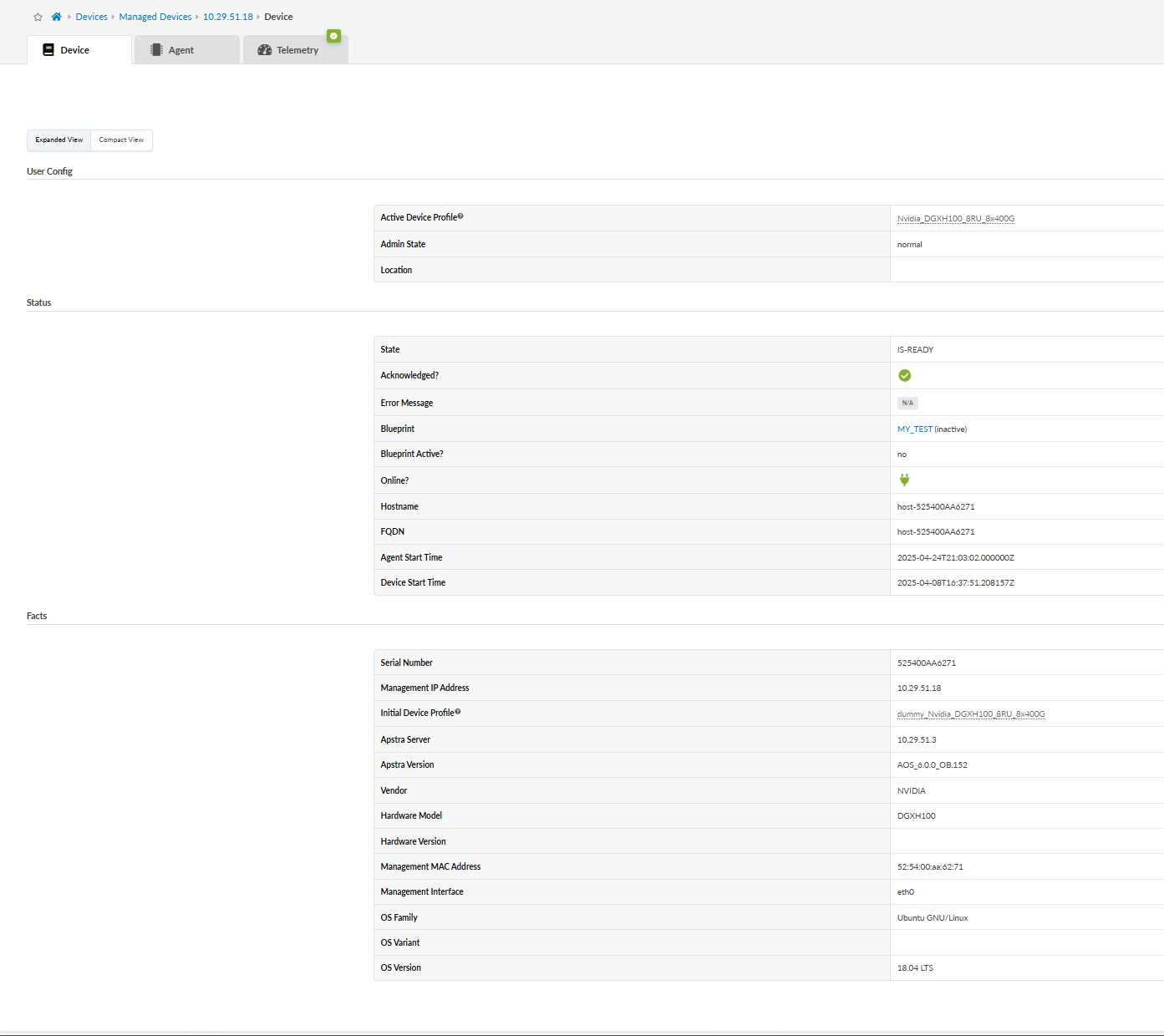
Agent
Apstra device system agents handle configuration management, device-to-server communication, and telemetry collection. If you're not using Apstra ZTP to bootstrap your devices (or if you have a one-off installation) you can use this device installer to automatically install and verify devices. Depending on the device NOS, you can install device agents onbox (agent is installed on the device) or offbox (agent is installed on the Apstra server and communicates with devices via API). For support information, see the Device Management section of the Apstra 5.1.0 Feature Matrix.
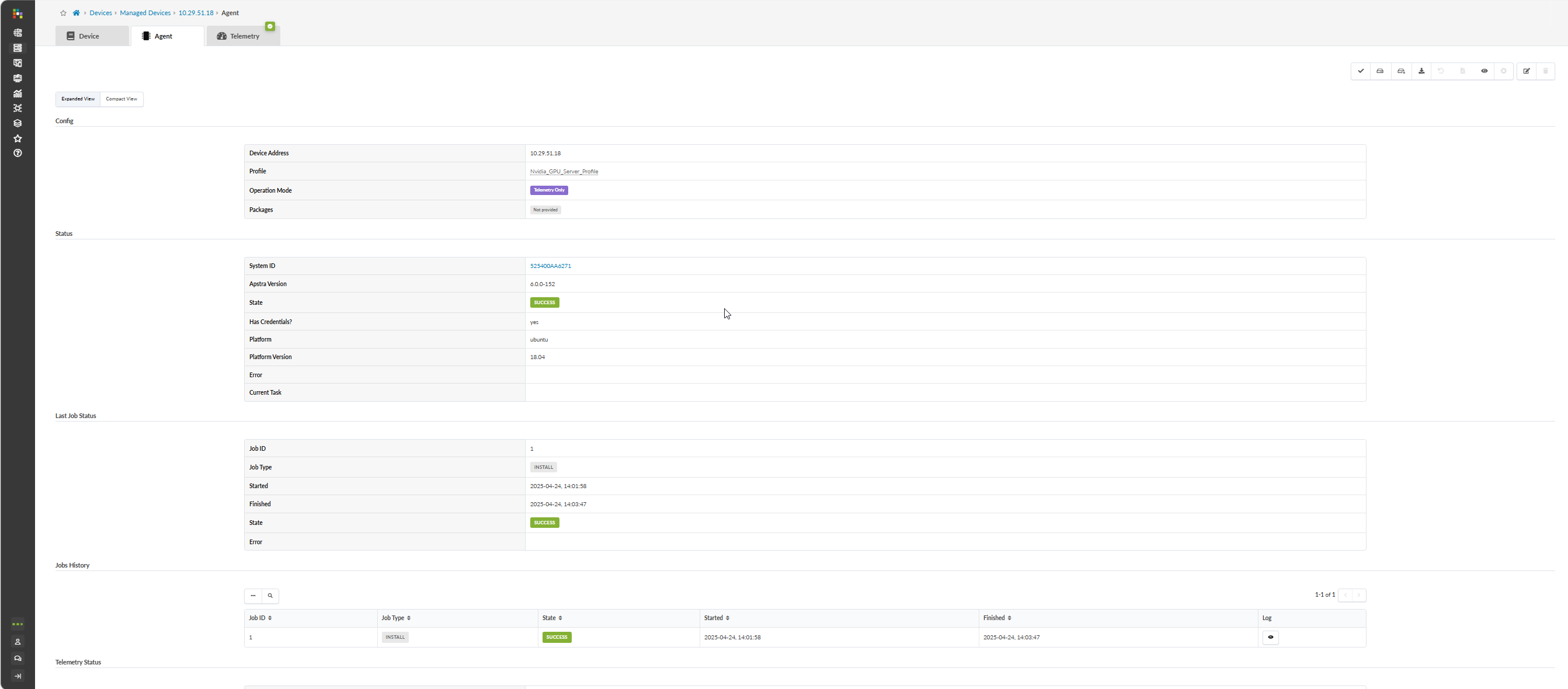
The device agent view shows the agent config, agent status, last job status, jobs history and telemetry status. From the agent detail page you can perform various tasks similar to tasks in the table view. For example, you can restore a device's pristine configuration by clicking the Revert to Pristine Config button (as of Apstra version 4.0.1) as long as the device is not assigned to a blueprint.
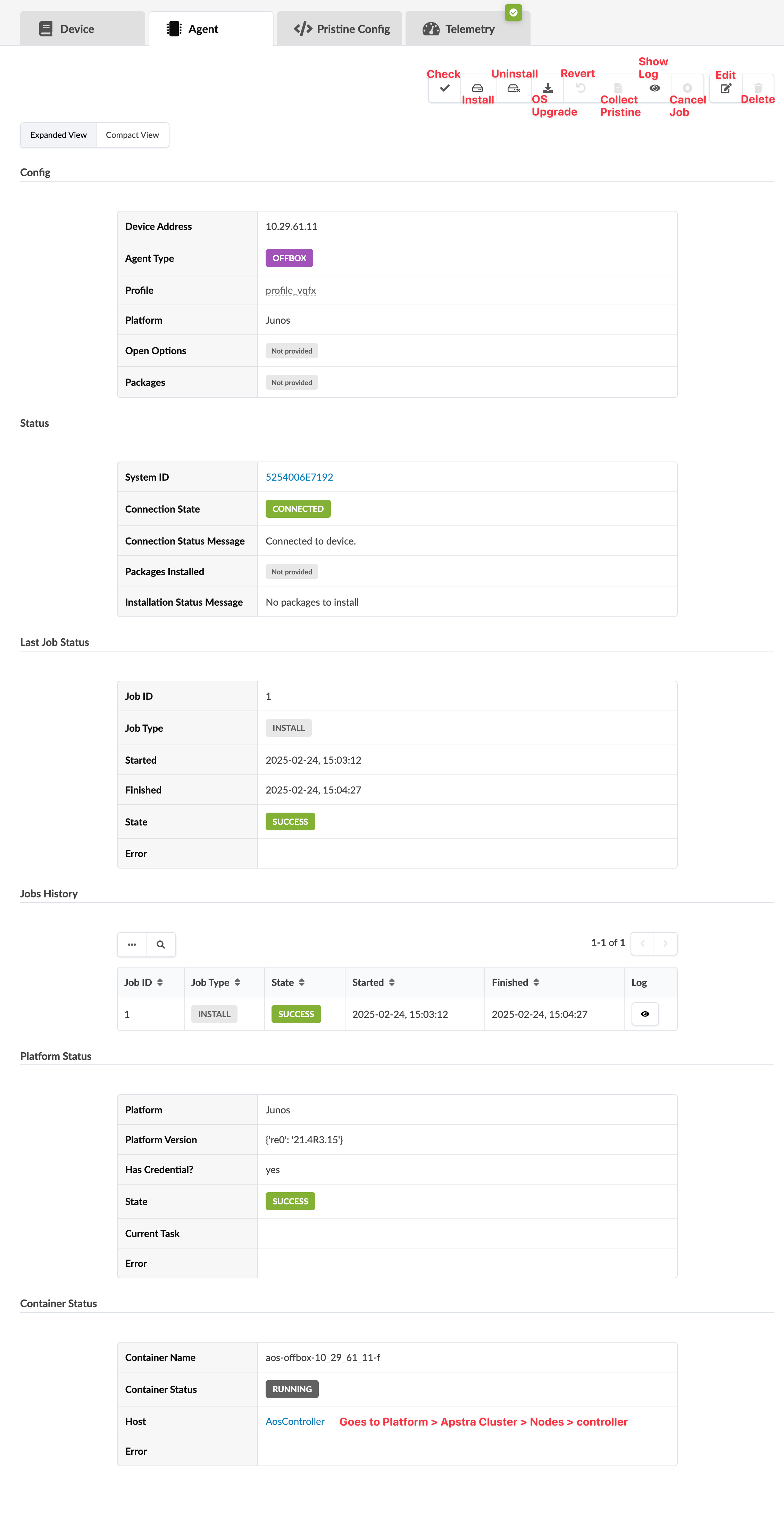
The device agent view shows the agent config, agent status, last job status, jobs history and telemetry status. From the agent detail page you can perform various tasks similar to tasks in the table view. For example, you can restore a device's pristine configuration by clicking the Revert to Pristine Config button (as of Apstra version 4.0.1) as long as the device is not assigned to a blueprint.
Pristine Config
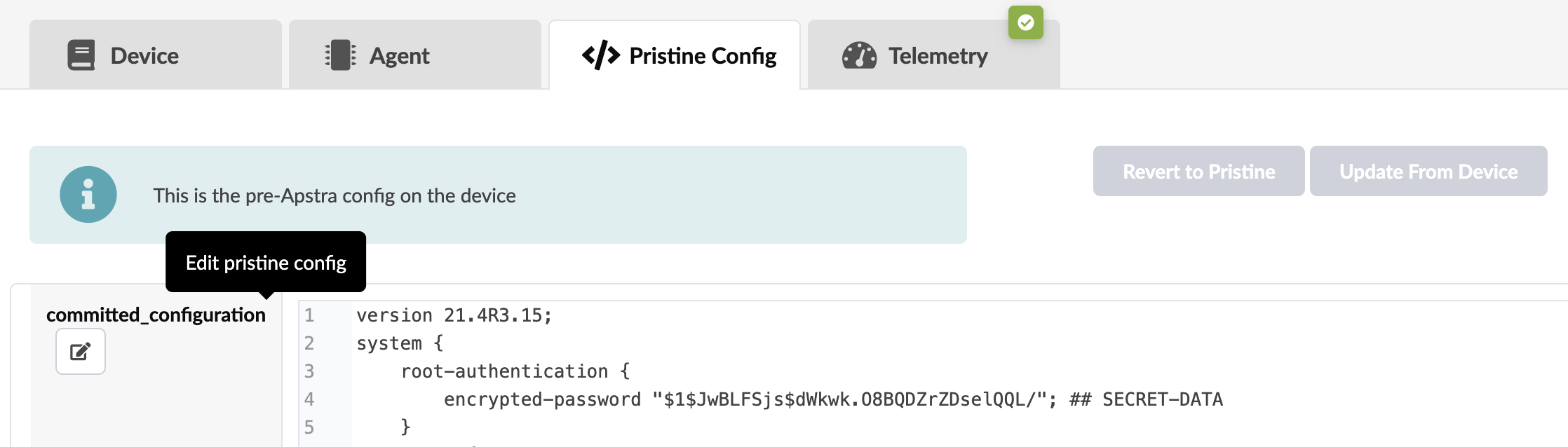
The pristine config view shows the pre-Apstra configuration on the device. You can edit the pristine config manually or update it directly from the device. You can edit and delete the device. You can also edit or delete the device from the table view or any of the other detail views (Device, Agent, Telemetry).
Telemetry
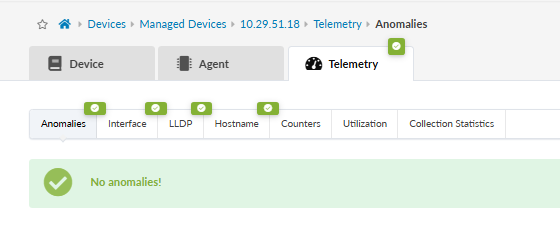
The telemetry view shows telemetry for the device. For more information, see Telemetry Services. 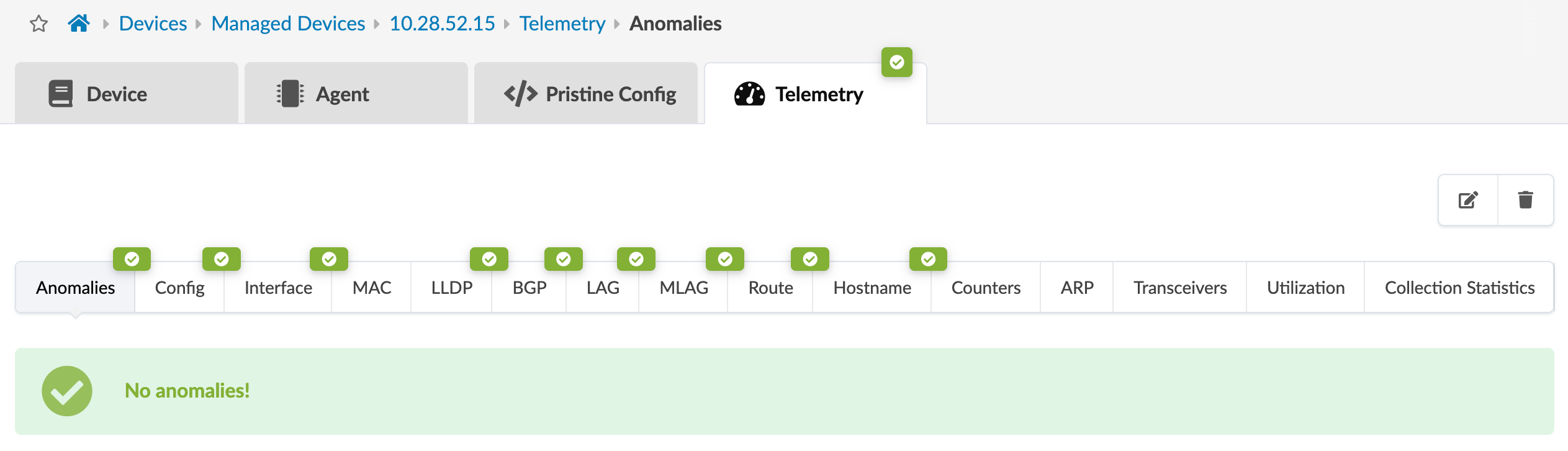
This telemetery view show telemetry for the GPU server,