Import the Junos Apstra Flow Configlet
Import the Configlet
A standard Junos sFlow confliget is provided with your
product. You'll want to clone this default configlet, modify it to your needs, and
then import it into your blueprint from the Apstra GUI (see Example: Junos Apstra Flow Configlet).
To import the flow data configlet into Apstra:
-
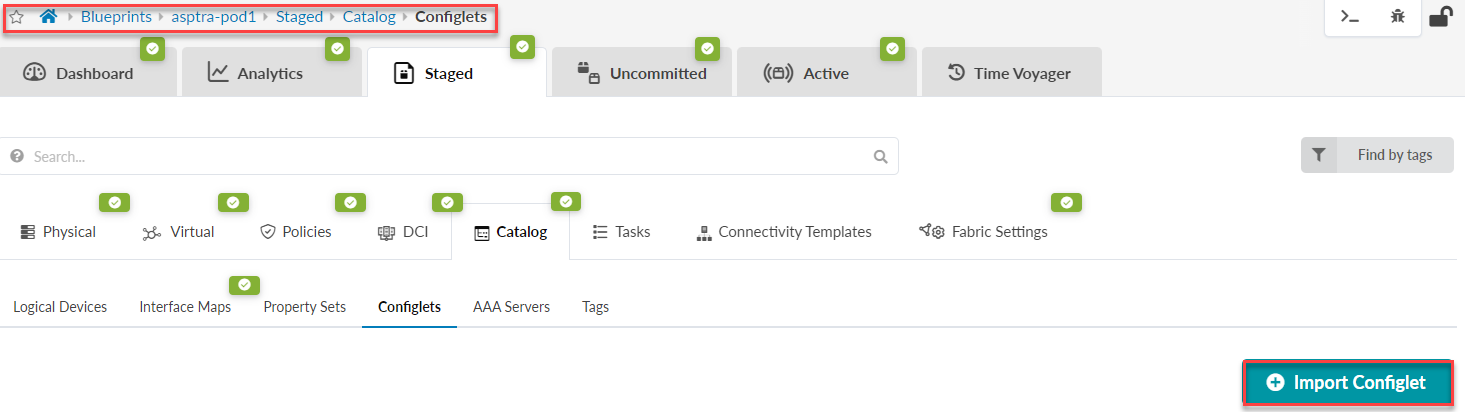
From the left navigation menu in the Apstra GUI, navigate to
Blueprints > Analytics > Staged. From the
Catalog tab, select Configlets, then click
Import Configlet.
-
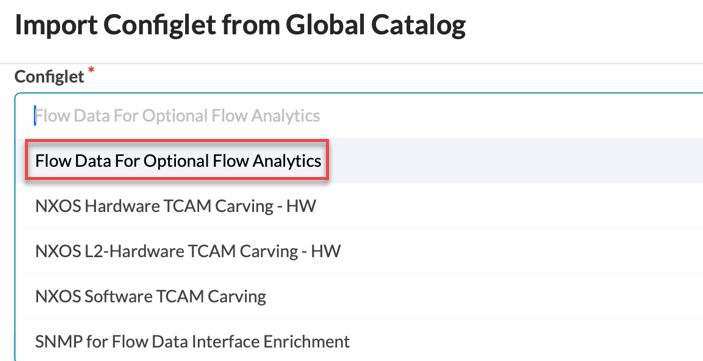
From the Configlet drop-down menu, select
Flow Data for Optional Flow Analytics.
Select the devices you want to apply the confliglet to, then click Import Configlet.
-
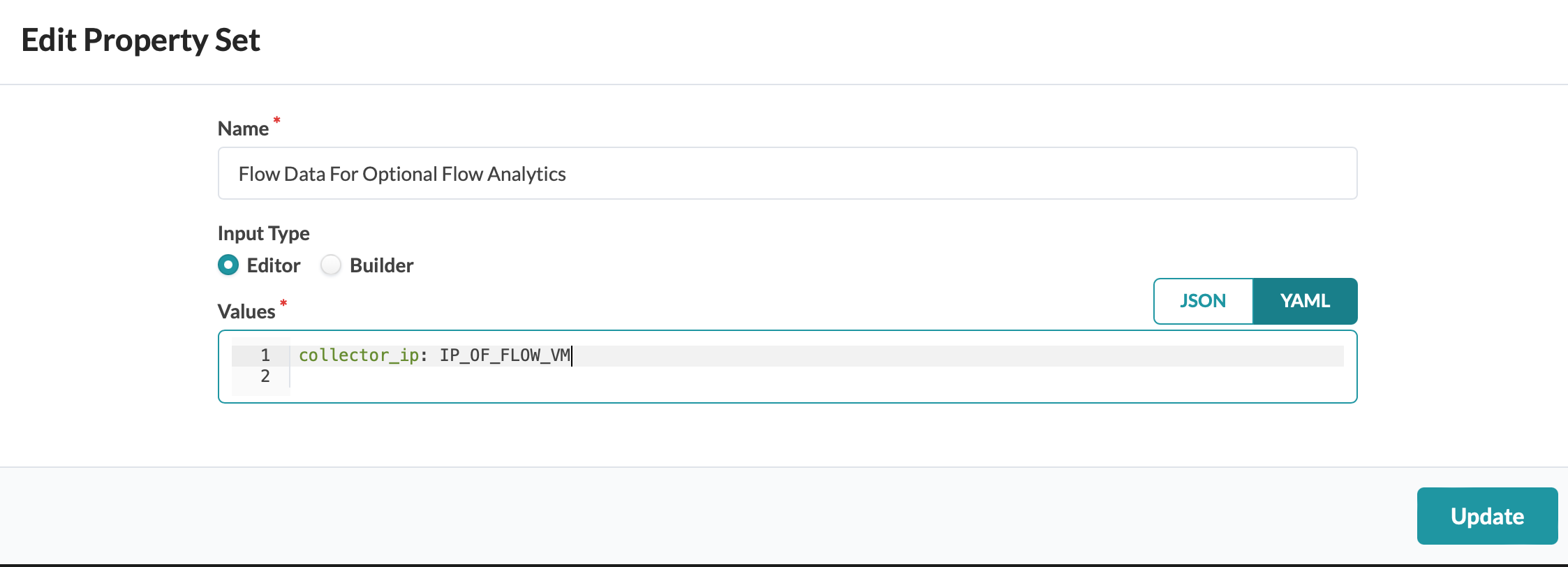
Edit the property set to add the collector IP address of your Flow Data VM,
then click Update.
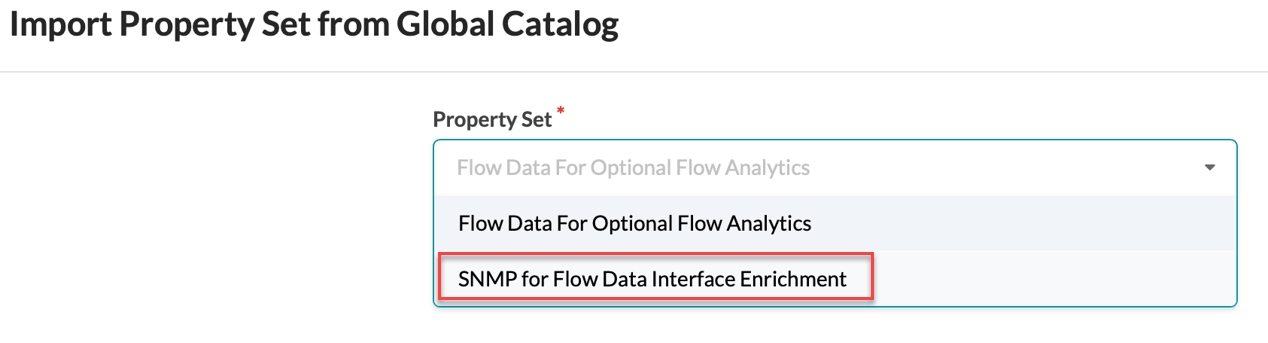
-
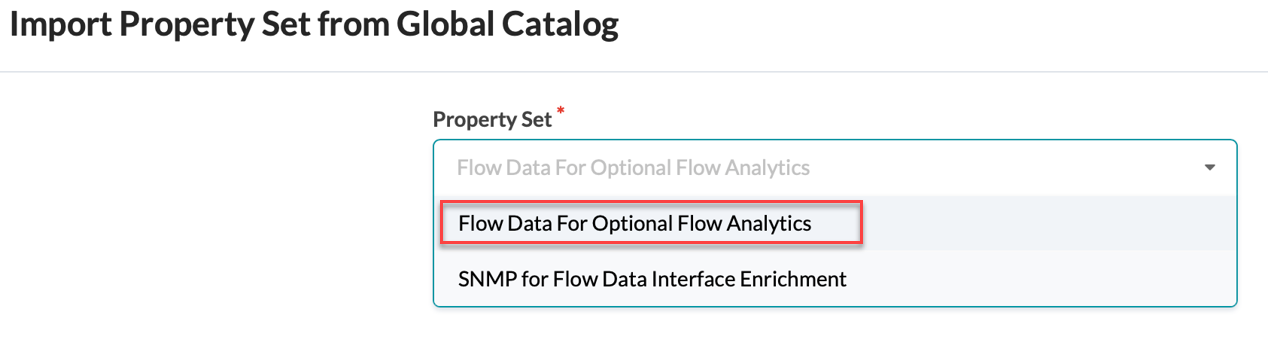
Under Property Set, select Flow Data For
Optional Flow Analytics, then click Import
Property Set.
Good job! You completed the completed the Apstra Flow
Data installation. Next, continue to Launch the Apstra Flow Dashboard.
Example: Junos Apstra Flow Configlet
The following example shows the Junos Apstra Flow configlet provided with your product.
This configlet contains a static routing option to route the flow traffic over the management Junos RPF interface. You can also specify the sFlow polling and sampling intervals, collector IP address, UDP port and interfaces you want to collect data on.
routing-options {
             static {
                 route 10.28.36.6/32 next-table mgmt_junos.inet.0;
             }
}
protocols {
  sflow {
      polling-interval 10;
      sample-rate {
          ingress 1024;
          egress 1024;
      }
      source-ip 10.28.36.12;
      collector 10.28.36.6 {
          udp-port 6343;
      }
      interfaces ge-0/0/0;
      interfaces ge-0/0/1;
      interfaces ge-0/0/2;
   }
}
}
Configure SNMP for Interface Name Enrichment
Optionally, you can display the actual interface names
(for example, xe-0/0/1) instead of the interface indexes values. To do this, Apstra
Flow needs to query the devices through SNMP for this type of enrichment.
Perform the following steps to configure SNMP:
-
From the left navigation menu in the Apstra GUI, navigate to
Blueprints > Analytics > Staged. From the
Catalog tab, select Configlets, then click
Import Configlet.
-
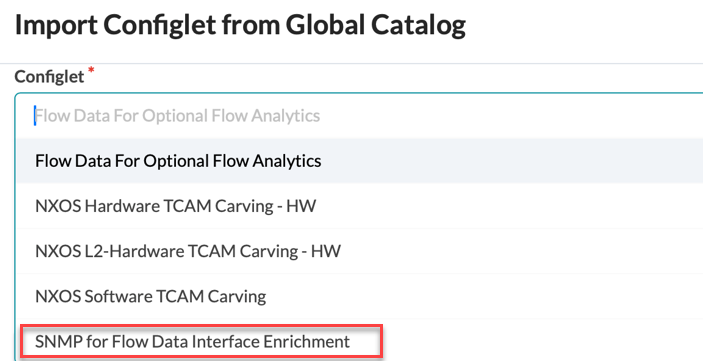
From the Global Catalog, select SNMP for
Flow Data Interface Enrichment.
Select the devices you want to apply the confliglet to, then click Import Configlet.
-
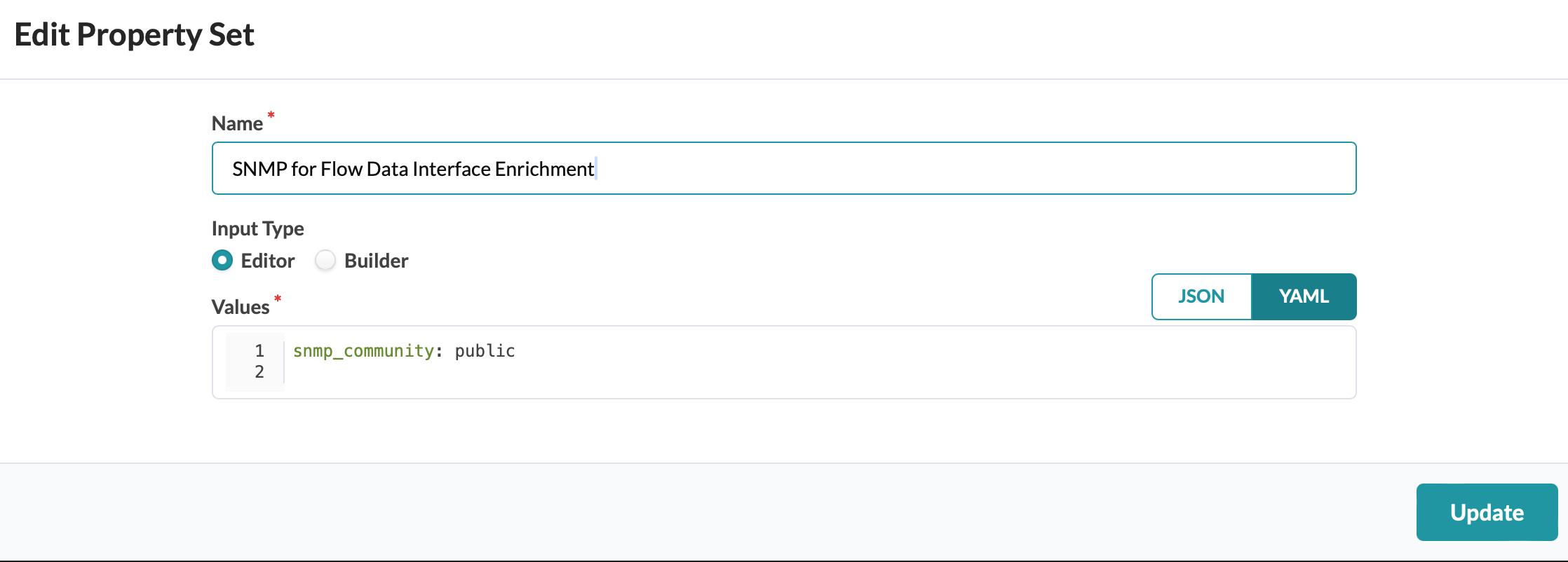
Edit the property set to add the community string for your SNMP
configuration, then click Update.
-
Under Property Set, select SNMP for Flow
Data Interface Enrichment, then click Import
Property Set.