Help us improve your experience.

Let us know what you think.

Do you have time for a two-minute survey?


Launch the Apstra Flow Dashboard

Congratulations! You successfully installed and configured Apstra Flow on your network. Now you're ready to login to the Apstra Flow dashboard to begin analyzing and visualizing your data.
Note:

You can also access the Apstra Flow dashboard directly from your blueprint in the Apstra GUI. See Access the Apstra Flow Dashboard from the Apstra GUI for instructions.

To launch the Apstra Flow dashboard:
  1. From your browser, enter the IP address or hostname of your Apstra Flow VM.
    https://<ip-or-hostname-of-flow-data-vm>:5601/
  2. Login to the Apstra Flow dashboard.
    The default credentials are:
    • Username: admin

    • Password: Apstra-Flow5

    Note:

    We recommend that you change your password after you log in.

  3. From the Welcome page, select Explore on my own.
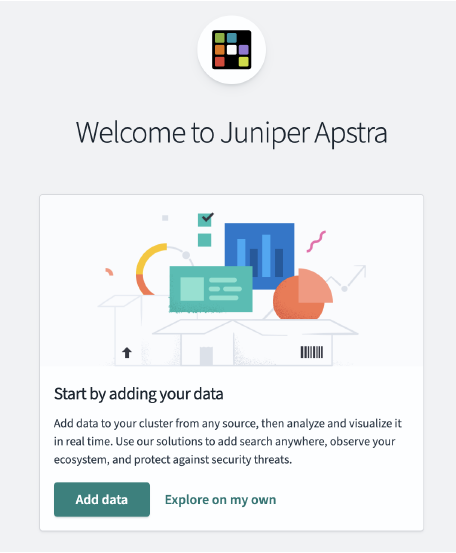
    Welcome screen for Juniper Apstra with options to Add data or Explore on my own, featuring data-related icons.
  4. From the OpenSearch Dashboards page, click Dismiss.
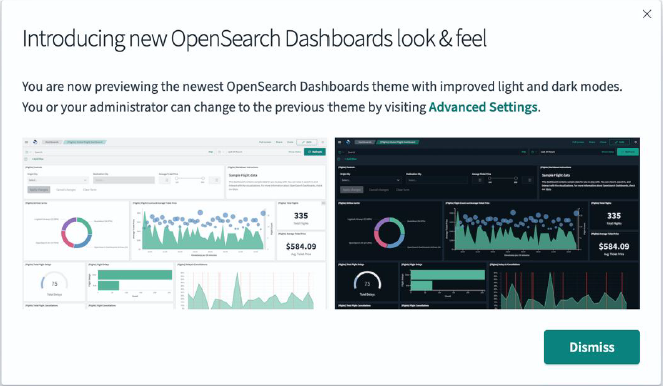
    Notification of new OpenSearch Dashboards theme with light and dark modes. Users can revert in Advanced Settings. Dismiss button available.
  5. Select Global as your tenant, then click Confirm.
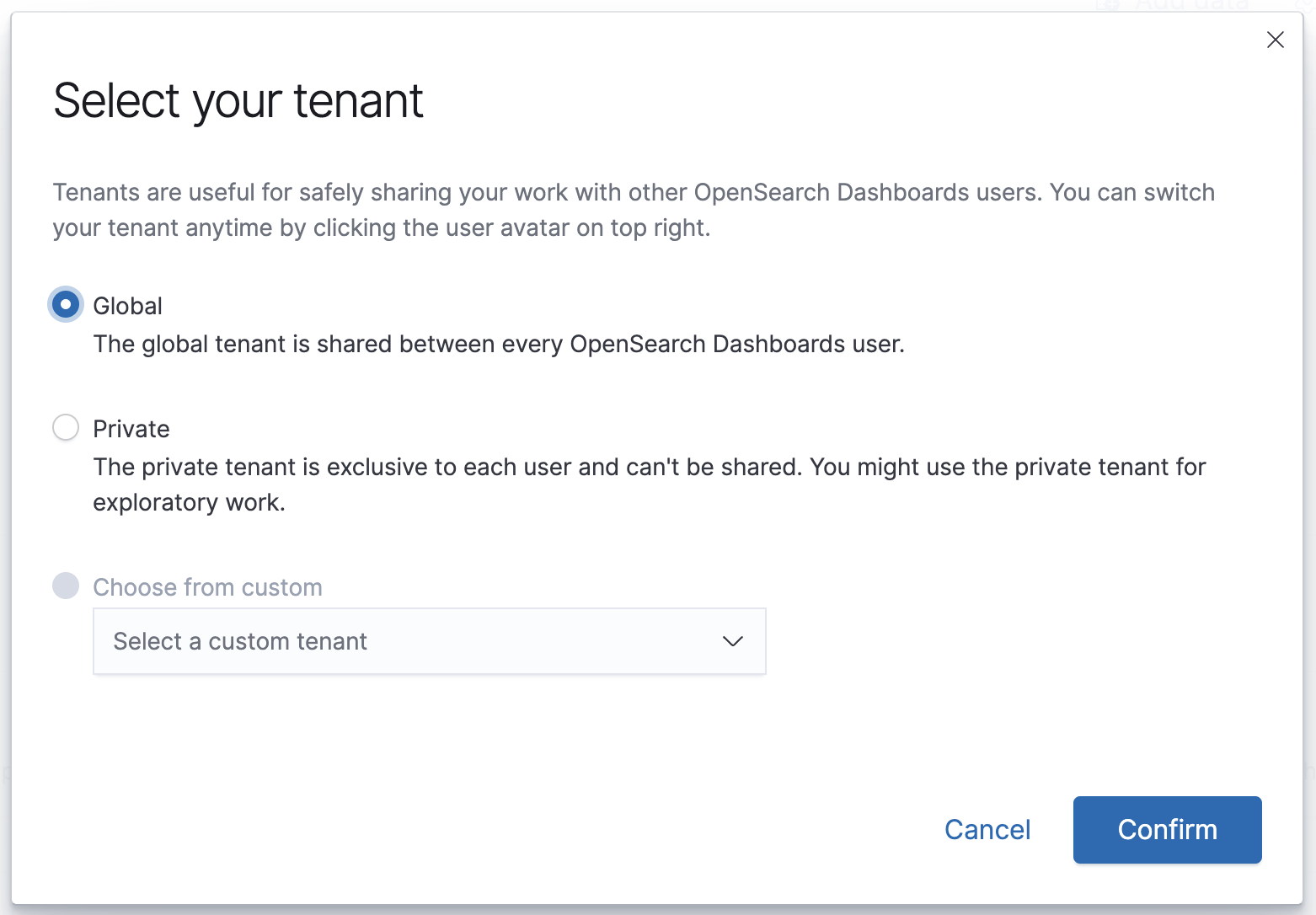
    Select your tenant dialog box with options: Global for shared use, Private for exploratory work, and Choose from custom. Cancel and Confirm buttons.
  6. Click Visualize and Analyze.
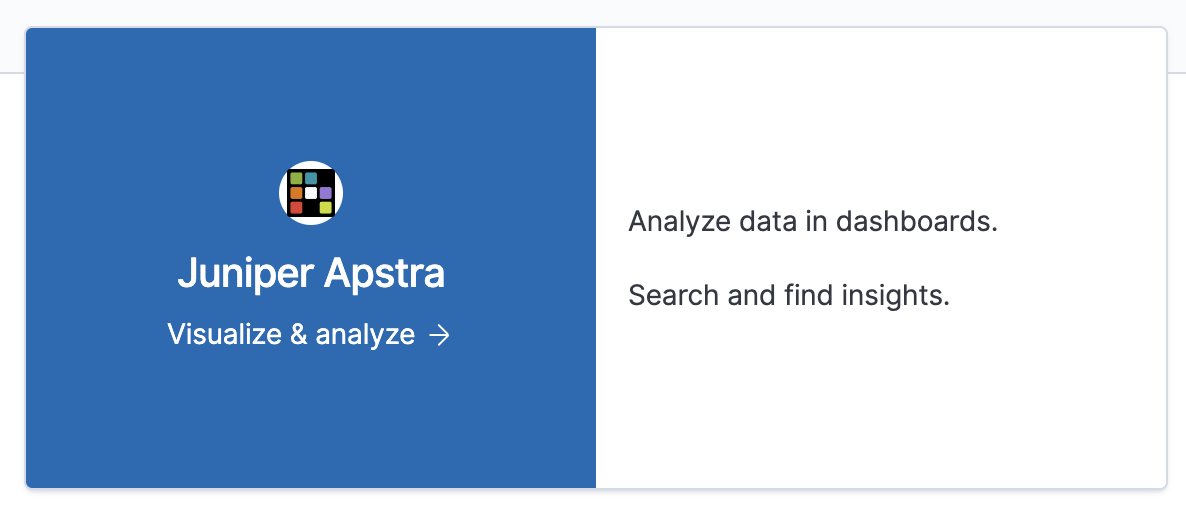
    Juniper Apstra promotional card featuring logo, tagline Visualize & analyze, and features: Analyze data in dashboards, search and find insights.
  7. Click Dashboard from the OpenSearch Dashboards page.
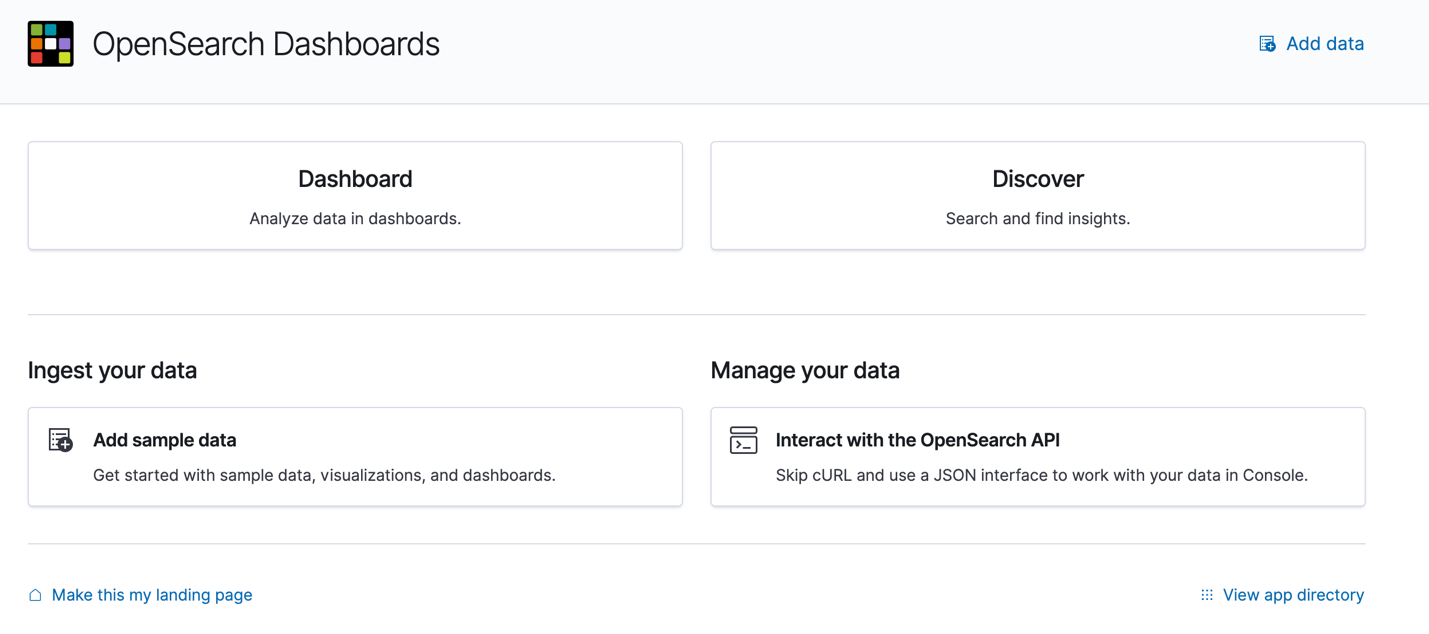
    OpenSearch Dashboards homepage showing options: Dashboard, Discover, Ingest data with sample data, Manage data via API, add data link, set as landing page checkbox, view app directory link.
  8. Search for Overview in the Dashboards search bar.
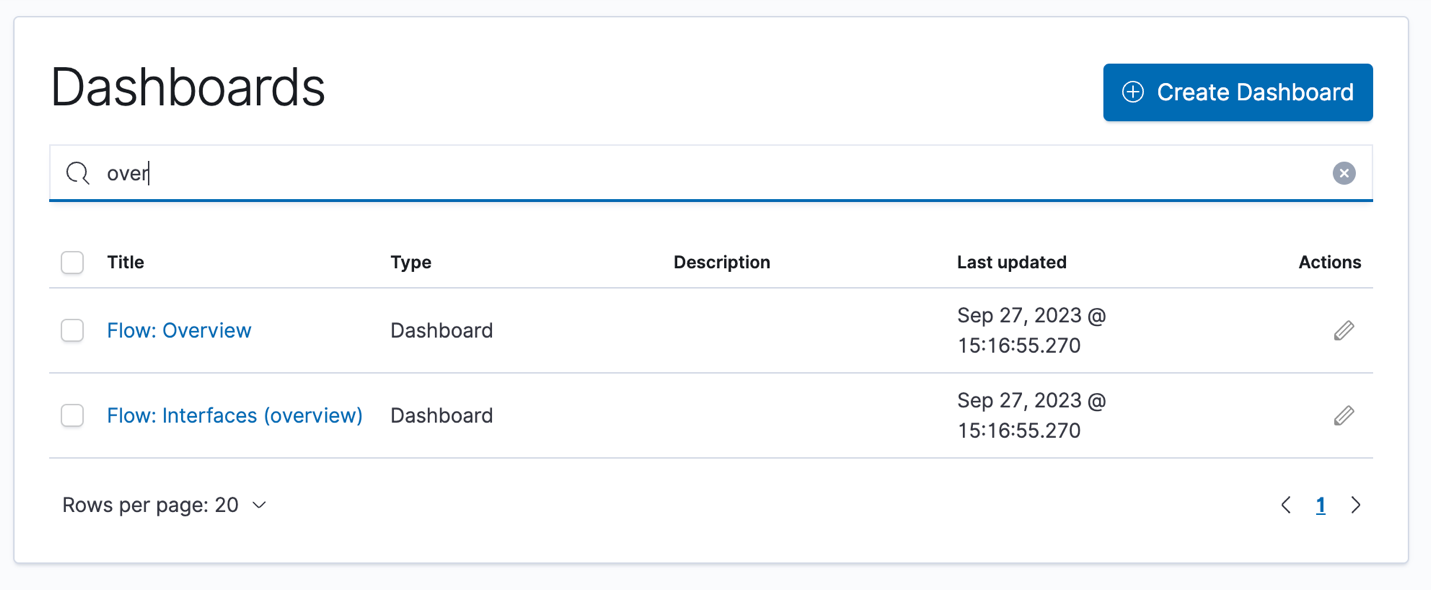
    Dashboards management interface with search bar showing 'over'. Two entries: Flow Overview and Flow Interfaces overview. Create Dashboard button at top right.
  9. Select Flow: Overview to see the main dashboard. From here, you can view the various dashboards to analyze and visualize your data. Each dashboard shows a different perspective of your network traffic. For example:
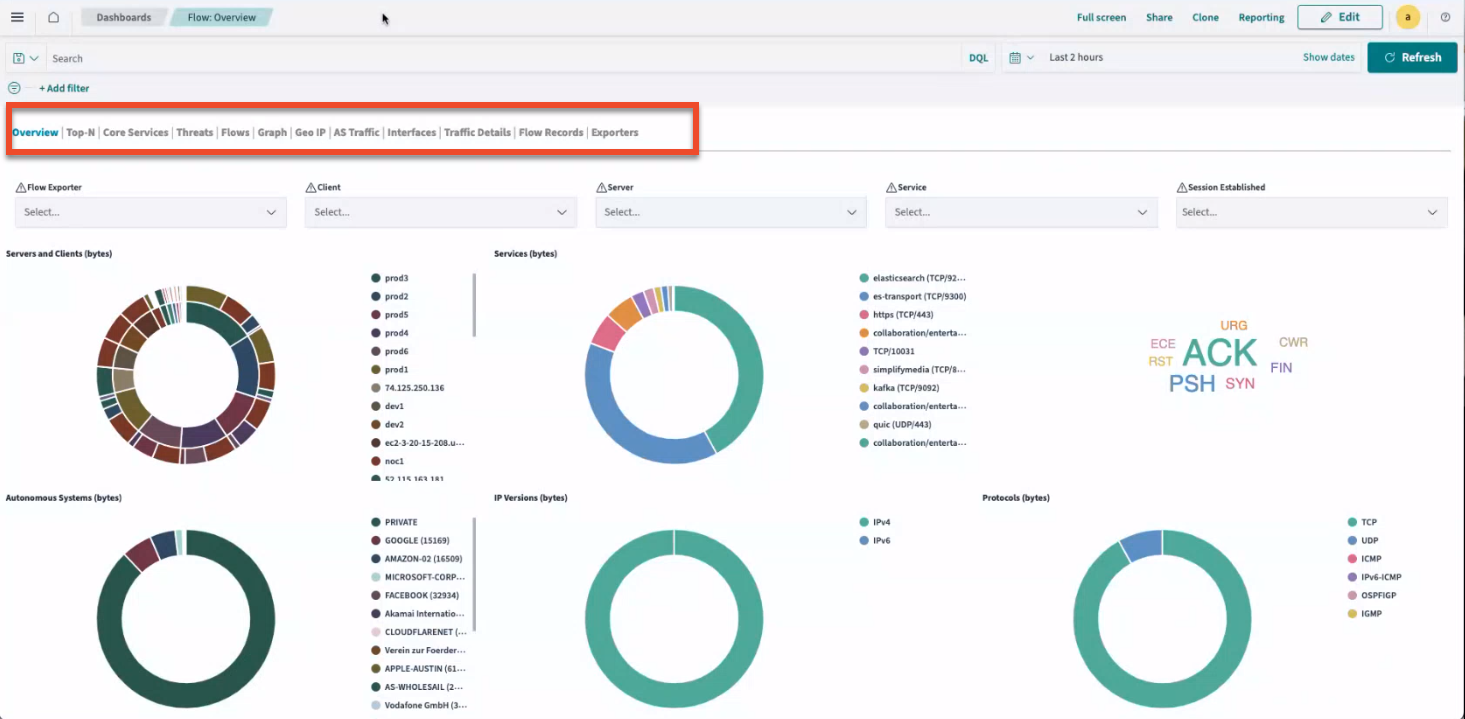
    Dashboard titled Flow: Overview with tabs for navigation and dropdown filters for refining data. Features donut charts for server, client, autonomous systems, IP versions, and protocol data usage, plus a TCP flags word cloud. Includes time range filter, legend, and action buttons for interaction.

Access the Apstra Flow Dashboard from the Apstra GUI

Although Apstra Flow has its own dashboard, you can also link directly to the dashboard from the Apstra GUI.
To access the Apstra Flow dashboard:
  1. From the left navigation menu in the Apstra GUI, select Analytics > Flow Data > Flow Collector.
  2. Enter the collector name, address, and username, then click Create.
    This information tells Apstra where your VM is located so you can access the flow collector and visualization dashboards.
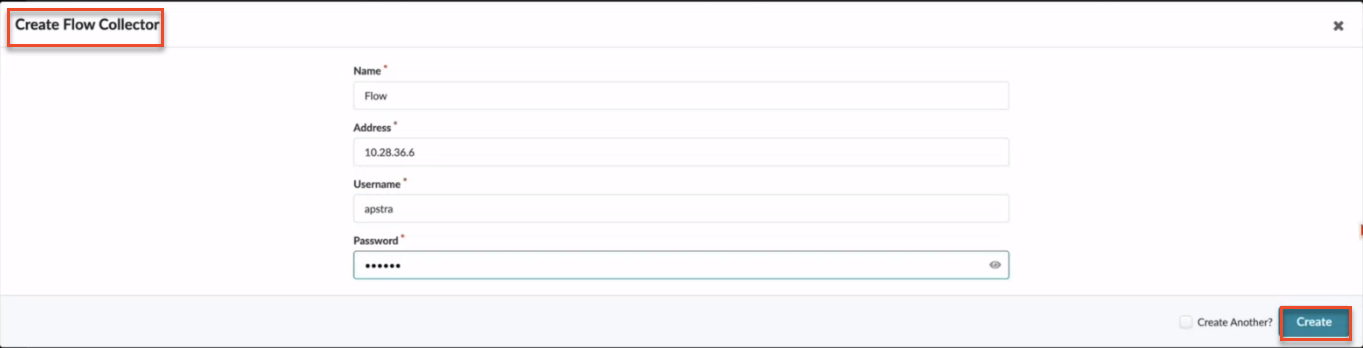
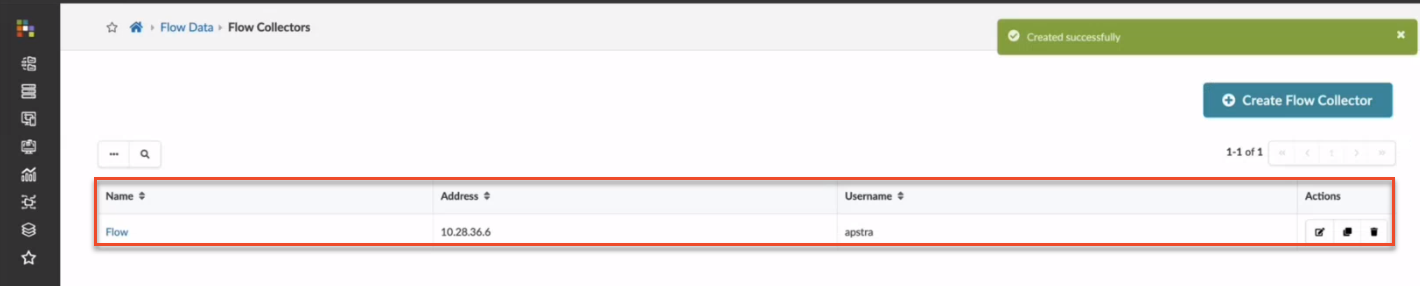
    User interface for creating a Flow Collector with fields for Name, IP Address, Username, and obscured Password. Create button and Create Another checkbox are present.User interface for managing Flow Collectors with breadcrumb navigation, success notification, table listing one entry, and create button.
  3. From your blueprint, navigate to Analytics > Flow Data. Click Link to dashboard to link directly to the Flow dashboard.
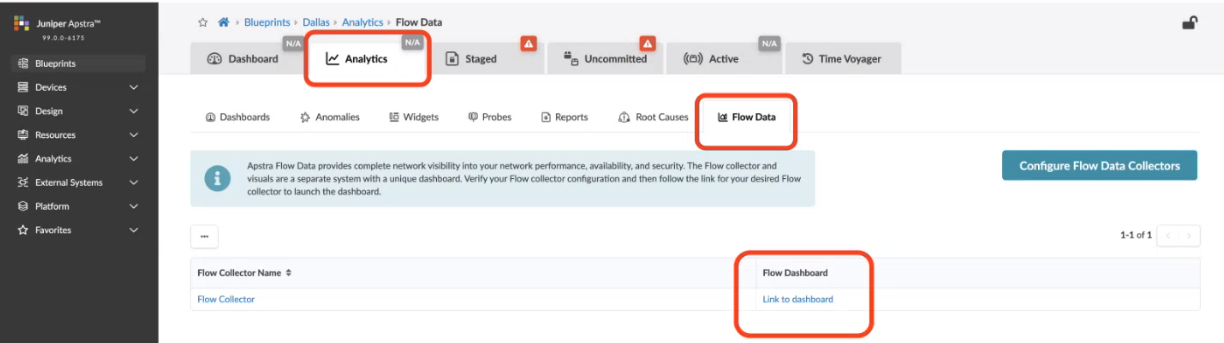
    Screenshot of Juniper Apstra user interface in Analytics section showing Flow Data tools for network monitoring with navigation sidebar.
For more details about Apstra Flow, see the Analytics chapter in the Juniper Apstra User Guide.