Help us improve your experience.

Let us know what you think.

Do you have time for a two-minute survey?


Apply Your License

Apply Your License in Apstra

By now, you should have received your activation code and activated your license from the Juniper Agile Licensing Portal (see the Juniper Licensing User Guide for activation instructions). You now need to apply your license in the Apstra GUI.

To apply your license:

  1. Login to the Apstra GUI using the credentials you set when you first configured the Apstra server. See the Apstra GUI Overview for reference.
  2. From the left navigation menu, select Platform > Licenses, then click Create License.
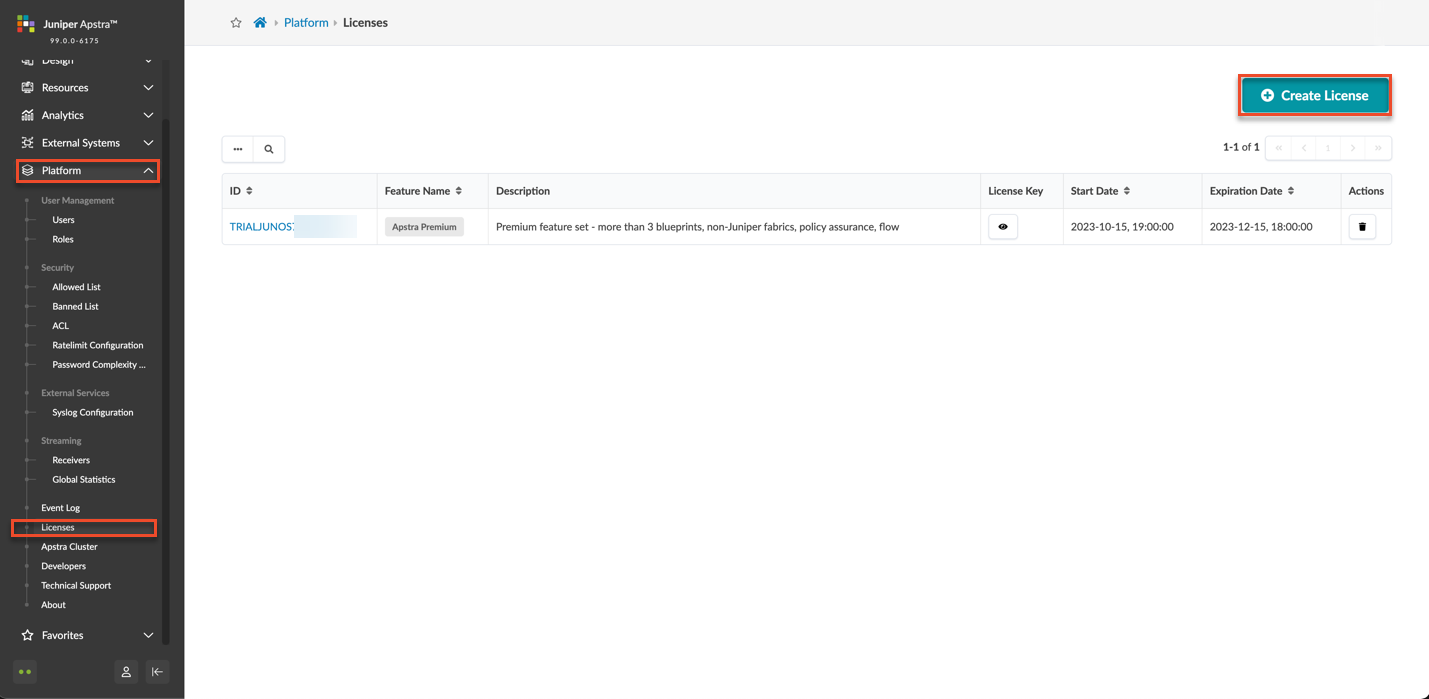
    Juniper Apstra Licenses section showing active license details: ID TRIALJUNOS, Apstra Premium feature, start and expiration dates, and create license button.
  3. Copy your license key into the License Key text box, then click Create.

    Create License form with License Key field and placeholder text Enter your License Key here. Includes Create button and Create Another checkbox.
  4. Verify your license. If the license was successfully applied, the Feature Name should indicate Apstra Premium.

    Software license management interface displaying details for license JUNOS5161254970 for Apstra Premium. Includes start date 2023-09-06 and expiration date 2028-09-05. Options to view the license key and delete the license. Create License button available for adding new licenses.

Restart the Flow Services

After you apply your license in Apstra, restart your flow services so that the services can pick up the license.

To restart the services:

  1. SSH to the Flow VM. The default login credentials are: apstra/apstra.
  2. Restart the collector service.
    sudo systemctl restart flowcoll
  3. Restart the OpenSearch service.
    sudo systemctl restart opensearch
  4. Restart the OpenSearch dashboard service.
    sudo systemctl restart opensearch-dashboards
  5. Verify your license.
    Enter the IP address of your VM.

    http://<flow-vm-ip>:8080/metrics

    If your license was successfully applied, the output should look like this: