
Connect the SSR400 Routers to Power
Connecting an SSR400 to power involves the following steps and safety precautions to prevent equipment damage and personal injury.
Ground the SSR400 Routers
Before connecting an SSR400 to an earth ground, ensure that you have the following parts and tools:
-
An electrostatic discharge (ESD) grounding strap
-
Grounding cable for your router (not provided)—The grounding cable must be 6 AWG (13.3 mm²) stranded wire and rated 90 °C or according to local electrical code.
-
Grounding lug for your grounding cable (not provided)—This lug attaches to the chassis grounding point. The grounding lug required is a Panduit LCD6-14A-L or equivalent.
-
Two M5 X 9.5 screws (not provided)
-
A Phillips (+) screwdriver, number 2 to tighten the screws.
You must install heat-shrink tubing insulation around the crimped section of the power cables and lugs.
To meet safety and electromagnetic interference (EMI) requirements and to ensure proper operation, you must connect the SSR400 to an earth ground before you connect the router to power.
Before you connect an earth ground to the protective earthing terminal of the router, ensure that a licensed electrician attaches an appropriate grounding terminal to the grounding cable you supply. Using a grounding cable with an incorrectly attached terminal can damage the router.
To ground the SSR400 :
- Wrap and fasten one end of the electrostatic discharge (ESD) cable grounding strap around your bare wrist, and connect the other end to a site ESD point.
- Ensure that all grounding surfaces are clean and brought to a bright finish before making the grounding connections.
- Connect the 6 AWG (13.3 mm²) grounding cable to a proper earth ground, such as the rack in which you mount the router.
-
Place the grounding cable terminal over the grounding point (sized for M5 X 9.5
grounding screws) on the rear of the chassis.
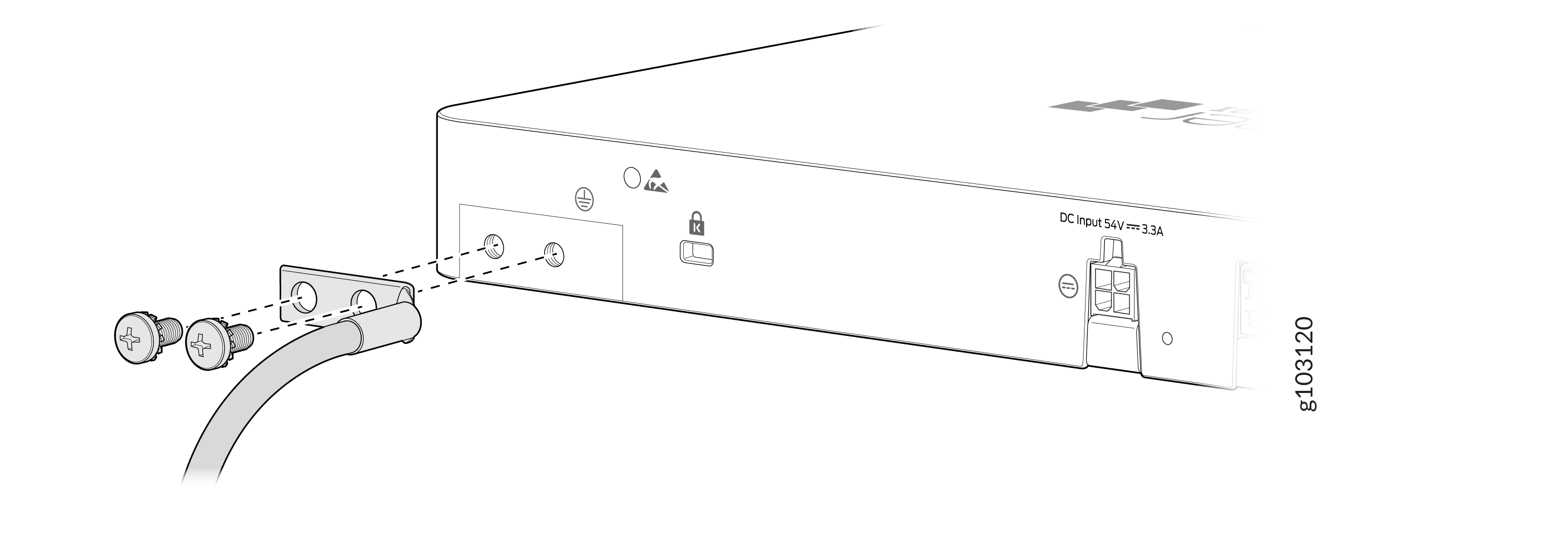
- Secure the grounding cable terminal to the grounding point with the two M5 X 9.5 screws. Apply between 2.5 Nm and 2.8 Nm of torque to the screw.
- Dress the grounding cable. Ensure that the cable doesn’t block access to or come in contact with other device components, and that it doesn’t drape where people could trip over it.
Connect the Power Cord and Power on the SSR400
Ensure that you have a power cord appropriate for your geographical location.
For information about the supported AC power cord specifications for your router, see SSR400 Routers Power System.
To connect the power cord:
- Wrap and fasten one end of the electrostatic discharge (ESD) grounding strap around your bare wrist, and connect the other end to a site ESD point.
- Locate the AC power cord or cords shipped with the router; the cords have plugs appropriate for your geographical location.
- Insert the AC power cord coupler firmly into the power cord inlet on the AC power adapter.
- If the AC power source outlet has a power switch, turn it off.
- Plug the AC power cord into an AC power source outlet.
- If the AC power source outlet has a power switch, turn it on. The SSR400 models do not have a power switch and each appliance powers on as soon as you plug it in.
Power Off the SSR400
You can power off the SSR400 in one of the following ways:
-
Graceful shutdown—You can perform a graceful shutdown in either of the following ways:
-
Log in to the SSR CLI and issue the
shell haltcommand. -
Log in to the serial console and run
sudo halt.[t128@HH1124AY0004 ~]$ sudo halt We trust you have received the usual lecture from the local System Administrator. It usually boils down to these three things: #1) Respect the privacy of others. #2) Think before you type. #3) With great power comes great responsibility. [sudo] password for t128: [t128@HH1124AY0004 ~]$ [ 336.511466] reboot: System halted
In each situation, after the system has stopped, you must manually disconnect the router from the power source.
CAUTION:Use the graceful shutdown method to power off the router.
-
-
Forced shutdown—Unplug the power cord or switch off the power source.
CAUTION:Forced shutdown can result in data loss and corruption of the file system.
Use the forced shutdown method as a last resort to recover the router if the router operating system is not responding to the graceful shutdown method.
After powering off the router, wait at least 10 seconds before turning it back on. After powering on the router, wait at least 10 seconds before turning it off.