
Maintain the Transceivers and Fiber-Optic Cables on MX301 and MX301-M
Remove a Transceiver
Before you remove a transceiver from a device, ensure that you have taken the necessary precautions for the safe handling of lasers (see Laser and LED Safety Guidelines and Warnings).
Ensure that you have the following parts and tools available:
-
An antistatic bag or an antistatic mat
-
Rubber safety caps to cover the transceiver and fiber-optic cable connector
-
A dust cover to cover the port or a replacement transceiver
The transceivers for Juniper Networks devices are hot-removable and hot-insertable field-replaceable units (FRUs). You can remove and replace the transceivers without powering off the device or disrupting device functions.
After you remove a transceiver, or when you change the media-type configuration, wait for 6 seconds for the interface to display the operational commands.
Figure 1 shows how to remove a quad small form-factor pluggable plus (QSFP+) transceiver. The procedure is the same for all types of transceivers except the QSFP28 and C form-factor pluggable (CFP) transceivers.
To remove a transceiver from a device:
-
To remove an SFP56-DD, SFP, SFP+, XFP, a QSFP+, or QSFP56-DD
transceiver:
-
Grasp the transceiver ejector lever and gently slide the transceiver
approximately 0.5 in. (1.3 cm) straight out of the port.
CAUTION:
To prevent ESD damage to the transceiver, do not touch the connector pins at the end of the transceiver.
Figure 1: Remove a QSFP+ Transceiver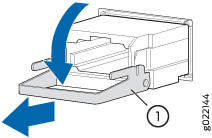 1—
1—Ejector lever
To remove a CFP transceiver:
-
Grasp the transceiver ejector lever and gently slide the transceiver
approximately 0.5 in. (1.3 cm) straight out of the port.
Install a Transceiver
You can install a transceiver in an empty slot on the MX301 and MX301-M. See Install a QSFP28 Transceiver for instructions to install a QSFP28 transceiver or Install a Transceiver for instructions to install other types of transceivers except a CFP transceiver.
Disconnect a Fiber-Optic Patch Cable
Before you disconnect a fiber-optic patch cable from an optical transceiver, ensure that you have taken the necessary precautions for safe handling of lasers. See Laser and LED Safety Guidelines and Warnings.
Ensure that you have the following parts and tools available:
A rubber safety cap to cover the transceiver
A rubber safety cap to cover the fiber-optic patch cable connector
Juniper Networks devices have optical transceivers to which you can connect fiber-optic patch cables.
To disconnect a fiber-optic patch cable from an optical transceiver installed in the device:
Connect a Fiber-Optic Cable
You can connect fiber-optic cables to optical transceivers installed on the MX301 and MX301-M. See Connect a Fiber-Optic Cable for instructions to connect a fiber-optic cable to an optical transceiver.
How to Handle Fiber-Optic Patch Cables
Fiber-optic patch cables connect to optical transceivers that are installed in Juniper Networks devices.
Follow these guidelines when handling fiber-optic patch cables:
When you unplug a fiber-optic patch cable from a transceiver, place rubber safety caps over the transceiver and on the end of the cable.
Anchor fiber-optic patch cables to prevent stress on the connectors. When attaching a fiber-optic patch cable to a transceiver, secure the fiber-optic patch cable so that it does not support its own weight as it hangs to the floor. Never let a fiber-optic patch cable hang free from the connector.
Avoid bending the fiber-optic patch cables beyond their minimum bend radius. Bending fiber-optic patch cables into arcs smaller than a few inches in diameter can damage the cables and cause problems that are difficult to diagnose.
Frequent plugging and unplugging of fiber-optic patch cables in and out of optical instruments can damage the instruments, which are expensive to repair. To prevent damage from overuse, attach a short fiber extension to the optical equipment. The short fiber extension absorbs wear and tear due to frequent plugging and unplugging. It is easier and more cost-efficient to replace the short fiber extension than to replace the instruments.
Keep fiber-optic patch cable connections clean. Microdeposits of oil and dust in the canal of the transceiver or cable connector can cause loss of light, reduction in signal power, and possibly intermittent problems with the optical connection.
To clean the transceiver canal, use an appropriate fiber-cleaning device such as RIFOCS Fiber Optic Adaptor Cleaning Wands (part number 946). Follow the instructions in the cleaning kit you use.
After cleaning the transceiver, make sure that the connector tip of the fiber-optic patch cable is clean. Use only an approved alcohol-free fiber-optic cable cleaning kit such as the Opptex Cletop-S® Fiber Cleaner. Follow the instructions in the cleaning kit you use.