ON THIS PAGE
Install the MX301 and MX301-M
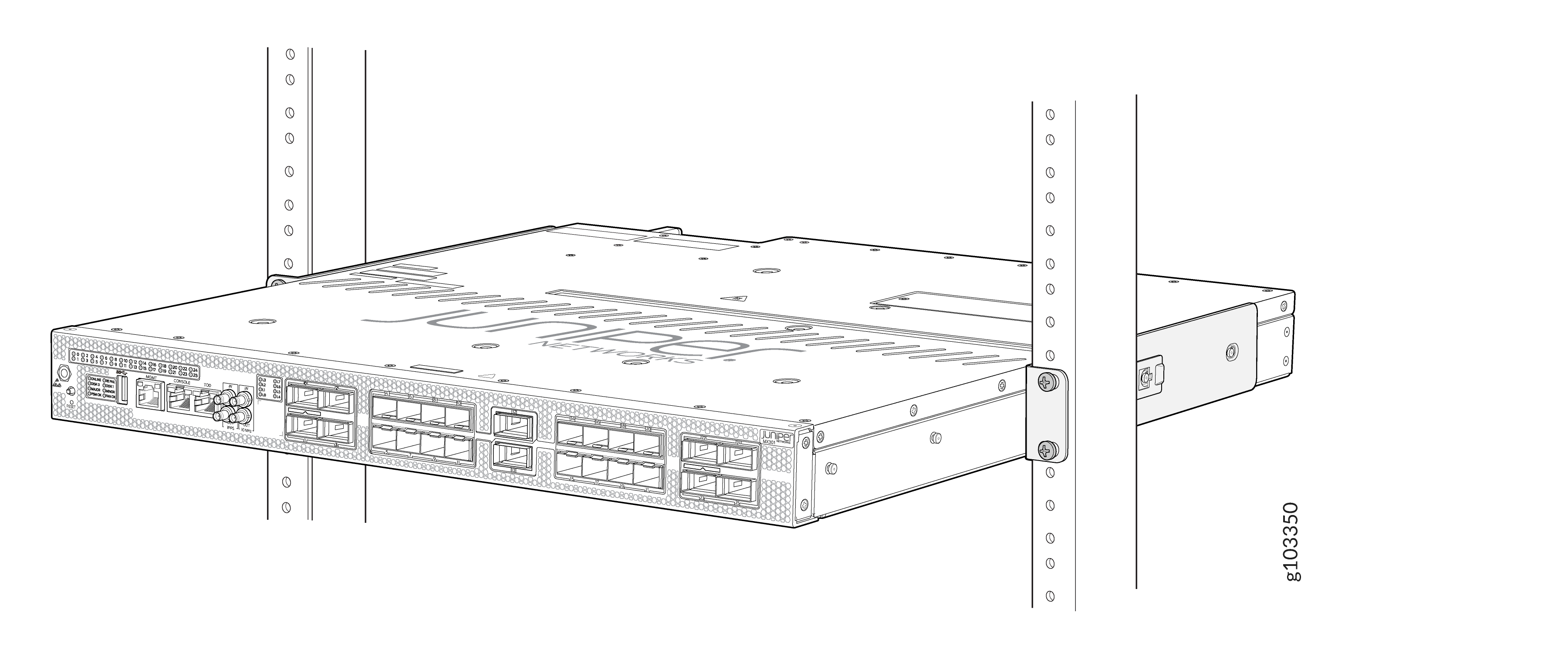
This topic guides you through the steps to install the MX301 and MX301-M on two-post racks and four-post racks.
You can mount the MX301 and MX301-M:
-
On four posts of a 19-in. rack. A four-post rack mounting kit is included with the router shipment.
-
On two posts of a 19-in. rack. A two-post rack mounting kit can be ordered separately.
Complete these prerequisites before you mount the device:
-
Prepare the site for installation as described in Site Guidelines and Requirements.
-
Ensure that the site has adequate clearance for both airflow and hardware maintenance.
Figure 1: Clearance Requirements for MX301 and MX301-M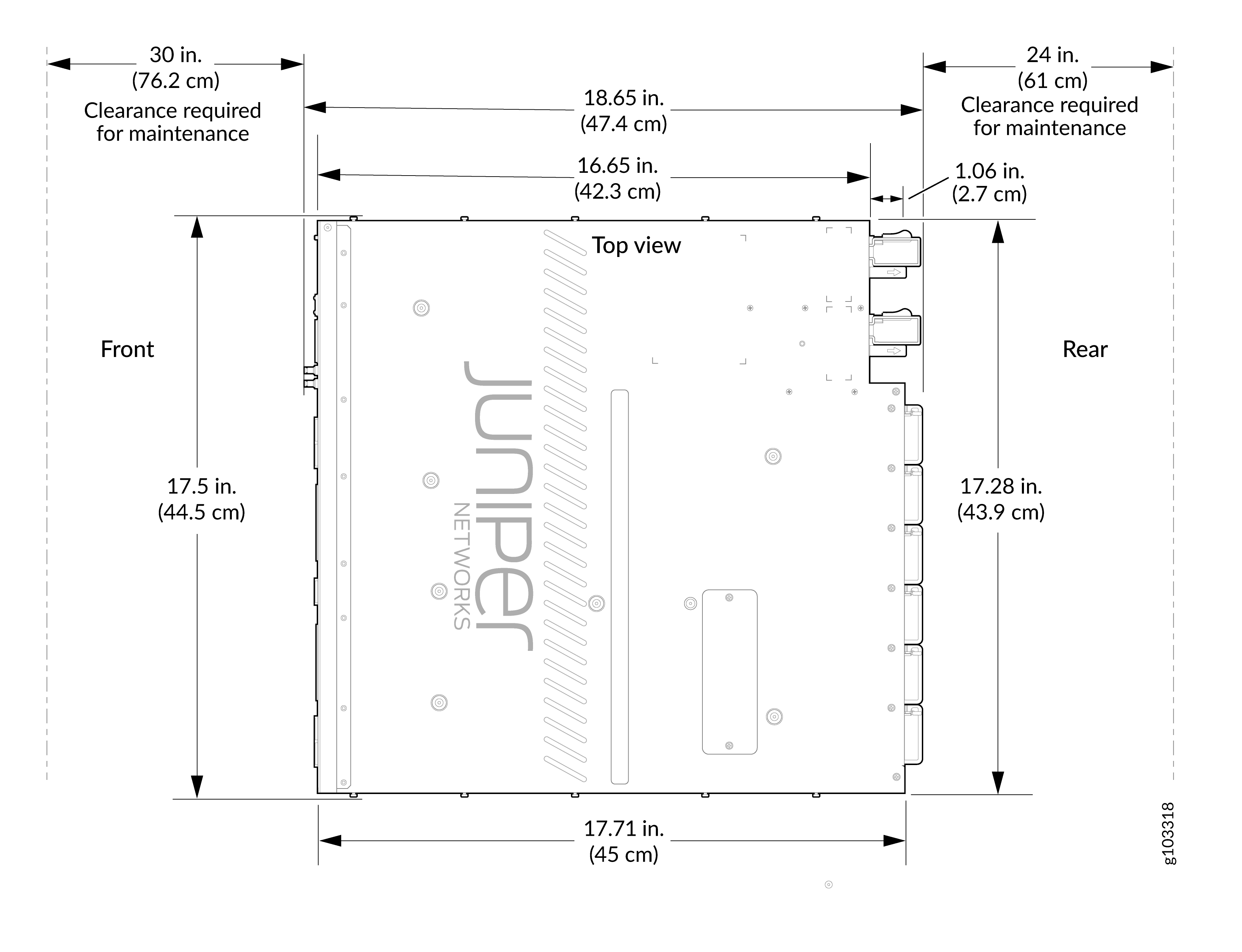
-
Unpack the device as described in Unpack the MX301 and MX301-M.
-
Ensure that you have all the parts and tools available to mount the MX301 and MX301-M in a rack. See the instructions for the rack installation kit that you are using:
-
A qualified technician must verify that the rack or cabinet is strong enough to support the device's weight before mounting the device. Have the technician also verify that the rack or cabinet has adequate support at the installation site.
-
If you are installing more than one device on a rack or in a cabinet, install the first device at the bottom of the rack.
MX301 and MX301-M routers requires two people for installation, one person to lift the device into place and another person to attach the device to the rack. If you are installing the MX301 and MX301-M above 60 in. (152.4 cm) from the floor, you can remove the power supplies and fan modules to minimize the weight before attempting to install the MX301 and MX301-M. A fully loaded chassis (with an AC power supply) weighs approximately 25.53 lb (11.58 kg).
Ensure that you support the rear of the chassis throughout the process of mounting the device on the rack.
Mount the MX301 and MX301-M On a Four-Post Square-Holed Rack Using the JNP301-4PST-RMK Rack Mount Kit
Mount the MX301 and MX301-M on a four-post square-holed rack on your site by following the recommended procedure below.
Ensure that you have the following tools and parts available:
-
An ESD grounding strap (provided)
-
A pair of front-mounting and rear-floating rails (provided with the RMK)
These mounting rails attach to the front and rear rack posts.
-
A pair of chassis brackets (provided with the RMK)
You must attach these brackets to the device if not preinstalled.
Juniper provides the four-post rack mounting kit (JNP301-4PST-RMK) with the MX301 and MX301-M. If the four-post kit is lost or damaged, you can order a replacement.
To mount the device on four posts of a square-holed rack using the JNP301-4PST-RMK rack mount kit:
-
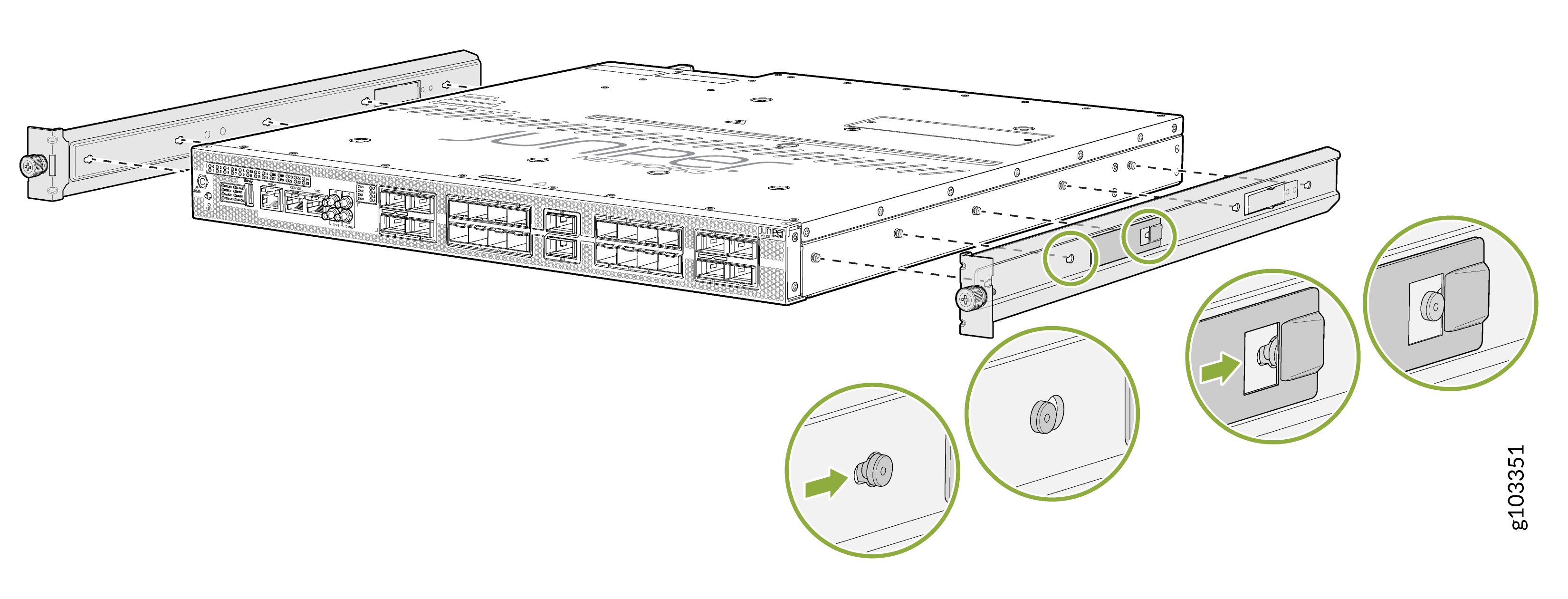
Install the chassis bracket to the chassis by aligning the keyholes on the chassis
bracket over the shoulder screws on the chassis. Slide the chassis bracket toward the rear
of the chassis.
Figure 2: Install the Chassis Brackets
-
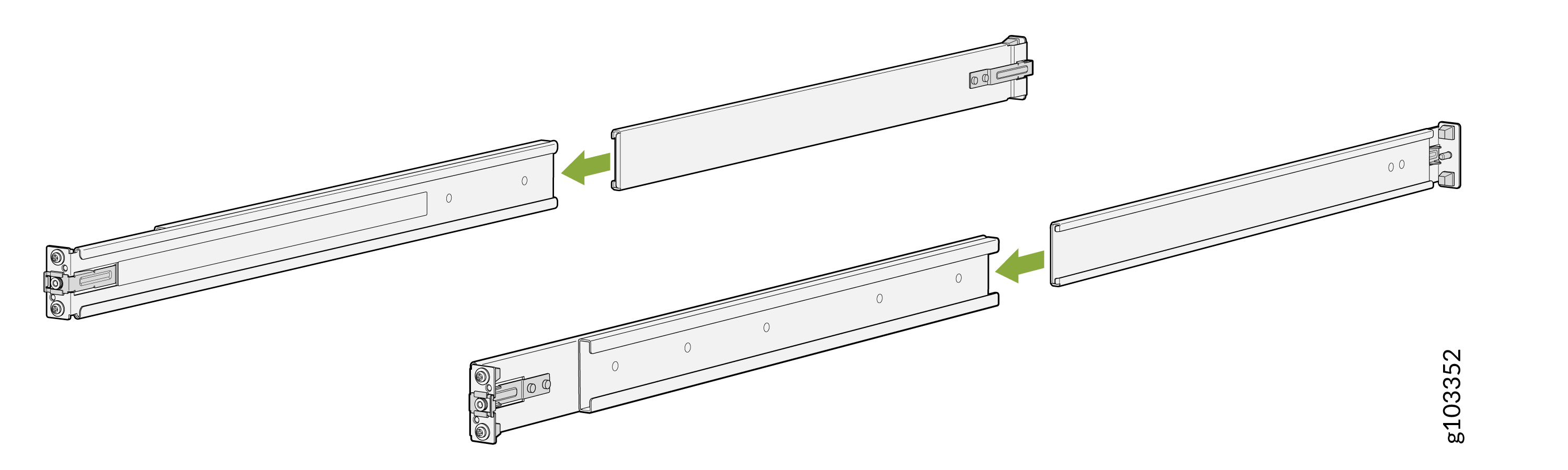
Assemble the mounting rails by sliding the rear-floating rails into the respective
front-mounting rails.
Figure 3: Assemble the Mounting Rails
-
Install the mounting rails on the four-post rack:
-
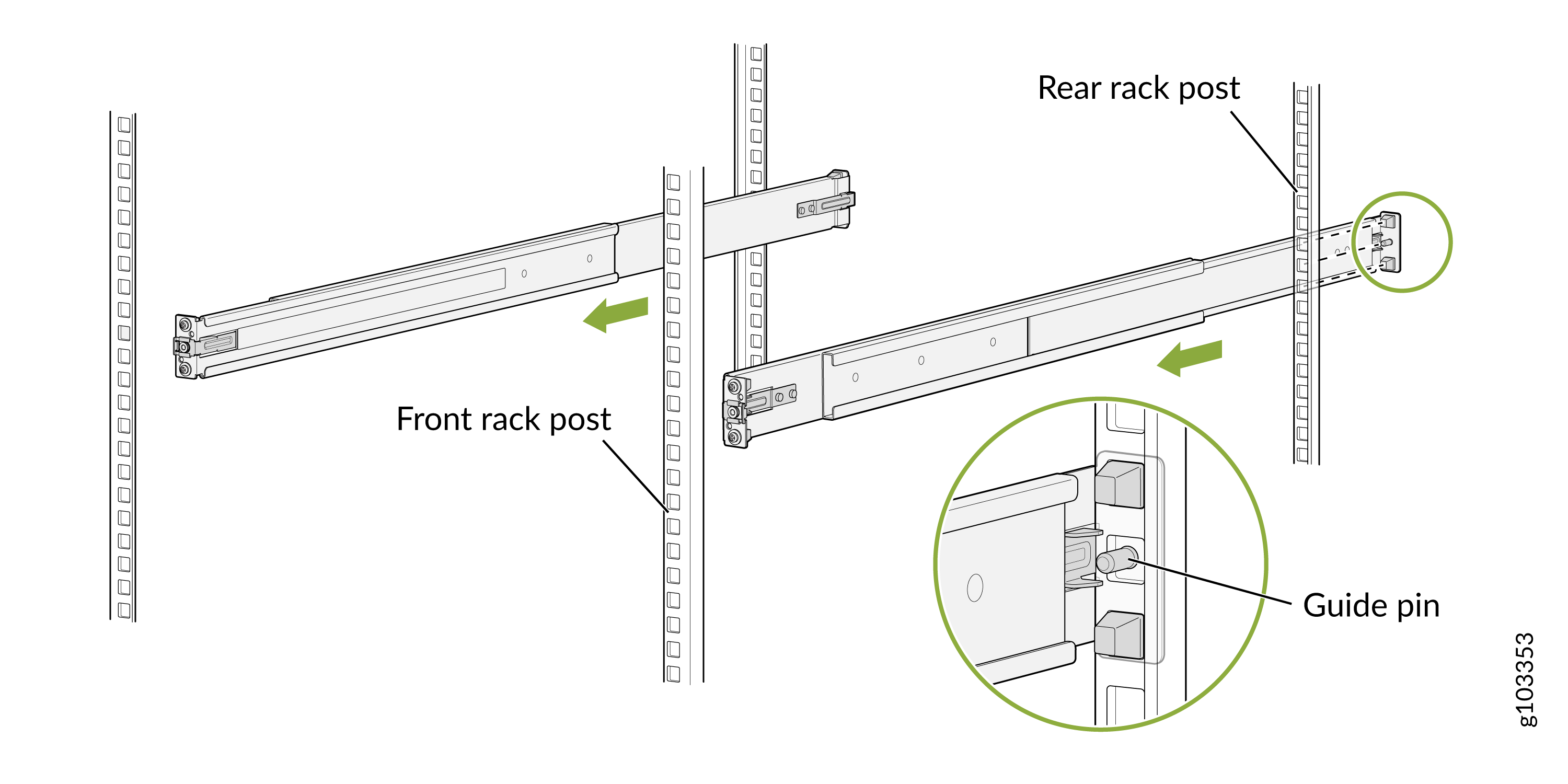
Use the guide pin to align the guide blocks of the rear-floating rails with the
corresponding rear post holes. Pull the rear-floating rails toward the front of the
rack to lock the rail in place. You will hear a distinct click sound when each latch
locks into the corresponding rack post holes.
Figure 4: Secure Rear-Floating Rails
-
Align the guide blocks of the front-mounting rails with the front post holes. Push
the front-mounting rails towards the rear of the rack to lock the rails in place. You
will hear a distinct click sound when each latch locks into the corresponding rack
post holes.
Figure 5: Secure Front-Mounting Rails
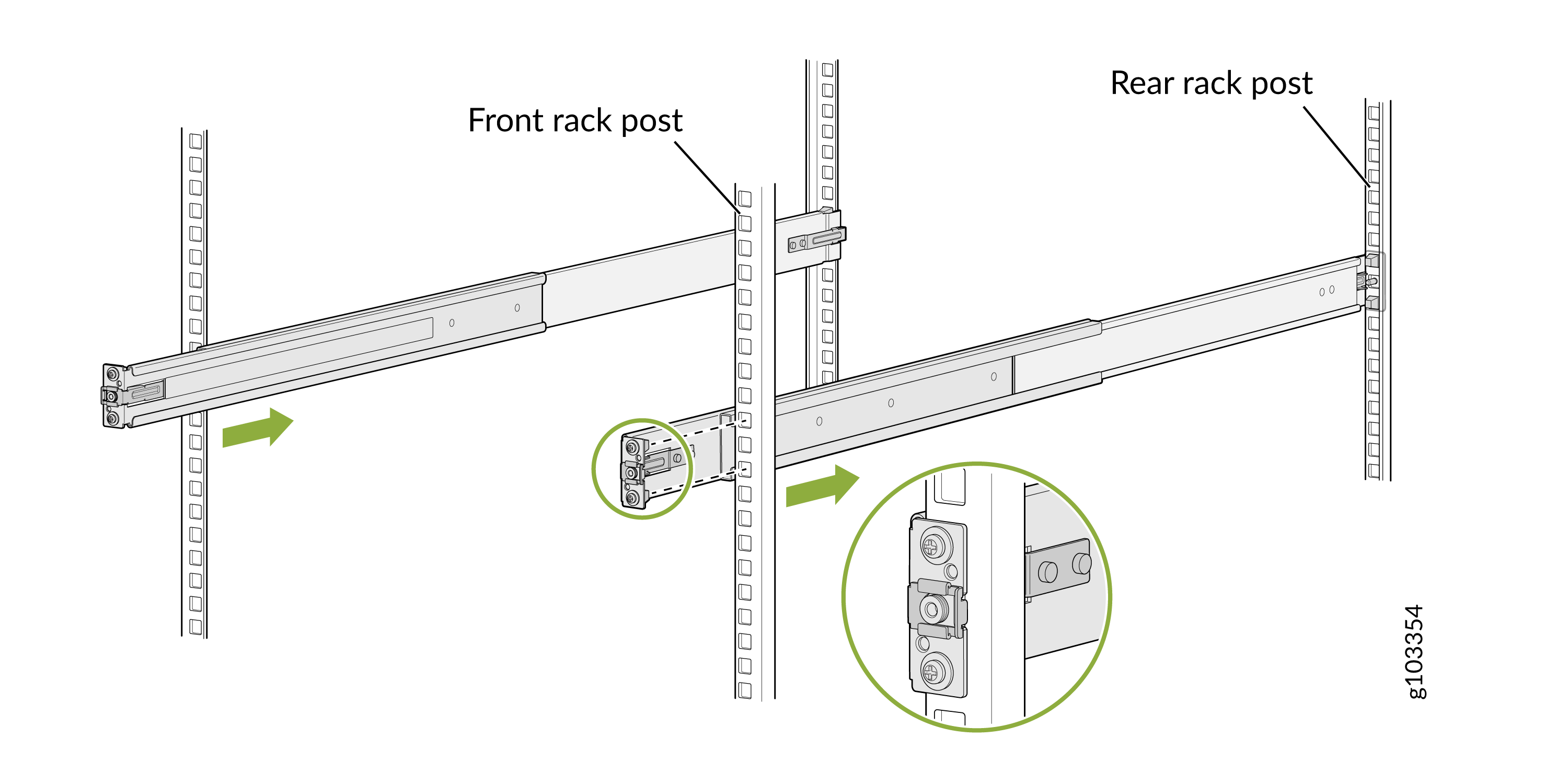 Figure 6: Both Mounting Rails Installed and Secured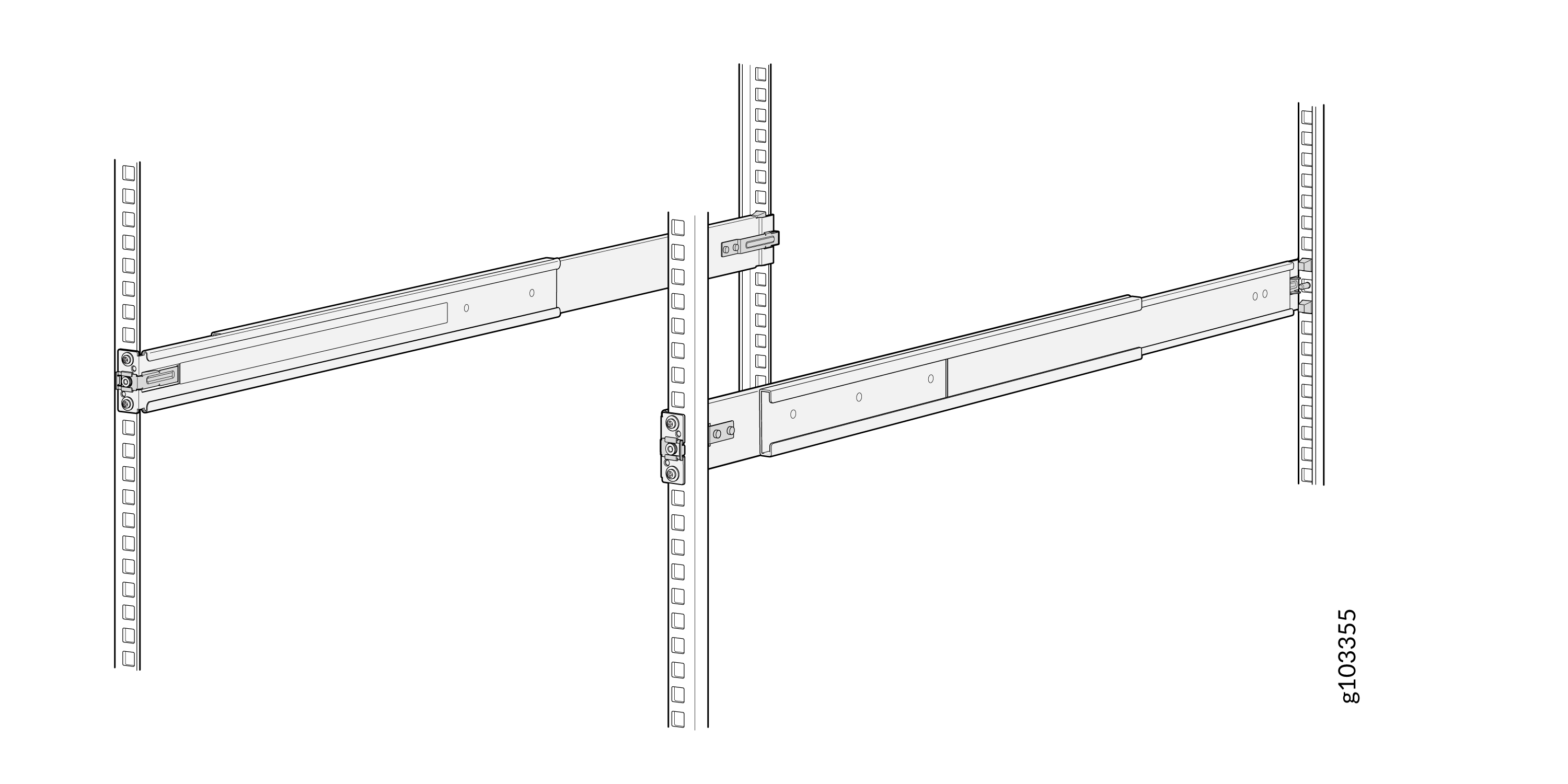
-
Use the guide pin to align the guide blocks of the rear-floating rails with the
corresponding rear post holes. Pull the rear-floating rails toward the front of the
rack to lock the rail in place. You will hear a distinct click sound when each latch
locks into the corresponding rack post holes.
-
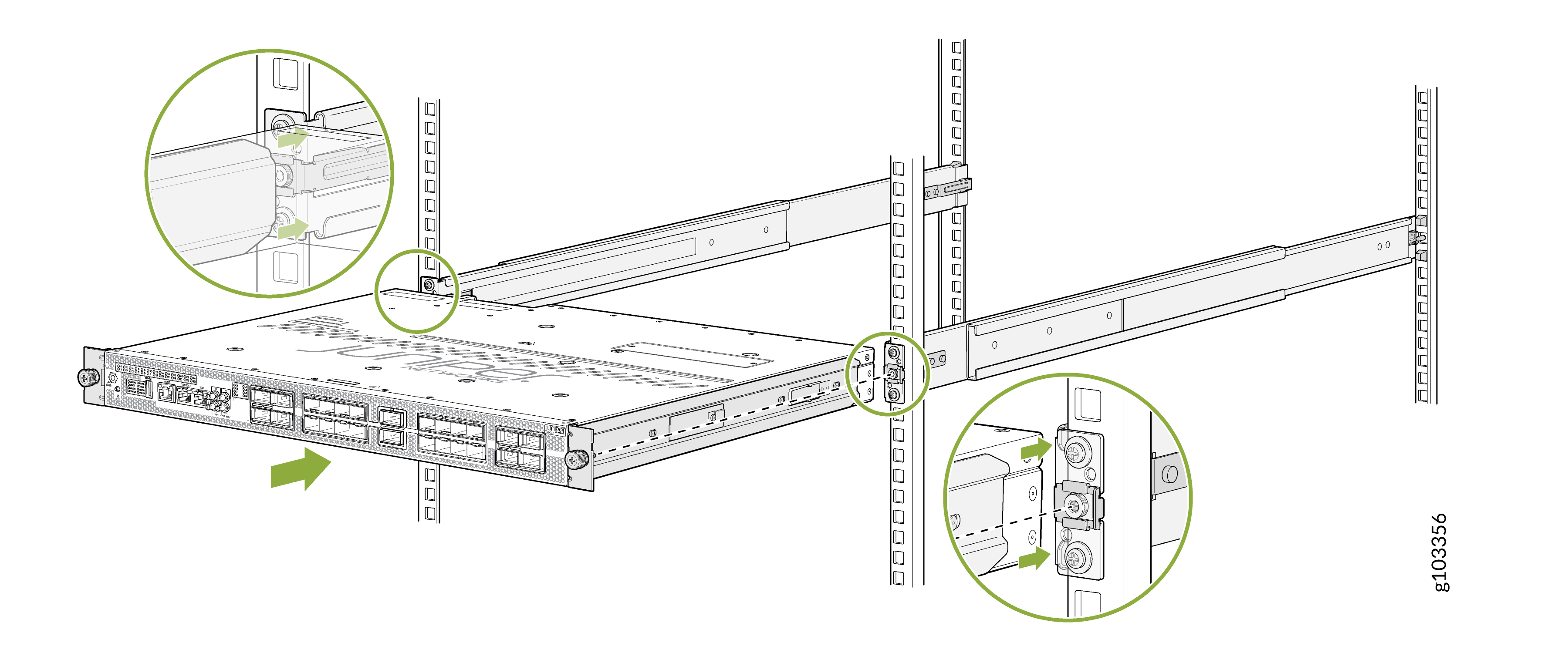
Lift the device and position it in the rack, aligning the chassis brackets with the
mounting rails. Slide the device all the way into the channels of the rack mounting
rails.
Figure 7: Slide the Router into the Rack
-
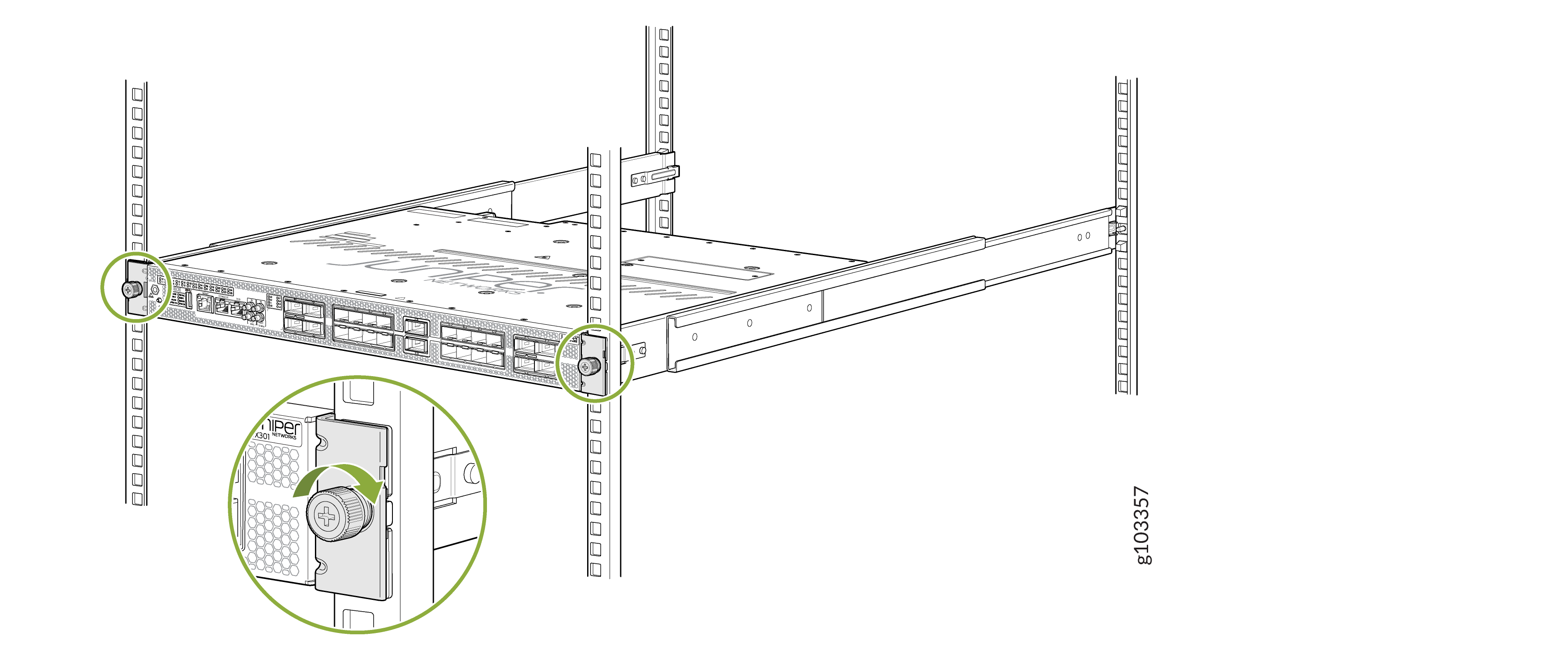
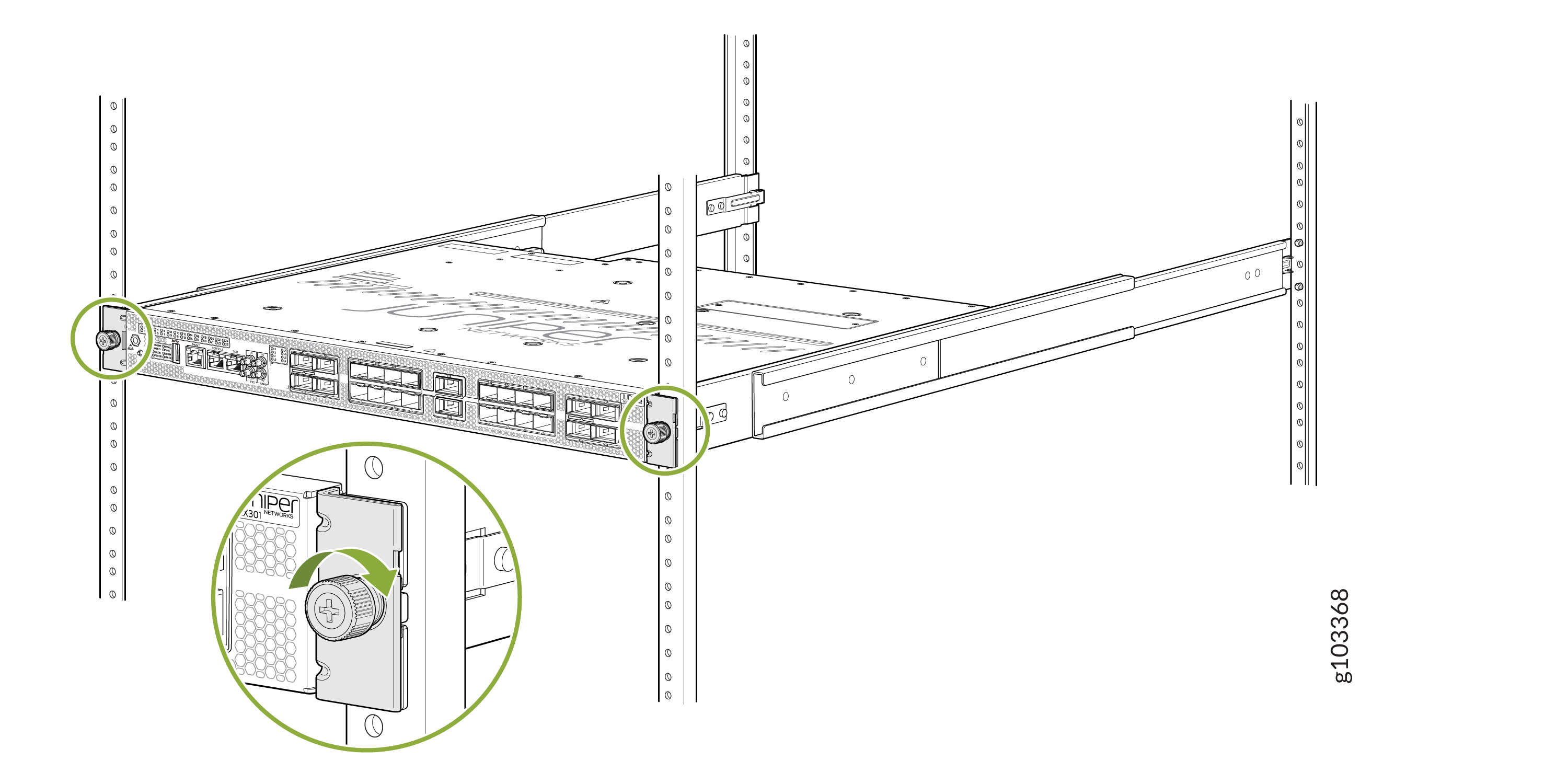
Tighten the two thumbscrews (in a clockwise direction) to secure the device.
Figure 8: Tighten the Thumbscrews
Mount the MX301 and MX301-M On a Four-Post Threaded-Hole Rack Using the JNP301-4PST-RMK Rack Mount Kit
Mount the MX301 and MX301-M on a four-post threaded hole rack on your site by following the recommended procedure below.
Ensure that you have the following tools and parts available:
-
An ESD grounding strap (provided)
-
A Philips (+) screwdriver, number 2 (not provided)
-
Eight screws appropriate for your rack to attach the mounting rails to the rack posts (not provided)
-
A pair of front-mounting and rear-floating rails (provided with the RMK)
These mounting rails attach to the front and rear rack posts.
-
A pair of chassis brackets (provided with the RMK)
You must attach these brackets to the device.
Juniper provides the four-post rack mounting kit (JNP301-4PST-RMK) with the MX301 and MX301-M. If the four-post kit is lost or damaged, you can order a replacement.
To mount the MX301 and MX301-M on four posts of a threaded-hole rack using the JNP301-4PST-RMK rack mount kit:
-
Install the chassis bracket to the chassis by aligning the keyholes on the chassis
bracket over the shoulder screws on the chassis. Slide the chassis bracket toward the rear
of the chassis.
Figure 9: Attach the Chassis Brackets
-
Assemble the mounting rails:
-
Remove the guide blocks from the front-mounting rails by loosening the screws and
washers.
Tip:
Retain the guide blocks, screws, and washers for later use.
Figure 10: Remove Guide Blocks from Front-Mounting Rail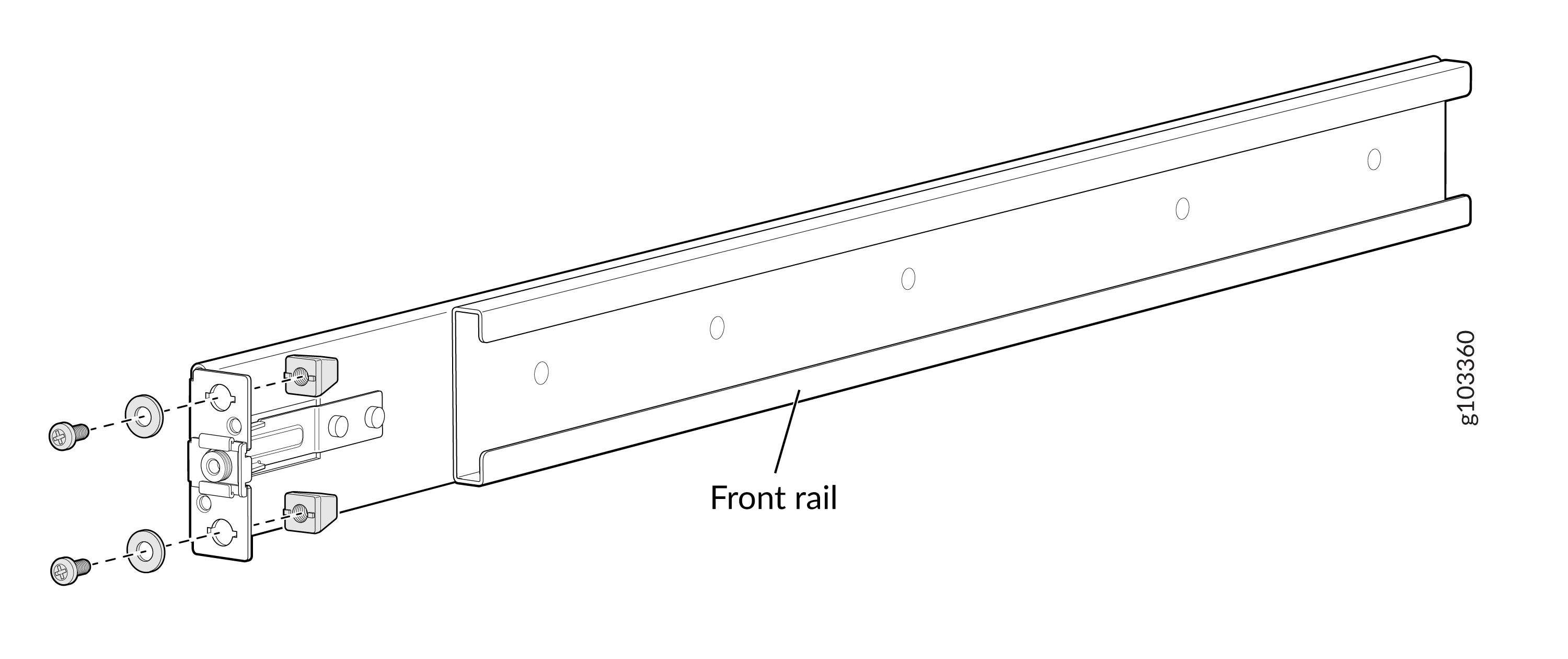
-
Remove the guide blocks from the rear-floating rails by loosening the screws and
washers.
Tip:
Retain the guide blocks, screws, and washers for later use.
Figure 11: Remove Guide Blocks from Rear-Floating Rail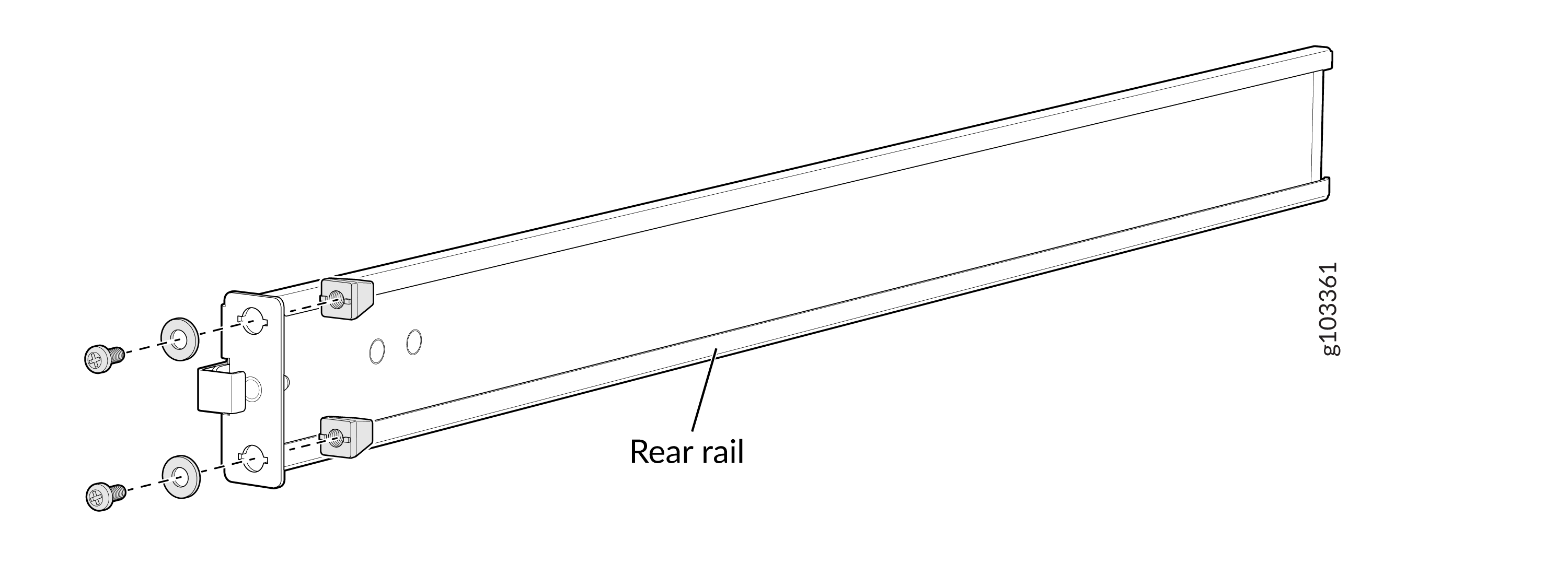
-
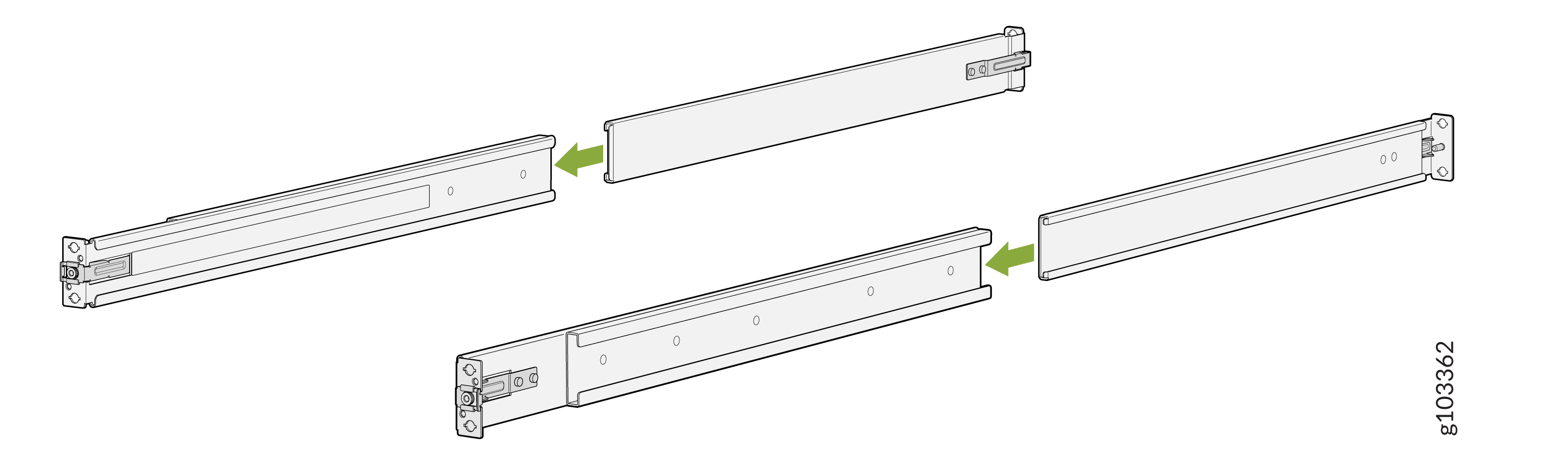
Slide the rear-floating rails into the front rails.
Figure 12: Assemble the Mounting Rails
-
Remove the guide blocks from the front-mounting rails by loosening the screws and
washers.
-
Install the mounting rails on the four-post rack:
-
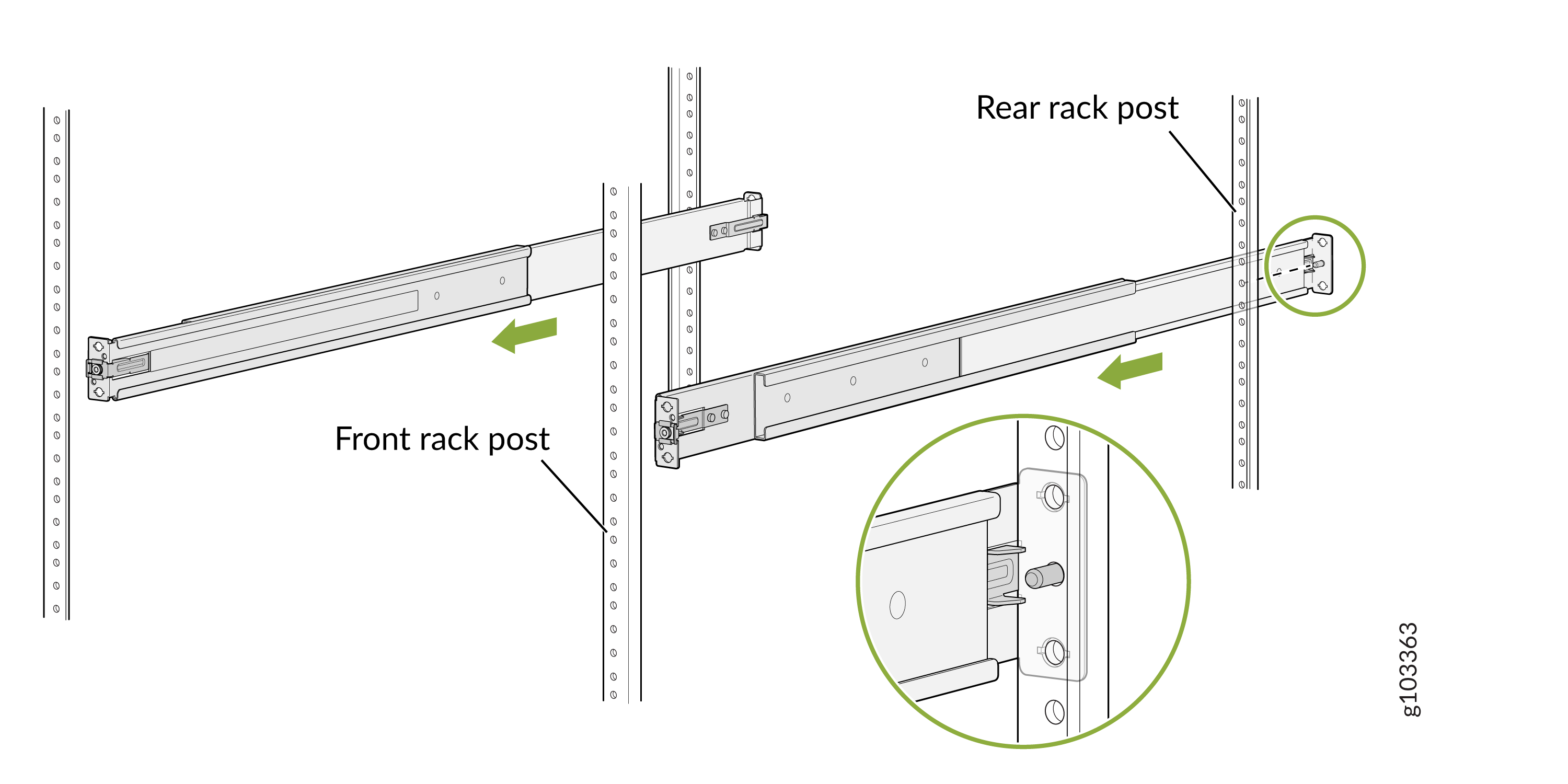
Align and insert the guide pins of the rear-floating rails into the corresponding
rear-post holes. Pull the rear-floating rails toward the front of the rack to lock the
rails in place. You will hear a distinct click sound when each latch locks into the
corresponding rack hole.
Figure 13: Install Rear-Floating Rails
-
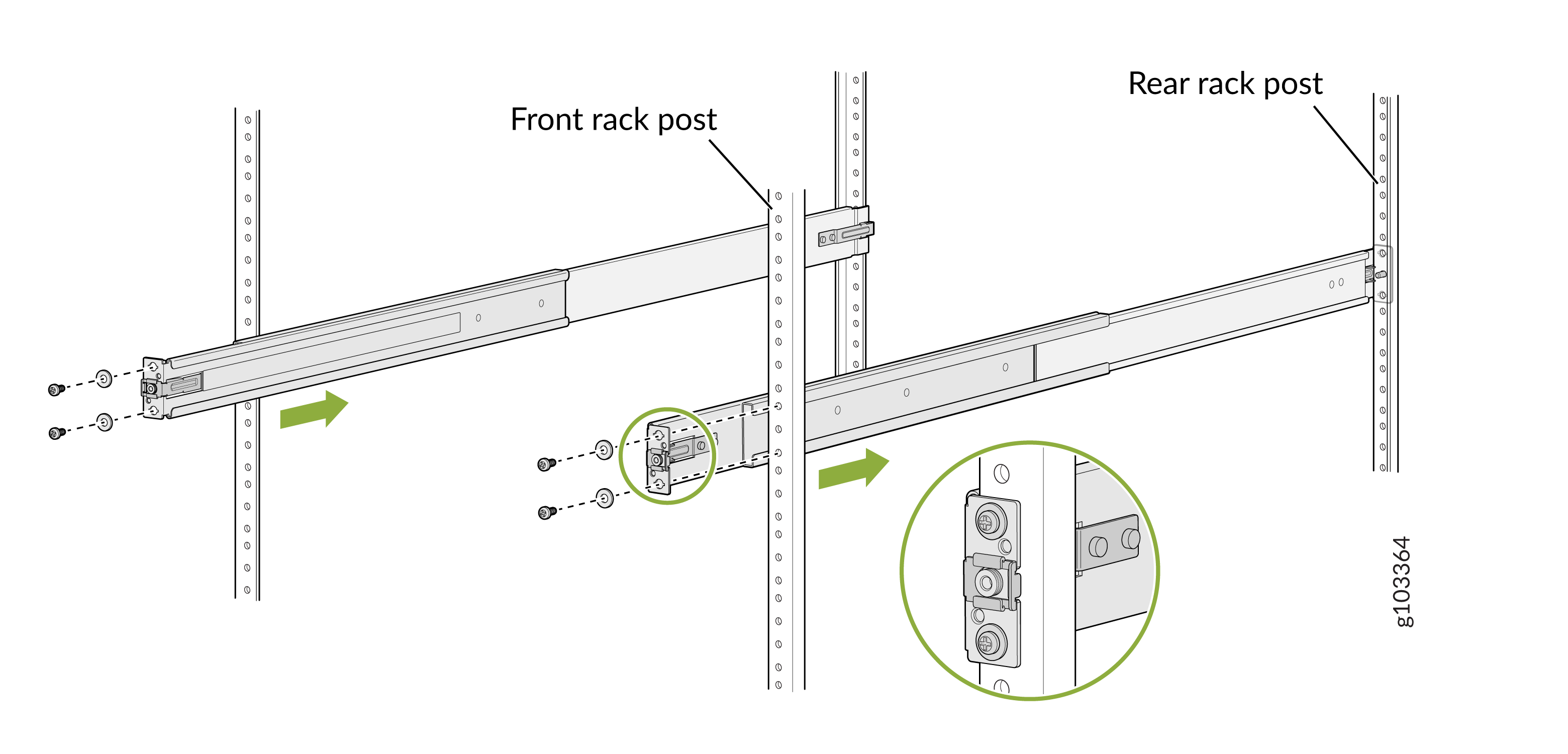
Secure the front-mounting rails to the front rack post by using screws (not
provided) appropriate for the thread size of your rack.
Figure 14: Secure the Front-Mounting Rails
-
Secure the rear-floating rails to the rear rack post by using screws (not provided)
appropriate for the thread size of your rack.
Figure 15: Secure the Rear-Floating Rails

-
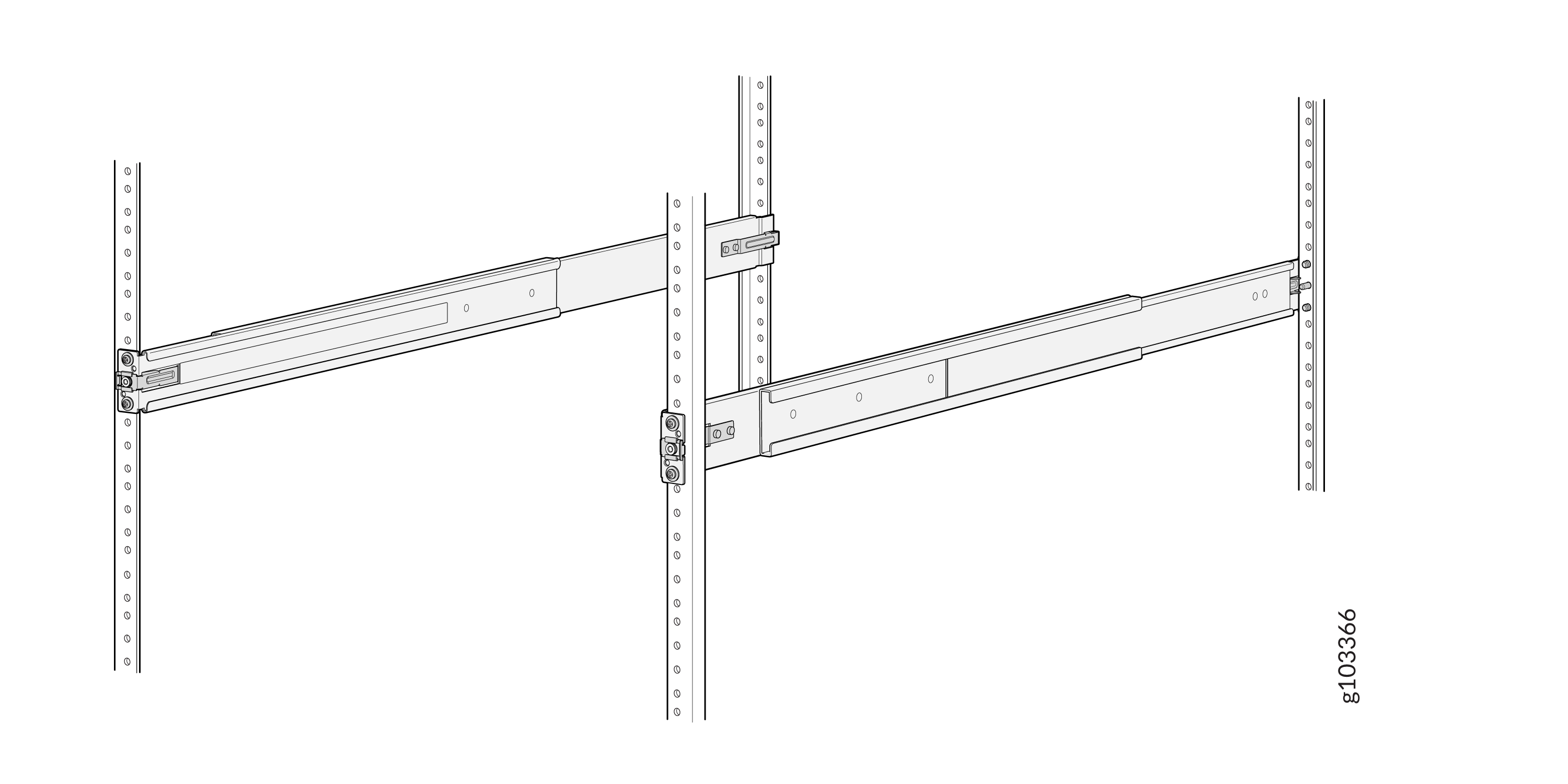
Visually confirm that you have locked the front and rear latches of the mounting
rails into the rack posts. The mounting rails should now be securely installed on the
rack.
Figure 16: Both Mounting Rails Installed and Secured
-
Align and insert the guide pins of the rear-floating rails into the corresponding
rear-post holes. Pull the rear-floating rails toward the front of the rack to lock the
rails in place. You will hear a distinct click sound when each latch locks into the
corresponding rack hole.
-
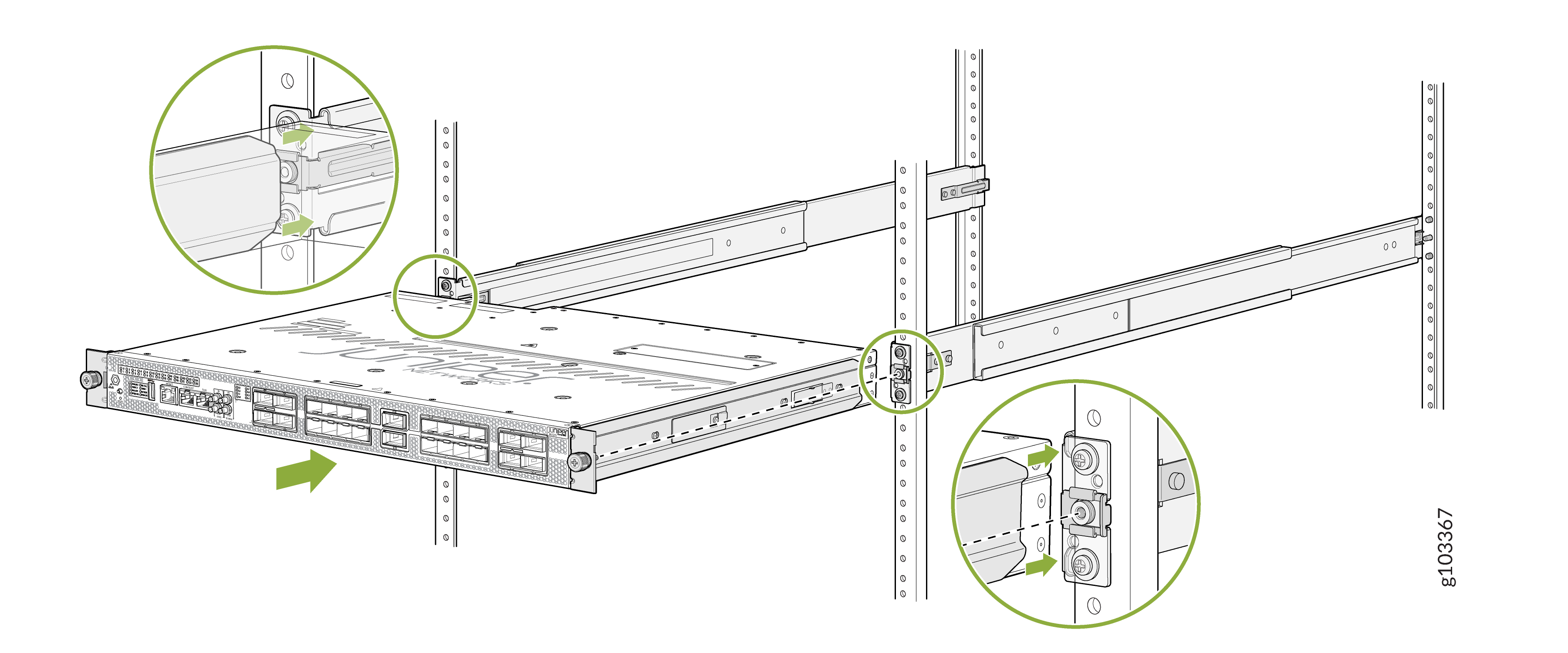
Lift the device and position it in the rack, aligning the chassis brackets with the
mounting rails. Slide the device all the way into the channels of the mounting
rails.
Figure 17: Slide the Router into the Rack
-
Tighten the two thumbscrews (in a clockwise direction) to secure the device.
Figure 18: Tighten the Thumbscrews
Center Mount the MX301 and MX301-M on a Two-Post Rack Using the JNP301-2PST-RMK Rack Mount Kit
Mount the MX301 and MX301-M on a two-post rack on your site by following the recommended procedure below.
Ensure that you have the following parts and tools available:
-
An ESD grounding strap (provided)
-
A pair of chassis brackets (provided with JNP301-2PST-RMK)
You must attach these brackets to the device.
-
Four Philips M5x12 mm screws to secure the chassis with the chassis brackets to the two posts (provided with JNP301-2PST-RMK)
-
Screwdriver appropriate for the mounting screws (not provided)
The two-post rack mounting kit (JNP301-2PST-RMK) is not included with MX301 and MX301-M. You must order the two-post rack mounting kit separately.
To center mount the MX301 and MX301-M on a two-post rack using the JNP301-2PST-RMK rack mounting kit:
-
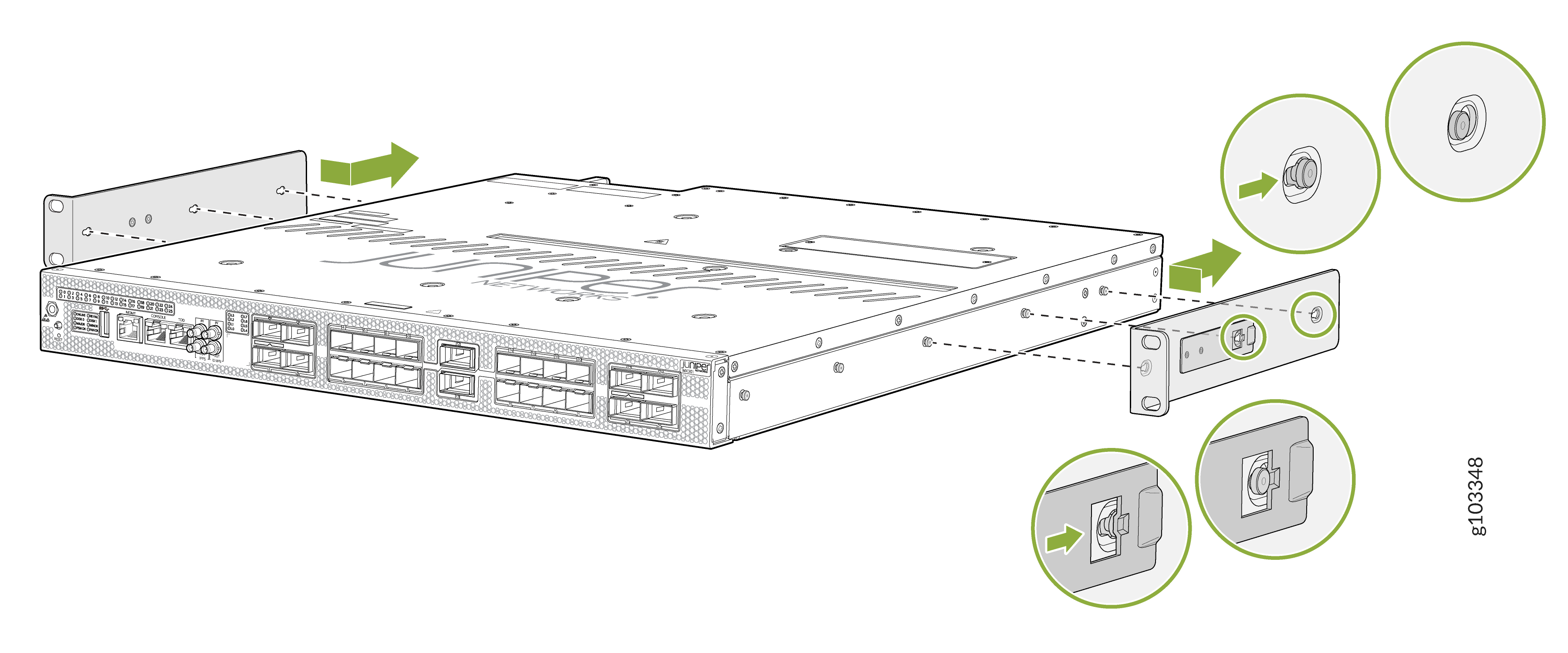
Install the chassis bracket to the chassis by aligning the keyholes on the chassis
bracket with the three shoulder screws at the rear of the chassis. Slide the chassis
brackets toward the rear of the chassis until the chassis brackets lock into place.
Figure 19: Install the Chassis Brackets
-
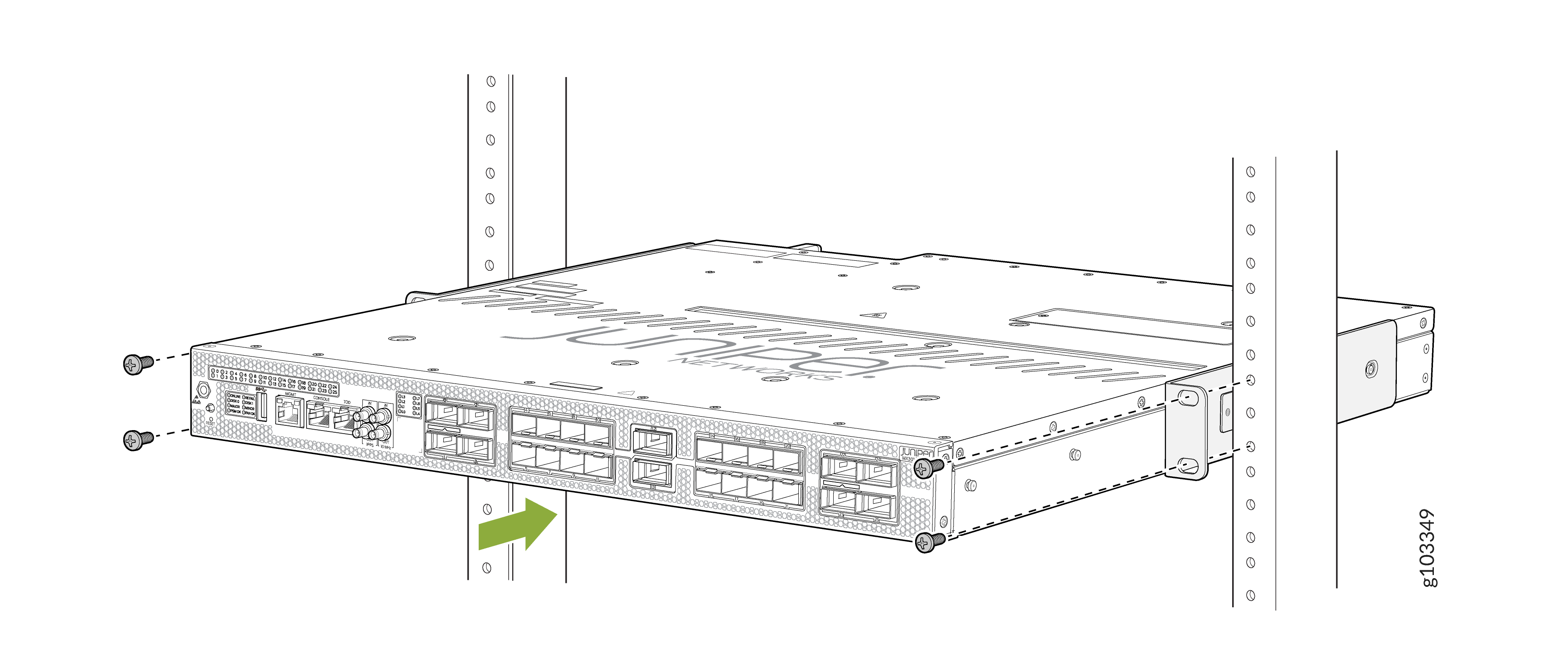
Have a second person secure the chassis to the rack. Tighten the Philips M5x12 mm
screws into the holes of the two-post rack. Use cage nuts and washers if your rack
requires them.
Figure 20: Attach the Router to a Two-Post Rack
-
Inspect the installation making sure that the chassis is level. Verify that the two
screws on one rack post is level with the corresponding screws on the other rack
post.
Figure 21: Secured Router in a Two-Post Rack