
이 페이지의 내용
Marvis 대화형 어시스턴트
Marvis 대화형 어시스턴트를 사용하여 네트워크에 대한 정보를 얻고, 문제를 해결하고, 문서를 찾으십시오.
대화형 어시스턴트는 자연어 처리(NLP) 및 자연어 이해(NLU) 기능을 사용하여 도움을 제공합니다. 사용자 피드백을 학습하여 응답을 지속적으로 개선하고 있습니다.
Marvis는 다음을 수행할 수 있습니다.
-
사이트, 디바이스, 클라이언트 및 애플리케이션에 대한 정보 제공
-
사이트, 디바이스, 클라이언트 및 애플리케이션 관련 문제 해결 지원
일반 대화에서와 같이 프롬프트를 따르거나 질문과 문을 입력하여 대화형 어시스턴트와 상호 작용할 수 있습니다. 예를 들어, "몇 개의 스위치가 연결되어 있습니까?" 또는 "기본 사이트는 어떻게 작동합니까?" 라고 질문할 수 있습니다.
비디오 데모
사용자가 Marvis 대화형 어시스턴트와 상호 작용하는 모습을 시청하세요.
In today's product highlights, we are going to go through the next generation Marvis called the Marvis Conversational Assistant. Using this assistant, we are going to see Marvis answer any and every question that I may have, either directly providing me the answer or asking for clarifying questions in a way of conversations to better understand my question. So let's see what Marvis can do for us today by clicking on the bottom right of my screen.
And what we see here is Marvis being able to answer every and any question right from troubleshooting to searching for a device and documentation. So let's get started with one of these options. In my case, I'm going to select troubleshoot site and my focus is the site live demo.
And that's what I'm going to ask it to tell me about. And very easily and seamlessly, I can see there are three issues plaguing the site. Starting from slow association to the AP uptime not being 100% and finally poor coverage.
Any of these can be drilled down into for further analysis and also to look at detailed data right from the dashboard on the left. Now going back to the troubleshooting scenario, I would also like to know if and who all are having a problem at the site. So I'll simply ask Marvis which users are having issues.
And right away, Marvis presents me with the list of clients having any sort of issue for me to look into and drill deeper. In this case, I'm going to look at this client called Denali and see what Marvis comes up with. So similar to what we saw at that site, this client too has slow association with the reason indicated right here for me to act upon and also the option to drill deeper and check out the client insights for further analysis in terms of the timeline and the different client events.
No discussion of wireless is complete without talking about the access point and that is what I want to know next. For this, I'm going to take a sample access point from the site. Let's say we take the one with the most recent uptime.
In this case, it is this LTEBC AP and see how it's doing. I'll go back to Marvis and ask how is LTEBC and let's see what we find out. For one, this AP is healthy and is doing well, but clients connected to this AP have poor coverage due to an asymmetry in the uplink, which can further be drilled down and trouble short.
Moving over from wireless, looking into the wired infrastructure, let's see how our switches are doing. For that, I'm going to go to the switches tab and pick off any AP or let's see if Marvis is smart enough to understand even a partial name for a switch, which is usually how I name my switches at the site. Similar names with just different ending parameters.
In this case, I'm going to say troubleshoot LD Cup. Now we see Marvis is smart enough to know which all switches or any devices, for the matter of fact, have a similar name called LD Cup. Let's go ahead and see how these switches are doing.
In this case, directly, we can see this switch has high latency on all of these interfaces and again, we can drill deeper and look at the details for the switch or even the failure timelines. Alternatively, we can click on any other switch and see what other issues it has and continue doing that for any switch of our choice. So far, we looked at troubleshooting the site, a single client, an AP and a switch.
Now let's move forward and look at how we could search for a certain device, which has called in and we want to know more details about the device, including its location. So I'm going to simply say, find Denali, which is one such client in our environment. And here, Marvis tells us the client Denali is in the site live demo along with the MAC address and the IP address.
And again, a way for us to go directly to the client and look at more details from the dashboard. The next piece, which we have is documentation, and this can be seen in different ways and forms. For instance, I want to know, does LDEBC have enough capacity? So specifically for capacity, we now see the SLE or the metric for that specific access point.
And we can see it's for LDEBC for today. You can, as far as concerned, your concern can also go back to seven days and look at this access point as well. So yes, I can see in terms of capacity, this access point may not be the best one in terms of capacity, since it has a lot of Wi-Fi interference and it's something I should take care of when I do expect my client traffic and count to increase.
Another popular one is to see how to configure my Juniper switch onto my Mist cloud. So, I'll simply ask how to configure switches. And here we get the different documentations with respect to configuring switches, right from best practices to template-based configuration, which is our de facto standard in terms of configuring switches and access points. Finally, as a different way, I also want to see how RRM is doing. So I want to know firstly, hey, how to set up RRM. Sure.
It's going to be for my site live demo. And directly I can go to the radio management piece or the page of the dashboard and look at the radio settings for those to be configured. Let's see some other questions which are pertinent and what Marvis can do about it.
I also want to know, do I have rogue APs in my environment, which is going to be problematic and would cause user connectivity issues. Sure. This is for my site live demo. And it directly shows me where I could go to see the rogue AP list. And definitely I can see there are a bunch of rogue APs which I should look and act upon. The final element here, and no discussion of Marvis is complete without talking about Marvis actions, which is the org-wide view of any and every issue you may have.
When a client comes on board onto your network, right to it accessing an application in your data center or out in the cloud, thus giving you the end-to-end visibility of a client to cloud picture. In this case, I want to know, do I have any bad cables? Now, if you may have noticed, I did purposely mistyped a couple of pieces here and you can see it did consider that as clients. And that is where you can come in and always give us feedback as we continue to look at improving the product and say, no, Marvis, I asked about cables.
Now let's get back to our original question and frame it in a better way. So I'll ask, do I have bad cables? And we can see it directly takes us to Marvis actions, but we can see there are zero layer one issues, which translates to zero bad cables. I hope this was useful for you and I look forward to connecting with you all on a different topic in a different video.
요구 사항
대화형 어시스턴트를 사용하려면 다음을 수행해야 합니다.
-
구독 요구 사항을 충족합니다. 자세한 내용은 Marvis 구독 섹션을 참조하세요.
-
조직의 모든 사이트에 액세스할 수 있는 권한이 있는 사용자 계정이 있어야 합니다.
대화형 어시스턴트 찾기
주니퍼 Mist 포털의 왼쪽 상단 모서리 또는 오른쪽 하단 모서리에 있는 Marvis 아이콘을 클릭합니다.

자연어 사용
Marvis 아이콘을 클릭한 다음 Marvis 창 하단의 메시지 상자에 질문이나 우려 사항을 입력합니다.
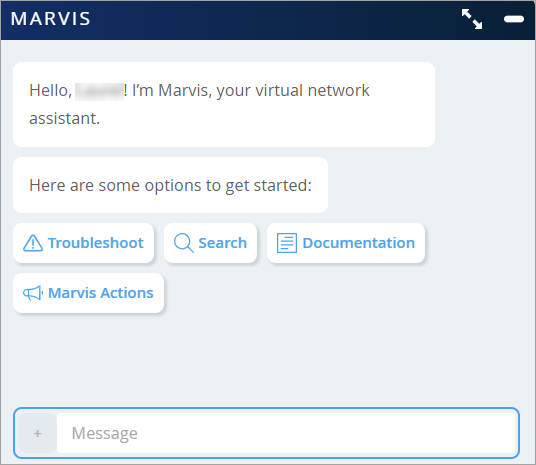
프롬프트 따르기
Marvis 아이콘을 클릭한 다음 Marvis에 표시되는 버튼 중 하나를 클릭합니다.
초기 프롬프트는 다음과 같습니다.
-
문제 해결 - 사이트, 애플리케이션, 디바이스 및 유선 또는 무선 클라이언트의 문제를 해결하려면 이 옵션을 클릭합니다.
-
검색—사용자, 디바이스 및 사이트를 검색하려면 이 옵션을 클릭합니다.
-
문서 - 문서를 검색하려면 이 옵션을 클릭합니다.
-
Marvis Actions - 작업 대시보드에서 보류 중인 작업을 보려면 이 옵션을 클릭합니다.
프롬프트에 응답하면 Marvis가 다른 프롬프트를 표시하여 대화를 계속합니다. 다음 예에서는 Marvis와 사이트 문제를 해결하려는 사용자 간의 상호 작용을 볼 수 있습니다.
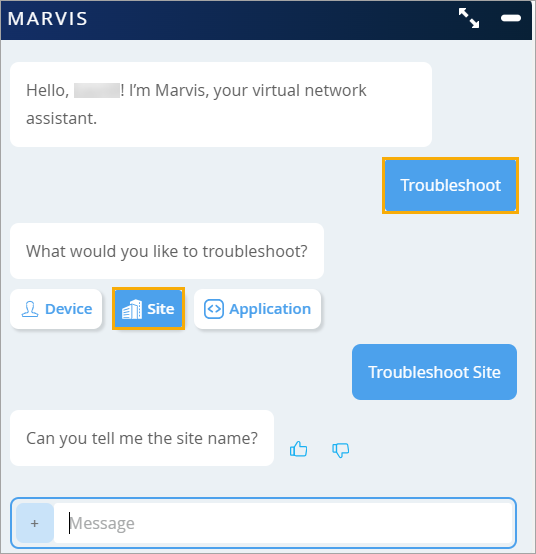
또한 지원 티켓 생성 페이지에서 대화형 도우미에 액세스하여 지원 티켓을 제출하기 전에 영향을 받는 사이트, 디바이스 및 클라이언트의 문제를 빠르게 해결할 수 있습니다. 자세한 내용은 지원 티켓 만들기를 참조하세요.