
インテリジェント検査
IDP(侵入検出および防止)インテリジェント検査は、高負荷状態下でもファイアウォールが効率的に動作し続けることができるように設計されています。
インテリジェントインスペクションの理解
IDP インテリジェント検査を有効にし、動的に調整して、完全な IDP 検査の負荷を軽減できます。IDPは、リソース制限が設定されたCPUおよびメモリしきい値に達したときにIDPインスペクションを調整することにより、セッションを拒否または無視しません。
IDP インテリジェント インスペクションとバイパス機能を有効にするには、 set security idp sensor-configuration flow intel-inspect-enable コマンドを使用します。
インテリジェント検査の利点
-
重要なIDP検査を重視します。
-
優先度の低いIDPインスペクションを回避します。
-
高いシステムリソースの使用量を削減します。
IDPインテリジェントインスペクションを調整するためのセキュリティメカニズム
以下の設定では、IDP システムを微調整してパフォーマンスを最適化し、重大な脅威に集中できます。
-
動的ポリシー:Critical、Major、Minor は、シグネチャの 3 つの重要な重大度です。ポリシーを動的に調整して、必要な重大度レベルのシグニチャのみを含めることができます。重大度のクリティカルなシグネチャのみを含めるには、
set security idp sensor-configuration flow intel-inspect-signature-severity criticalコマンドを使用します。重大度が重大およびメジャーのシグネチャを含めるには、コマンドset security idp sensor-configuration flow intel-inspect-signature-severity majorを使用します。重大度、メジャー、マイナーの両方の重大度のシグネチャを含めるには、コマンドset security idp sensor-configuration flow intel-inspect-signature-severity minorを使用します。既定では、重大度が「重大」の攻撃が含まれます。 -
コンテンツの解凍:コンテンツの圧縮解除は、 Intel Inspect が有効で、しきい値に達した場合にのみ回避できます。プロトコル デコーダーは、コンテンツが圧縮状態の場合、プロトコル コンテンツを解凍します。
set security idp sensor-configuration flow intel-inspect-disable-content-decompressコマンドを設定することで、プロトコルコンテンツの解凍を回避できます。 -
選択的プロトコル—デフォルトでは、IDPはすべての重要なプロトコルを検査します。IDP 処理の重要なプロトコルのリストを指定できます。プロトコルのリストを指定するには、
set security idp sensor-configuration flow intel-inspect-protocols protocolコマンドを使用します。IDPは重要でないプロトコルを検査しません。 -
検査の深さ—デフォルトでは、IDP はセッションのすべてのバイトを検査します。インスペクションの深さを指定することで、IDP はインスペクションを指定されたバイト数のみに制限します。検査深度を有効にするには、コマンド
set security idp sensor-configuration flow intel-inspect-session-bytes-depth valueを使用します。デフォルトでは、IDPインテリジェントインスペクションはインスペクション深度を無効にし、すべてのバイトがインスペクションされることを意味します。
CPU使用率
IDP インスペクションのしきい値制限を設定できます。CPU使用率が設定されたしきい値に達すると、IDPインテリジェントインスペクションがアクティブになります。
しきい値制限を設定するには、次のコマンドを使用します。
-
set security idp sensor-configuration flow intel-inspect-cpu-usg-threshold value -
set security idp sensor-configuration flow intel-inspect-cpu-usg-tolerance value
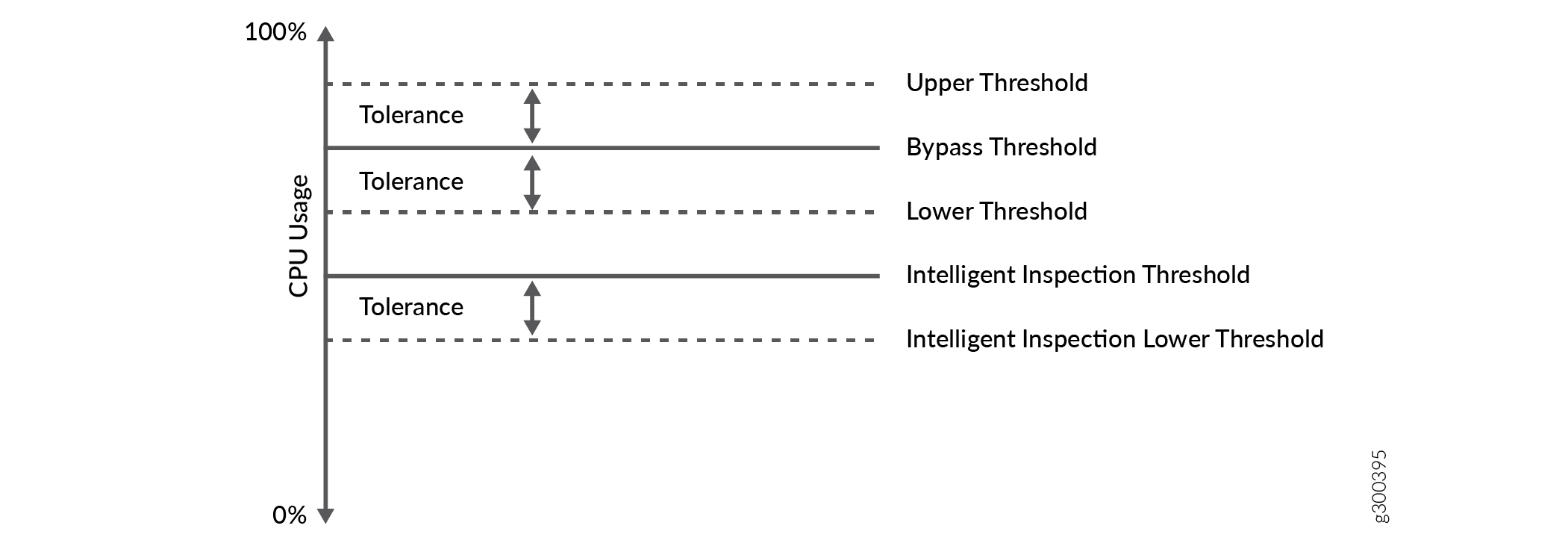 について
について
CPU 使用率は次のように動作します。
-
IDP は、CPU 使用率が設定されたインテリジェント検査しきい値に達すると、新しいセッションでの完全な IDP 処理を停止します。IDP は、調整されたセキュリティ検査のみを処理します。この動作により、syslog メッセージがトリガーされ、IDP インテリジェント インスペクションがアクティブになります。
-
CPU 使用率がインテリジェント インスペクションしきい値を超え、IDP バイパスしきい値とインテリジェント インスペクション下限しきい値の間にある場合、IDP はインテリジェント インスペクション モードで機能し続けます。
-
IDP は、新しいセッションで完全な IDP インスペクションを開始し、CPU 使用率がインテリジェント インスペクションの下限しきい値を下回ると、syslog をトリガーして IDP インテリジェント インスペクションを非アクティブ化します。
-
IDPインテリジェントバイパス機能は、CPU使用率がIDPバイパスしきい値に達するとアクティブになります。
メモリ使用率
IDP インスペクションのメモリ制限を設定できます。メモリ使用量が設定された制限に達すると、IDP インテリジェント インスペクションがアクティブになります。
使用可能なメモリ制限を設定するには、次のコマンドを使用します。
-
set security idp sensor-configuration flow intel-inspect-free-mem-threshold value -
set security idp sensor-configuration flow intel-inspect-mem-tolerance value
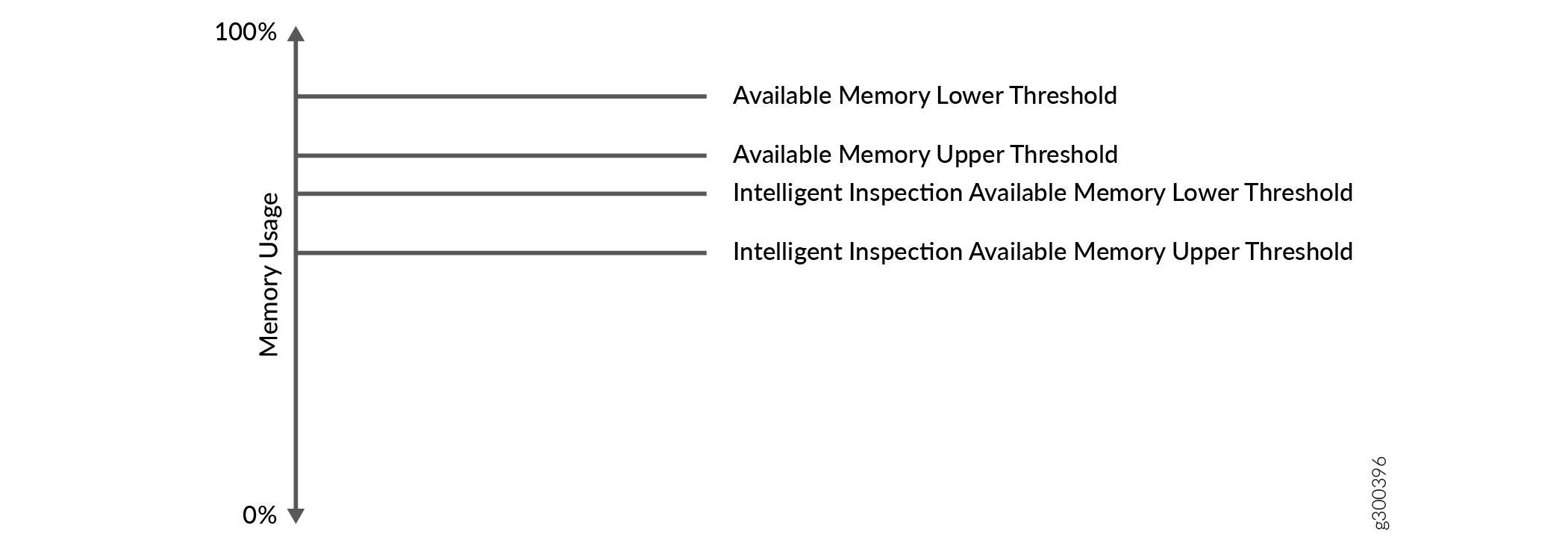 について
について
メモリ使用率は、次のように動作します。
-
IDP は、メモリ使用率がインテリジェント インスペクション使用可能なメモリの下限しきい値に達すると、IDP インテリジェント インスペクション モードをアクティブにします。
-
IDP は、メモリ使用率がインテリジェント検査メモリ上限しきい値とメモリ下限しきい値の間にある場合、インテリジェント検査モードで機能し続けます。
-
IDP は、メモリ使用率が使用可能なメモリの下限しきい値に達すると、IDP バイパス機能をアクティブにします。
-
IDP は、メモリ使用率が低下し、インテリジェント インスペクション使用可能メモリの上限しきい値を超えると、通常モードにアクティブになります。
制約
IDP インテリジェント インスペクションは、プライマリ論理システム レベルでのみサポートされます。
例:IDP インテリジェント検査の設定
IDP インテリジェント インスペクションは、デバイスが設定された CPU とメモリのしきい値制限を超えた場合に、デバイスが過負荷状態から回復するのに役立ちます。
この例では、IDP インテリジェント インスペクションを有効にし、IDP インスペクションを動的に調整して、完全な IDP インスペクションの負荷を軽減する方法を示します。
必要条件
IDPインテリジェントインスペクションおよびIDPバイパス機能がいつどのように動作するかを理解するには、 IDPセンサー設定 をお読みください。
概要
以前は、デバイスが設定されたCPUとメモリのしきい値に達すると、IDPは新しいセッションを無視または拒否していました。また、デバイスが上限しきい値を超えると、IDPは既存および新規セッションのパケットを破棄しました。
IDPインスペクションを調整することで、デバイスのCPUとメモリの使用率が徐々に増加し、重要なインスペクションが重要になります。この例では、IDP インテリジェント インスペクションを有効にした後に IDP インスペクションを調整する方法を示します。
構成
CLIクイック構成
この例をすばやく設定するには、次のコマンドをコピーして TXT ファイルに貼り付け、改行を削除して、ネットワーク設定に合わせて必要な詳細を変更します。コマンドをコピーして、 [edit] 階層レベルのCLIに貼り付けます。設定モードから commit を入力します。
set security idp sensor-configuration flow intel-inspect-enable
set security idp sensor-configuration flow intel-inspect-cpu-usg-threshold 60
set security idp sensor-configuration flow intel-inspect-cpu-usg-tolerance 15
set security idp sensor-configuration flow intel-inspect-mem-tolerance 5
set security idp sensor-configuration flow intel-inspect-free-mem-threshold 30
set security idp sensor-configuration flow intel-inspect-signature-severity critical
set security idp sensor-configuration flow intel-inspect-disable-content-decompress
set security idp sensor-configuration flow intel-inspect-session-bytes-depth 2
set security idp sensor-configuration flow intel-inspect-protocols HTTP
set security idp sensor-configuration flow intel-inspect-protocols FTP
プロシージャ
手順
IDPインテリジェントインスペクションを設定するには:
IDP インテリジェント検査を有効にします。
[edit security idp sensor-configuration]
user@host# set flow intel-inspect-enable
CPU しきい値制限を構成します。
[edit security idp sensor-configuration]
user@host# set flow intel-inspect-cpu-usg-threshold 60
CPU 許容値を構成します。
[edit security idp sensor-configuration]
user@host# set flow intel-inspect-cpu-usg-tolerance 15
メモリ許容値を設定します。
[edit security idp sensor-configuration]
user@host# set security idp sensor-configuration flow intel-inspect-mem-tolerance 5
メモリ制限を構成します。
[edit security idp sensor-configuration]
user@host# set security idp sensor-configuration flow intel-inspect-memory-limit-lt 30
重大度レベルを指定します。
[edit security idp sensor-configuration]
user@host# set flow intel-inspect-signature-severity critical
コンテンツの解凍を無効にします。
[edit security idp sensor-configuration]
user@host# set flow intel-inspect-disable-content-decompress
パケット インスペクションの深さを設定します。
[edit security idp sensor-configuration]
user@host# set flow intel-inspect-session-bytes-depth 2
インスペクションのプロトコルを設定します。
[edit security idp sensor-configuration]
user@host# set flow intel-inspect-protocols HTTP
user@host# set flow intel-inspect-protocols FTP
業績
設定モードから、 show security idp sensor-configuration コマンドを入力して設定を確認します。出力結果に意図した設定内容が表示されない場合は、この例の手順を繰り返して設定を修正します。
[edit]
user@host# show security idp sensor-configuration
    flow {
        intel-inspect-enable;
        intel-inspect-cpu-usg-threshold 60;
        intel-inspect-cpu-usg-tolerance 15;
        intel-inspect-free-mem-threshold 30;
        intel-inspect-mem-tolerance 5;
        intel-inspect-disable-content-decompress;
        intel-inspect-session-bytes-depth 2;
        intel-inspect-protocols [ HTTP FTP ];
        intel-inspect-signature-severity critical;
    }
デバイスの設定が完了したら、設定モードから commit を入力します。
検証
設定が正常に機能していることを確認します。
すべてのIDPフローカウンター値のステータスの確認
目的
IDPインテリジェントインスペクションがカウンター値をキャプチャすることを確認します。
アクション
user@host> show security idp counters flow
IDP counters:

  IDP counter type                                                      Value
 Fast-path packets                                                       580
 Slow-path packets                                                       61
 Session construction failed                                             0
 Session limit reached                                                   0
 Session inspection depth reached                                        0
 Memory limit reached                                                    0
 Not a new session                                                       0
 Invalid index at ageout                                                 0
 Packet logging                                                          0
 Policy cache hits                                                       58
 Policy cache misses                                                     3
 Maximum flow hash collisions                                            0
 Flow hash collisions                                                    0
 Gates added                                                             0
 Gate matches                                                            0
 Sessions deleted                                                        62
 Sessions aged-out                                                       0
 Sessions in-use while aged-out                                          0
 TCP flows marked dead on RST/FIN                                        47
 Policy init failed                                                      0
 Policy reinit failed                                                    0
 Number of times Sessions exceed high mark                               0
 Number of times Sessions drop below low mark                            0
 Memory of Sessions exceeds high mark                                    0
 Memory of Sessions drops below low mark                                 0
 SM Sessions encountered memory failures                                 0
 SM Packets on sessions with  memory failures                            0
 Number of times Sessions crossed the CPU threshold value that is set    0
 Number of times Sessions crossed the CPU upper threshold                0
 Sessions constructed                                                    61
 SM Sessions ignored                                                     3
 SM Sessions dropped                                                     0
 SM Sessions interested                                                  61
 SM Sessions not interested                                              101612
 SM Sessions interest error                                              0
 Sessions destructed                                                     62
 SM Session Create                                                       58
 SM Packet Process                                                       580
 SM ftp data session ignored by idp                                      0
 SM Session close                                                        59
 SM Client-to-server packets                                             312
 SM Server-to-client packets                                             268
 SM Client-to-server L7 bytes                                            8468
 SM Server-to-client L7 bytes                                            19952
 Client-to-server flows ignored                                          0
 Server-to-client flows ignored                                          0
 Server-to-client flows tcp optimized                                    0
 Client-to-server flows tcp optimized                                    0
 Both directions flows ignored                                           47
 Fail-over sessions dropped                                              0
 Sessions dropped due to no policy                                       0
 IDP Stream Sessions dropped due to memory failure                       0
 IDP Stream Sessions ignored due to memory failure                       0
 IDP Stream Sessions closed due to memory failure                        0
 IDP Stream Sessions accepted                                            0
 IDP Stream Sessions constructed                                         0
 IDP Stream Sessions destructed                                          0
 IDP Stream Move Data                                                    0
 IDP Stream Sessions ignored on JSF SSL Event                            0
 IDP Stream Sessions not processed for no matching rules                 0
 IDP Stream stbuf dropped                                                0
 IDP Stream stbuf reinjected                                             0
 Busy pkts from stream plugin                                            0
 Busy pkts from pkt plugin                                               0
 bad kpp                                                                 0
 Lsys policy id lookup failed sessions                                   0
 NGAppID Events with no L7 App                                           0
 NGAppID Events with no active-policy                                    0
 NGAppID Detector failed from event handler                              0
 NGAppID Detector failed from API                                        0
 Busy packets                                                            0
 Busy packet Errors                                                      0
 Dropped queued packets (async mode)                                     0
 Dropped queued packets failed(async mode)                               0
 Reinjected packets (async mode)                                         0
 Reinjected packets failed(async mode)                                   0
 AI saved processed packet                                               0
 busy packet count incremented                                           0
 busy packet count decremented                                           0
 session destructed in pme                                               0
 session destruct set in pme                                             0
 kq op hold                                                              0
 kq op drop                                                              11
 kq op route                                                             47
 kq op continue                                                          522
 kq op error                                                             0
 kq op stop                                                              0
 PME wait not set                                                        0
 PME wait set                                                            0
 PME KQ run not called                                                   0
 IDP sessions ignored for content decompression in intel inspect mode    47
 IDP sessions ignored for bytes depth limit in intel inspect mode        0
 IDP sessions ignored for protocol decoding in intel inspect mode        0
 IDP sessions detected CPU usage crossed intel inspect CPU threshold     43
 IDP sessions detected mem drop below intel inspect low mem threshold    0
意味
show コマンドは、IDP インテリジェント インスペクションのカウンターを表示します。
IDP 現在のポリシーのステータスの確認
目的
IDPインテリジェントインスペクションが現在のポリシーをキャプチャしていることを確認します。
アクション
user@host>show security idp status

Intelligent Inspection State Details:
State: Active

State of IDP: Default,   Up since: 2018-07-03 14:16:03 PDT (132w4d 09:19 ago)

Packets/second: 6                            Peak: 12 @ 2019-01-17 22:25:26 PST
KBits/second  : 249                           Peak: 490 @ 2019-01-17 22:25:26 PST
Latency (microseconds): [min: 0] [max: 0] [avg: 0]

Packet Statistics:
[ICMP: 0] [TCP: 127] [UDP: 7] [Other: 0]

Flow Statistics:
  ICMP: [Current: 0] [Max: 6 @ 2019-01-16 20:36:17 PST]
  TCP: [Current: 4] [Max: 4 @ 2019-01-17 22:34:33 PST]
  UDP: [Current: 2] [Max: 6 @ 2019-01-17 20:03:55 PST]
  Other: [Current: 0] [Max: 0 @ 2016-07-03 14:16:03 PDT]

Session Statistics:
[ICMP: 0] [TCP: 2] [UDP: 1] [Other: 0]

Number of SSL Sessions : 0

  Policy Name : idp-policy-unified
  Running Detector Version : 12.6.130180509
意味
show security idp status コマンドは、IDP の現在のポリシーを表示します。IDP インテリジェント インスペクションを有効にしていても、運用コマンドを実行すると、IDP インテリジェント インスペクションの状態show security idp status非アクティブになることがあります。その理由は、構成された CPU とメモリのしきい値がリソース制限を超えていないためです。CPU 使用率が設定されたしきい値に達すると、IDP インテリジェント インスペクションの状態がアクティブになります。
プロトコル固有のインテリジェント オフロード
IDP の既存のインテリジェント オフロード機能は、検査されたバイトの制限に達したときにセッションをオフロードします。さらに、インスペクション限界は粒度が高くなく、プロトコルやサービスに関係なく、すべてのセッションに適用されます。
プロトコルごとにIDPインテリジェントオフロードを有効または無効にする機能により、管理者はオフロード機能を活用するプロトコルを柔軟に決定できます。管理者は、プロトコルごとのオフロード制限を設定することもできます。
IDP システムのプロトコル固有のインテリジェント オフロード設定機能を使用すると、さまざまなプロトコルの検査深度制限を調整して、パフォーマンスとセキュリティの両方を向上させることができます。SSHやFTPなどのプロトコルに個別のオフロード制限を設定することで、リソースの使用を最適化し、より効率的なセッションインスペクションを確保できます。
この機能により、明確なCLIコマンドによる設定と管理が簡素化され、管理者は特定のネットワーク要件に基づいてオフロード設定を簡単に実装および調整できます。
プロトコル固有のオフロード制限を設定する
新しいオプションを使用して、プロトコルを指定し、オフロード制限を設定することで、プロトコルごとのオフロード制限を設定できます。
[edit]
user@host# set security idp sensor-configuration global intelligent-offload-tunable ?
オフロード制限の範囲は、すべてのプロトコルで同じ、つまり 0 から 4294967295 バイトです。オフロード制限範囲はすべてのプロトコルで同じで、範囲はバイト単位で 0 から 4294967295 で、0 は無制限のインスペクションを意味します。
制限は KB、MB、GB で設定できます。その場合は、制限値の末尾にそれぞれ k、m、g を追加する必要があります。
set security idp sensor-configuration global intelligent-offload disable コマンドは、インテリジェント オフロードをグローバルに無効にします。set security idp sensor-configuration global intelligent-offload disableおよびプロトコルごとのカスタム オフロード制限は設定できません。
-
プロトコルにオフロード制限が構成されている場合、そのオフロード制限は、そのプロトコルに対して最も優先順位が高くなります。たとえば、制限がプロトコル MYSQL に対して設定されている場合、セッションオフロード制限は detector-capabilities.xml ファイルからではなく設定から取得されます。
-
プロトコルにオフロード制限が設定されていないが、detector-capablities.xmlファイルに制限が存在する場合は、ファイルからの制限がそのプロトコルに適用されます。
-
detector-capabilities.xml ファイルにプロトコルのオフロード制限がない場合、デフォルトの制限は 256 KB です。保守モードでは、インテリジェント オフロードによって制限が 1 MB に設定されます。インテリジェント オフロードが使用不可の場合、オフロードは行われません。
set security idp sensor-configuration global intelligent-offload disableオプションを使用すると、オフロード機能は無効になり、セッションが閉じられるまでデータ検査全体で機能します。