Help us improve your experience.

Let us know what you think.

Do you have time for a two-minute survey?


在 iOS 上安装瞻博网络安全连接

了解有关如何在 iOS 平台上安装瞻博网络安全连接的分步过程。

下一步

此处下载瞻博网络安全连接应用软件。有关更多详细信息,请参阅 发行说明

有关瞻博网络安全连接功能以及如何配置选项的详细信息,请参阅 诊断菜单信息菜单

手动安装瞻博网络安全连接

App Store 安装瞻博网络安全连接应用。

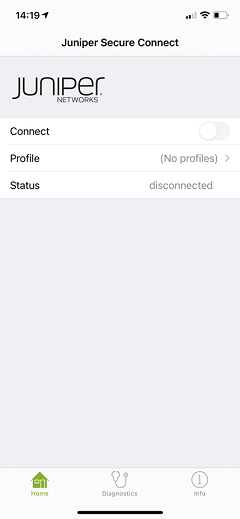
  1. App Store 在您的 iPhone 设备上安装瞻博网络安全连接应用。 图 1 显示了瞻博网络安全连接主屏幕。
    图 1:瞻博网络安全连接主屏幕 Juniper Secure Connect app interface showing VPN toggle off, no profiles configured, status disconnected, Home tab selected.
  2. 启动瞻博网络安全连接应用,然后在应用主屏幕中选择 配置文件 ,如 图 2 所示。
    图 2:配置文件页面 Profiles screen with Back button at top. Please Select a Profile text with New Connection selected. Enter New Gateway Address field with Type URL here placeholder. Navigation bar at bottom with Home, Diagnostics, and Info icons.
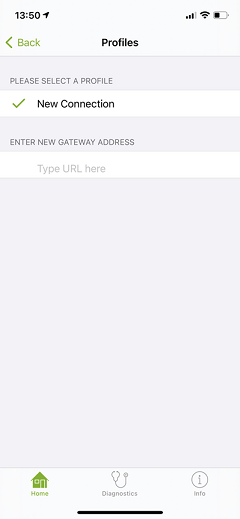
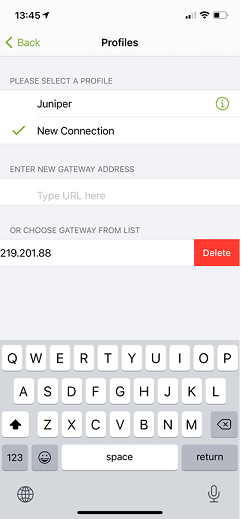
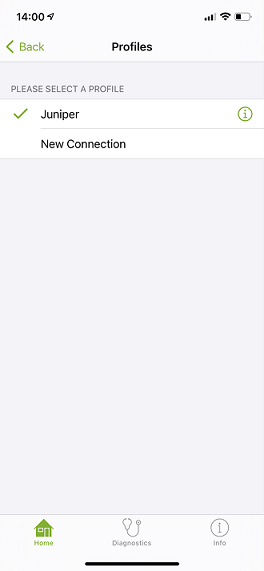
    图 3图 4图 5 显示了为新连接选择、添加或删除网关地址的示例。

    图 3:从列表中 Mobile app interface for managing network profiles with options like Juniper or New Connection, gateway address entry, and delete gateway option.选择网关地址

    单击 “新建连接” ,输入网关 IP 地址或 URL,以连接 SRX 系列防火墙。 图 4 显示了向 SRX 系列防火墙输入网关地址的示例。

    图 4:输入新的网关地址 VPN configuration screen showing Profiles with New Connection selected and checkmark, gateway address as vpn.juniper.net, Back button, and bottom menu with Home, Diagnostics, and Info icons.
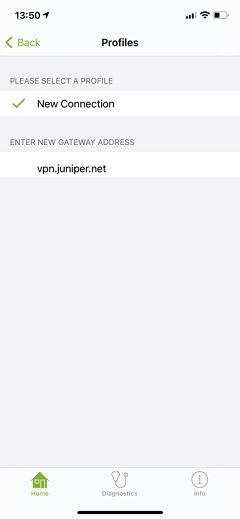
    输入网关地址后,单击底部的“ 返回 ”按钮。

    注意:

    “配置文件” 页面中,可以根据需要删除配置文件名称。例如,如果要删除 Profile 页面中的配置文件名称“Juniper”(如 图 5 所示),请导航到 iOS Settings > General > VPN

    图 5:删除“Juniper”配置文件名称 Mobile app screen titled Profiles showing selected profile Juniper with options New Connection Home Diagnostics and Info.
  3. 切换 Connect 按钮以建立连接,如 图 6 所示。首次连接到新的网关或配置文件时,需要允许添加下载的 VPN 配置。如果您的设备受密码保护,则必须输入密码。
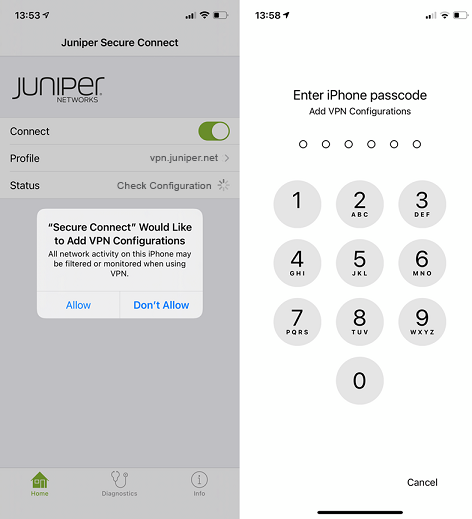
    图 6:启用连接以建立 VPN 连接 Screenshots showing VPN setup on iPhone using Juniper Secure Connect app. Prompt to add VPN configurations with Allow and Don't Allow options, followed by passcode entry screen.

    如果设备缺少 SRX 系列防火墙的 CA 证书,则会显示一条警告消息。如果将 CA 证书安装到设备的瞻博网络安全连接目录位置,则可以防止出现这种情况。要导入用户或 CA 证书,请参阅 证书导入菜单选项

    警告:

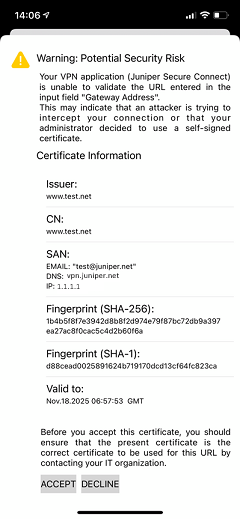
    如果显示如 图 7 所示的以下警告消息,则说明您的应用程序缺少来自 VPN 网关(SRX 系列防火墙)的 CA 证书。如果您是远程用户,请联系您的 IT 组织以采取适当的措施。

    图 7:iOS 平台上 Warning from Juniper Secure Connect VPN: Security risk due to unverifiable Gateway Address URL. Options: ACCEPT or DECLINE.的证书警告消息示例

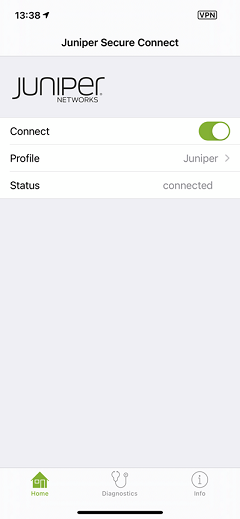
    成功建立连接后,连接 的状态 将更改为 已连接 ,如 图 8 所示。

    图 8:成功 Juniper Secure Connect interface with active VPN, Juniper profile, connected status, and navigation icons for Home, Diagnostics, Info.建立的 VPN 连接