Scheduling a new report
-
From the Reports page, click New.
-
Enter the following information. Fields with a colored border at the left require a value.
|
Field |
Description |
|---|---|
|
Name |
Name of the report. |
|
Description |
A description of the report contents. |
|
Filter/Type |
Select either
|
|
User Name |
Enter one or more valid email addresses for the users to include in the report. To include all users, leave this field blank. |
|
Configuration/Type |
Select a report type. For Clouds, the options are:
For Websites, the default selection is Custom. |
|
Sub-Type |
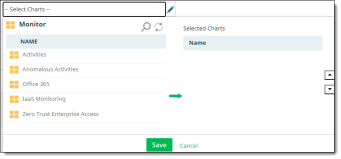
Select one or more sub types. The options listed are related to the report type you selected. For Custom reports, double-click the dashboards from which you want to generate reports. In this example, the selectable charts are from any of the dashboards for Cloud report types.
Drill down to see a list of available charts, click a chart, and click the right-arrow icon to move it to the Selected Charts list. Repeat these steps for each chart to include. |
|
Format |
Select PDF and save the report on your computer. You can open and view the report using a PDF viewer such as Adobe Reader. |
|
Frequency |
Select the time-interval at which the report needs to be generated – either Daily, Weekly, or One Time. For One Time, select the date range for the data to include in the report and click OK. |
|
Notification |
Select the type of notification to receive for report activity. |
-
Click Save to schedule the report. The newly created report is added to the list of available reports.
Once a scheduled report is generated, the system triggers an email notification informing the user that the report scheduling is complete and provides a link to access and download the report.