Quarantine Management
Documents placed in quarantine are listed in the Quarantine Management page and are given a Pending Review status for evaluation before action is taken. Once reviewed, their status is changed to Reviewed, with the selected action taken.
Selecting information to view
To view documents in either status, select a status from the dropdown list.

Pending review
For each quarantined document that is pending review, the list shows the following items:
-
Policy Type – The type of protection for the policy that applies to the document.
-
File name – The name of the document.
-
Timestamp – The date and time of violation.
-
User – The name of the user associated with the violating content.
-
Email – The email address of the user associated with the violating content.
-
Cloud – The name of the cloud application where the quarantined document originated.
-
Violated Policy – The name of the policy that was violated.
-
Action Status – The actions that can be taken on the quarantined document.
Administrators and users can be notified when a document is placed in the Quarantine folder.
Reviewed
For each quarantined document that has been reviewed, the list shows the following items:
-
Policy Type – The type of policy to address violations.
-
File Name – The name of the file containing violating content.
-
User – The name of the user associated with the violating content.
-
Email – The email address of the user associated with the violating content.
-
Cloud – The cloud application where the violation occurred.
-
Violated Policy – The name of the policy that was violated.
-
Actions – The action selected for the violating content.
-
Action Status – The outcome of the action.
Taking action on a quarantined file
To select an action on quarantined files in pending status:
Filter the list as needed by clicking the boxes in the left navigation bar and the time dropdown list.
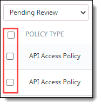
Click the checkboxes for the file names on which to take action.
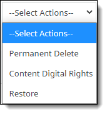
Select an action from the Select Actions dropdown list on the top right side.
-
Permanent Delete – Deletes the file from the user's account. Select this option with care, because once a file is deleted, it cannot be recovered. Apply this option for serious violations of company policy in which users can no longer upload the sensitive content.
-
Content Digital Rights – Applies any actions specified for Content Digital Rights in the policy – for example, adding a watermark, redacting violating content, or encrypting the document.
Note
When you select multiple quarantined records on which to apply actions, the Content Digital Rights option is not available in the Select Actions list. This is because among the records you selected, only some of them might have been configured for a Content Digital Rights policy action. The Content Digital Rights action can be applied only to a single quarantined record.
-
Restore – Makes a quarantined file available to users again. Apply this option if a review determines that a policy violation did not occur.
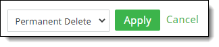
Click Apply for the selected action.
Viewing and searching for quarantined documents
You can filter the view of existing quarantine actions using these options:
-
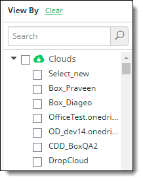
In the settings at the left, check or uncheck how you would like to organize the list of quarantine actions. Click Clear to clear all filters.
-
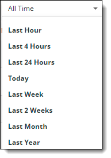
At the top of the screen, select a time period from the dropdown list.
To search for a quarantined document, use only prefix match query to search the results. For example, to find the file BOX-CCSecure_File29.txt, search by prefix on word search split at special characters. This means you can search by the prefix words—"BOX", "CC", and by "File." The related records are displayed.