Onboarding the Google Workspace suite and applications
This section outlines the procedures for onboarding Google Workspace (formerly G Suite) along with Google Drive applications.
Configuration steps
The enterprise account used for Google Drive must be part of the Google Workspace business plan.
The authenticated user must be an administrator with super admin privileges.
Updating API access settings
-
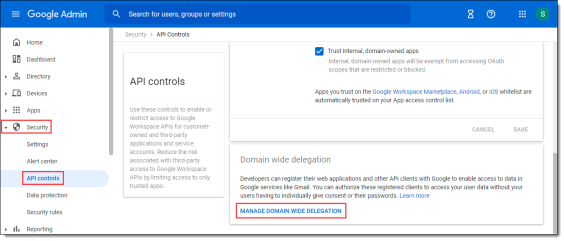
Log in to the Google Workspace application and click Security from the left panel.
-
Under Security, click API controls.
-
Scroll down and click Manage Domain-wide Delegation.
-
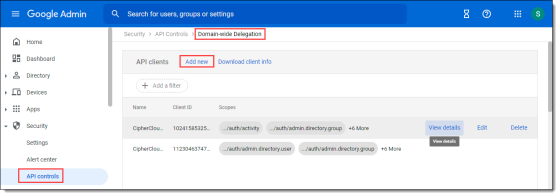
Click Add New.
-
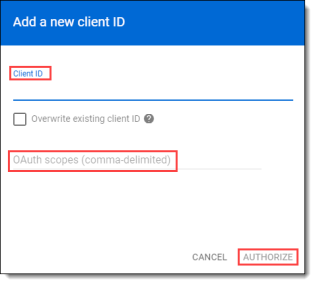
Enter the Client ID:
102415853258596349066
-
Enter the following OAuth scopes:
https://www.googleapis.com/auth/activity,
https://www.googleapis.com/auth/admin.directory.group,
https://www.googleapis.com/auth/admin.directory.user,
https://www.googleapis.com/auth/admin.reports.audit.readonly,
https://www.googleapis.com/auth/drive,
https://www.googleapis.com/auth/drive.activity.readonly,
https://www.googleapis.com/auth/admin.directory.user.security,
https://www.googleapis.com/auth/userinfo.email
-
Click Authorize.
Updating folder access information
-
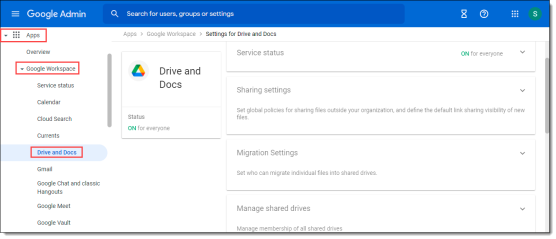
From the left panel, click Apps > Google Workspace > Drive and Docs.
-
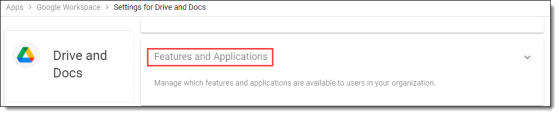
Scroll down and click Features and Applications.
-
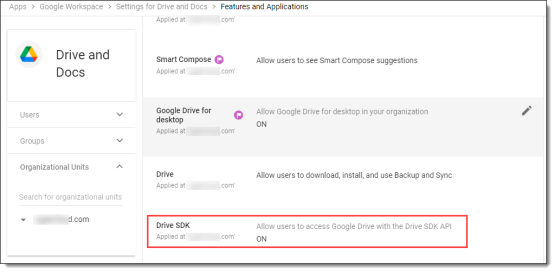
Make sure that Drive SDK is on.
Onboarding steps in CASB
-
From the Management Console, select Administration > App Management and click New.
-
Select Google Workspace from the list.
-
Enter a Name (required) and a Description (optional). The name must include only alphanumeric characters, with no special characters other than the underscore, and no spaces. Then, click Next.
-
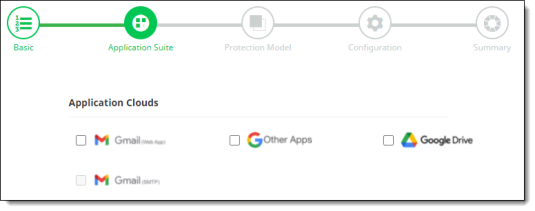
Select Google Drive application.
-
Click Next and select one or more protection models.
The available protection models depend on the applications you selected in the previous step. The followging table lists the protection modes available for each Google Workspace application.
|
Google Workspace application |
Protection models available |
|---|---|
|
Google Drive |
API Access Cloud Data Discovery |
Note
Some protection models require one or other models to be enabled or must be selected for specific functions.
You must select Cloud Data Discovery if you want to implement Cloud Data Discovery (CDD) for this cloud application. You must also select API Access protection mode in this case.
-
Click Next.
-
Enter the following configuration information. The fields you see depend on the protection modes you selected.
-
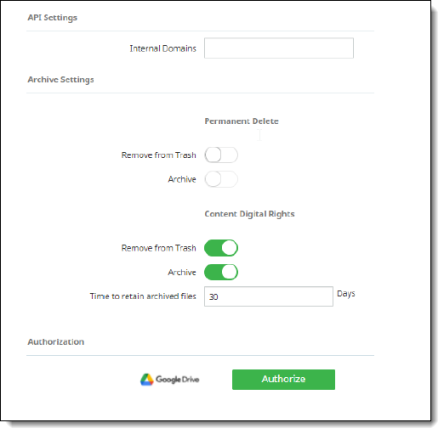
API Settings (required for API Access protection mode)
-
Internal domains – Enter necessary internal domains, along with enterprise business domain.
-
Archive Settings (for Google Drive) -- Enables archiving of files that are either permanently deleted or replaced by Content Digital Rights policy actions. Archived files are placed in an Archive folder under a CASB Compliance Review folder created for the cloud application. You can then review the files and restore them if needed.
Note
When the authorized administrator for a cloud account is changed in CASB, previously archived content in the CASB Compliance Review folder that is owned by the previous administrator should be shared with the new authorized administrator to enable archived data to be reviewed and restored.
Two options are available:
-
Remove from Trash
-
Archive
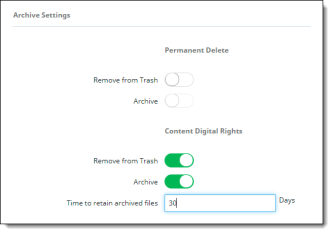
For Permanent Delete policy actions, both options are disabled by default; for Content Digital Rights, they are enabled by default.
Click the toggles to enable or disable the settings.
Enter the number of days for which to retain archived files. The default value is 30 days.
-
Authorization -- If you selected Google Drive as one of your Google Workspace applications, authorize Google Drive and click Next.
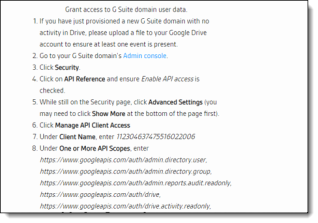
Review the instructions in the screen that appears and click Continue to authorize access to your Google Drive account. Enter your account credentials.
In the Summary page, review the summary information to verify that all information is correct. If it is, click Save to complete onboarding.