Onboarding the Atlassian Cloud suite and applications
This section outlines procedures for onboarding the Atlassian cloud suite and applications.
Note: For the Confluence application, you must have an enterprise account. CASB does not support free Confluence accounts.
-
From the Management Console, select Administration > App Management and click New.
-
Select Atlassian from the app list.
-
Enter a Name (required) and a Description (optional). The name must include only alphanumeric characters, with no special characters other than the underscore, and no spaces. Then, click Next.
-
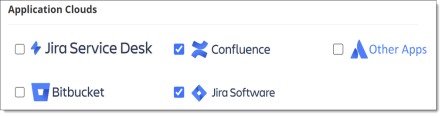
Select the applications in the suite to include and click Next.
-
Select API Access protection model.
Entering configuration settings for protection models
Enter required configuration information for the protection models you selected.
API Access
-
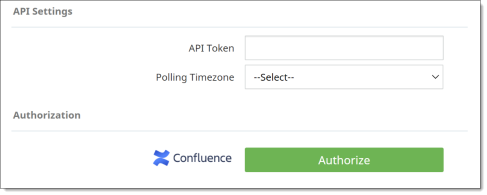
Enter the following API access information.
-
API Token (Confluence applications only) – Enter an API token. To create an API token from your Atlassian account, see the following section, Generating an API Token.
-
Polling Timezone (Confluence applications only) – Select a time zone for polling from the dropdown list. The selected time zone must be the same as that of the cloud application instance, not the time zone of the user.
-
Authorization – Click the Authorize button next to each app included in the suite.
When prompted, click Accept to authorize domain access for each of the selected apps.
The Authorize button labels will now say Re-Authorize.
-
Domains – For each app included in the suite, select the applicable domain or accept the domain shown. Select only domains that are included in the access authorization in the previous step.
-
Click Next.
-
Review the information on the Summary page. Click Save to save and onboard the application.
Generating an API token (Confluence applications only)
You can generate an API token from your Atlassian account.
-
Log into your Atlassian account.
-
Select Administration from the left menu.
-
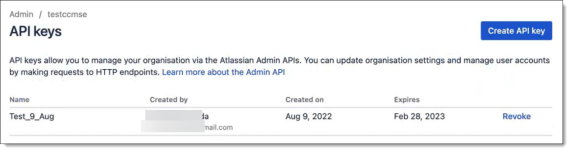
From the Administration page, select API Keys from the left menu.
Any API keys you created previously are listed.
-
Click Create New Key to generate a new key.
-
Give the new key a name and select an expiration date. Then, click Create.
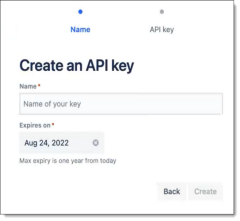
The new API key is created and is added to the list of keys on the Administration page. For each key, the system generates an alphanumeric string that serves as the API token. Enter this string in the API Token field in the CASB Management Console.