Onboarding process overview
Some onboarding steps vary depending on the cloud you are onboarding and the types of protection you choose. The following overview summarizes the onboarding procedure.
From the Management Console, select Administration > App Management.

Click New. Then, perform the following steps.
Enter basic information
-
Choose a cloud application type.
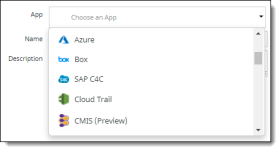
-
(Required) Enter a name for the new cloud application. Use only alphabetical characters, numbers, and the underscore character (_). Do not use spaces or any other special characters.
-
(Optional) Enter a description for the new application.
For application suites, select applications
If you are onboarding a cloud type that is an application suite, you will be prompted to select the applications in that suite that you want to protect. Click the check marks for the applications to include.
Select protection modes
Depending on the cloud type you chose, some or all of the following protection modes will be available. For suites, the selected protection modes apply to the entire suite.
-
API Access – Provides an out-of-band approach to data security; performs ongoing monitoring of user activities and administrative functions.
-
Cloud Security Posture – Used for cloud types for which you want to apply Cloud Security Posture Management functionality.
-
Cloud Data Discovery -- Used for cloud types for which you want to apply Cloud Data Discovery functionality.
-
Select one or more protection modes, depending on the type of protection you want to enable for a cloud. You can create policies for the cloud application based on the protection modes you choose.
-
Click Next.
Select configuration settings
You will need to set configuration information for the cloud application you are onboarding. These configuration settings will vary, depending on the cloud type and the protection modes you choose.
Enter authorization information
For most protection modes, you will need to go through an authorization step by logging in to the cloud application with your administrator credentials for the account.
Save the onboarded cloud application
-
Click Next to view a summary of information about the new cloud application. The summary shows the cloud type, name and description, the selected protection modes, and other information, depending on the cloud type and selected protection modes for the cloud application.
-
Click Previous to correct any information or click Save to confirm the information.
The new cloud application is added to the App Management page.
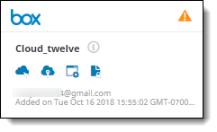
The display in the grid shows the following information:
-
The name of the cloud application.
-
A description (if provided). To view the description, hover over the information icon next to the cloud application name.
-
The protection modes available for cloud application. Each icon represents a protection mode. The protection modes you selected for this cloud appear in blue; those not selected for this cloud appear in gray. Hover over each icon to see its protection type.
-
The key assignment status. The orange icon at the upper right indicates that the application is waiting for a key to be assigned. You can assign a key now or do so later. Once you assign a key to the cloud application, the orange icon is replaced by a green check mark.
-
The user ID (email address) of the administrator user who onboarded the application.
-
The date and time the application was onboarded.
The following sections provide instructions for onboarding cloud applications and suites.