Onboarding Google Cloud Platform (GCP)
This section outlines procedures for configuration and onboarding of Google Cloud Platform applications.
Configuration steps
-
Create a service account in GCP Org. For more information, go to https://cloud.google.com/docs/authentication/getting-started
-
Create an OAuth client ID.
-
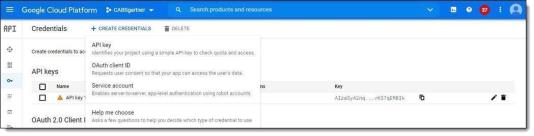
In the Google Cloud Platform, go to the Credentials page.
-
From the Projects list, select the project containing your API.
-
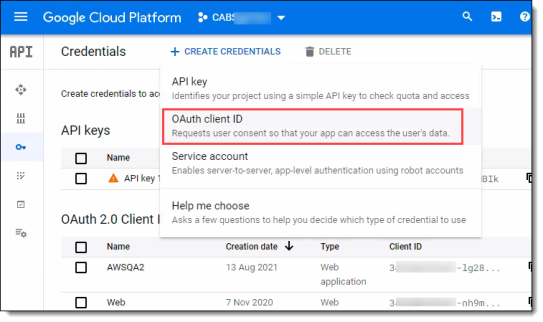
From the Create Credentials dropdown list, select OAuth client ID.
-
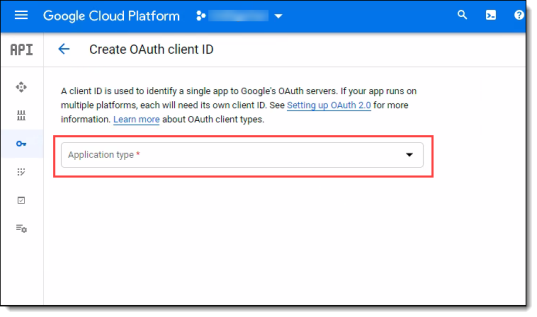
From the dropdown list, select Web application as the application type.
-
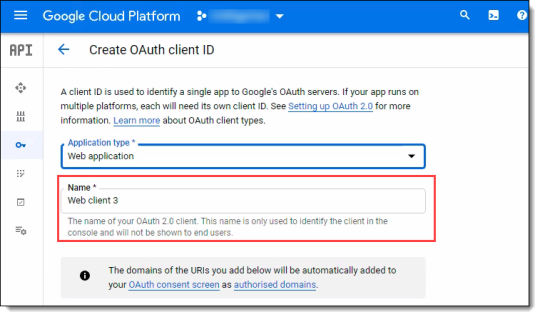
In the Application field, enter a Name.
-
Fill in the remaining fields as needed.
-
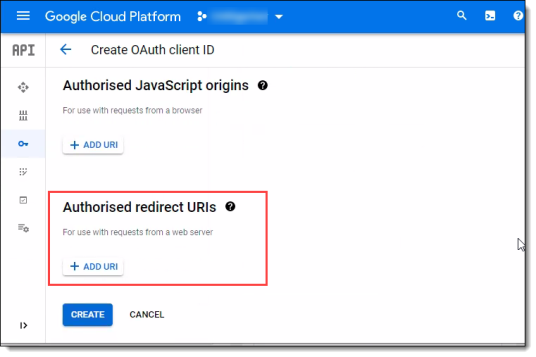
To add a redirect URL, click Add URL.
-
Enter the redirect URL and click Create.
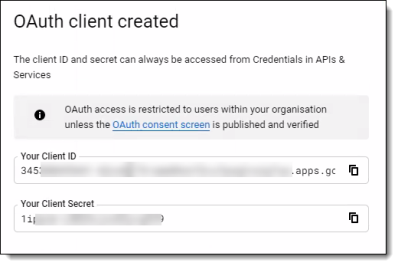
A message appears with the client ID and the client secret. You will need this information when you onboard the Google Cloud Platform application.
Onboarding steps
-
From the Management Console, select Administration > App Management, and click New.
-
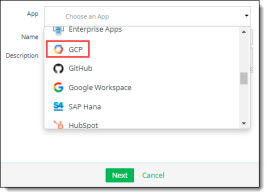
Select GCP from the dropdown list.
Tip
To find an app, enter the first few characters of the app name, then select the app from the search results.
-
Enter a Name (required) and a Description (optional). The name must include only alphanumeric characters, with no special characters other than the underscore, and no spaces. Then, click Next.
-
Select one or more protection models and click Next.
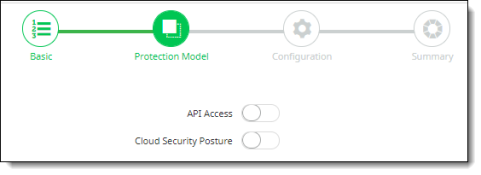
The options are
-
API Access
-
Cloud Security Posture
-
Enter the following configuration information. The fields you see depend on the protection models you selected in the previous step.
-
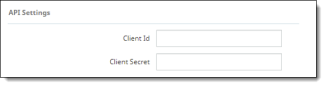
If you selected API Access, enter:
-
Client Id
-
Client Secret
This is the information created during the GCP pre-onboarding configuration steps.
Be sure to enter exactly the same information in the Client ID and Client Secret fields here.
-
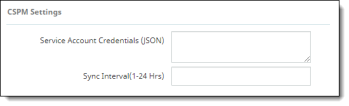
If you selected Cloud Security Posture, enter:
-
Service Account Credentials (JSON) --The service account credentials for the JSON file you downloaded in the configuration steps.
-
Sync Interval (1-24 Hrs) – How often CSPM will retrieve information from the cloud and refresh the inventory. Enter a number.
-
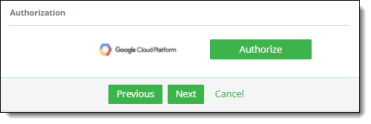
Click Authorize.
-
If you selected only Cloud Security Posture, the Summary page appears. Review it and save the new GCP application to complete onboarding.
-
If you selected API Access or both API Access and Cloud Security Posture, enter your GCP account login credentials when prompted.
Note
-
If you entered an invalid client secret or client ID on the Configuration page, an error message will appear after you click Authorize. Review your client secret and client ID entries, make any corrections, and click Authorize again. Once the system recognizes the entries as valid, enter your GCP login credentials when prompted.
After your GCP login credentials have been accepted, save the new GCP cloud application to complete onboarding.