Onboarding Box applications
This section outlines prerequisite configuration and onboarding steps for Box applications.
Configuration steps in the Box Admin Console
For connectivity to Box cloud applications, several user account settings are required to enable proper policy creation and visibility into Box user activities.
Perform the following steps to configure the ADMIN account for a Box cloud application.
Note
The ADMIN account is required for authorization of a Box cloud application. Authorization or re-authorization cannot be completed with CO-ADMIN (co-administrator) account credentials.
-
Log in to Box using the ADMIN credentials for the Box account.
-
Click the Admin Console tab.
-
Click the Users icon.
-
From the Managed Users window, select the admin account you want to validate and use to connect to your Box cloud application.
-
Expand the User Account information.
-
In the Edit User Access Permissions window, be sure that Shared contacts / Allow this user to see all managed users is checked.
Note
Do not allow co-administrators to monitor other co-admin activities. Only an administrator should monitor other co-admin activities.
-
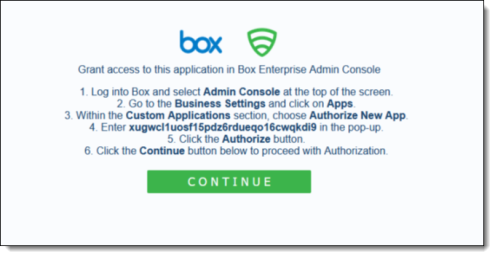
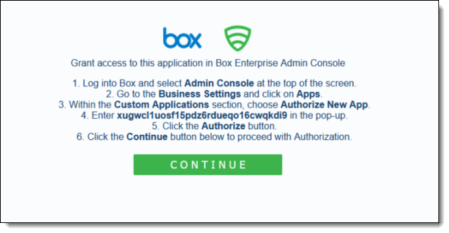
Go to Apps > Custom Apps.
-
Choose Authorize New App.
-
In the pop-up window that appears, enter the following string:
xugwcl1uosf15pdz6rdueqo16cwqkdi9
-
Click Authorize.
-
Click Continue to confirm access to your Box enterprise account.
Onboarding steps in the Management Console
-
Go to Administration > App Management.
-
In the Managed Apps tab, click New.
-
Select Box from the list.
-
Enter a Name (required) and a Description (optional).
-
Click Next and select one or more available protection modes:
-
API Access
-
Cloud Data Discovery
-
Click Next and enter the configuration information. The fields you see on the Configuration screen depend on the deployment and the protection modes you chose in the previous step.
-
Enter the information needed for each protection mode you select.
-
For Cloud Data Discovery -- You must also choose the API Access protection mode.
-
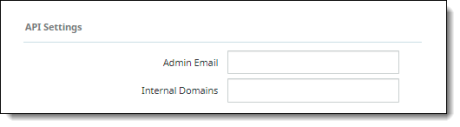
For API Access – In the API Settings section, enter a valid Admin Email address for the Box account. This address must be for the Admin account and not for a co-admin account. Then, enter the names of Internal Domains.
-
For API Access – Archive Settings enable archiving of files that are either permanently deleted or replaced by Content Digital Rights policy actions. Archived files are placed in an Archive folder under a CASB Compliance Review folder created for the cloud application. You can then review the files and restore them if needed.
Note
When the authorized administrator for a cloud account is changed, previously archived content in the CASB Compliance Review folder that is owned by the previous administrator should be shared with the new authorized administrator to enable archived data to be reviewed and restored.
The Archive Settings option is available for onboarded cloud applications with API Access protection mode selected.
Two options are available:
-
Remove from Trash
-
Archive
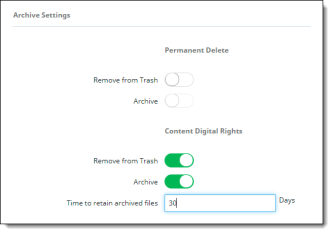
For Permanent Delete policy actions, both options are disabled by default; for Content Digital Rights, they are enabled by default.
Click both toggles to enable or disable the settings.
Enter the number of days for which to retain archived files. The default value is 30 days.
Note
For Box applications, the original files are not removed from the Trash.
For API Access, enter the Enterprise ID used to authorize access to Box.

-
When you have entered the required configurations, click Next to authorize access to Box.
-
In the Grant Access to Box screen, enter the Enterprise ID for this Box account, and click Continue.
-
In the Log in to Grant Access to Box screen, enter the admin login credentials for the Box account, and click Authorize.
If the administrator has configured an SSO setup, click the Use Single Sign On (SSO) link and enter the credentials to authenticate. Any multi-factor authentication information is submitted.
The Box cloud application is onboarded and added to the list of managed applications in the App Management page.