Creating activity alerts
You can create activity alerts for onboarded (managed) cloud applications and for cloud discovery.
Managed cloud applications
For each managed-cloud alert, the Activity Alerts page shows:
-
Name -- The name of the alert.
-
Activity – The type of activity to which the alert applies.
-
Notification -- The name of the associated notification for this alert.
-
Updated on -- The date and time on which the alert was updated. The time is based on the Time Zone setting configured in the System Settings page.
-
Updated by – The valid username for the user who last updated the alert, or a system update.
-
Status – A toggle that indicates the status of the alert (active or inactive).
-
Actions – An icon that, when clicked, enables you to edit information about the alert.
To view the details for an alert, click the icon to the left of the alert name.
Click Cancel to return to the list view.
Cloud discovery
For each cloud-discovery alert, the Activity Alerts page displays the following information:
-
Name – The name of the alert.
-
Updated on – The date and time at which the alert was last updated. The time is based on the time zone setting configured in the System Settings page.
-
Updated by – The valid username of the user who last updated the alert, or a system update.
-
Notification – The name of the associated notification.
-
Status – A toggle that indicates the alert status (active or inactive).
-
Actions – An icon that, when clicked, enables you to edit information about the alert.
To view the details for an alert, click the icon to the left of the alert name.
Click Cancel to return to the list view.
Types of alerts
For onboarded cloud applications, three types of alerts can be created:
-
Cloud Activity, which includes alerts about content activity on the cloud application you specify
-
External System Connectivity, which includes alerts involving your configurations for external connectivity (enterprise DLP, log agent, or SIEM).
-
Tenant Activity, which provides alerts for anomalies (geolocations, authentications, content deletion, downloads by size and by count) and changes to cloud risk scores.
Creating alerts for managed cloud applications
-
Go to Monitor > Activity Alerts.
-
In the Managed Clouds tab, click New.
-
Enter an Alert Name.
-
Select an Alert Type.
-
For Cloud Activity alerts, enter or select the following information:
-
Cloud Account -- The cloud application for the alert.
-
Activity -- Check the boxes for one or more activities.
-
Filters -- Select the filters for this alert activity type.
-
For Time Window, select a day and time range in which the activity occurs.
-
For Threshold, enter the number of events, the duration, and time increment (Mins or Hours) for this activity (for example, 1 event every 4 hours).
-
The Aggregate Alert Counts toggle is enabled by default, which indicates that threshold aggregation occurs at the cloud application level. To enable activity count aggregation at the individual user level, click the toggle to disable it.
-
For User Groups:
-
Click in the box to the right.
-
Double-click the directory name.
-
Select a group from the list that appears and click the arrow to move it to the Selected Groups column.
-
Click Save.
-
To specify more than one filter, click the + button and select another filter.
-
For External System Connectivity alerts, select the following information:
-
Services – Check the boxes for one or more services, including Enterprise DLP, Log Agent, and SIEM.
-
Frequency – Select Once or Send Reminders. For Send Reminders, enter a reminder quantity and time increment (day or hour). For example, 2 reminders per day.
-
For Tenant Activity alerts, first select an Activity Type: Anomaly, Risk Score Change, or User Directory.
-
For Anomaly, select one or more anomaly types to include in notifications. Then, for Filters, select Time Window or Threshold.
-
For Time Window, select a day and time range in which the anomaly occurs.
-
For Threshold, enter the number of events, the duration, and time increment (Mins or Hours) for this activity (for example, 1 event every 4 hours).
-
To specify more than one filter, click the + button.
-
-
For User Directory, select Threshold from the Filters drop-down, then enter a sync deviation value and specify whether it is a count or a percentage.
Each time the user directory is synced, CASB compares the number of user records against the number from the previous sync. If the difference is greater than the sync deviation threshold that you specify, this activity alert will be triggered, and the sync status will show Paused on the User Directory page. You can manually restart the sync after reviewing the details.
For more information on user directories, see Creating and managing user directories.
-
Select a notification to send with this alert. The options are based on the notifications you created.
-
Click Save to save the alert.
Creating alerts for Cloud Discovery
-
Click the Cloud Discovery tab and click New.
-
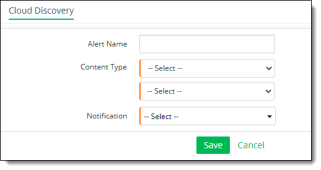
Enter the following information:
-
Enter a Name for the alert.
-
Select a Content Type.
-
Users — Enter one or more valid user email addresses for users to be included in the alert. Separate each email address with a comma. Click Save.
-
User Groups — Check one or more user groups, or check Select All. Click Save.
-
Cloud Risks — Check one or more cloud risk levels.
-
Cloud Category — Check one or more cloud application categories, for example, Cloud Storage or Collaboration.
-
Total Bytes Threshold — Enter a number (in kilobytes) that represents the size threshold for triggering an alert. Then, enter a duration quantity and interval.
-
To specify more than one content type, enter the information in the second dropdown list. To specify additional content types, click the + icon at the right, and enter the information in the additional dropdown lists.
-
Select a Notification for the type to be used when the alert is sent.
-
Save the alert.