Configuring Security Information and Event Management (SIEM)
From the Enterprise Integration page, click SIEM.
To view the details of an existing SIEM configuration, click the > icon at the left.
Downloading, installing, and connecting a SIEM agent
After you create at least one SIEM agent, you can download the SIEM agent and install it on a machine or server. The machine you choose for SIEM agent installation should contain RedHat Enterprise / CentOS 7.x, as well as Java 1.8.
If the data you intend to run using the SIEM agent is a directory or file, the SIEM agent must be downloaded to the machine where the files are located.
Prerequisites for installation of an SIEM agent
Your environment must include the following components and settings for installing and running an SIEM agent:
-
Oracle Server Java 11 or later
-
JAVA_HOME environment variable set
-
root or sudo privileges
Perform the following steps to download, install, and start a SIEM agent.
Downloading
-
In the Management Console, select Administration > Enterprise Integration.
-
Click the Download icon in the row of the SIEM agent you are downloading.
The SIEM agent is downloaded as ciphercloud-siemagent-1709_rc2-1.x86_64.rpm.
-
Move the SIEM agent to its intended machine (or to multiple machines as needed).
Installing
From the command line, run the following command:
rpm -ivh <RPM Name>
For example:
rpm -ivh ciphercloud-siemagent-1709_rc2-1.x86_64.rpm
Preparing... #################################
[100%]
Preparing / installing...
1:ciphercloud-siemagent-1709_rc2-1.x86_64#################################
[100%]
Execute 'siemagent-setup' to setup your siem Agent
Configuring
Run the siemagent setup command to configure the SIEM-agent and paste the authentication token, as outlined in the following instructions.
siemagent-setup
for example:
siemagent-setup
Enter Auth Token:<Auth token>
Initiating CipherCloud siem Agent configuration
Java already configured
Updated CipherCloud siem Agent with Auth Token
Starting CipherCloud siem Agent Service ...
Already Stopped / Not running (pid not found)
Started Log Agent with PID 23121
Done
Viewing the authentication token
1. Go to Administration > Enterprise Integration > SIEM.
2. Select the SIEM agent you created.
3. In the Display Auth Token column, click Show to display the token.
Uninstalling a SIEM agent
To uninstall the SIEM agent, run the following command:
rpm -e <RPM name up to x86_64>
For example:
rpm -e ciphercloud-siemagent-1709_rc2-1.x86_64
Stopped [12972]
Package ciphercloud-logagent with version 1709 has been uninstalled
successfully
Starting, stopping, and checking the status of a SIEM agent
To start an SIEM agent, enter the following command:
systemctl start ciphercloud-siemagent
To stop an SIEM agent, enter the following command:
systemctl stop ciphercloud-siemagent
To check the status of an SIEM agent, enter the following command:
systemctl status ciphercloud-siemagent
Viewing SIEM agent logs
Go to /opt/ciphercloud/siemagent/logs/
Creating a new SIEM configuration
To create a new SIEM configuration, perform the following steps.
-
Click New.
-
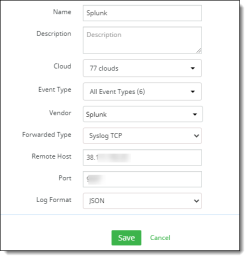
Enter the following information. (The values shown are examples.)
-
Name (required) – Enter a name for this configuration.
-
Description (optional) -- Enter a brief description.
-
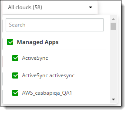
Cloud – Select one or more cloud applications for this configuration.
-
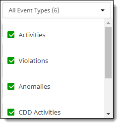
Event Type – Select one or more event types for this configuration.
-
Vendor -- Select a vendor. The options are
-
HP ArcSight
-
IBM QRadar
-
Intel Security
-
Log Rhythm
-
Others
-
Splunk
-
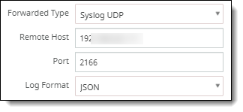
Forwarded Type -- Select Spooling Directory, Syslog TCP, or Syslog UDP.
-
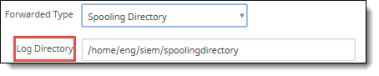
For Spooling Directory, enter the directory path for the log files generated.
-
For Syslog TCP or Syslog UDP, enter a remote host name, a port number, and a log format (either JSON or CEF).
-
Click Save.
The new configuration is added to the list. By default, the authentication token is hidden. To display it, click Show.
Once an agent is downloaded and installed, a connection can be made. A successful connection is indicated on the SIEM page by a green connector icon.

Additional actions
In addition to the download action, the Action column provides the following two options:

-
Pause – Pauses the transfer of events to SIEM. When this button is clicked and the agent is paused, the tool tip changes the button label to Resume. To resume the transfer, click the button again.
-
Remove – Delete the agent.