CDD Violation Management
The CDD Violation Management list shows content violations for Cloud Data Discovery (CDD) policies.
For each file, the list shows the following information:
-
Timestamp – The date and time of the violation.
-
Cloud Application – The name of the cloud application where the violation occurred.
-
Email – The valid email address of the user associated with the violation.
-
Action Status – The completion status for the policy action.
-
Policy Action – The action specified in the policy that was violated.
-
Policy Name – The name of the policy that was violated.
-
File Name – the name of the file with the violating content.
-
URL – The URL of the violating content.
Selecting information to view
From the left panel, choose the items to view – User Groups, Violations, Users, and Status.
Taking action on a quarantined CDD item
-
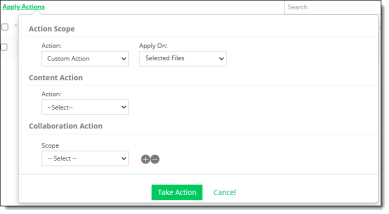
Click Apply Actions.
-
Under Action Scope, select an Action -- either Policy Action or Custom Action.
-
Policy Action applies the action(s) specified in the policy. Select either All Files to apply the policy action to all of the files listed, or Selected Files to apply the policy action only to the files you specify.
-
Custom Action allows you to choose content and collaboration actions to apply to the files.
-
Content action – Select Permanent Delete or Content Digital Rights. For Content Digital Rights, select a CDR template for the action.
-
Collaboration action – Select Internal, External, or Public.
-
For Internal, choose Remove Collaborator and select the user groups to include in the action.
-
For External, choose Remove Collaborator and enter the domains to blocked.
-
For Public, choose Remove Public Link.
-
To add another collaboration action, click the + icon at the right and select the appropriate actions.
-
Click Take Action.