Assessment configuration
Assessment configuration (Protect > Cloud Security Posture) involves creation and management of information that evaluates and reports on risk factors, based on selected rules in the organization’s security infrastructure. This component supports these cloud applications and industry benchmarks:
-
AWS — CIS
-
Azure — CIS
-
Salesforce -- Juniper Networks Salesforce Security Best Practices
-
Microsoft 365 -- Microsoft 365 Security Best Practices
The Cloud Security Posture page in the Management Console lists the current assessments. This list shows the following information.
-
Assessment Name -- The name of the assessment.
-
Cloud Application -- The cloud to which the assessment applies.
-
Assessment Template -- The template used to perform the assessment.
-
Rules -- The number of rules currently enabled for the assessment.
-
Frequency -- How often the assessment is run (daily, weekly, monthly, or on demand).
-
Last Run On -- When the assessment was last run.
-
Enabled -- A toggle that indicates whether the assessment is currently enabled (see Questions section).
-
Assessment Status – The number of rules that were triggered and passed the last time this assessment was run.
-
Not Run – The number of rules that were not triggered the last time this assessment was run.
-
Weightage Score -- A color bar that shows the risk score for the assessment.
-
Action – Enables you to take the following actions for an assessment:

-
Pencil icon – Edit the properties of an assessment.
-
Arrow icon – Run an assessment on demand.
By clicking the eye icon at the left, you can view additional details for the most recent assessment.
These details are shown in two tabs:
-
Assessment Results
-
Past Assessment Reports
Assessment Results tab
The Assessment Results tab lists the compliance rules associated with an assessment. For each rule included in the assessment, the display shows the following information:
-
Compliance Rule – The title and ID of the included rule.
-
Enabled – A toggle that indicates whether the rule is enabled for this assessment. You can enable or disable compliance rules as needed depending on your security assessment of the cloud.
-
Resources Passed/Resources Failed – The number of resources that passed or failed the assessment.
-
Last Run Status – The overall status of the last assessment run, either Success or Failed.
-
Last Run Time – The date and time that the last assessment was run.
Past Assessment Reports tab
The Past Assessment Reports tab lists the reports that have been run for the assessment. A report is generated when an assessment is run and is added to the list of reports. To download a PDF report, click the Download icon for that report, and save it to your computer.
The report provides detailed information about the activity for the cloud, including:
-
An executive summary with a count of rules and resources passed and failed
-
Counts and details about resources that were tested and failed, and remediation recommendations for failed resources
If an assessment is deleted, its reports are deleted also. Only the Splunk audit logs are preserved.
To close the assessment detail view, click the Close link at the bottom of the screen.
Adding a new assessment
-
From the Management Console, go to Protect > Cloud Security Posture Management.
-
From the Cloud Security Posture Management page, click New.
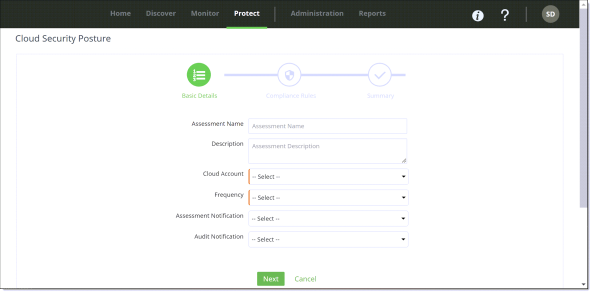
You will see these fields initially. Depending on the cloud account you select for the assessment, you will see additional fields.
-
Enter this information for the new assessment as indicated for the type of cloud account to be used for the assessment.
|
Field |
IaaS cloud applications |
SaaS cloud applications |
|---|---|---|
|
Assessment Name Enter a name for the assessment. The name can include only numbers and letters – no spaces or special characters. |
Required |
Required |
|
Description Enter a description of the assessment. |
Optional |
Optional |
|
Cloud Account Select the cloud account for the assessment. All information for the assessment will pertain to this cloud. Note The list of cloud applications includes only those for which you have specified Cloud Security Posture as a protection mode when you onboarded the cloud. |
Required |
Required |
|
Assessment Template Select a template for the assessment. The template option shown pertains to the cloud account you select. |
Required |
Required |
|
Filter by Region Select the region or regions to be included in the assessment. |
Optional |
N/A |
|
Filter by Tag To provide an additional level of filtering, select a resource tag. |
Optional |
N/A |
|
Frequency Select how often to run the assessment – daily, weekly, monthly, quarterly, or on demand. |
Required |
Required |
|
Notification Template Select a template for email notifications regarding assessment results. |
Optional |
Optional |
|
Resource Tag You can create tags to identify and track failed resources. Enter text for a tag. |
Optional |
N/A |
-
Click Next to display the Compliance Rules page, where you can select rule enablement, rule weighting, and actions for the assessment.
This page lists the compliance rules available for this assessment. The list is grouped by type (for example, rules pertaining to monitoring). To show the list for a type, click the arrow icon to the left of the rule type. To hide the list for that type, click the arrow icon again.
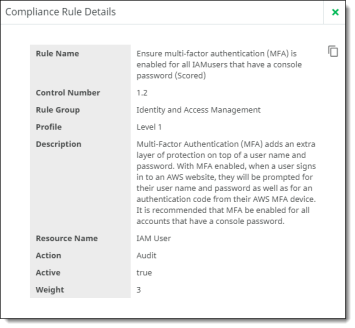
To display details for a rule, click anywhere on its name.
-
Configure the rules as follows:
-
Enabled -- Click the toggle that indicates whether the rule will be enabled for the assessment. If it is not enabled, it will not be included when the assessment is run.
-
Weight – The weight is a number from 0 to 5 that indicates the relative importance of the rule. The higher the number, the greater the weight. Select a number from the dropdown list or accept the default weight shown.
-
Comments – Enter any comments that pertain to the rule. A comment can be helpful if (for example) the rule weight or action is changed.
-
Action – Three options are available, depending on the cloud you selected for this assessment.
-
Audit -- The default action.
-
Tag (AWS and Azure cloud applications) -- If you selected Resource Tags when you created the assessment, you can choose Tag from the dropdown list. This action will apply a tag to the rule if the assessment finds failed resources.
-
Remediate (Salesforce cloud applications) -- When you select this action, CASB will attempt to resolve issues for failed resources when the assessment is run.
-
Click Next to review a summary of the assessment information.
Then, click Previous to make any corrections, or Save to save the assessment.
The new assessment is added to the list. It will run on the schedule you selected. You can also run the assessment any time by clicking the arrow icon in the Actions column.
Modifying assessment details
You can modify existing assessments to update their basic information and rule configurations. To do so, click the pencil icon under the Actions column for the assessment you want to modify.
The information is displayed in two tabs:
-
Basic Details
-
Compliance Rules
Basic Details tab
In this tab, you can edit the name, description, cloud account, filtering and tagging information, templates used, and frequency.
Click Update to save the changes.
Compliance Rules tab
In the Compliance Rules tab, you can view rule details, add or delete comments, and change enablement status, weight, and actions. The next time the assessment is run, these changes will be reflected in the updated assessment. For example, if the weight of one or more rules is changed, the count of passed or failed resources could change. If you disable a rule, it will not be included in the updated assessment.
Click Update to save the changes.