
Create Variable Zones
Create variable zones that map devices to their actual zones. By using these variable zones, you can apply a single security policy rule across multiple devices—each mapped to different underlying zones—instead of creating separate, identical rules for each device.
To create a variable zone:
-
Click the plus icon (
 ).
The Create Variable Zone page is displayed.
).
The Create Variable Zone page is displayed. -
Complete the configuration according to the following guidelines:
Table 1: Fields on the Create Variable Zones Page Field
Description
Name
Enter a unique string of maximum 63 characters.
The string can contain alphanumeric characters, hyphens, underscores, periods, colons, and forward slashes.
Description
Enter an optional description of maximum 900 characters.
Default Zone
Select a zone as the fallback value for the variable zone when a device has no explicit zone mapping.
Zone Mapping
Map a variable zone to existing device zones to inherit their policies. If you do not configure any mappings, the default zone is used.
To add a zone mapping:
Click the plus icon (
).The Map a Zone to Devices page is displayed.
Select the device to associate with this variable zone.
Click the arrow (>) to move the selected devices from the Available column to the Selected column. Only devices from the current and child domain are shown. Use the search fields at the top of each column to find specific devices.
In the Zone field, select a predefined zone.
- Click OK.
A new variable is created with your zone mappings.
-
Click OK.
A new variable zone is created.
If a zone mapped to a device within a variable zone is deleted or renamed using the Junos CLI, Juniper Security Director does not automatically synchronize this change with the variable zone configuration. You will see an error when deploying a security policy that references the affected variable zone.
Figure 1: Error Message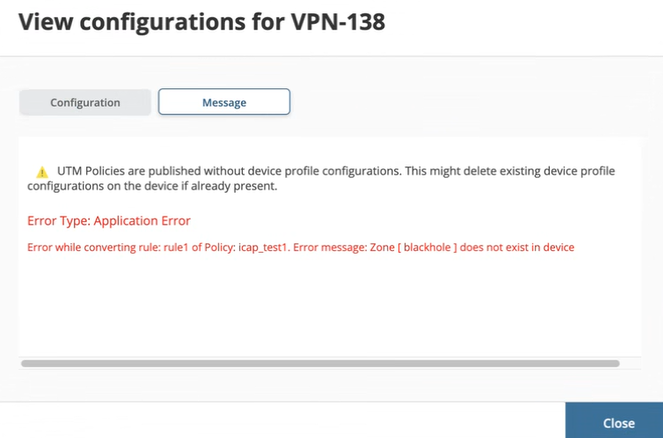
Manage Variable Zones
-
Edit—Select the variable zone and click the pencil icon (
 ).
). -
Delete—Select the variable zone and click the trash can icon (
 ). Before deleting a variable zone, ensure that the variable zone is
not used in a security policy or NAT policy rule. If you try to delete a
variable zone that is used in a security policy or NAT policy rule, an error
message is displayed.
). Before deleting a variable zone, ensure that the variable zone is
not used in a security policy or NAT policy rule. If you try to delete a
variable zone that is used in a security policy or NAT policy rule, an error
message is displayed.
What's Next
|
If you want to |
See |
|---|---|
| Use the variable zone in security policy | Configure a Security Policy Rule |
| Use the variable zone in NAT policy | Create a NAT Policy Rule |