
Update ISO Configuration Through Virtual Machine Manager
If you do any changes to the ISO image, then the existing ISO image should be removed and the new image must be added.
In the Virtual Machine Manager, select the VM and Shut Down the VM.
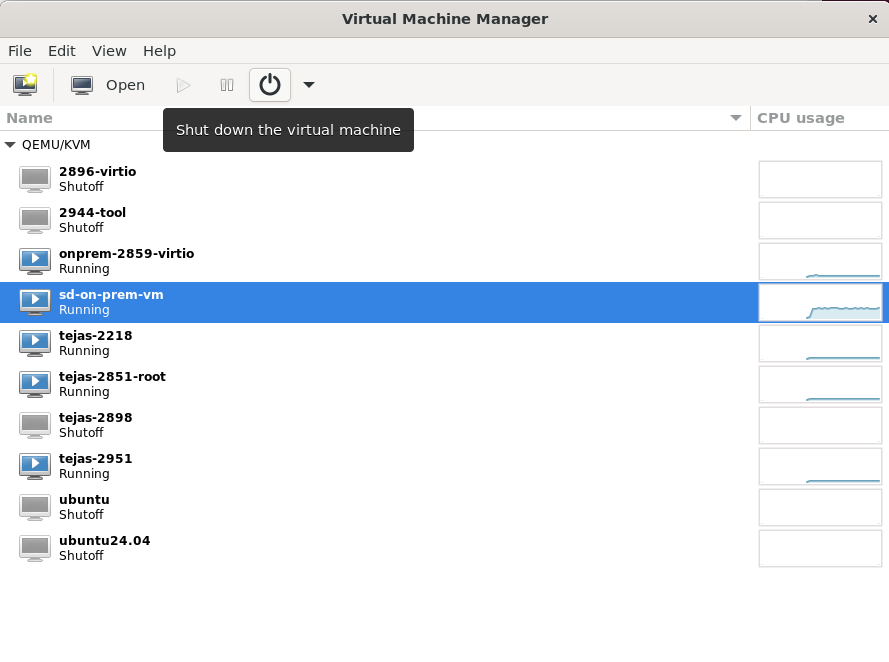
Select to edit the hardware settings. The VM console is displayed.
Click the show virtual hardware details icon
 in the VM console.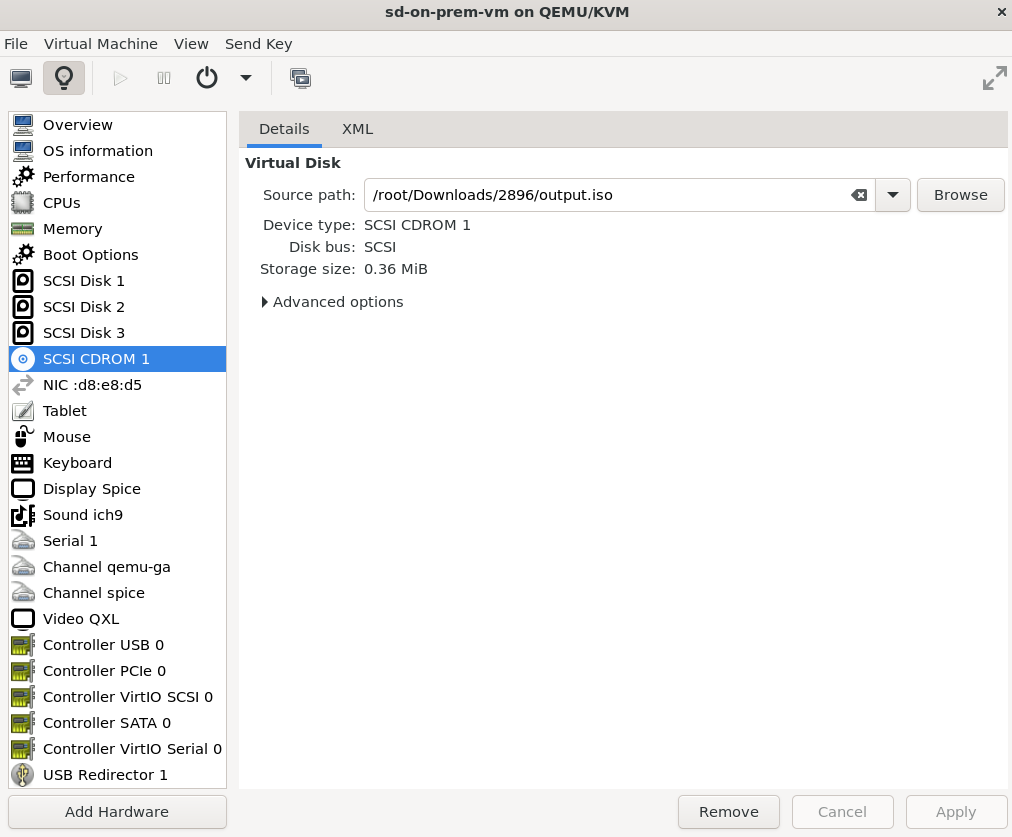
Right-click SCSI CDROM 1 and select Remove Hardware. Click Delete to confirm and remove the hardware.
Select Add Hardware. Check Select or create custom storage and click Manage.
Select the new ISO image. Set Device type as CDROM device and Bus type as SCSI. Click Finish.
Click the Power on the virtual machine icon
 to start the Juniper Security Director VM.
 The password will be reset to the new password only if the value of PasswordResetKey property matches the password Reset Key.
Update ISO Configuration Through virsh CLI
Using virsh CLI shut down the VM.
Run
virsh shutdown <vm-name>command.Remove the existing ISO image.
Run
virsh change-media sdd --eject --configcommand.Insert the newly created image.
Run
virsh change-media sdd --insert --configcommand.Power on the VM. Run
virsh start <vm-name>command.