
Resize the Juniper Security Director VM on Azure
You must resize your VM based on the supported system requirements mentioned in Juniper Security Director System Requirements for Microsoft Azure.
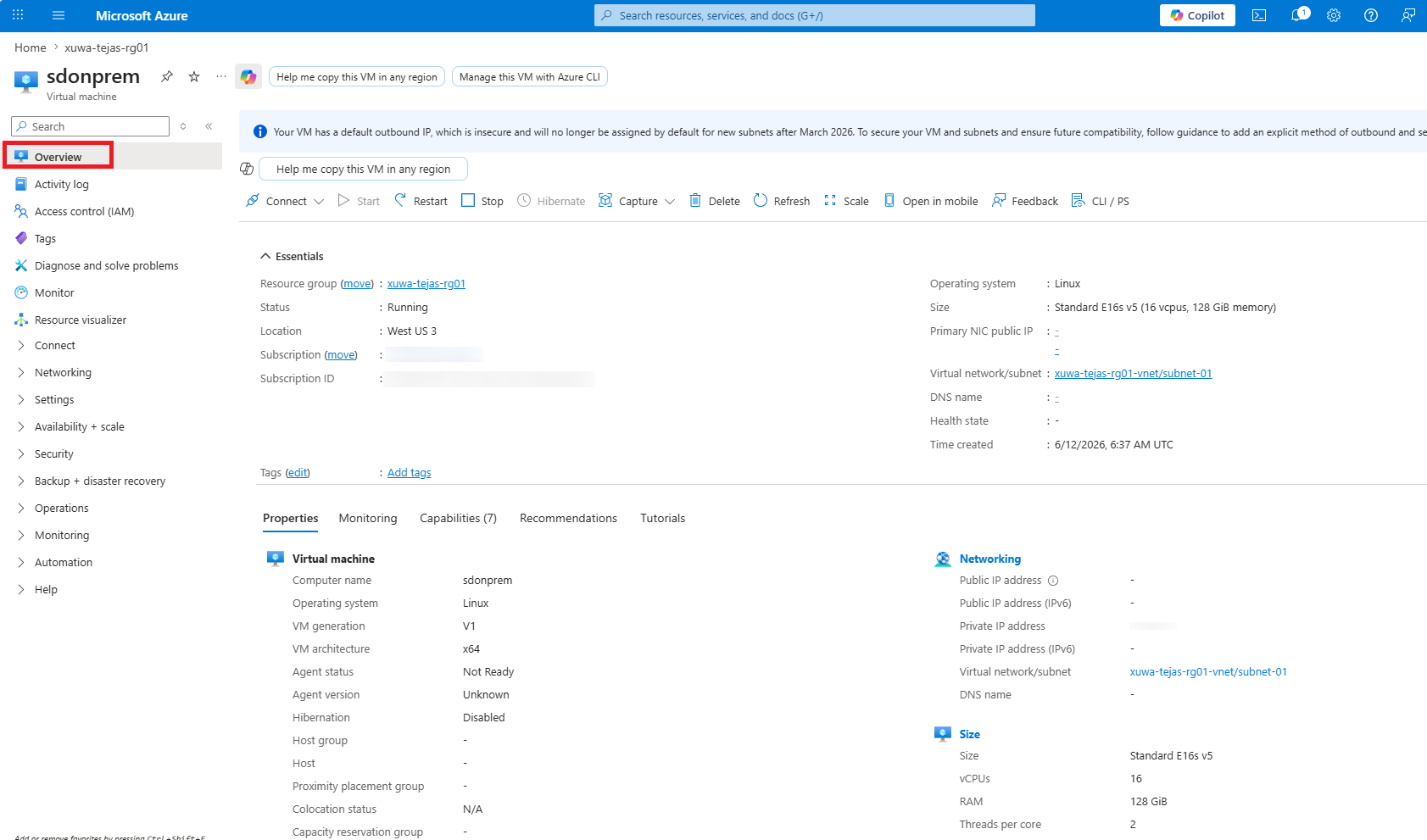
Click the VM name in the Azure Portal to open the Juniper Security Director VM Overview page.
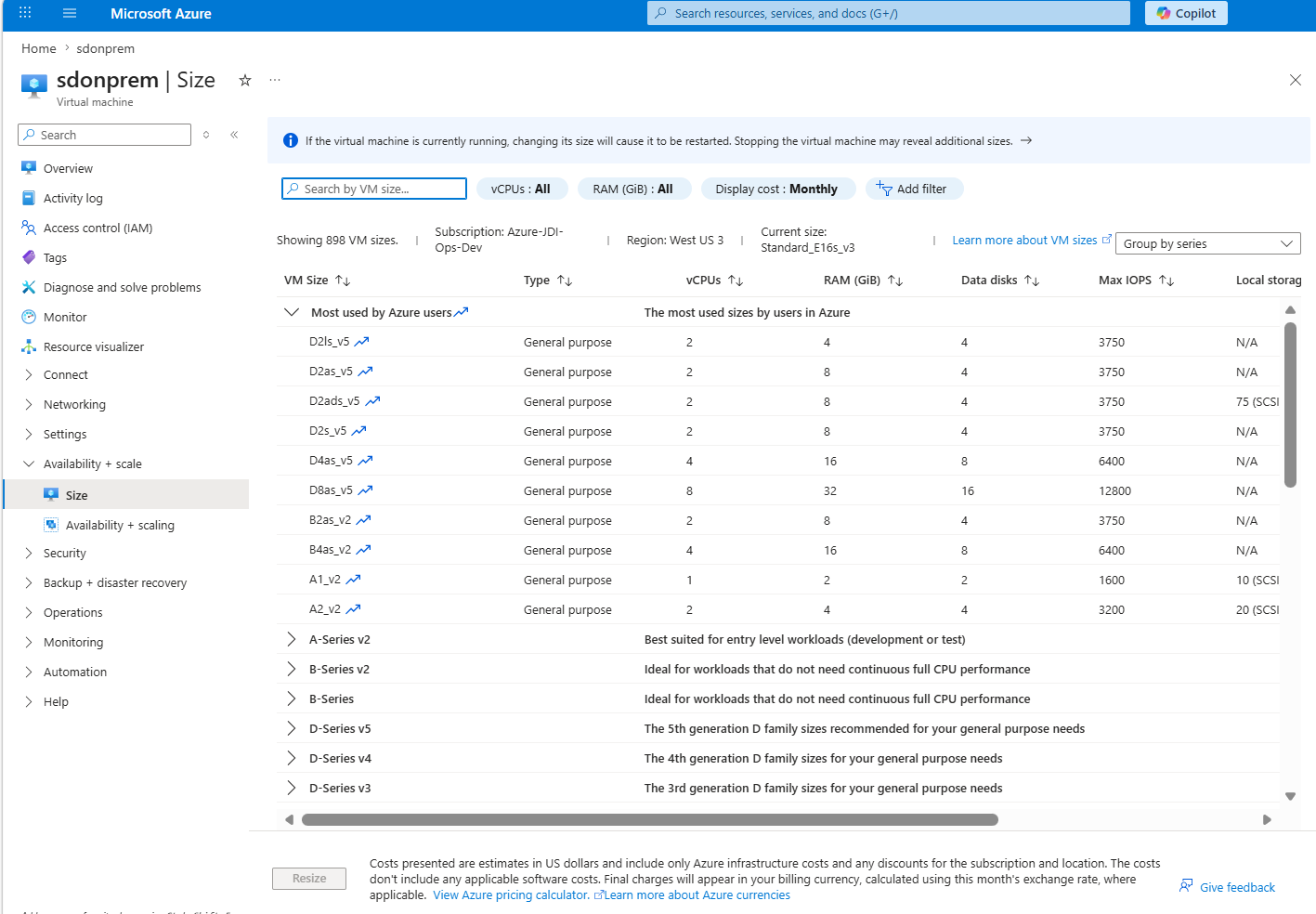
Select Availability + Scale> Size.
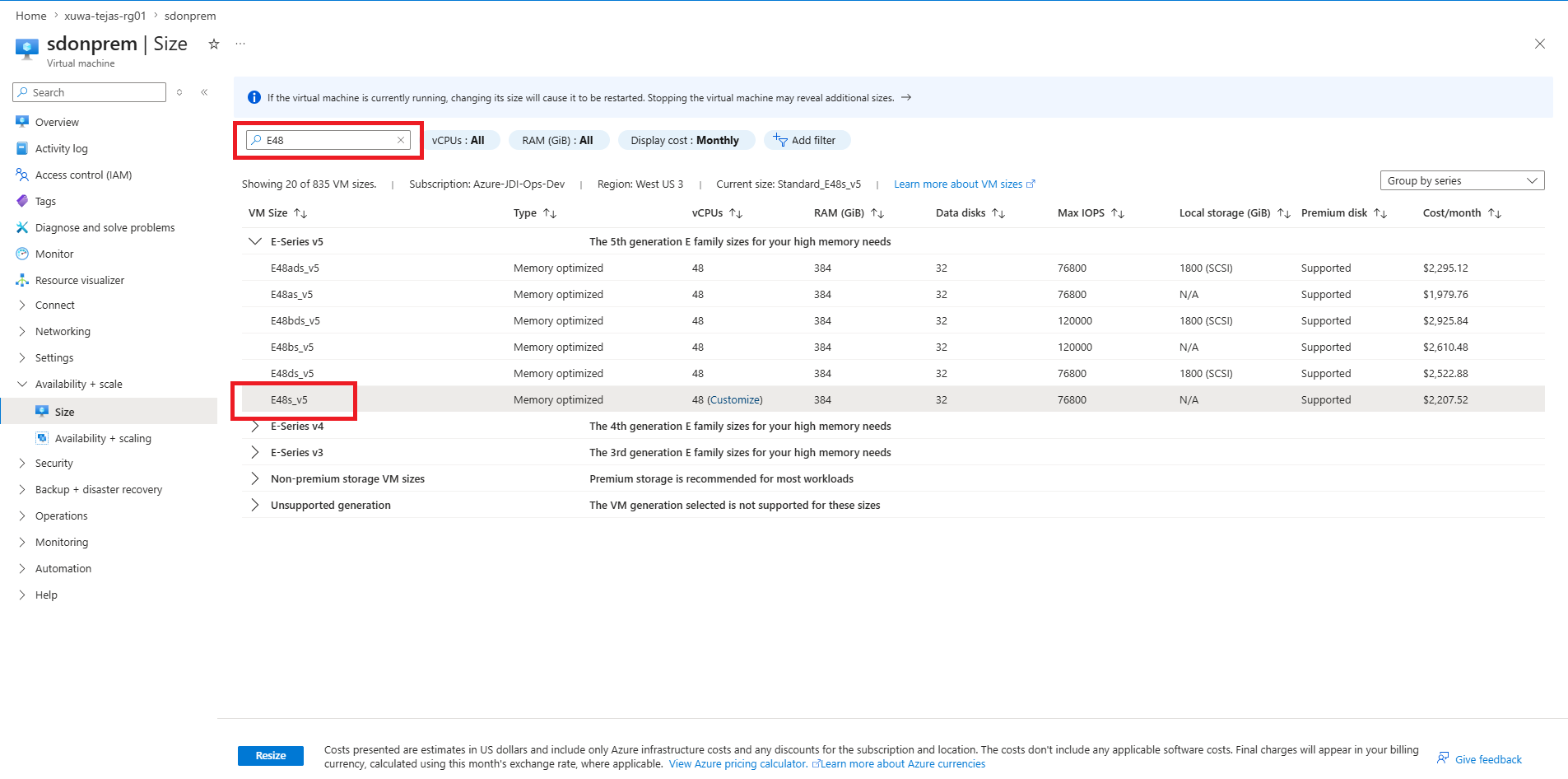
Select the required VM size.
After you switch to a higher VM configuration you cannot revert to the lower VM configuration.
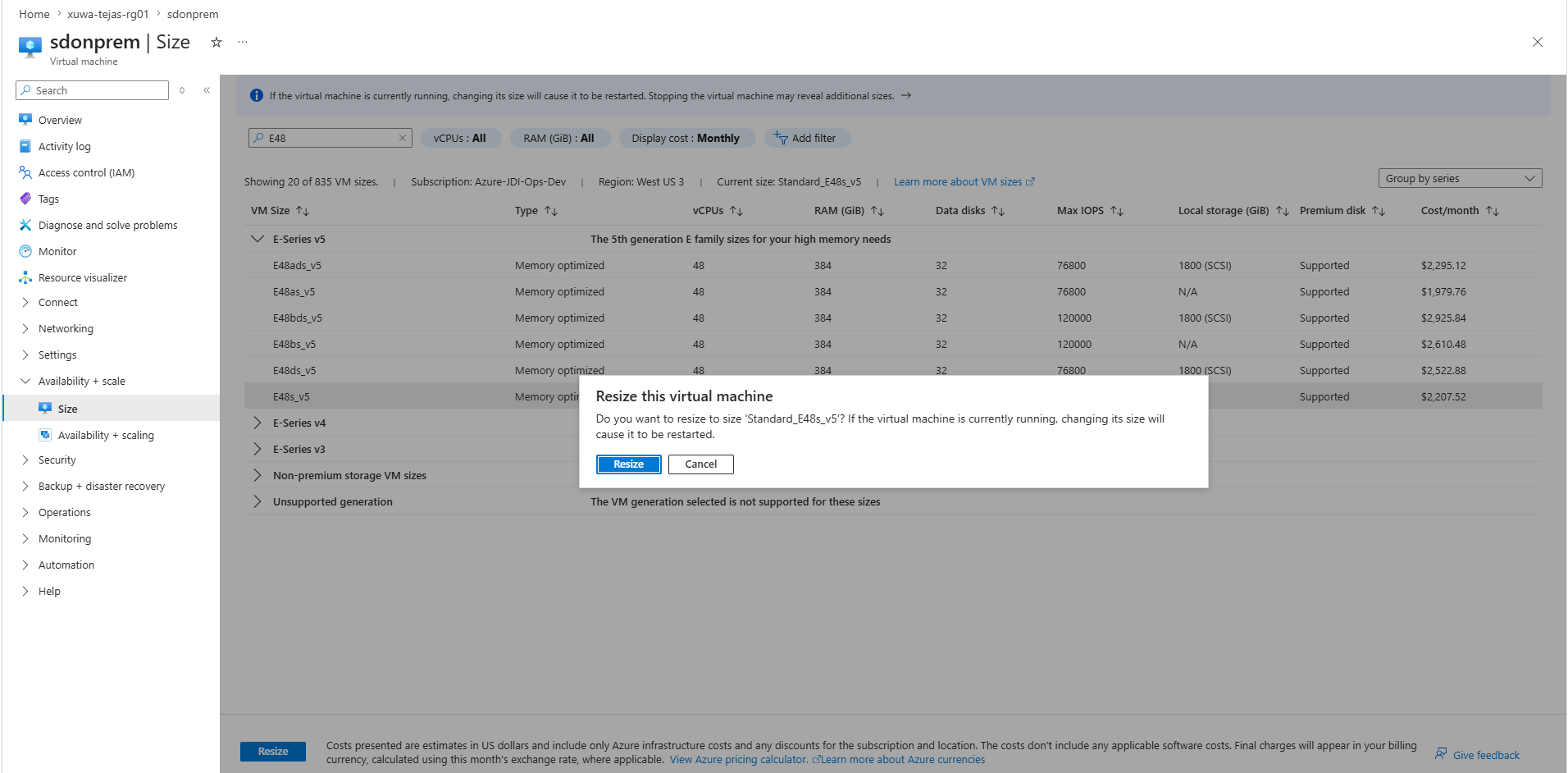
Click Resize and confirm the resize operation.
You will receive a notification after the resizing is complete.
Go to the VM Overview page and power off the VM by clicking the stop icon (
 ).
).Click to increase the Data disk 1 and Data disk 2 sizes.
The OS and data disks are displayed.
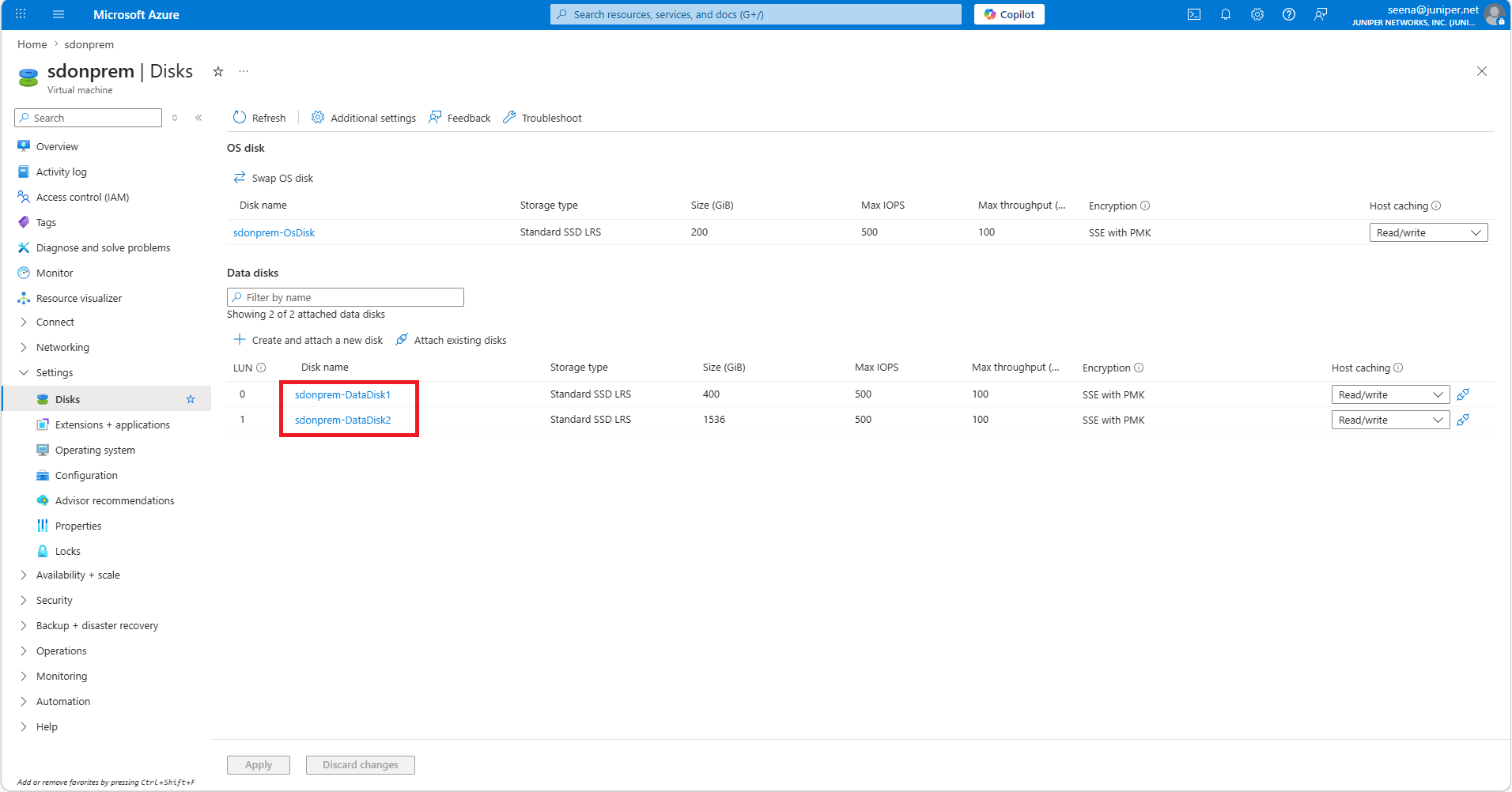
Click <vm name>-DataDisk1.
Select .
Enter the value in the Custom disk size field and click Save.
You will receive a notification after the disk is updated.
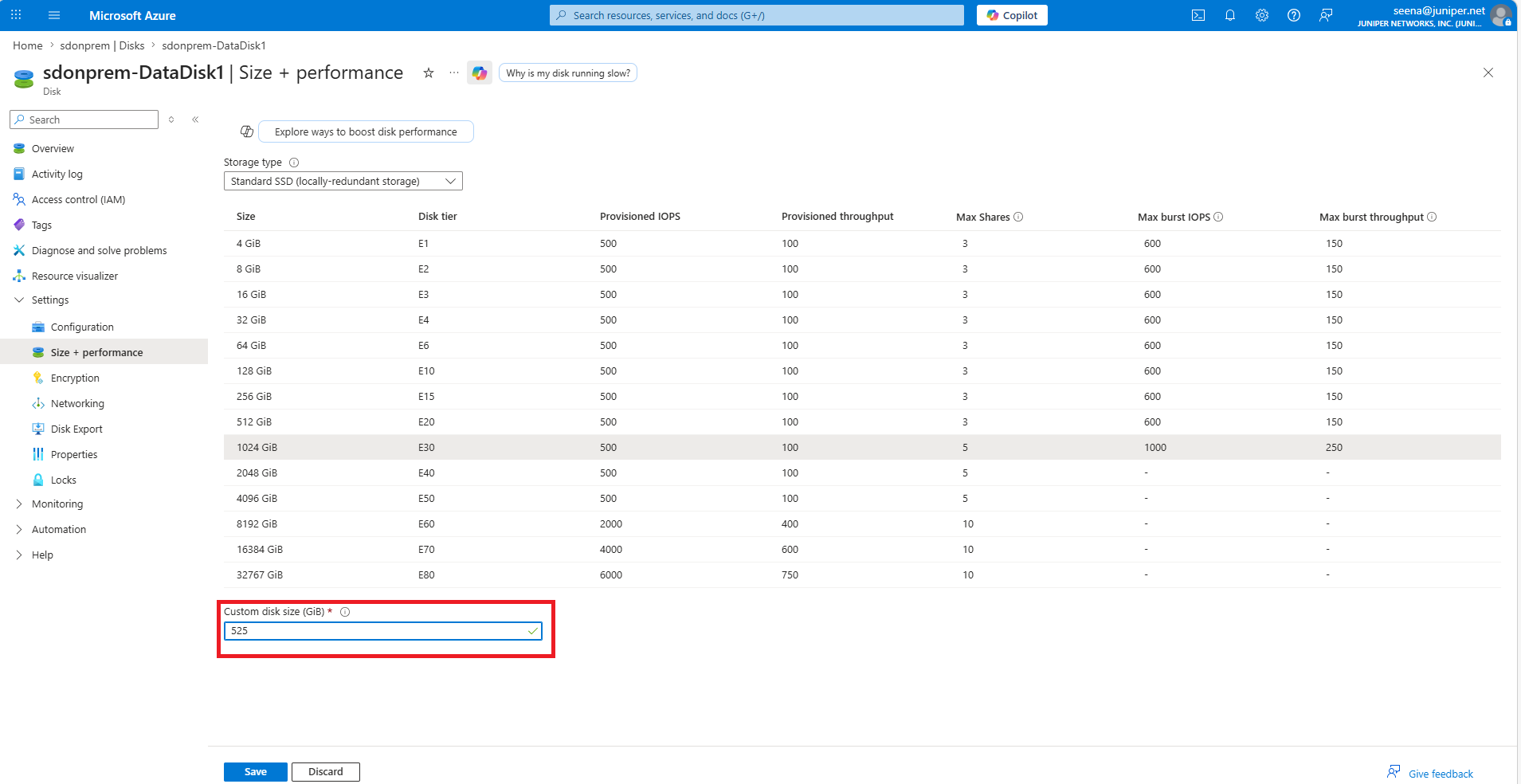
- .
Go to the VM Overview page and click the start icon (
 ) to start the VM.