
Manage Your Chats
With Security Director Copilot, you have access to the following controls:
Display Mode
The Security Director Copilot panel provides options to switch between two display modes:
-
Docked—Copilot is displayed as a panel on the right side of the UI.
-
Undocked—Copilot is displayed in a floating window. To switch to Undocked mode, click the Undock icon (
 ) in the panel header.
Chat History
Access your past conversations which are automatically saved in the chat history. To access
the chat history, click the hamburger icon ( ) on the top-left of the Security Director Copilot window and select
View chat history.
) on the top-left of the Security Director Copilot window and select
View chat history.
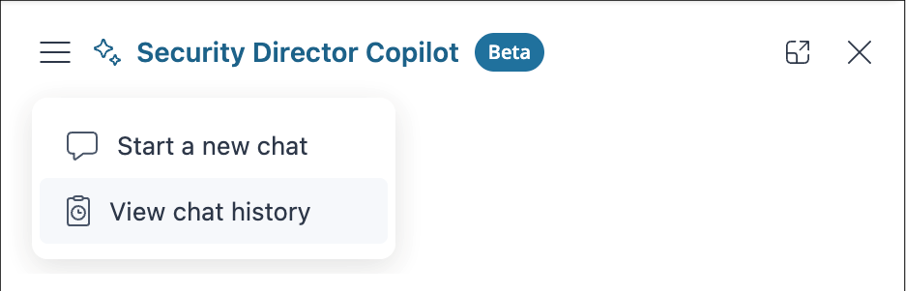
Select any conversation to continue from where you left off or review past responses. You can organize and control your conversations using the following options:
| If you want to... | Follow these steps... |
|---|---|
| Rename a conversation |
|
| Delete a conversation |
|
| Search conversations |
Enter keywords in the search bar to find relevant information. |
| Copy conversations |
|


Response Feedback
After Copilot returns a response, you can submit feedback using the thumbs-up or thumbs-down icons. Feedback is used to improve response quality. To provide feedback:
Click the conversation from the chat history.
Scroll to the bottom and select the helpful icon (
 ) if the response was helpful, or the not-helpful icon (
 ) if it did not meet your expectations.