Help us improve your experience.

Let us know what you think.

Do you have time for a two-minute survey?


Designing Tunnel Paths Overview

  1. Select the Tunnel layer button to switch to the Tunnel layer.
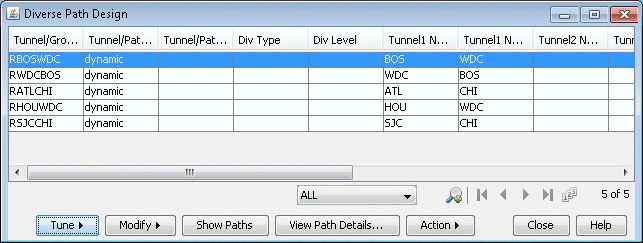
  2. In Design mode, select Design > TE Tunnels > Path Design to open the Tune Paths window. This window lists all of the tunnels whose paths can be designed for. For each tunnel or group, the details of the first, second, and third path are provided in this window. The Div Level column indicates the current level of diversity satisfied between the 2 or 3 paths that belong to this tunnel or group
    Figure 1: Diverse Paths TableDiverse Path Design software interface showing a table for network path design with columns: Tunnel/Group, Tunnel/Path Type, Div Type, Div Level, Tunnel1 Name, and Tunnel2 Name. Action buttons at the bottom include Tune, Modify, Show Paths, View Path Details, and Action.
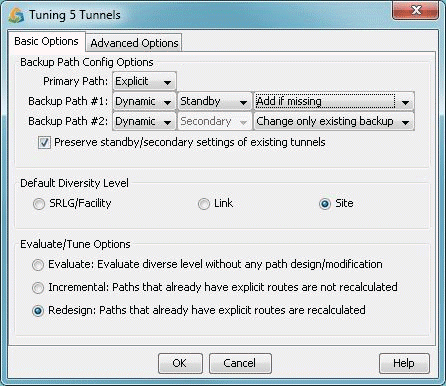
  3. Select the tunnels to design and select Tune > Selected Paths. Alternatively, select Tune > All Paths to design all tunnels for diversity. This will open up the following window.
    Figure 2: Tuning OptionsSoftware dialog box titled Tuning 5 Tunnels with Basic Options tab for configuring backup paths for network tunnels. Options include Primary Path: Explicit, Backup Path 1: Dynamic with Standby and Add if missing, Backup Path 2: Dynamic with Secondary and Change only existing backup. Checkbox for preserving standby-secondary settings. Settings for Default Diversity Level and Evaluate-Tune Options. OK, Cancel, and Help buttons.