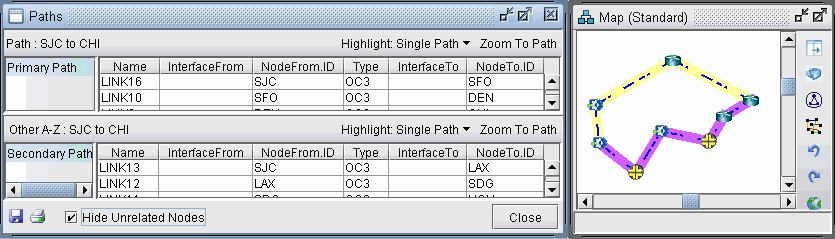
Viewing Primary and Backup Paths
To view primary and backup tunnels together on the map, select an entry from the Tunnels window that is a primary tunnel (not marked Standby in the Type column), right-click and select Show Path. By default both tunnels are shown highlighted. To highlight only one path at a time, change from Highlight All Paths to Highlight a Selected Path.
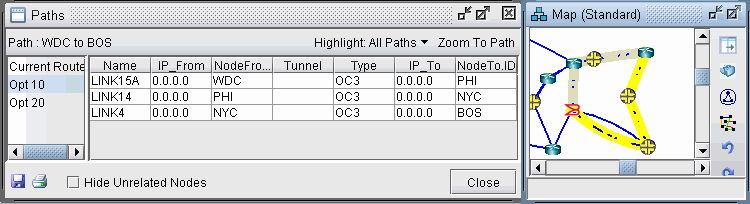
The diverse paths of a tunnel can also be viewed from Network > Elements > Tunnels Diverse Status or Design > TE Tunnels > Path Design in Design mode and tunnel layer.
From the Diverse Path Design window, Check the “Div Level” column to see the current level of diversity satisfied between primary and backup paths.
Select a tunnel and click “Show Paths” to view the primary and backup tunnels.
Select “Hide Unrelated Nodes” to display only those nodes and links which are on the primary and backup tunnels.