Forming VPN Customer Groups
Often times, many VPNs belong to the same customer, so you may group together multiple VPNs into a Customer Group. Once a particular Customer Group has been formed, you may create demands for it. Reports can also be filtered to show information relavant to the group only. The following steps describe how to form Customer Groups.
-
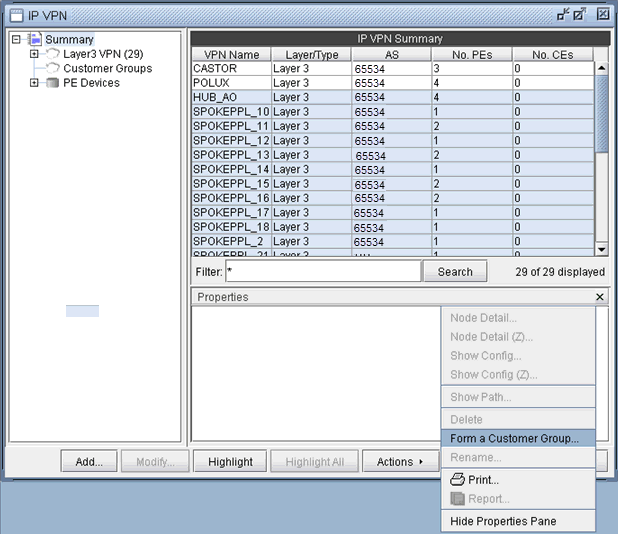
First go to Summary to see a list of all the VPNs. Select
one or more VPNs and choose Form a Customer Group from the Actions
menu. As shown in the following figure, VPNs HUB_AO and SPOKEPPL_*
have been selected to be grouped into a Customer Group.
Figure 1: Forming a Customer Group
-
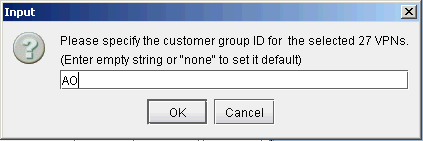
Next, supply a customer group ID for the selected VPNs
to group together as shown in the following figure.
Figure 2: Supply a customer ID
-
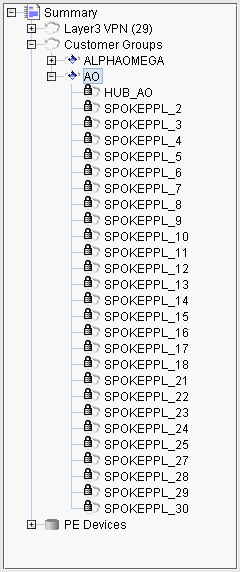
In the following figure, the resultant Customer Group,
AO, is shown expanded in the structured list.
Figure 3: Customer Group AO