
BGP Map
To open the BGP map (as opposed to the standard map), select Network > Protocols > BGP > BGP Map or Network > Maps > Map (BGP View). In the Include Which AS Values? window select which ASs you want to view in your map. The ASs are listed in order, with the number of nodes and number of neighbors shown in parentheses. This window indicates the number of nodes, neighbors, or ASnodes for each AS. Use <Ctrl>-click and/or <Shift>-click to select multiple AS values.
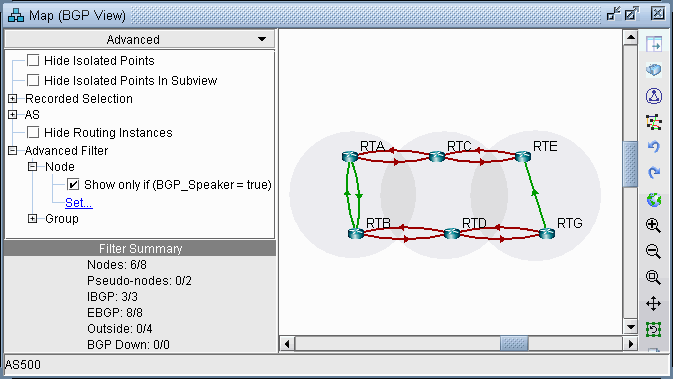
The BGP map displays the network in terms of BGP speakers (routers that are running BGP) and their peering relationships (shown via a connection with an arrow in the middle and pointed away from the speaker). Two BGP routers become peers (neighbors) once they have both established a peering relationship with each other (shown via two directed arrows or via a connection with a diamond in the middle if the Draw Mult. Links as Curves box is unchecked in the Tools > Options > Map Preferences window).
When the BGP map is first brought up, all routers (including BGP speakers and non-BGP speakers) are shown on the BGP map. You may wish to filter the BGP map by selecting the Filters > Advanced menu. Select Hide Isolated Points, or to look only at the BGP speakers, open up the Advanced Filter > Node section. Click the Set link to set BGP_Speaker = true. Then select the corresponding checkbox to turn on the filter. The following figures show a BGP map filtered to show the BGP speakers.
Logical Layout
To view the logical relationships amongst BGP neighbors more clearly, including route-reflector hierarchical relationships, right-click on the map and select Layout>Logical Layout.
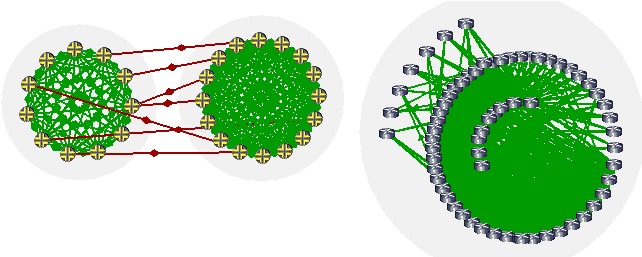
For example, in the figure below, the network on the left shows two ASs, each with fully meshed IBGP relationships. These ASs are connected to each other using EBGP. Meanwhile the network on the right shows one AS with hierarchical route-reflectors. The innermost arc of routers are route reflectors for the middle ring of routers, and some of the routers in the middle ring are route reflectors for the outermost arc of routers.
To return back to the current view, right-click on the map and select Layout>Back to Original.(Note that you can use the Network > Maps > Copy Map Layout option to transfer the graphical coordinates from the BGP Map to the Standard Map or vice versa.)
Grouping
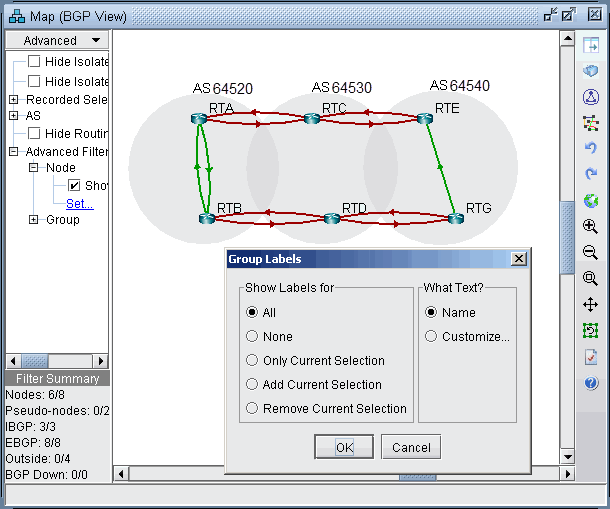
In the BGP map, each AS of the network is represented by a grouping disc (from the right-click menu, select Grouping > Collapse All or Grouping > Expand All to collapse or expand the disc). Each AS which is outside of the network and has an EBGP peering relationship with BGP speakers of the network is called an ASnode and is represented by a little square.
Note that you can change the grouping arrangement in either BGP Map or Standard Map using the map right-click window’s Grouping>Autogroup option. Here you can group by Confed AS first and then subgroup by AS.
To turn on AS group labels, choose Group Labels... from the right-click menu and select Name as shown in the following figure.
AS Legend
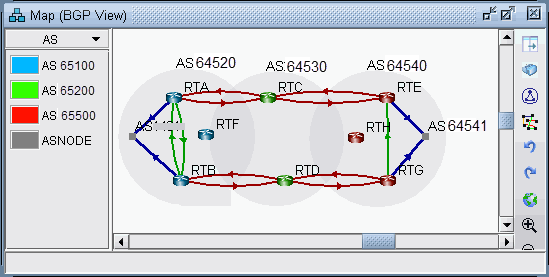
If you select the Subviews > AS menu, you can color the network nodes according to the ASs they belong to as shown in the following figure. You may click on the color icon to select a different color if desired.
BGP Map Subviews
Select the Subviews > Type menu of the BGP map. Note the coloring of the different peering relationships:
-
Gray lines denote IBGP peering relationships within the same AS hat are down
-
Maroon lines denote EBGP peering relationships from one AS to another
-
Green lines denote IBGP peering relationships within the same AS
-
Blue lines denote EBGP peering relationships that go to ASs outside of the network, represented by ASNODES because of limited information.
Figure 5: Types Subview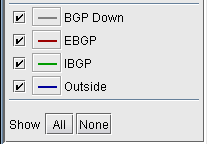
Select the Subviews > Protocols menu of the BGP map. The choices are as follows:
-
All—This is the default subview, which shows both EBGP and IBGP types of relations.
-
EBGP/Outside—This shows only EBGP relations.
-
IBGP (RR client)—This shows IBGP relations that are route reflections from Route Reflectors to their clients. Usually there is an arrow for the IBGP neighbor relations in each direction, but for this particular subview, only one direction is shown from the route reflector to the route reflector client to make it clear which devices are the route reflectors and which devices are the route reflector clients. To see an even clearer view of the route reflector relationships, use the Logical Layout view as described in Logical Layout.
-
IBGP (no RR)—This shows IBGP without route reflections.
-
L2VPN—This shows IBGP relations related to the l2vpn address family.
-
VPNv4/Inet-VPN—This shows IBGP relations related to VPNv4 or Inet-VPN address family.
-
IPv4—This shows IBGP relations related to IPv4 address family.
-
Symmetric Peering—This shows balanced BGP neighbor relationships
-
Asymmetric Peering—This shows unbalanced BGP neighbor relationships, i.e., the neighbor relationship is only defined on one of the two routers. For a full report of unbalanced BGP neighbor relationships, refer to the Report Manager, BGP report.
Figure 6: Protocols Subview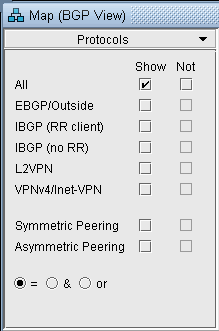
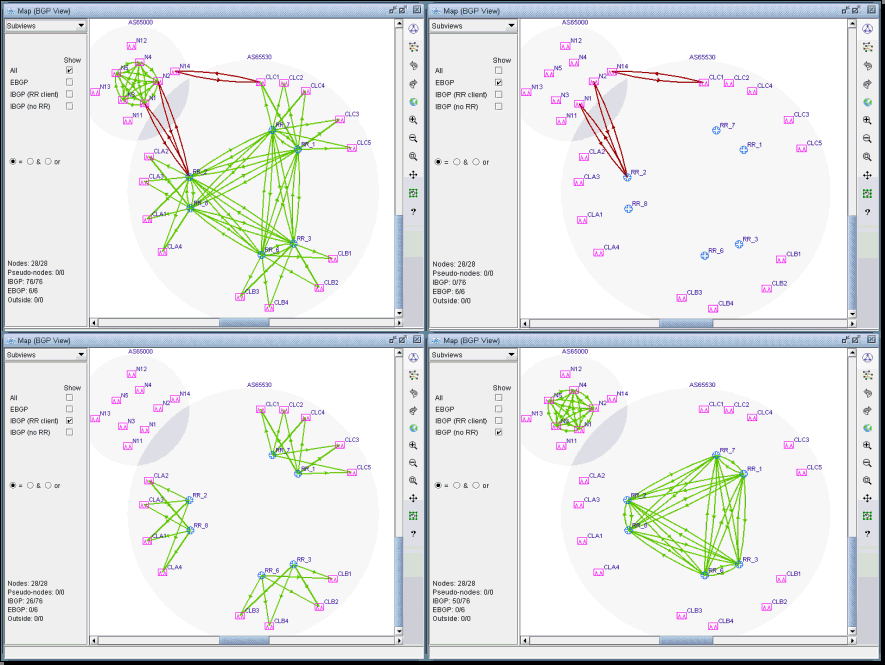
You can select a router from the map to highlight the BGP peering relationships for that router.
If you hover your pointer over a logical link, the basic information of that neighbor relationship is shown at the bottom bar of the BGP map window.
Double-clicking a link will bring up a window that describes the neighbor relationship.
You can also right-click a node and select “View Nhbrs at Node” to view the neighbors for a router.