
Add/Modify/Delete Static Routes
Switch to Modify mode.
From the Map window, right-click on the node of interest and select Modify Static Route Table. Alternatively, select Modify > Protocols > Static Route Table from the main menu.
Adding a Static Route
In the Static Routing Table window, click on the Add button to open the Add Static Route window shown below.
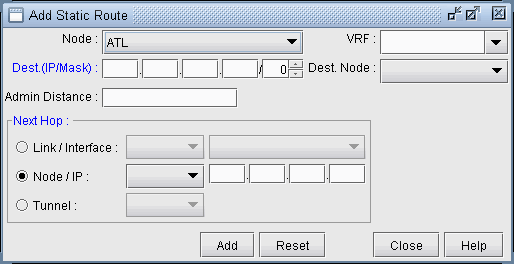
Fill in the appropriate fields. Click OK when finished. The Static Routing Table window should now contain a new entry reflecting the newly added static route.
Modifying a Static Route
To modify a static route table entry, highlight the row(s) you want to edit and click the Modify button. A Modify Static Route window will appear as shown in Figure 2.
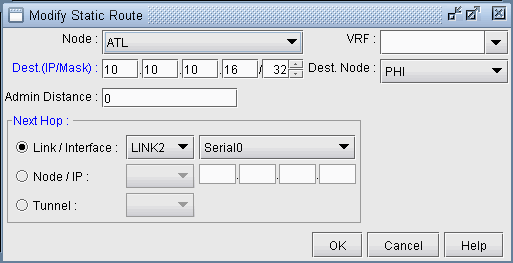
Edit the appropriate fields. Click OK when finished.
The modifications to the static route should be reflected in the Static Routing Table window.
Deleting a Static Route
To delete static route(s), select the desired entries from the Static Routing Table window and click the Delete button.