Help us improve your experience.

Let us know what you think.

Do you have time for a two-minute survey?


Viewing GRE Tunnels

  1. Select Network > Elements > Tunnels.

  2. To filter for all GRE tunnels, click the Filter icon and type GRE in the Type field. (Alternatively, filter on “Type=GRE” in the Advanced Filter).

    Figure 1: Filtered GRE TunnelsNetwork management tool screenshot showing tunnel details between nodes; includes tunnel ID, starting and destination nodes, IPs, bandwidth, type, priority, preemption value, current route, and comments.

  3. Select the GRE tunnel to view and then click Show Path to view its path.

    Figure 2: GRE Tunnel routed over LSP TunnelNetwork topology map showing nodes labeled with city abbreviations like ATL, BOS, DEN, connected by color-coded links for utilization levels. Legend shows utilization percentages; bottom section details path info for ATL to BOS route including link names, IP addresses, tunnel types, and node IDs. Analyzing OC3 network traffic and utilization.
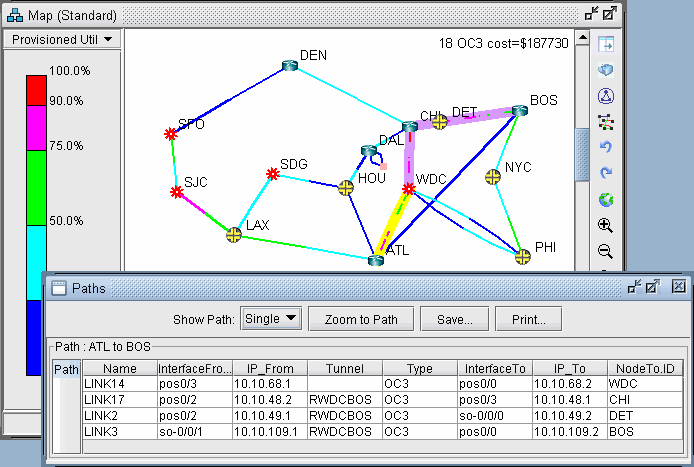
  4. Note that a tunnel itself can route over a tunnel (in this case, an LSP tunnel). The portion that travels over another tunnel is colored in purple.