
Network Grooming
The objective of network grooming is to reroute the paths to minimize the distance metric of the paths using available bandwidth in the network. Navigate to Design > TE Tunnels > Net Groom. The Net Groom - Fetch Tunnels window appears.
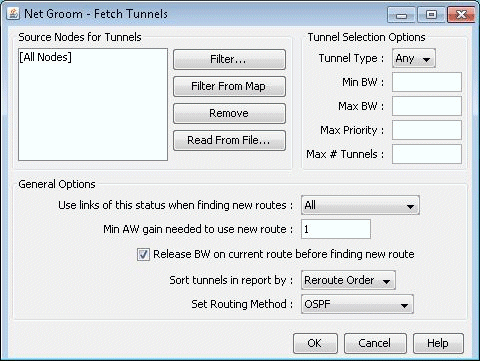
Specify the Source Nodes for Tunnels to narrow down the set of tunnels to be optimized. Otherwise, by default, all tunnel paths will be optimized. Specify Tunnel Selection Options to further narrow down the set of tunnels.
Specify any General Options. Refer to the NorthStar Planner User Interface Guide for more information on the Net Groom window options. To change the distance calculation method to OSPF, RIP, Delay, IS-IS, or CDV, simply click on the “Set Routing Method” button and enter the desired choice in the console. Once all options are set, click OK.
Note that AW is an abbreviation here for “Admin Weight”, which is the same thing as “Admin Cost” or “Link Metric”. Network grooming assumes that the smaller the path’s total admin weight, the better.
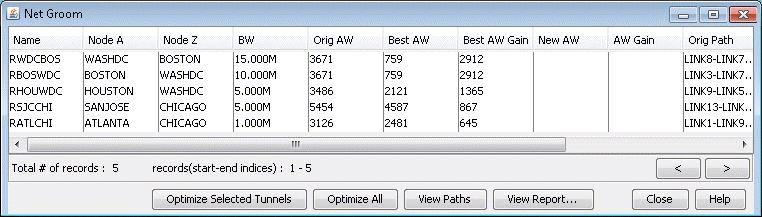
By comparing the Original Admin Weight (AW) with the potential Best (smallest) AW, you can decide which tunnels should have their paths changed or optimized. You can click on the Best AW Gain column header to sort according to the highest reduction in the total admin weight. Click on “View Paths” button to compare the Orig Path and Best Path using the Paths window.
Select Multiple tunnels for optimization and click the “Optimize Selected Tunnels” button. The New AW and AW Gain columns will be populated for the selected tunnels with the actual achieved admin weight. The LSP tunnel paths are updated to the new ones discovered by NorthStar Planner.
Refer to the Design Menu chapter in the NorthStar Planner User Interface Guide for more details about network grooming.