
Viewing Inter-Area Tunnels
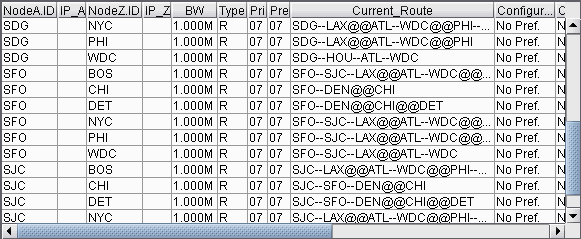
Once the LSP tunnels have been created, update the network state by clicking the Update button displayed just below the main menu. Then, select Network > Elements > Tunnels. Notice the @@ symbol in the Current Route field indicating the border between two areas.
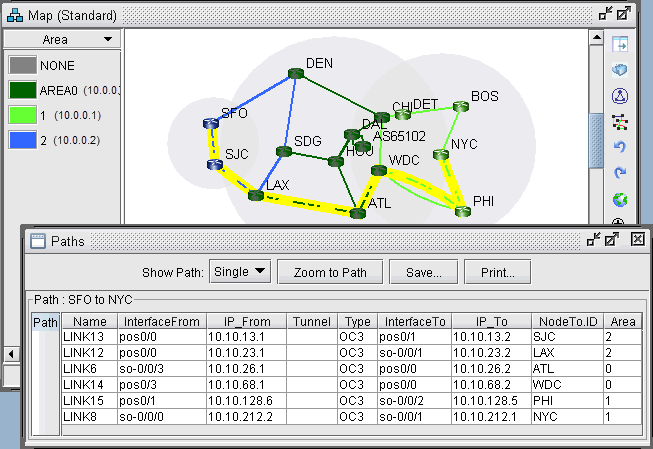
Click “Show Path”. On the Paths window right-click a column header and select Table Options and add the Area column as shown below.
You can also view a detailed report of the LSP Tunnels. Go to Report > Report Manager. In the Report Manager, choose the Tunnel Path & Diversity Report under Tunnel Layer Network Reports > Tunnel Reports.