
Viewing the Integrity Check Report
To view the Integrity Check Report select Report > Report Manager, and click on the Configuration Reports folder, as shown in the following figure. Alternatively, the stethoscope icon located in the upper right-hand corner in the main toolbar provides for a quick shortcut to the same report.
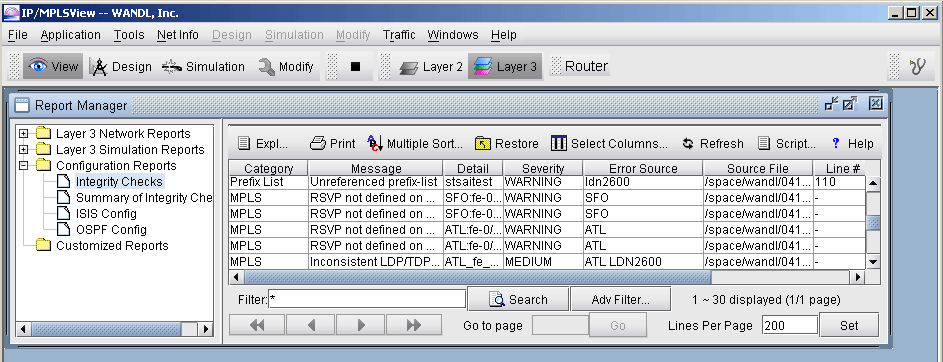
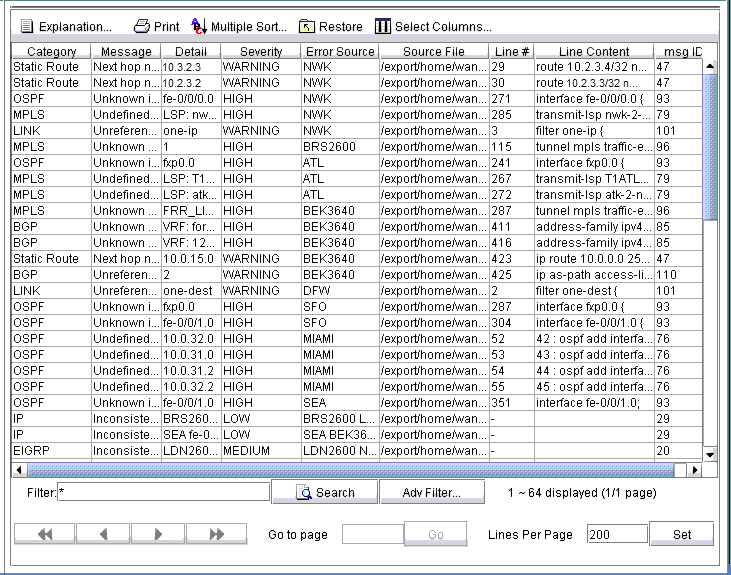
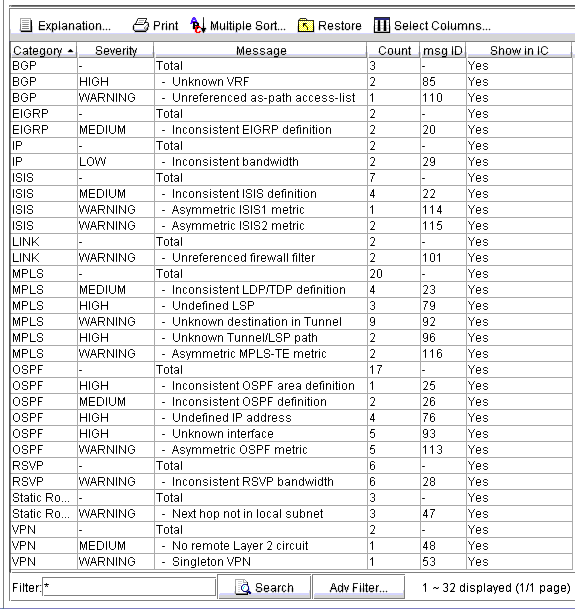
Select the Integrity Checks Report to bring up the report listing all of the integrity checks that were activated for the network. Select the Summary of Integrity Checks Report to bring up a summary of the Integrity checks. The following figures show both reports, respectively.
Using the Report Viewer
The Integrity Check Report can also be viewed using the Report Viewer. In the File Manager, right click on the configLog.<runcode> file and select Open in Report Viewer in the pop-up menu.
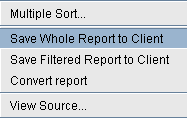
Within the Report Viewer, right-clicking on the report allows the user to save the entire report or the report in its current view to the client, or local machine.
Error Source
The Error Source and Source File columns indicate the router config file(s) that caused the particular integrity check in question. When the user double-clicks on any line in the integrity check report, the associated router config file(s) are brought up. For those local router integrity checks that involve just a single router, the Line# and Line Content columns indicate the particular line in the router config file that is causing a problem.