
Logs
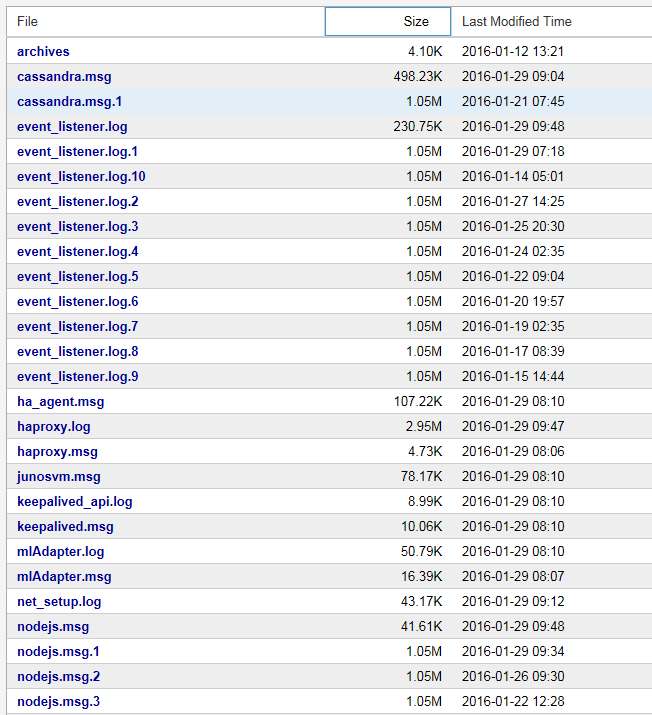
Navigate to Administration > Logs to view a list of the available NorthStar logs. Click any log name to display the contents of the log itself.
Figure 1 shows a sample list of logs.
Figure 1: List of Logs
Hover over any column heading and click the down arrow that appears to view sorting and column selection options. Figure 2 shows an example of sorting and column selection options.
Figure 2: Sorting and Column Selection
Options
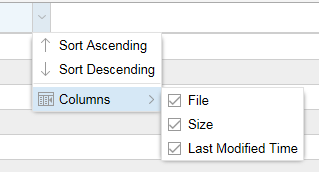
Figure 3 shows a sample log.
Figure 3: Sample Log
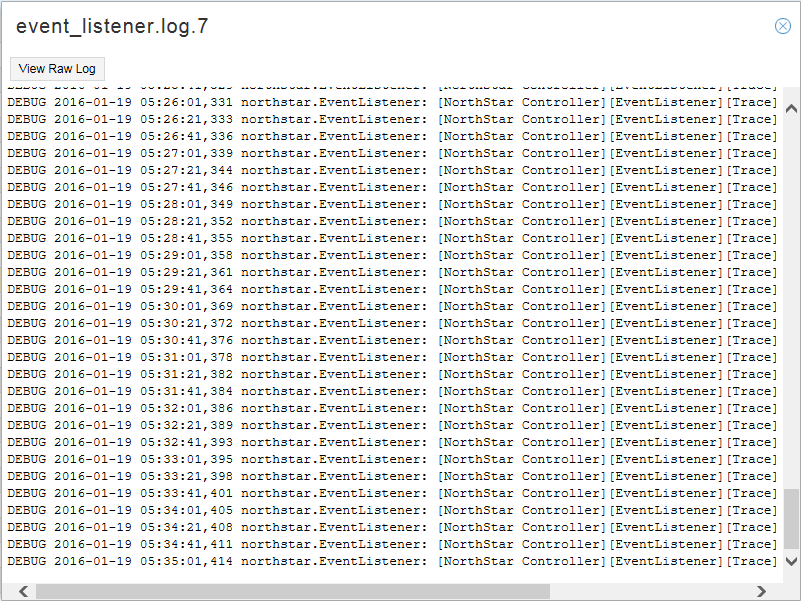
Click View Raw Log in the upper left corner to view the log in a new browser window or tab. This enables you to keep the log viewable while you perform other actions in NorthStar Controller.
Logs are typically used by system administrators and for troubleshooting purposes.