
Add and Assign Tunnel ID Groups
Tunnel ID Groups are used to configure tunnel IDs that conform
to Cisco’s default tunnel names when creating LSP configlets
or using the LSP Delta wizard. Cisco default tunnel IDs are of the
form, Tunnel#, where the # is unique for each tunnel and
is referred to as the tunnel ID. The tunnel ID assigned to an LSP
tunnel is determined by the tunnel ID group to which that LSP tunnel
belongs. Therefore, two items need to be configured: 1) the tunnel
ID group, which contains a range of tunnel IDs, and 2) the LSP tunnel,
which needs to be assigned to a tunnel ID group.
Once you have a tunnel ID group, it can also be used to create an incremental full mesh of tunnels for that group as described in Adding Multiple Tunnels.
-
The first step is to create a user parameter to be used for assigning tunnel ID groups to LSP tunnels. Navigate to Tunnels > Modify > User Parameters, which will open the User Parameters window. In this window, activate the Tunnel tab, then click the Add button and specify a name for the new tunnel user parameter. In the example below, the name “Tunnel_ID_Group” is used.
Figure 1: Adding a Tunnel ID Group User Parameter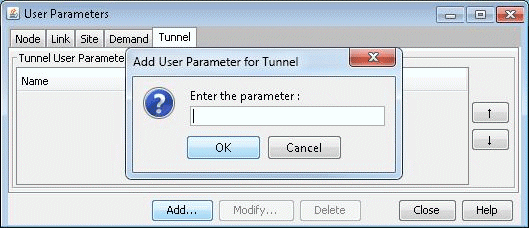
-
The next step is to create a tunnel ID group. On the menu bar, select Network > Elements > Tunnel ID Groups.
Figure 2: Creating Tunnel ID Groups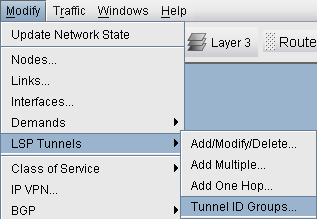
-
To add a tunnel ID group, in the Tunnel ID Groups window click the Add button, then give the new group a name and an ID range as shown below. Also be sure to select a Tunnel User Parameter to use for assigning tunnel ID groups to LSP tunnels.
Figure 3: Adding a Tunnel ID Group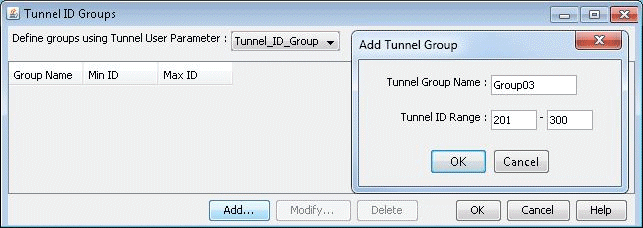
-
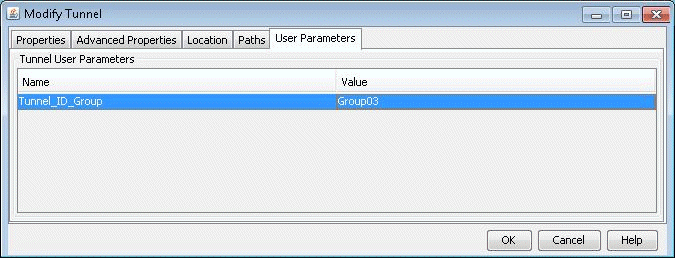
Now that a tunnel ID group has been created, and a tunnel ID group user parameter has been created, the user can modify LSP tunnels to assign a tunnel ID group to that LSP tunnel’s tunnel ID group user parameter. To do this, go to Tunnels tab, select a LSP tunnel, and click the Modify button. Then in the Modify Tunnel window, select the User Parameters tab, then click the Value field of the tunnel ID group user parameter to activate a dropdown menu of all existing Tunnel ID Groups. Select a tunnel ID group from the list, then click OK.
Tunnel ID groups are used in functions such as generating LSP configlets. When generating a configlet, the user will be prompted with the following window:

If Yes is selected, the tunnel name will be modified to match the Cisco naming convention, with the ID number selected from the tunnel ID group assigned to that tunnel. An example of a configlet with the tunnel name modified to the Cisco naming convention is shown below.
!! BOS
interface Tunnel0123
description from BOS to WDC
ip unnumbered Loopback0
tunnel destination 10.10.10.8
tunnel mode mpls traffic-eng
tunnel mpls traffic-eng autoroute announce
tunnel mpls traffic-eng priority 2 2
tunnel mpls traffic-eng bandwidth 10000
tunnel mpls traffic-eng path-option 10 explicit name Tunnel0.p0