
Import Network Wizard
The Import Network Wizard is an interactive tool that allows you to import data files that are converted into a NorthStar Planner network model. You can specify the import input directory and select other options for parsing a set of data files. Launch the wizard from the My Networks tab of the Network Browser by clicking the blue circle with the + sign on the right side of the window as shown in Figure 1.
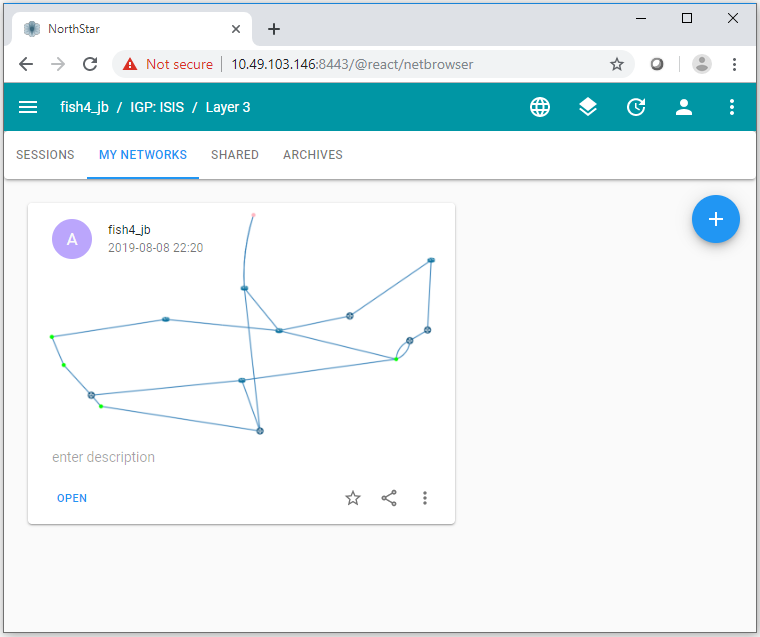
Once you have launched the wizard, proceed as follows:
Click Next on the wizard landing page to display the Setup Import window shown in Figure 2.
Figure 2: Setup Import Window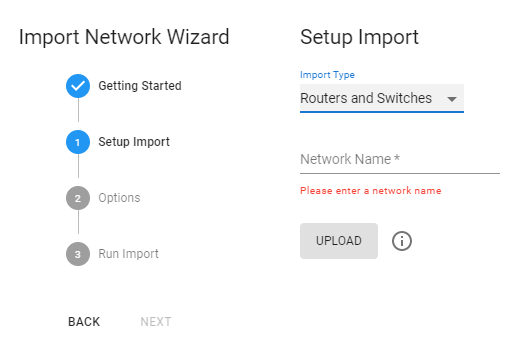
Use the Import Type drop-down menu to select one of the following import type options:
Note:Important: Currently, only .tar and .gz files can be imported (.zip files are not supported), and the file cannot contain subdirectories.
Routers and Switches
OSPF/ISIS Database
TED Database
Spec Files
Enter a network name and click Upload. Options available for the import type you selected are displayed. If there are no options available, the options step is skipped.
Select options by clicking the corresponding check boxes. Click Next to complete the import. Once imported, the network is available in the My Networks tab of the Network Browser.