Help us improve your experience.

Let us know what you think.

Do you have time for a two-minute survey?


VPLS-BGP VPN (for Juniper)

The VPLS-BGP VPN is based on the IETF Kompella/Rekher draft. To configure a VPLS-BGP VPN (implemented by Juniper only), the user would perform the following sequence of steps:

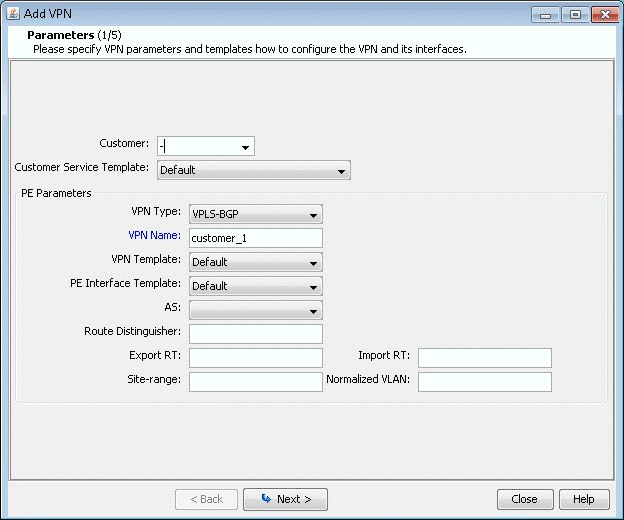
  1. Bring up the Add VPN window and select VPLS-BGP VPN (For Juniper). Then type in a name for the VPN (e.g. VPLS_4) as shown in the following figure.
    Figure 1: VPLS-BGP VPNAdd VPN configuration window for network setup, first step in process. Includes customer selection, service template, PE parameters like VPN type and name, route settings, and navigation buttons.
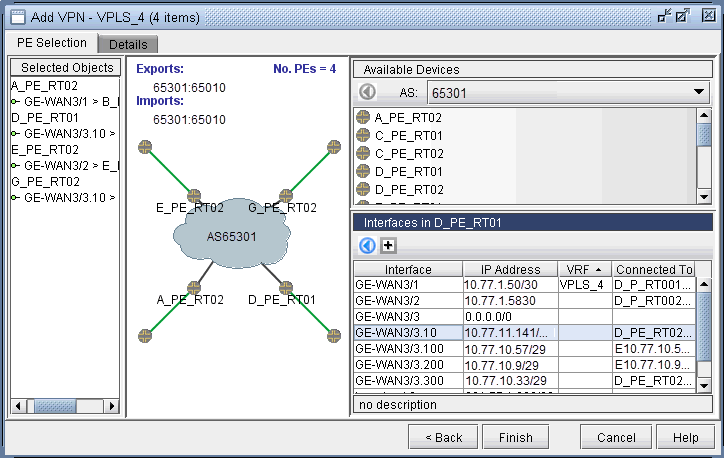
  2. Click on Next to bring up the window where you can choose PEs and assign the Route Distinguisher, Route Target Exports, and Route Target Imports for a chosen AS as described under the L3 (Layer 3) VPN section). The program automatically recommends values or you may provide your own.
  3. Click on Next to bring up the following window where you would assign the PE facing CE interfaces (in the same manner as described under the L3 (Layer 3) VPN section). The following figure shows the result of the assignment of the interfaces.
    Figure 2: Interfaces assigned to the PEsNetwork configuration interface for adding a VPLS to a VPN, titled Add VPN - VPLS_4, showing selected devices like A_PE_RT02 and network topology with PE routers connecting to AS65301.
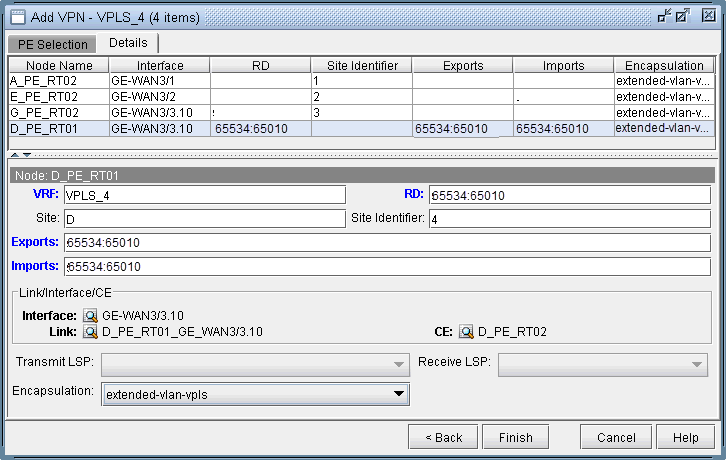
  4. Next, click on the Details tab to specify the Encapsulation, Site, Site Identifier. The LSPs may also be specified, as appropriate. The following figure shows assignments completed for three nodes and in-progress for the fourth node.
    Figure 3: Interfaces assigned to the PEsNetwork configuration interface for setting up a VPLS VPN, showing title Add VPN - VPLS_4, PE Selection Table with nodes, interfaces, route distinguishers, site identifiers, exports/imports, encapsulation details, and Node Configuration Section with VRF, RD, site identifier, exports/imports, link/interface/CE, encapsulation, Transmit/Receive LSP options, and navigation buttons Back, Finish, Cancel, Help.

    The Encapsulation drop-down includes the following values from which you can select: ethernet-vpls, ether-vpls-over-atm-llc, extended-vlan-vpls, and vlan-vpls.

  5. Finally click on Finish to complete the creation of a Juniper VPLS VPN.